
Web dashboard. Your salon on any browser, built for the front desk and the laptop at home.
Time management
Drag an appointment to a new time, a new stylist or a new day. Gap time, buffers and breaks keep the calendar honest.
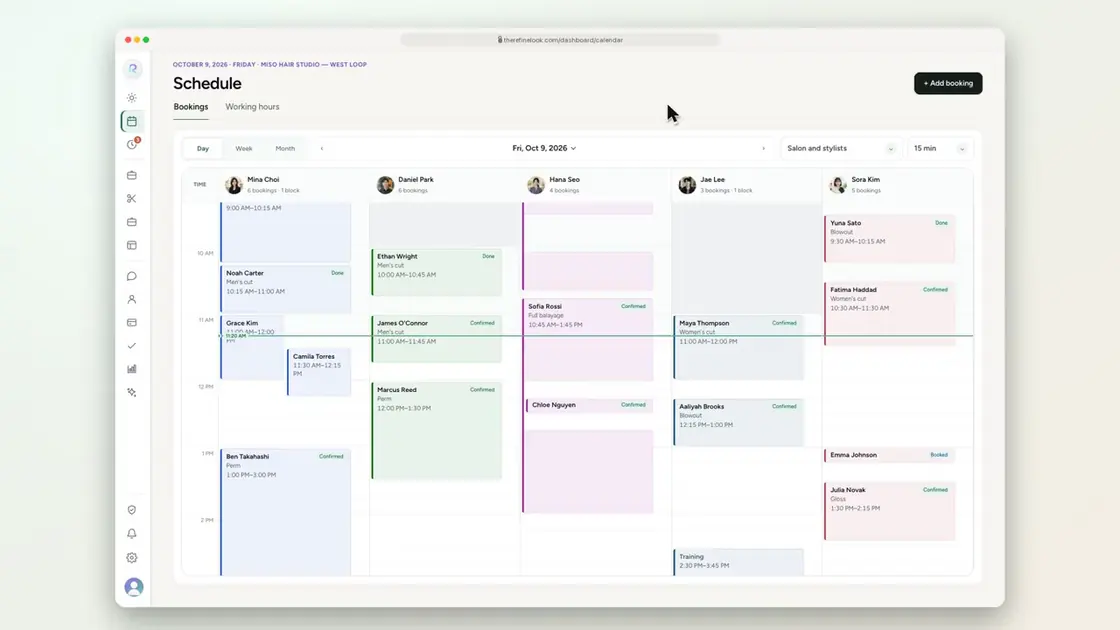
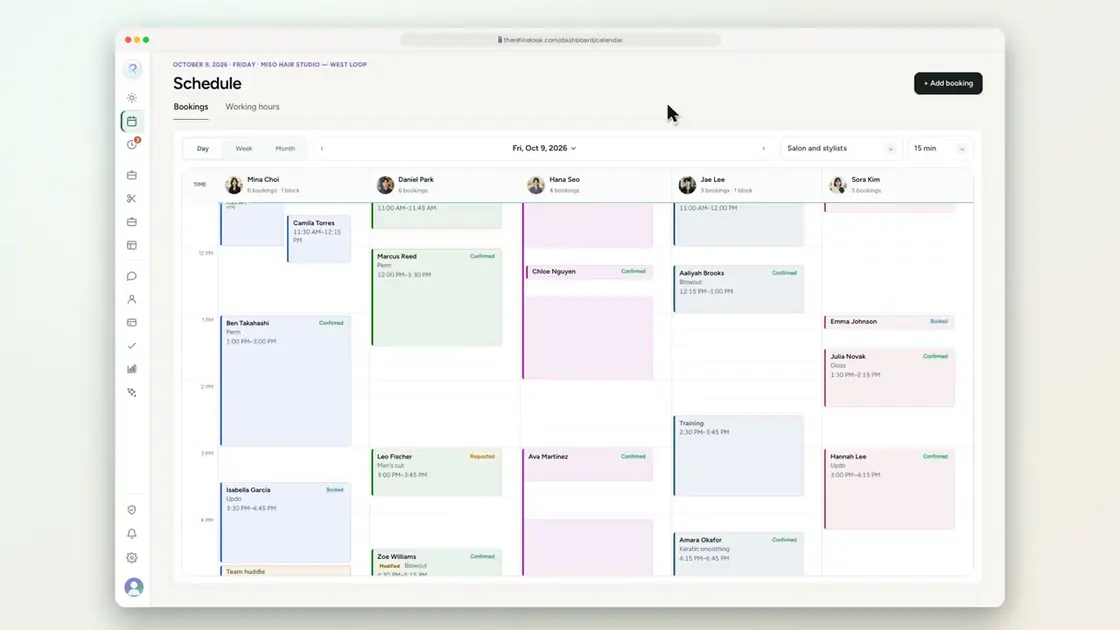
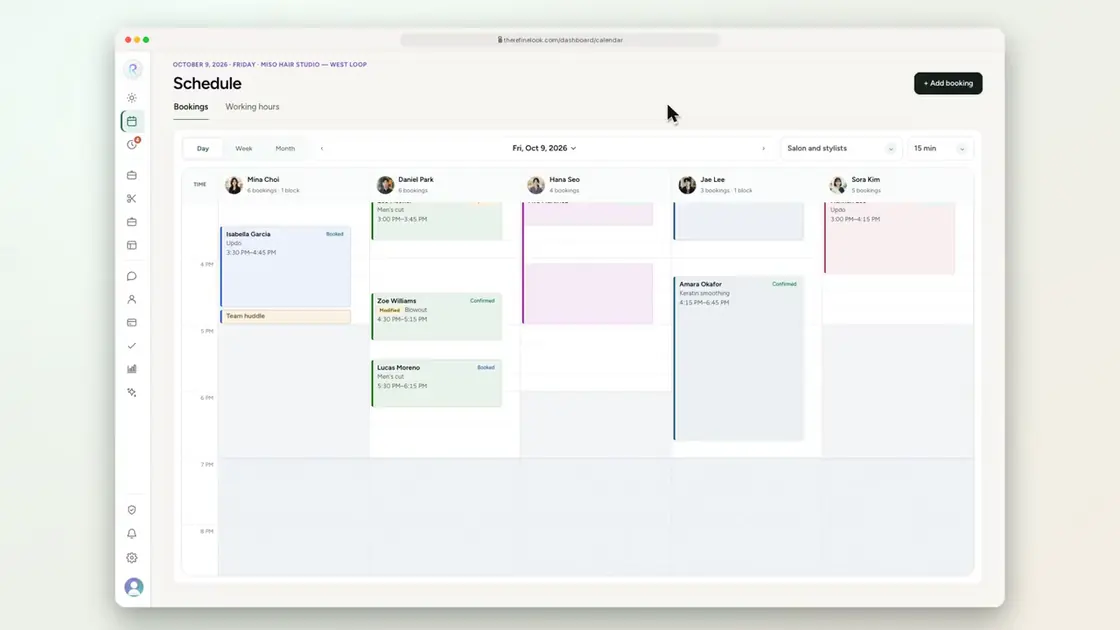
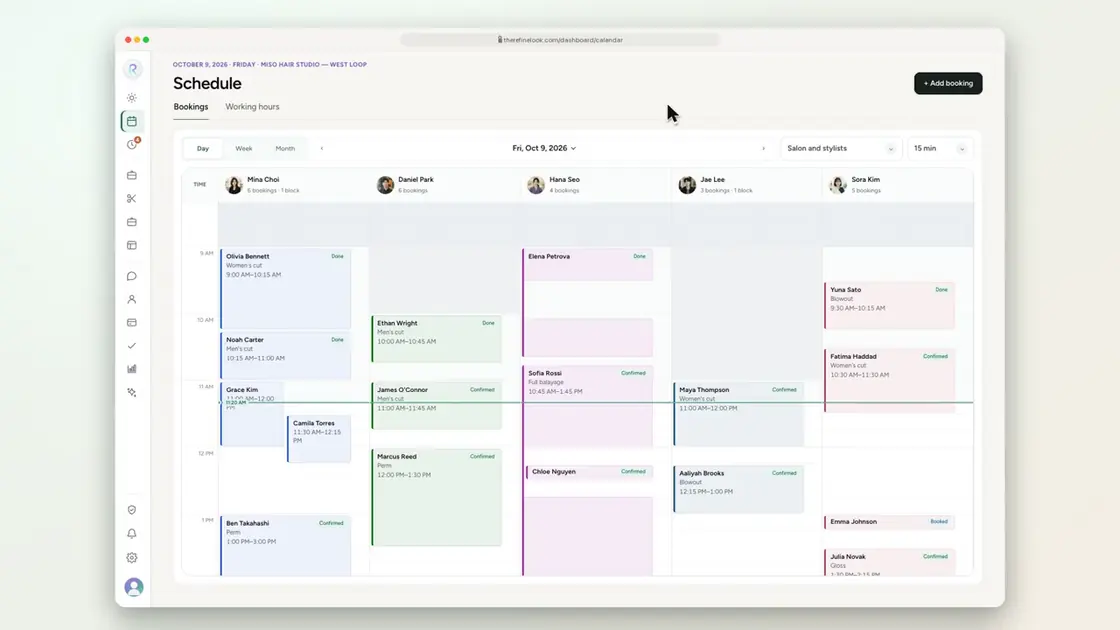
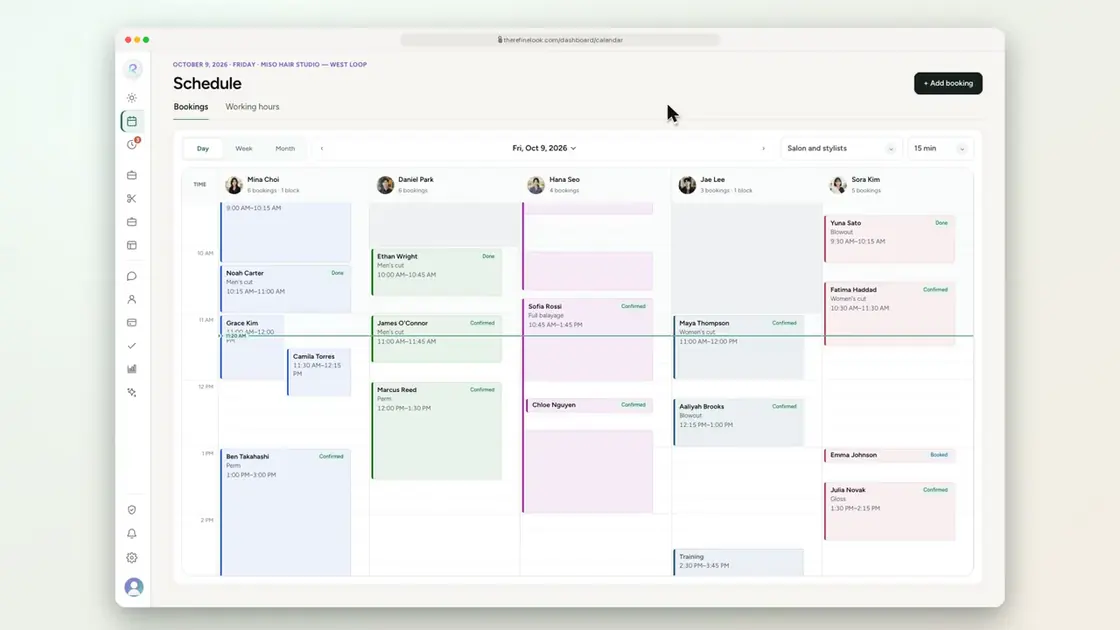 0:151-1See every stylist side by side
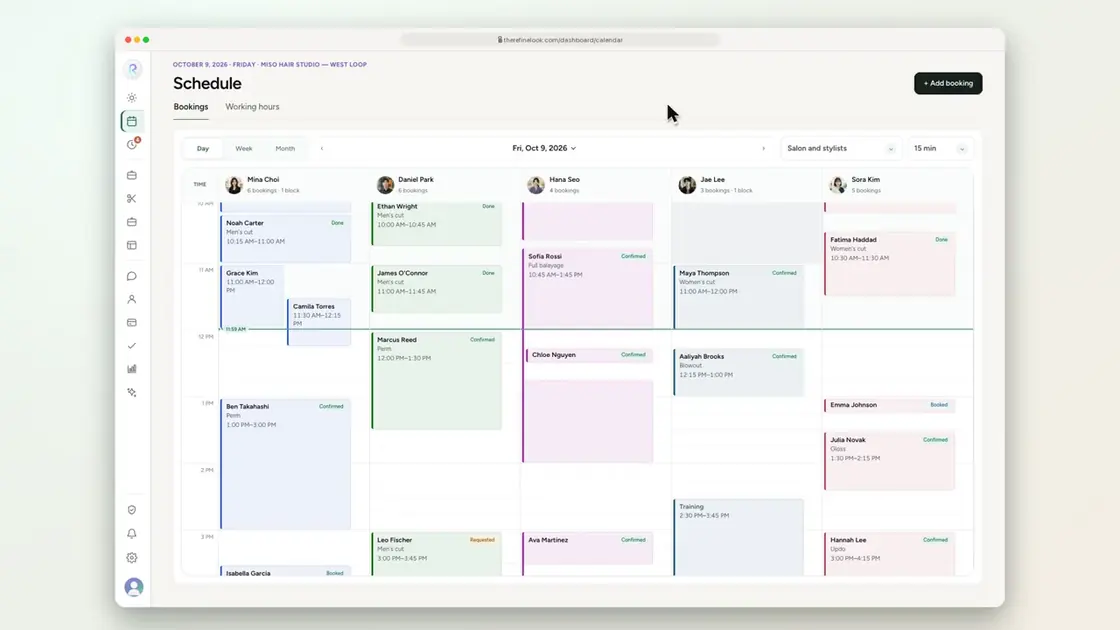
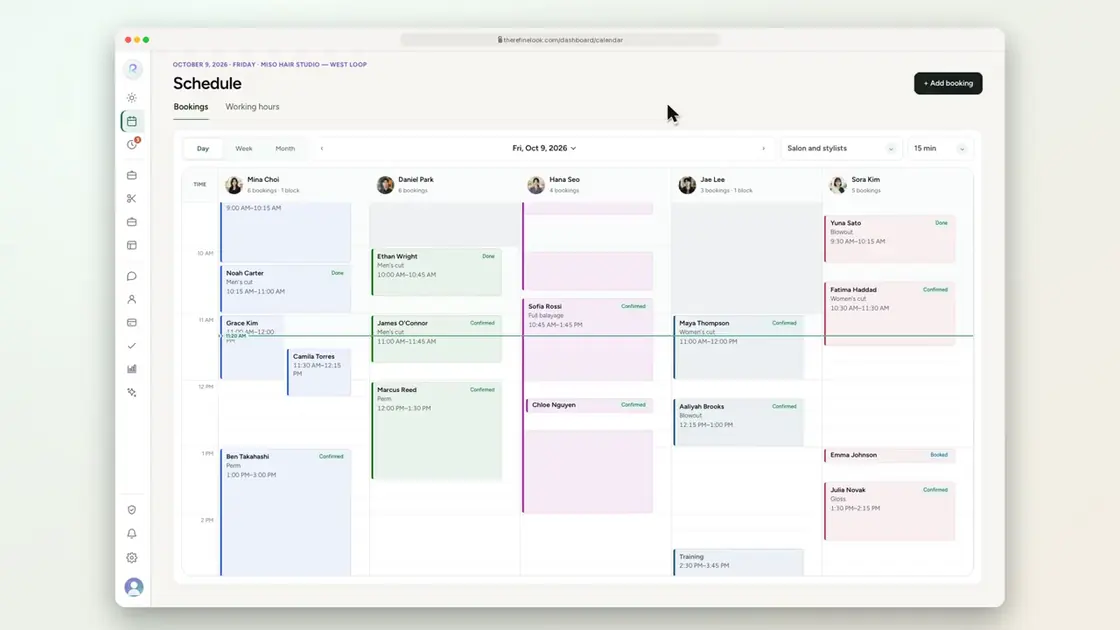 0:111-2Switch between day, week and month
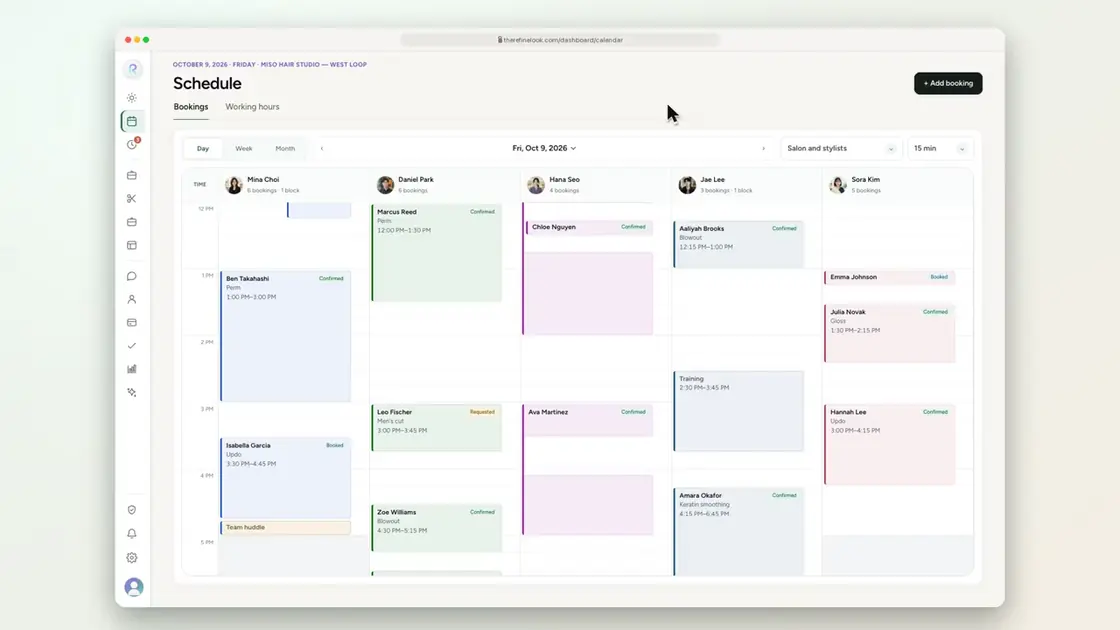 0:151-3Change the time grid
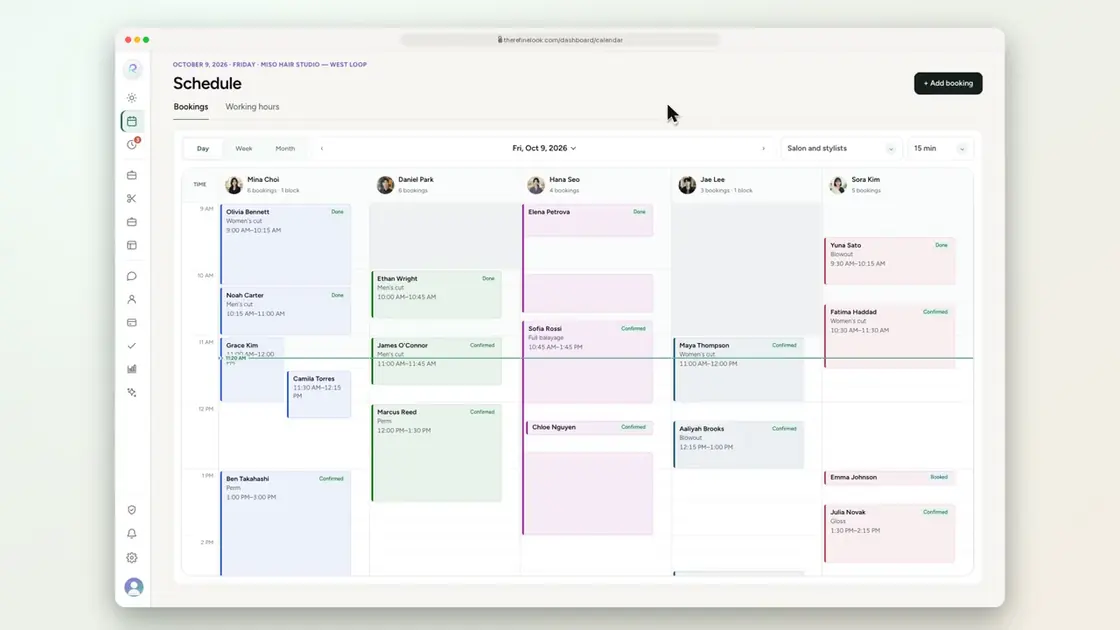 0:071-4Live time line and past time shading
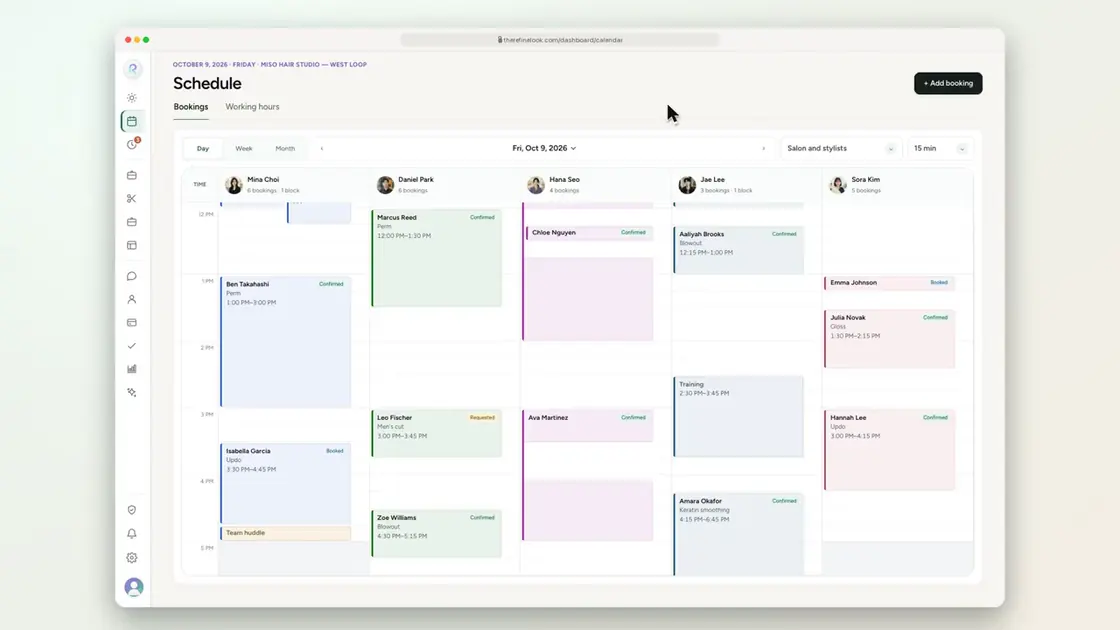 0:061-5Hover empty time to see the slot
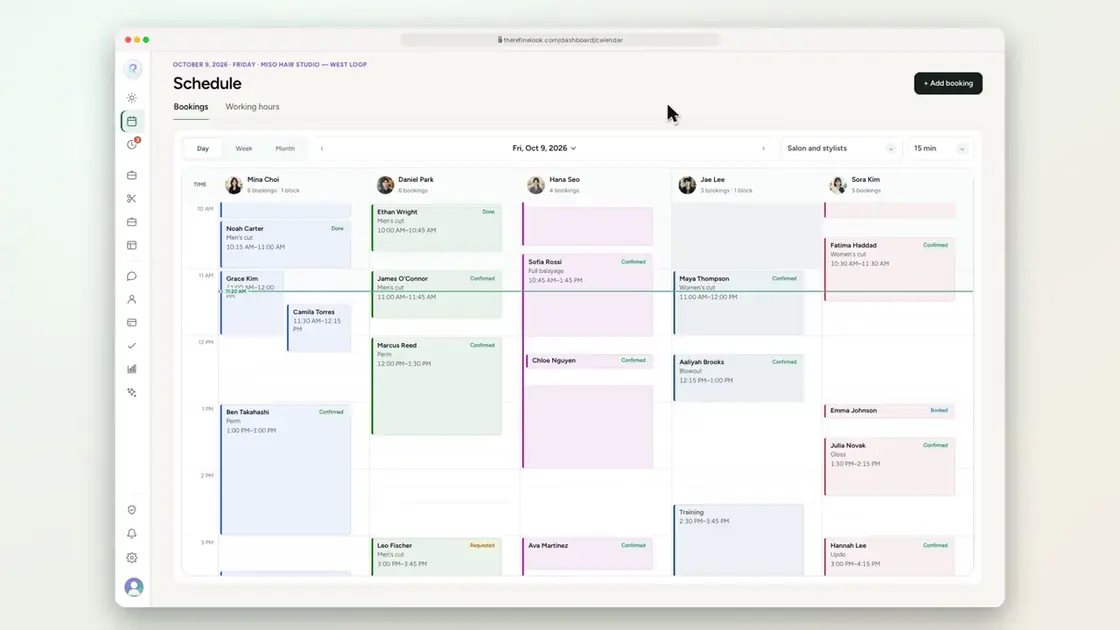 0:081-6Hover an appointment for details
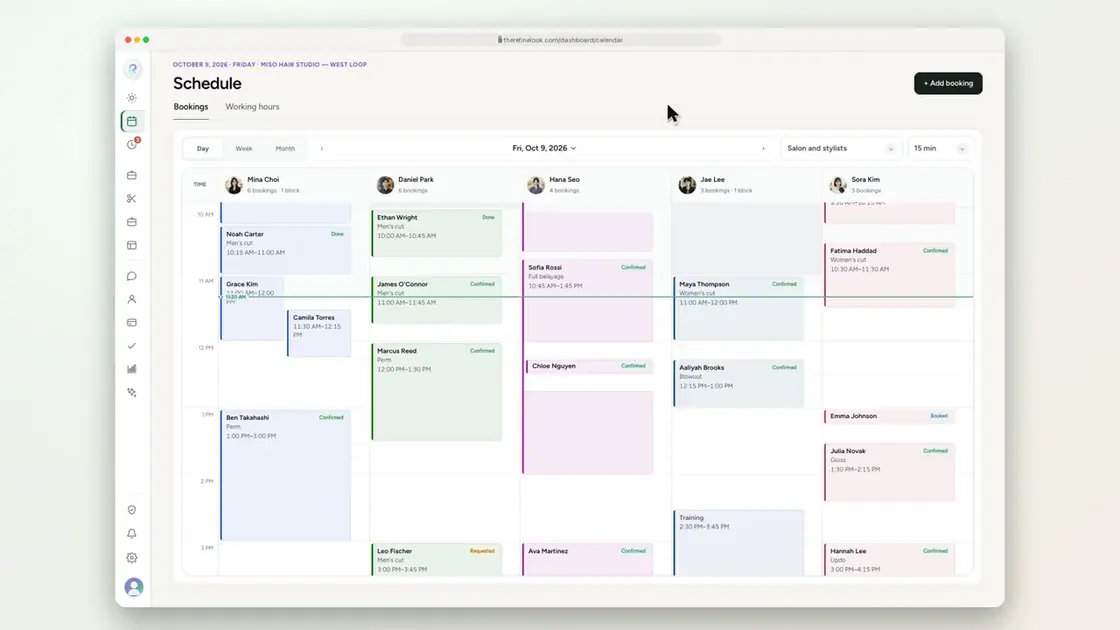 0:071-7Overlapping appointments side by side
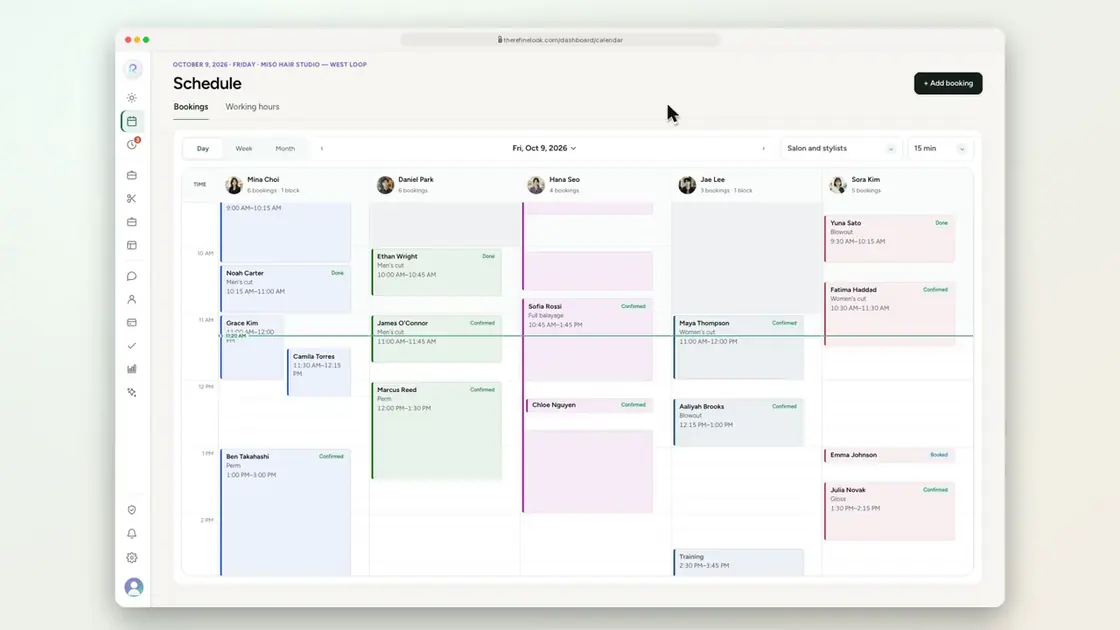 0:071-8Jump to any date
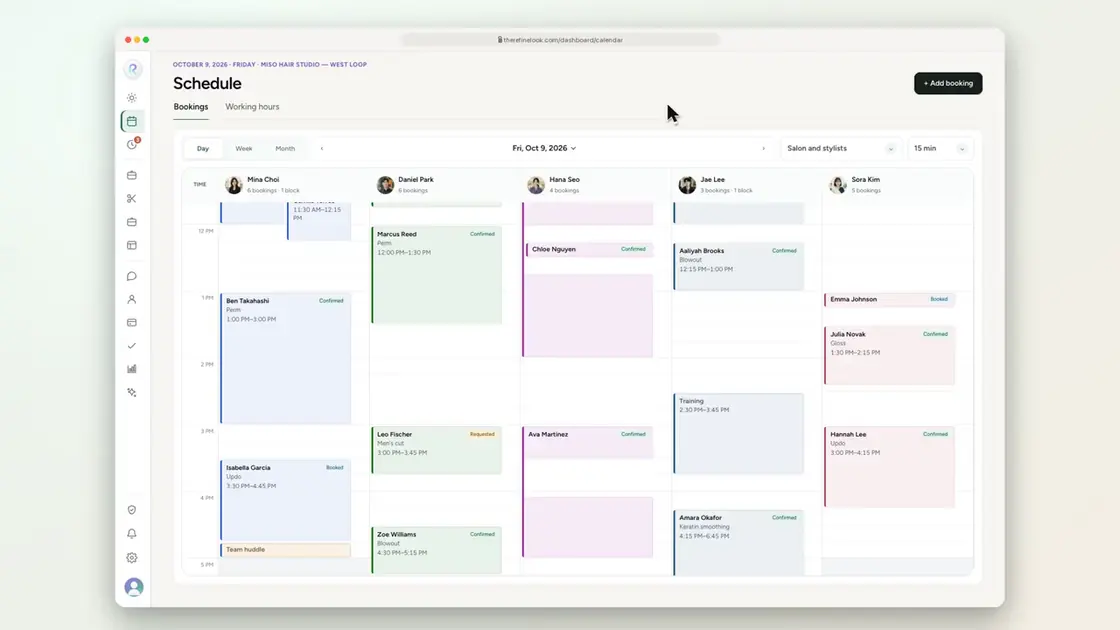 0:181-9Drag on empty time to add a booking
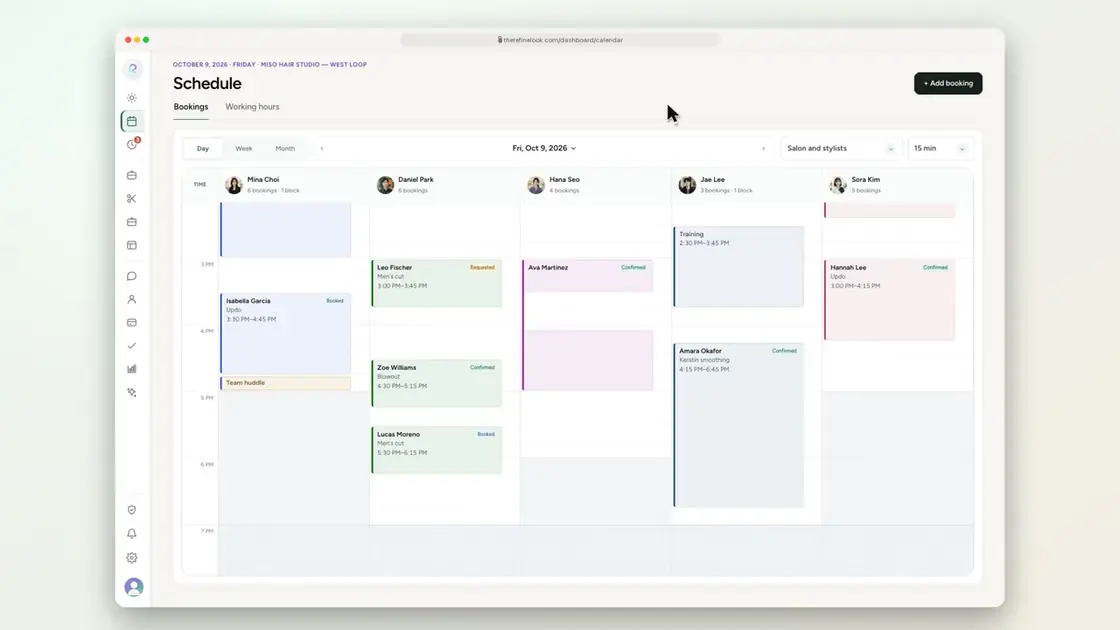 0:141-10Drag on empty time to add a break
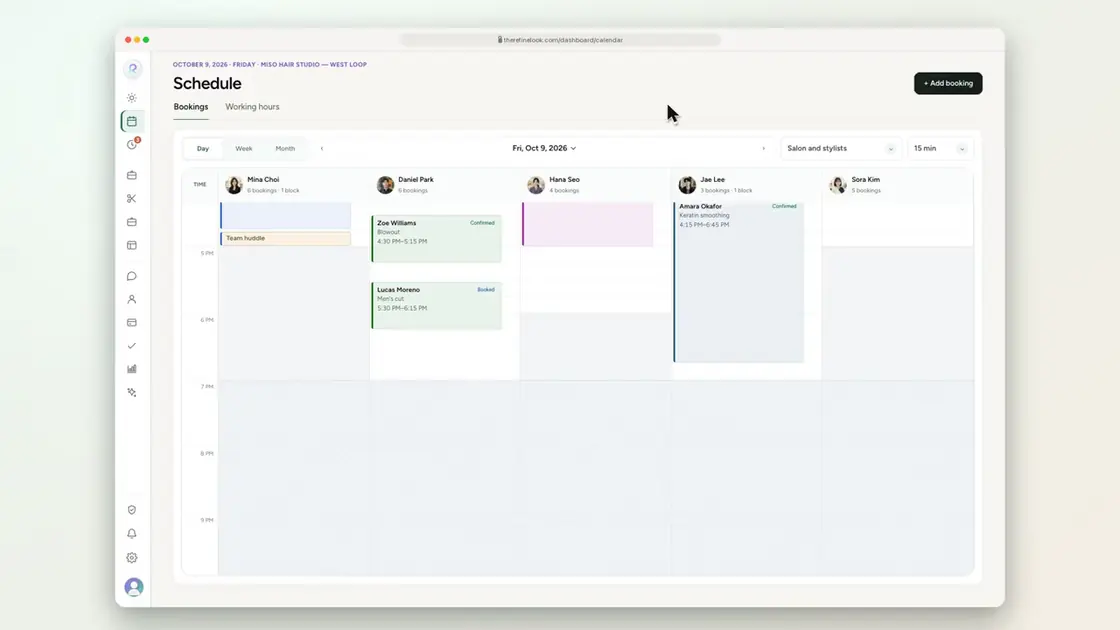 0:161-11Block time with your own label
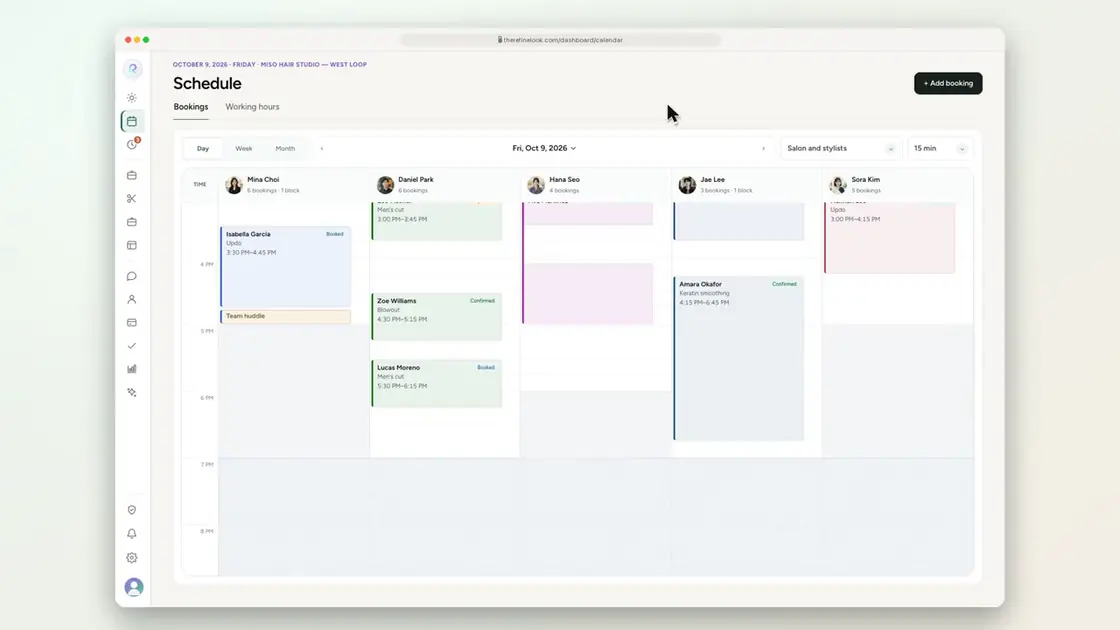 0:161-12Click an empty slot to book
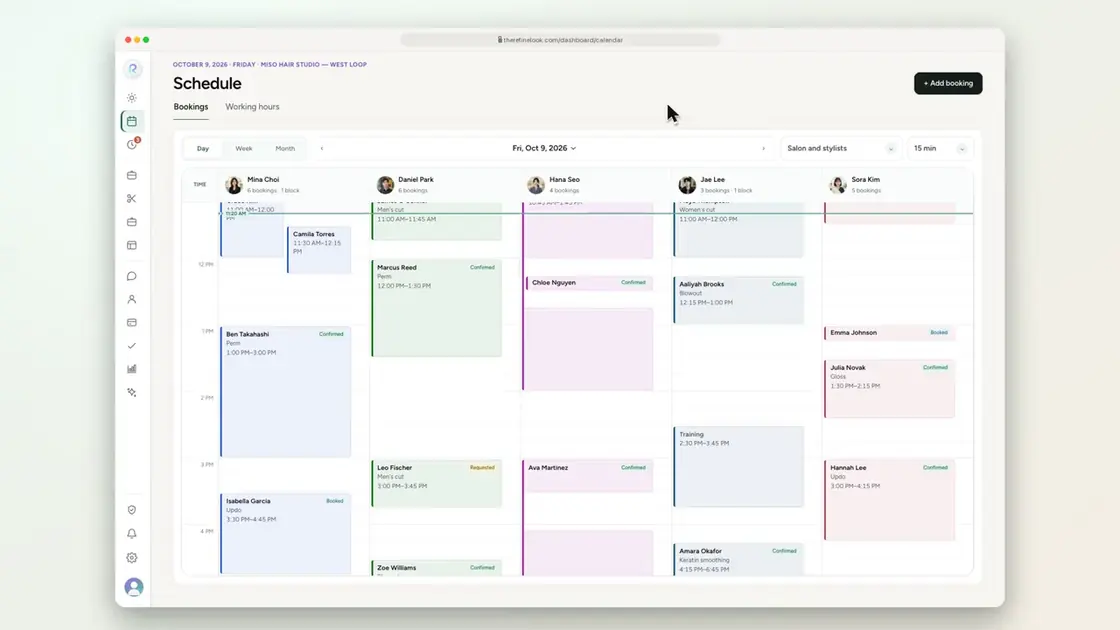 0:141-13Drag an appointment to a new time
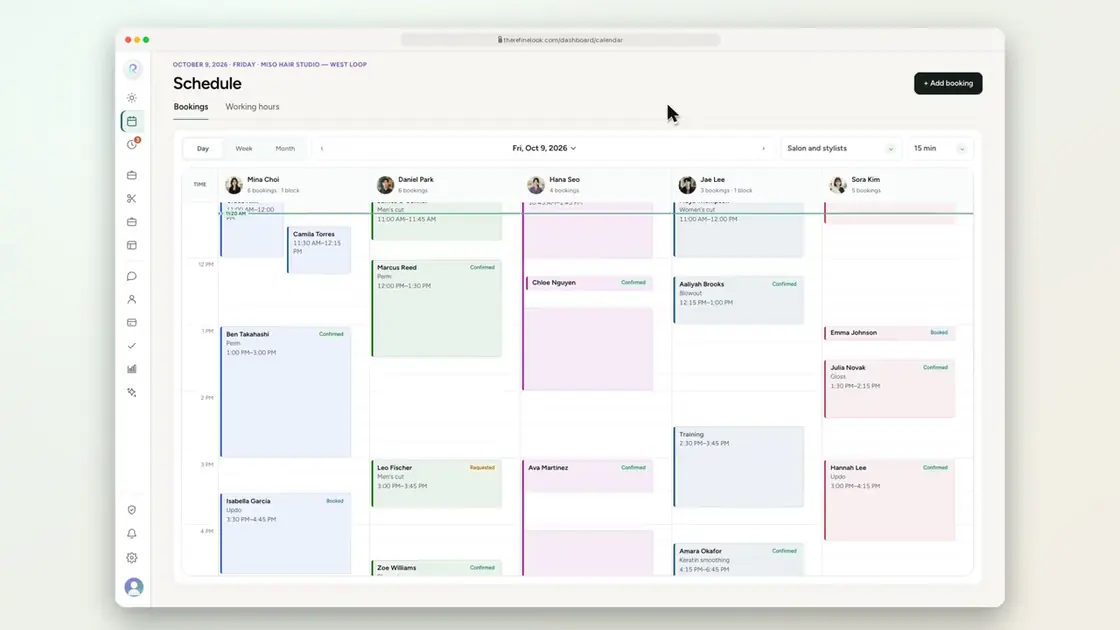 0:141-14Drag an appointment to another stylist
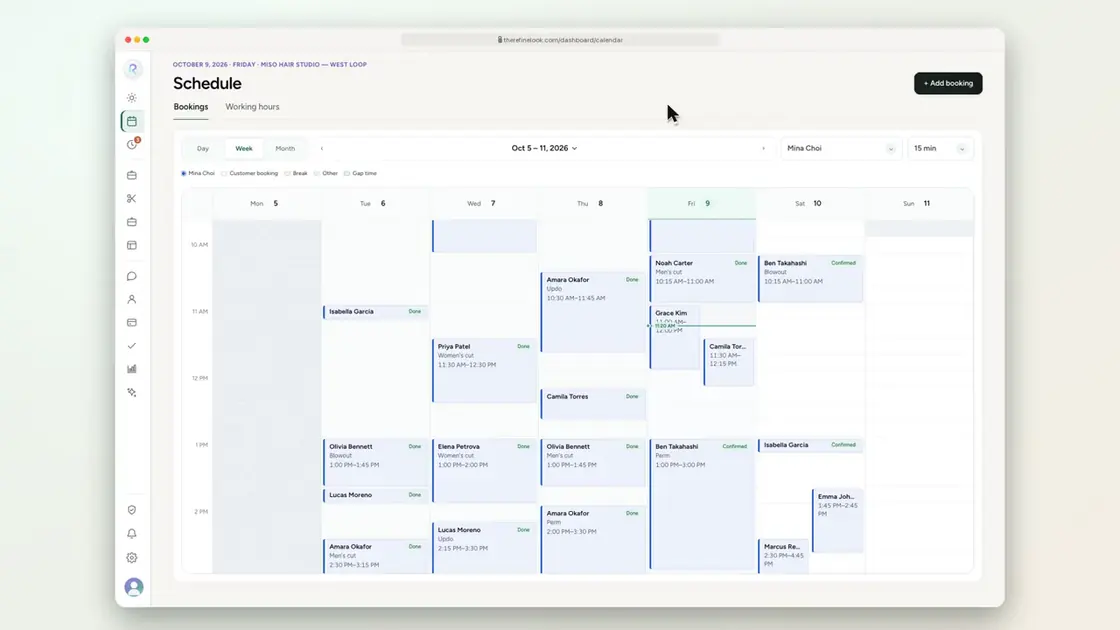 0:141-15Drag an appointment to another day
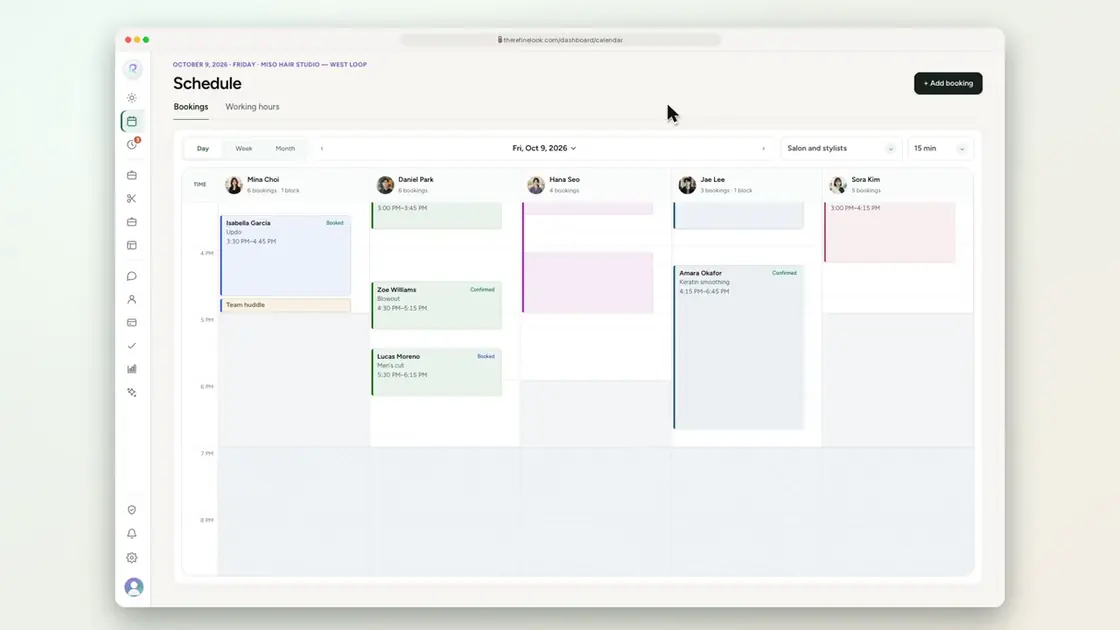 0:131-16Drag the edge to change the length
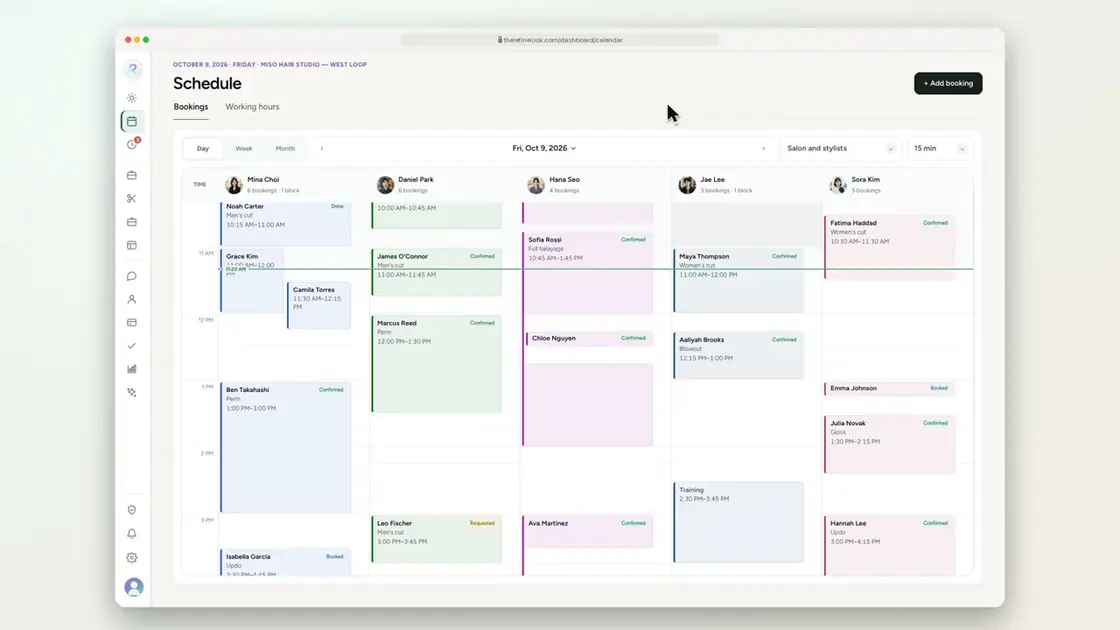 0:221-17Review warnings before confirming
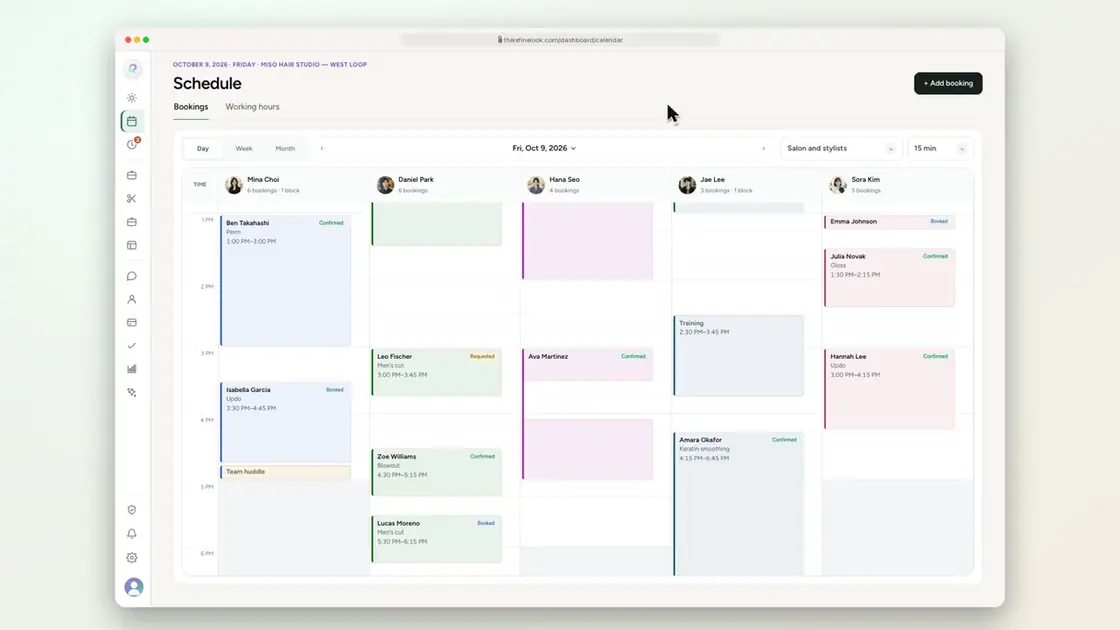 0:111-18Move and resize breaks and blocked time
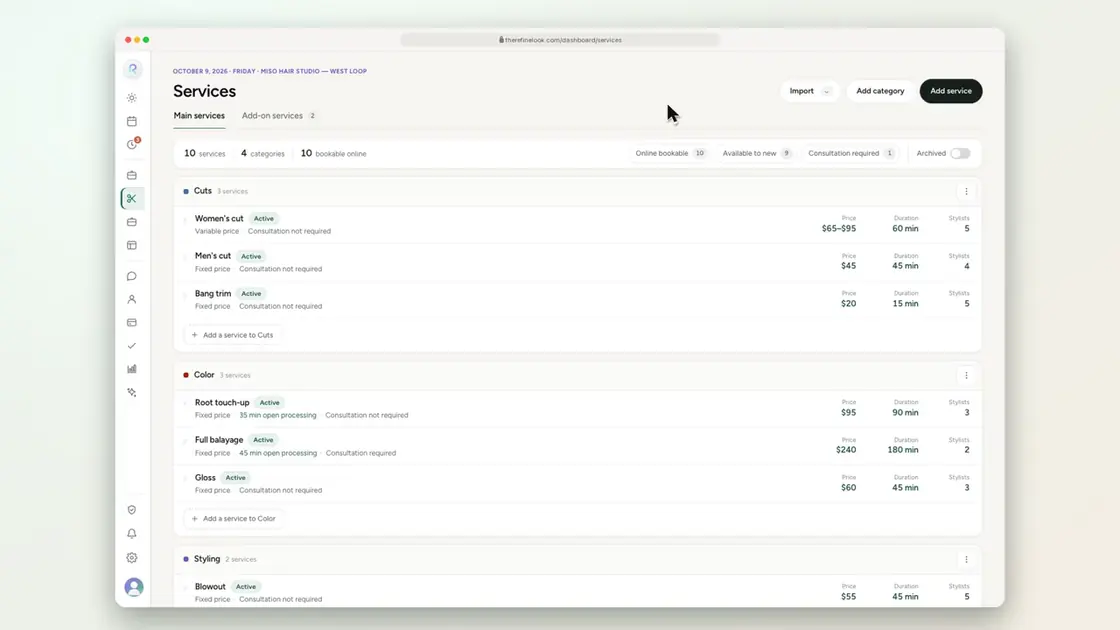 0:181-19Set active and processing time for a service
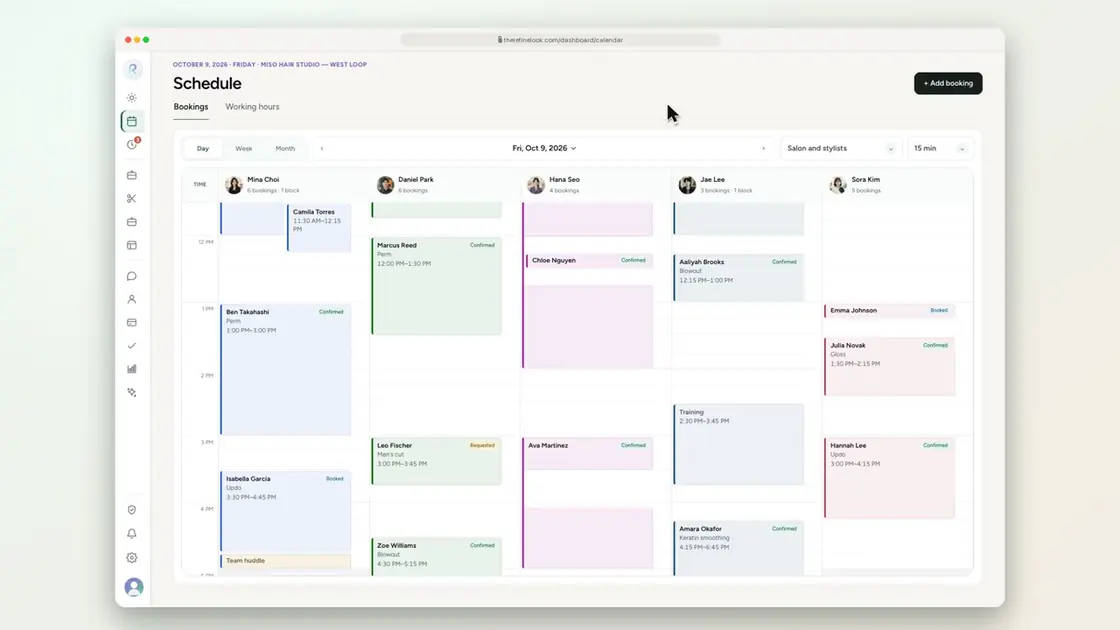 0:151-20Open gap time inside a booking
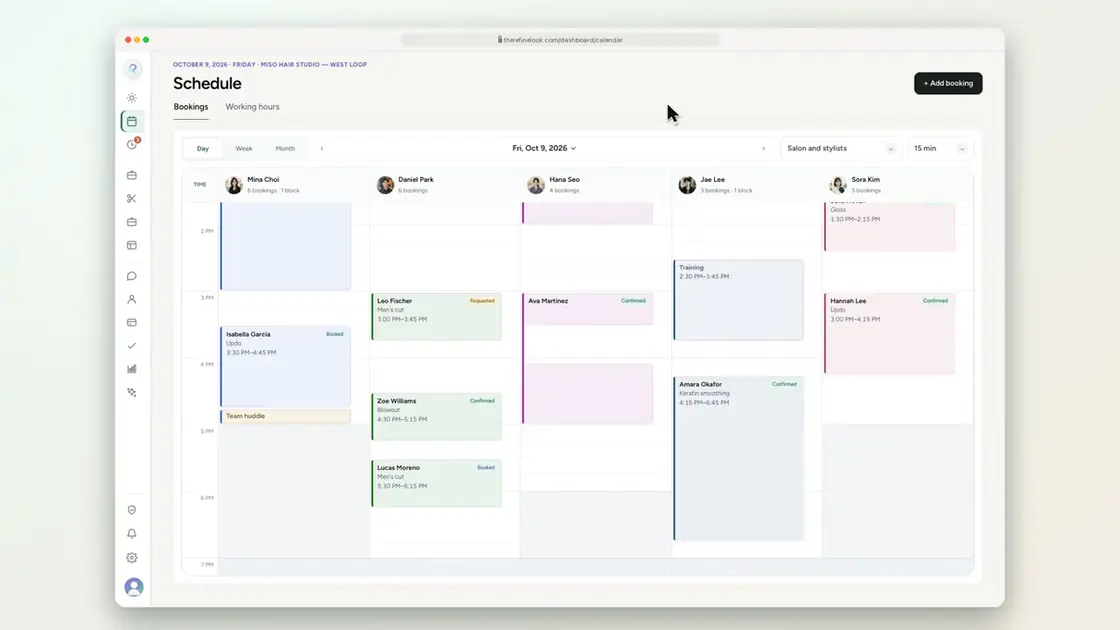 0:121-21Move or resize gap time with its handles
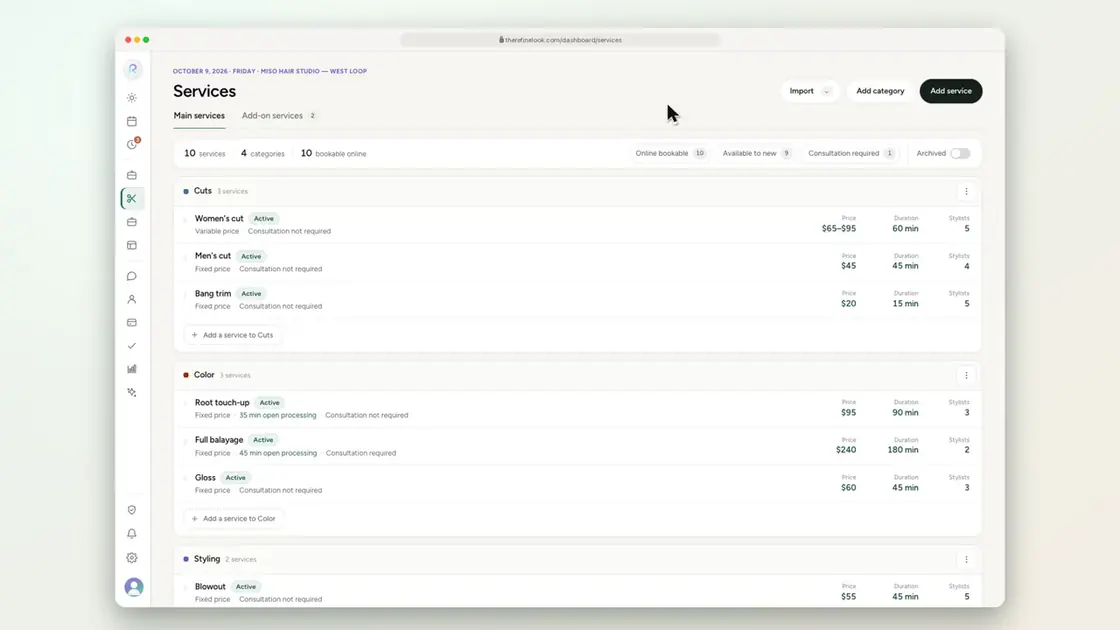 0:151-22Add buffer time before and after a service
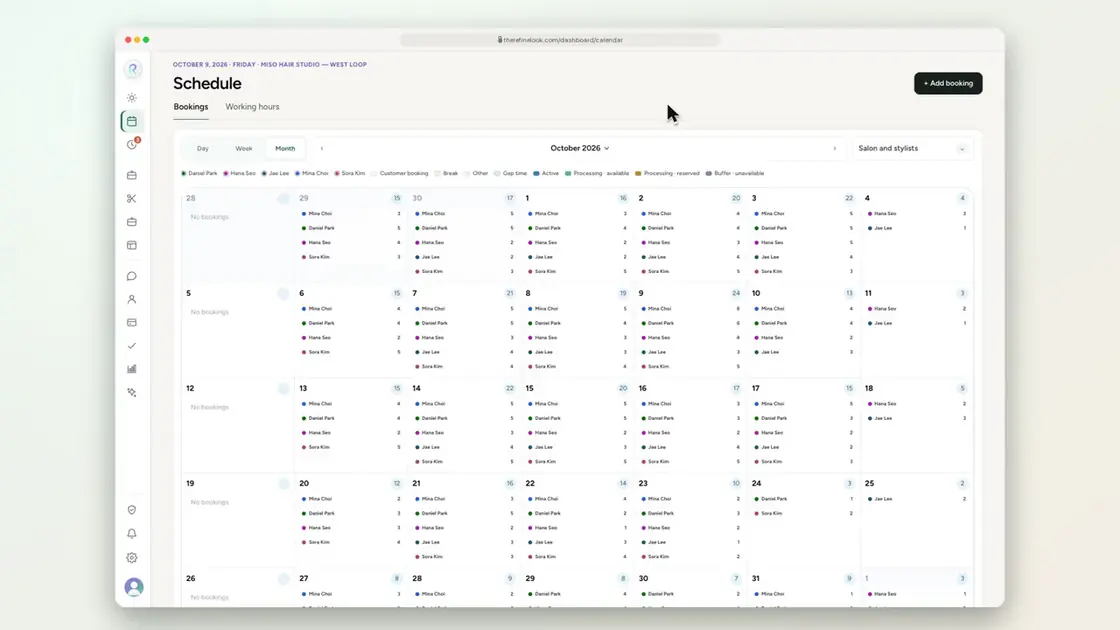 0:071-23Stylist colors and the color key
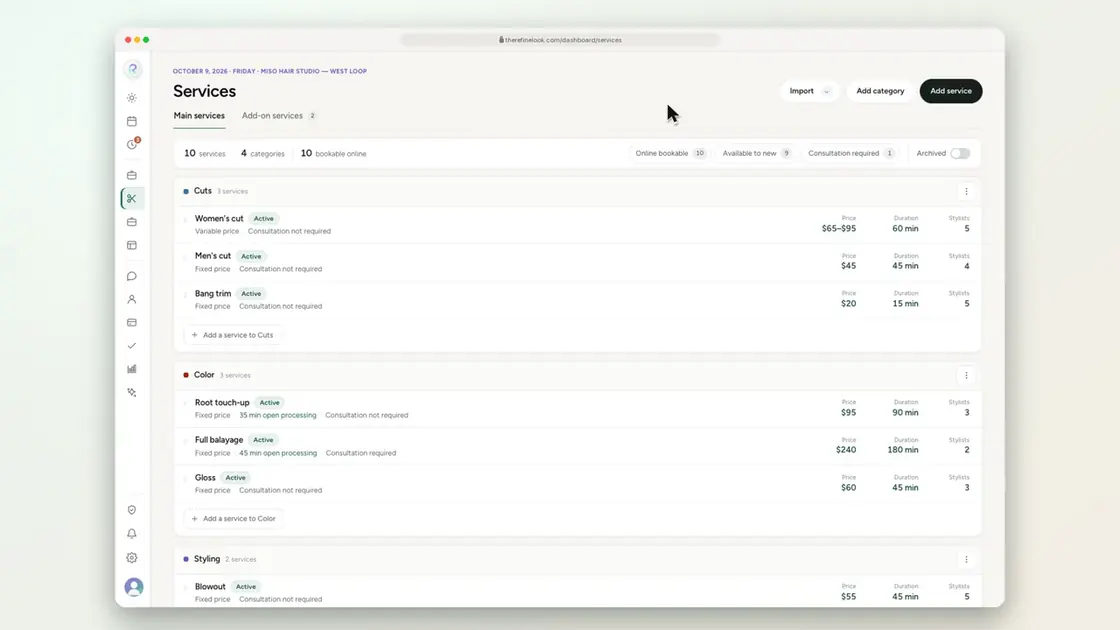 0:131-24Color-coded service categories
 0:201-25Set salon opening hours
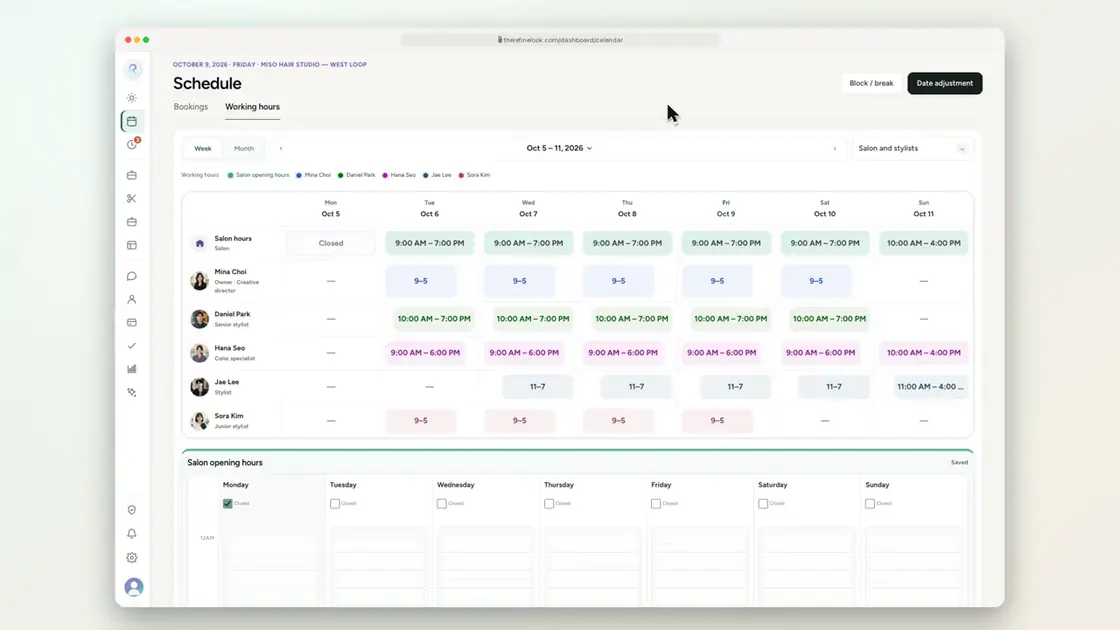 0:271-26Set each stylist's weekly hours
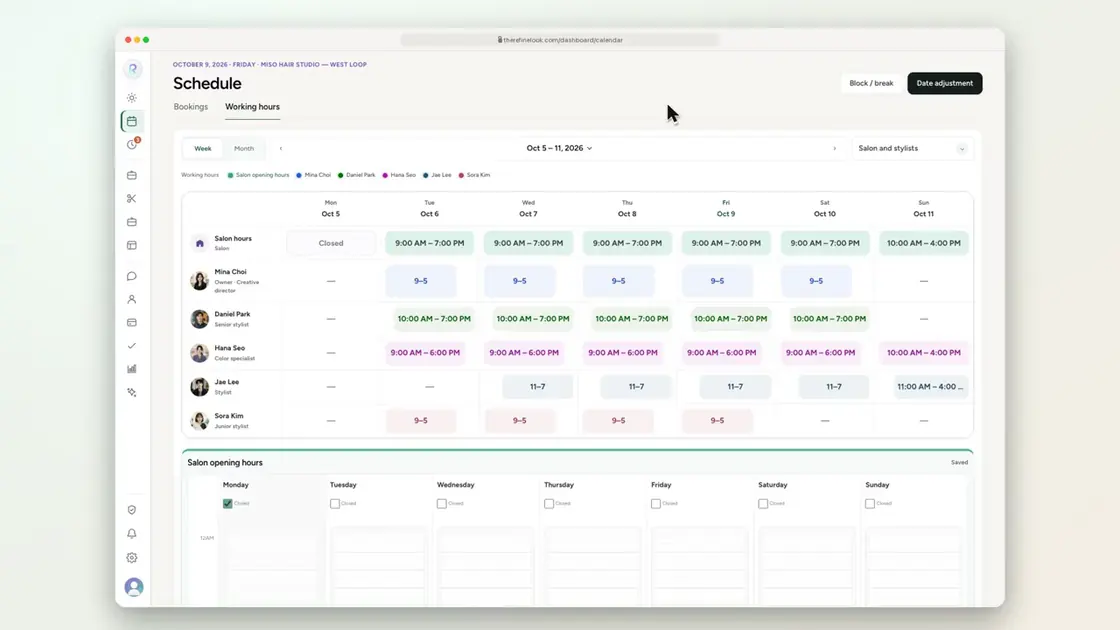 0:151-27Add a recurring break
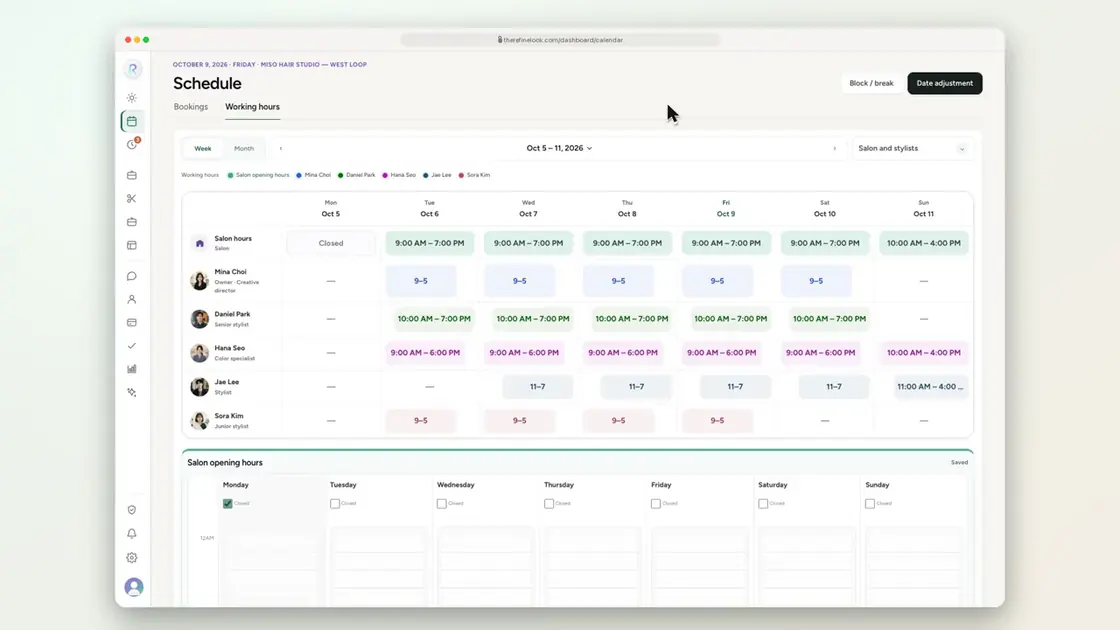 0:141-28Drag special hours for a single day
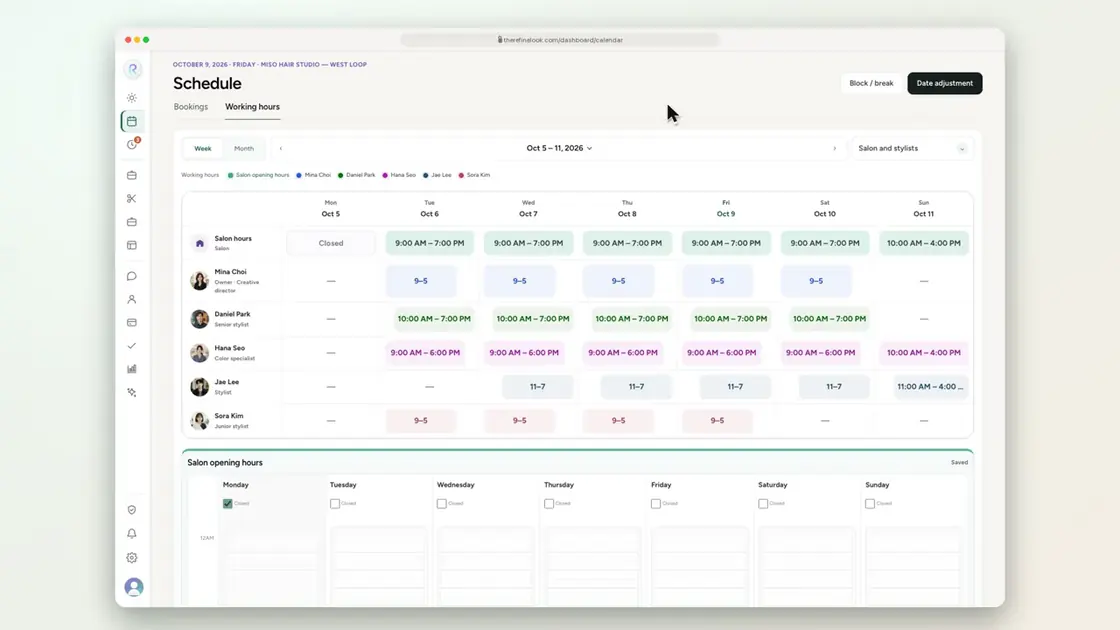 0:141-29Close for public holidays in one tap
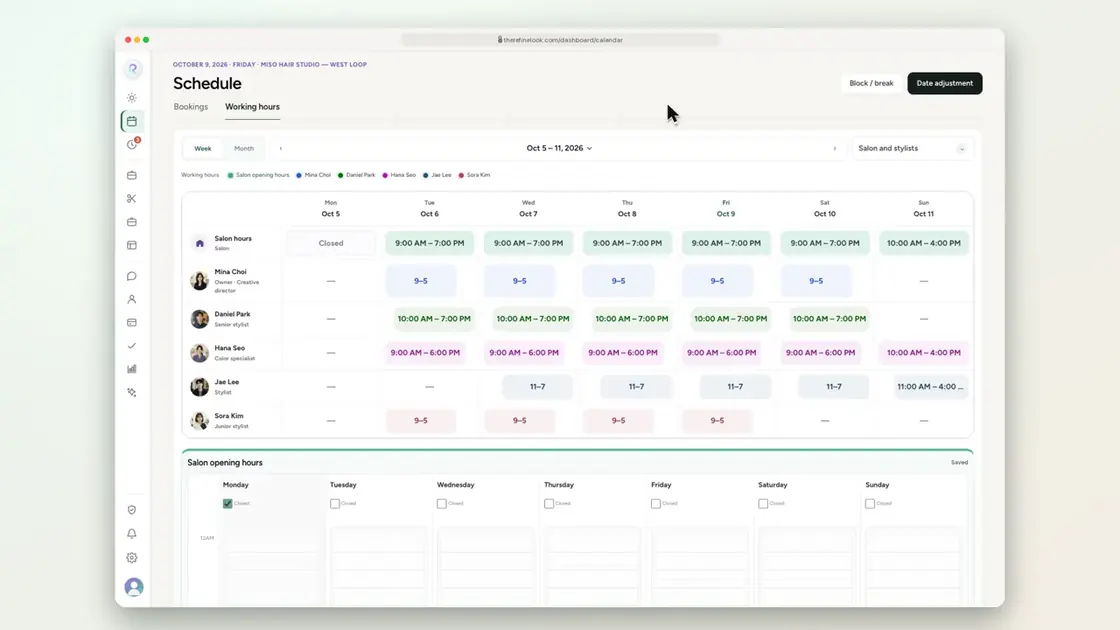 0:131-30Close a day or add extra hours
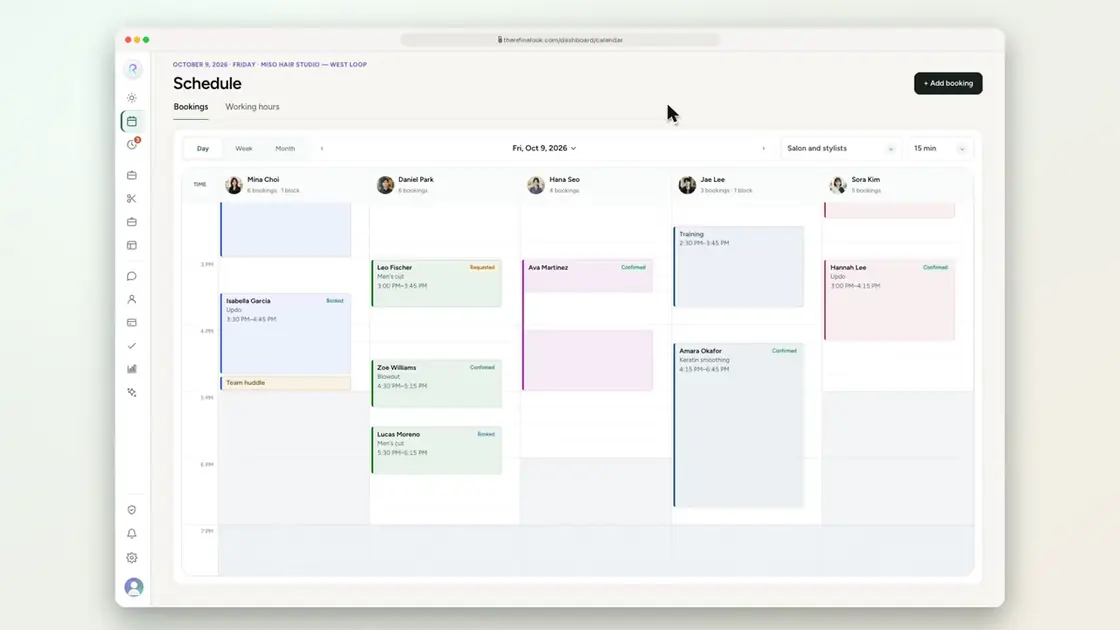 0:251-31Get warned before double-booking
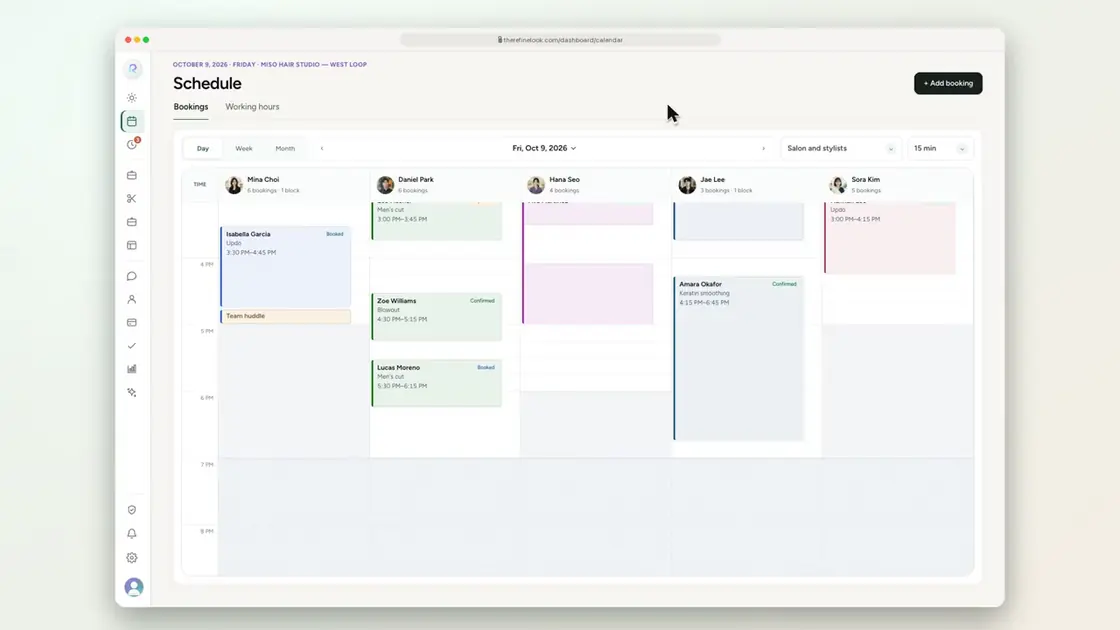 0:221-32Book outside a stylist's hours with an override
No videos here match your search.
Appointments
Accept requests, record walk-ins, mark no-shows and change a booking from one panel. Every change is kept in its history.
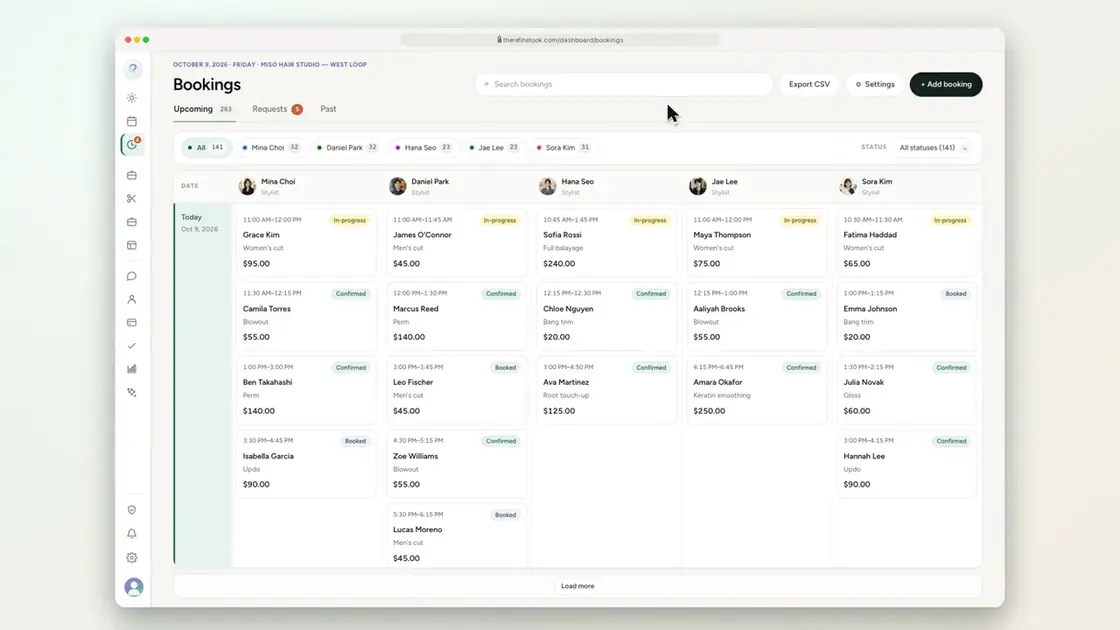
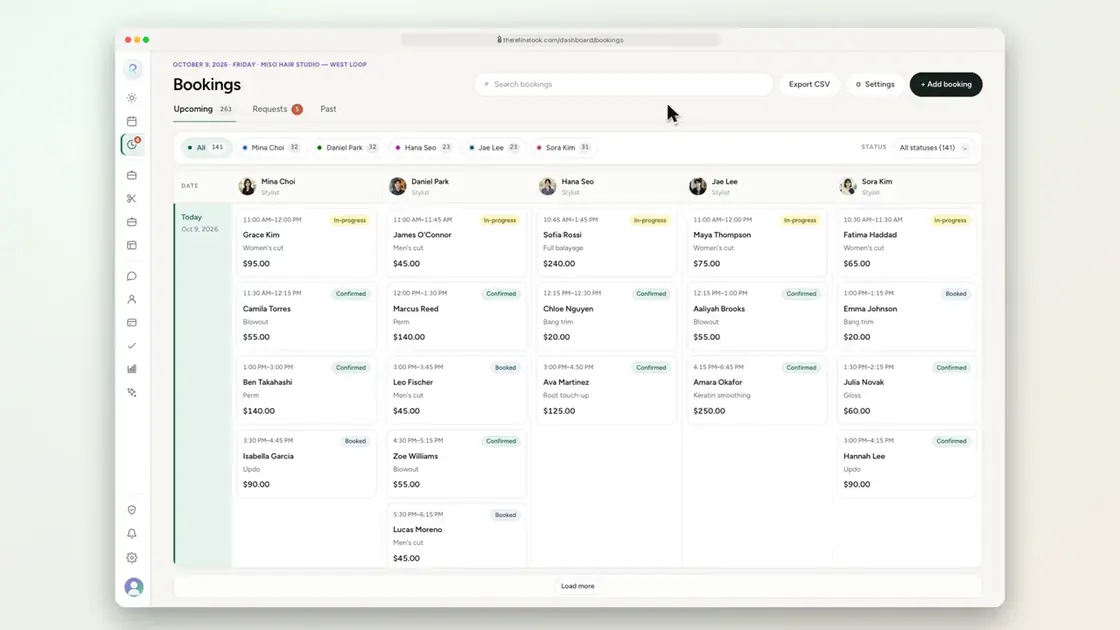 0:262-1Add a booking from the Bookings page
 0:202-2Book a guest without saving them
 0:252-3Add a new customer while booking
 0:212-4Only services the stylist can do
 0:242-5Record a walk-in after the fact
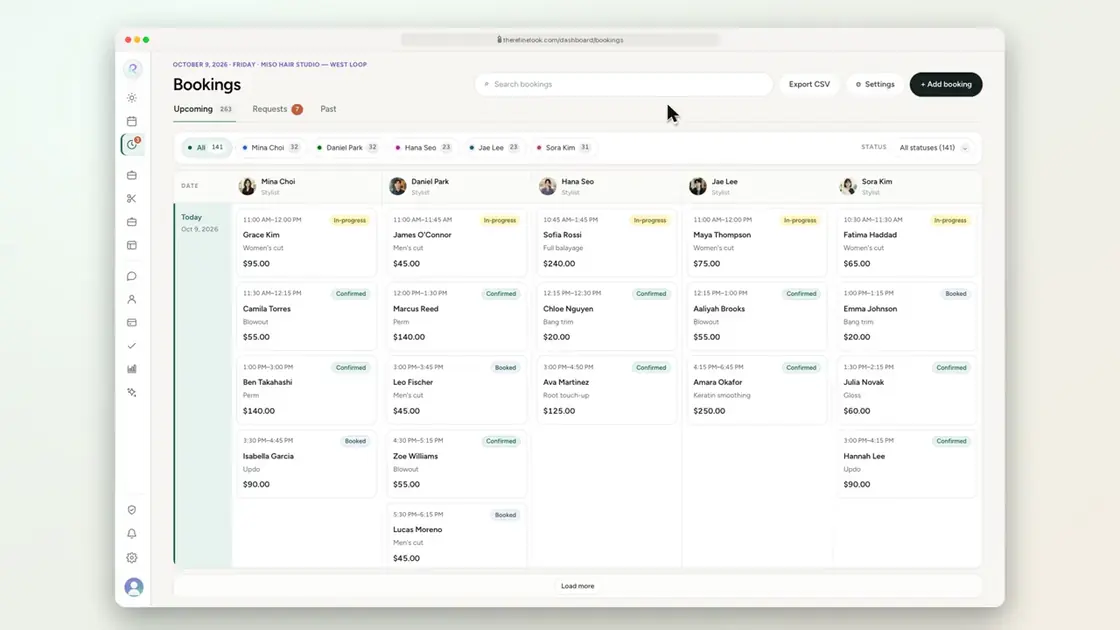
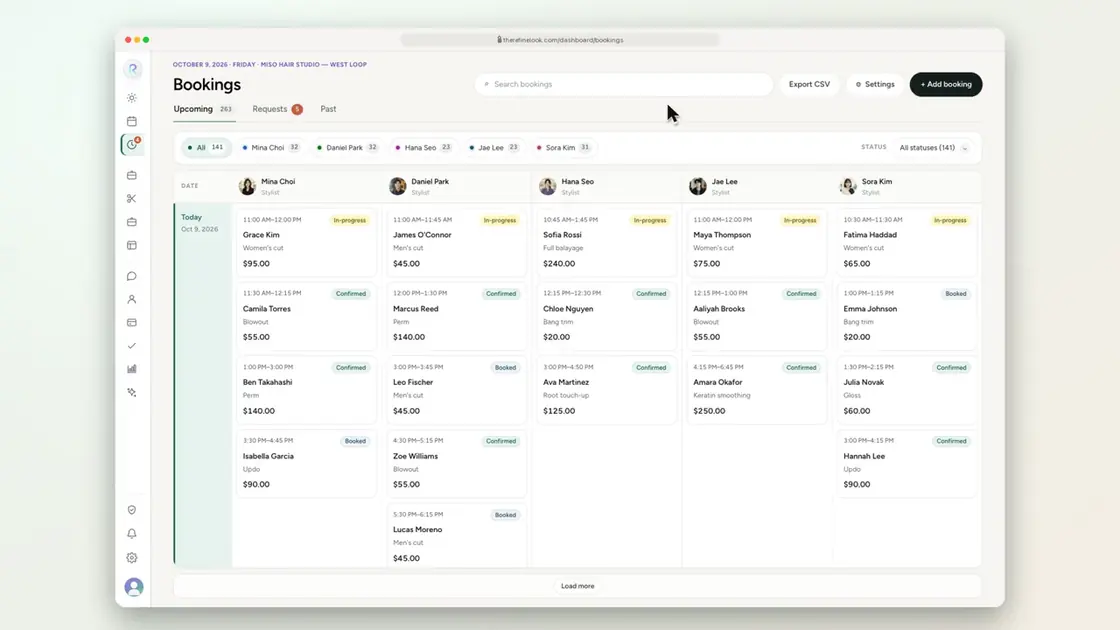
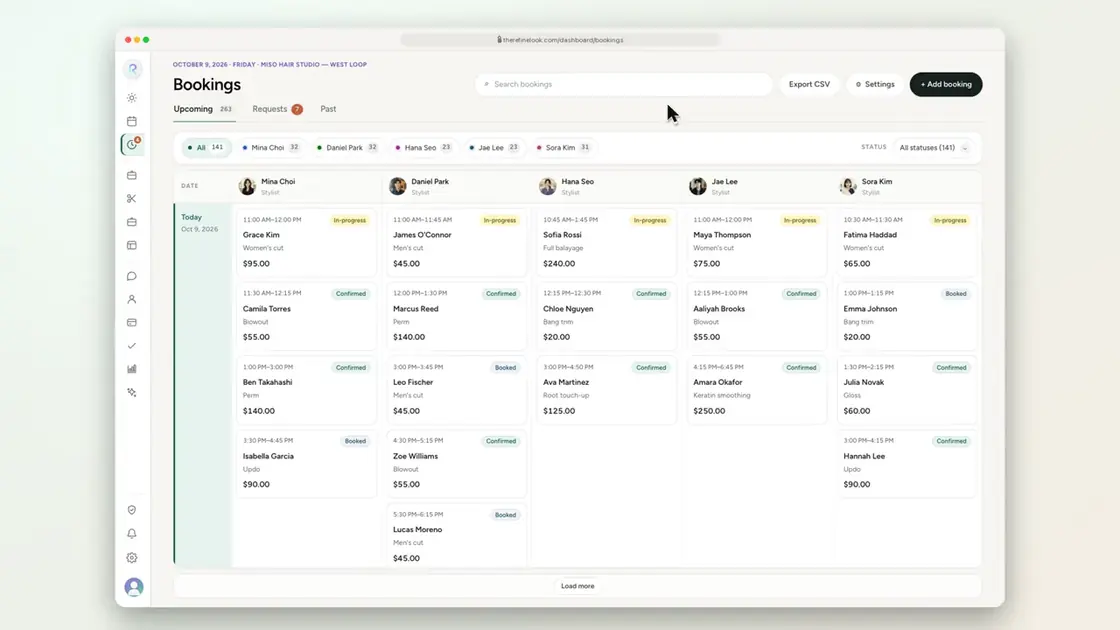
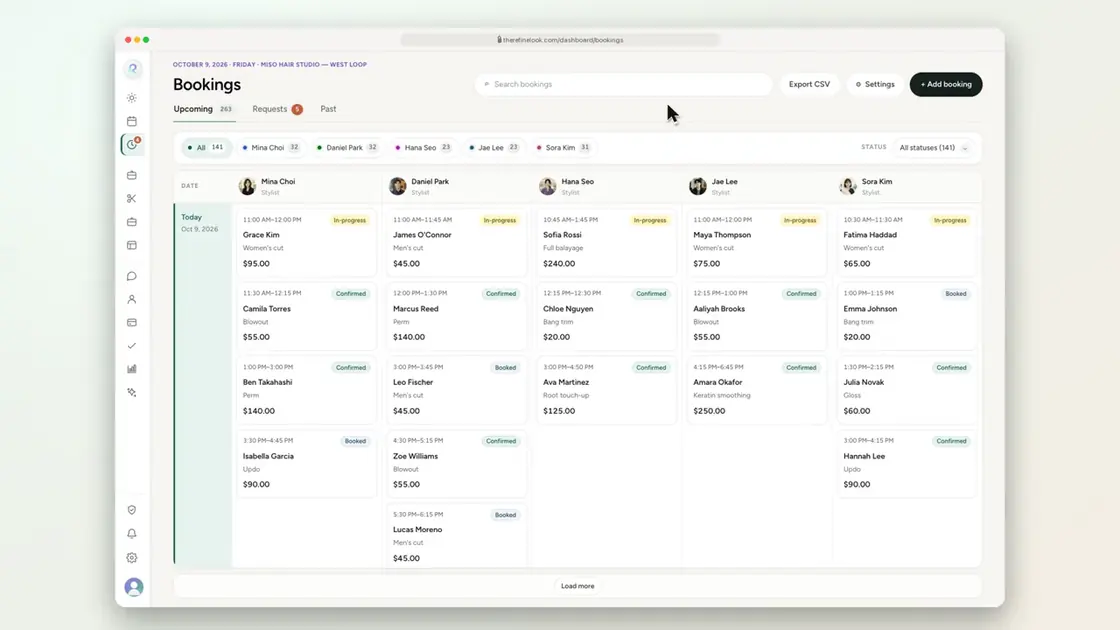 0:152-6Switch between Upcoming, Requests and Past
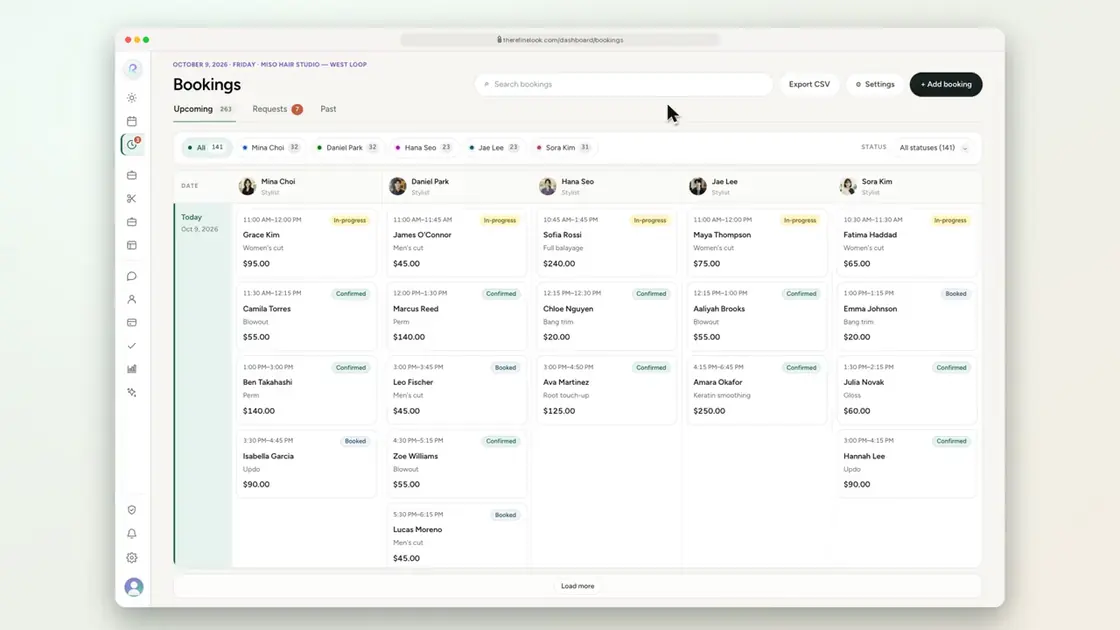 0:142-7Filter by stylist and status
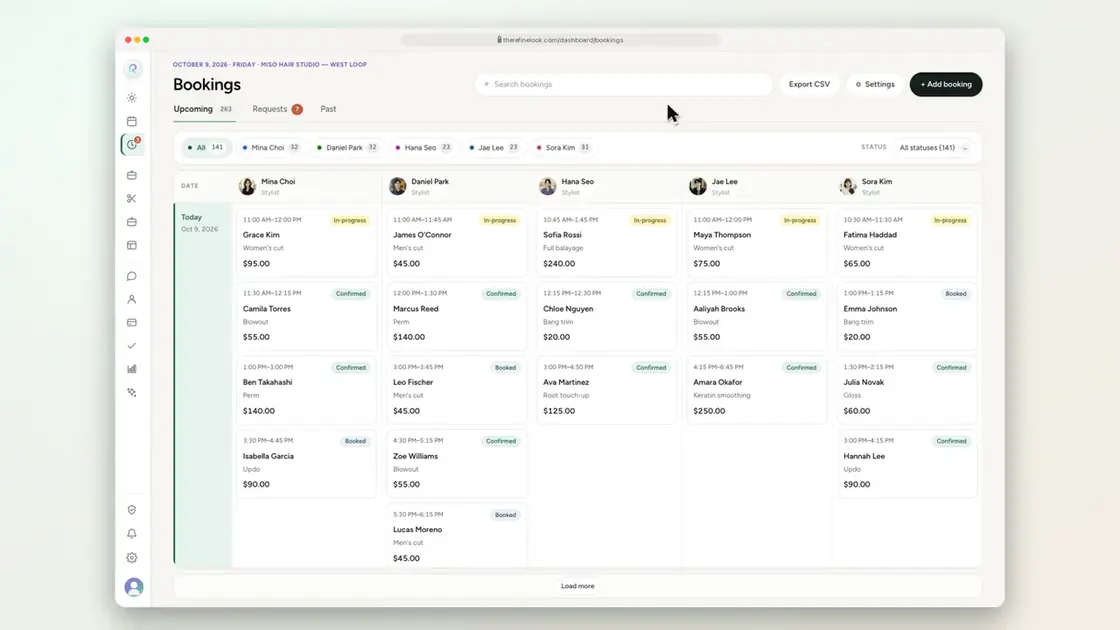 0:122-8Search bookings
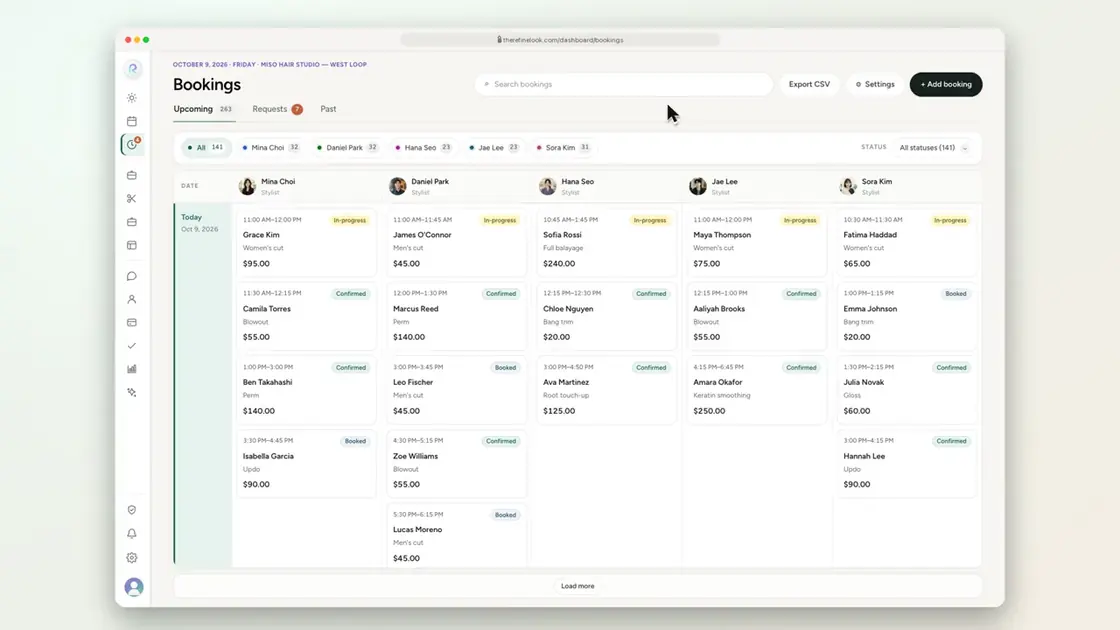 0:112-9Accept a booking request
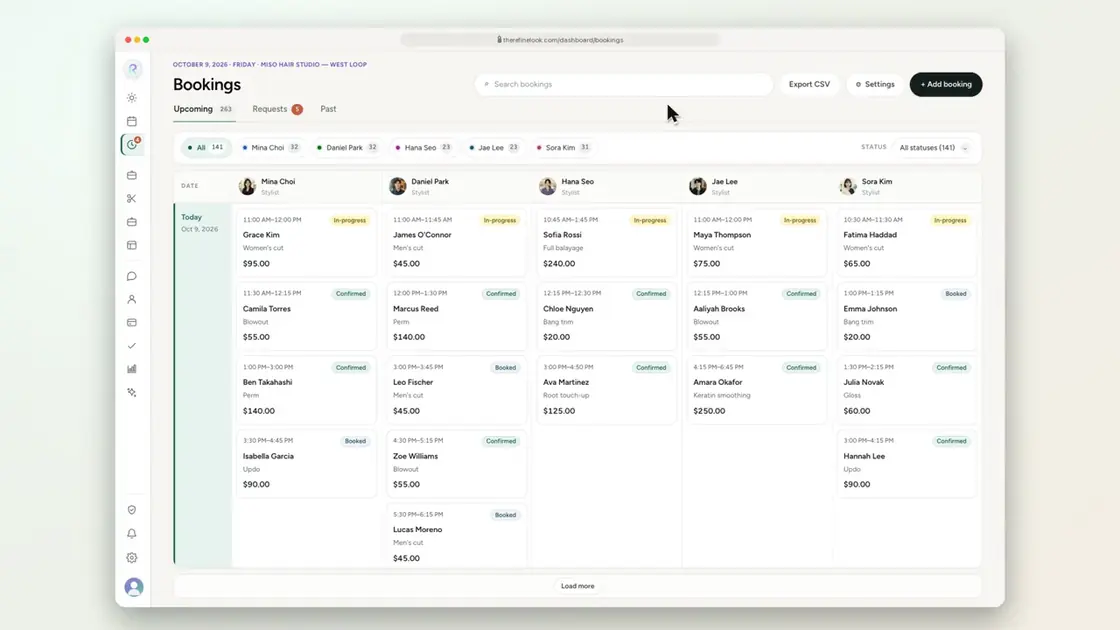 0:212-10Decline a request with a quick reason
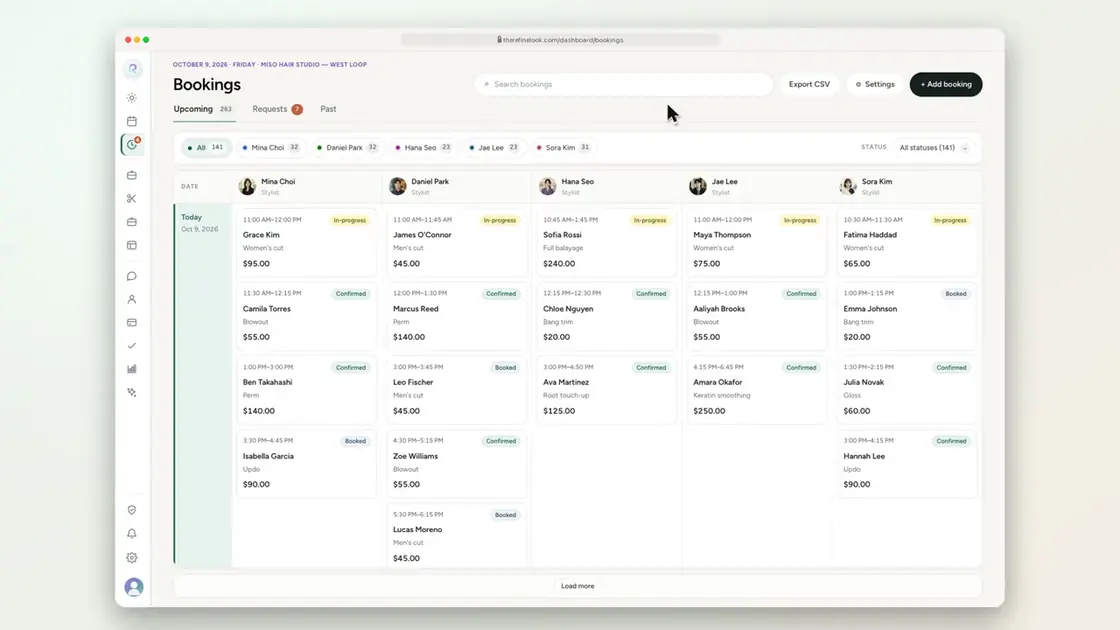 0:102-11Confirm new bookings from Requests
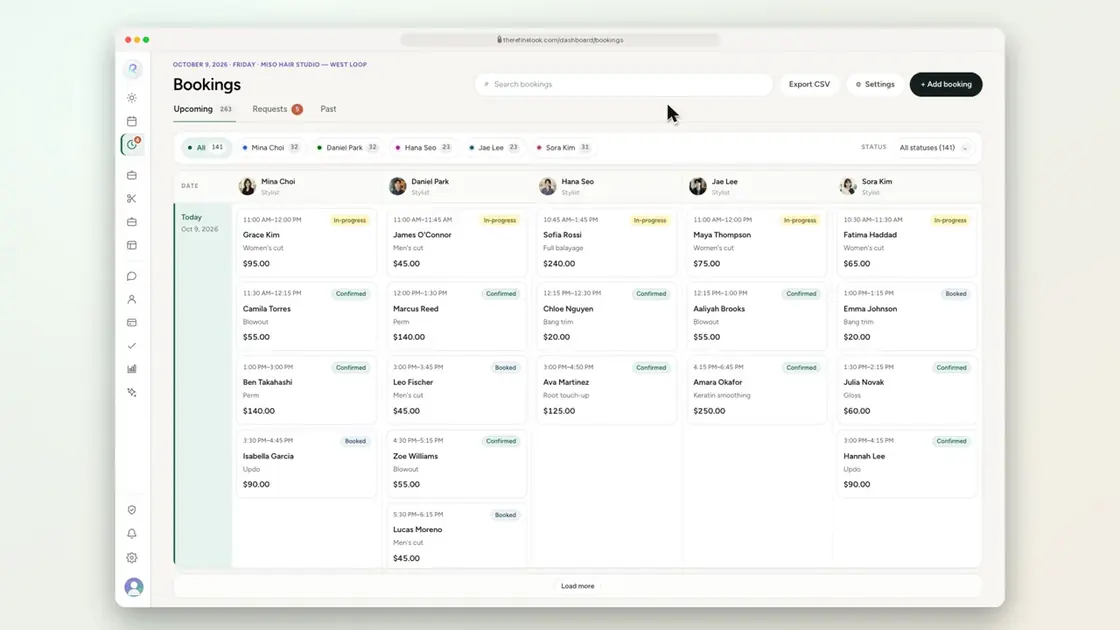 0:192-12Mark a no-show
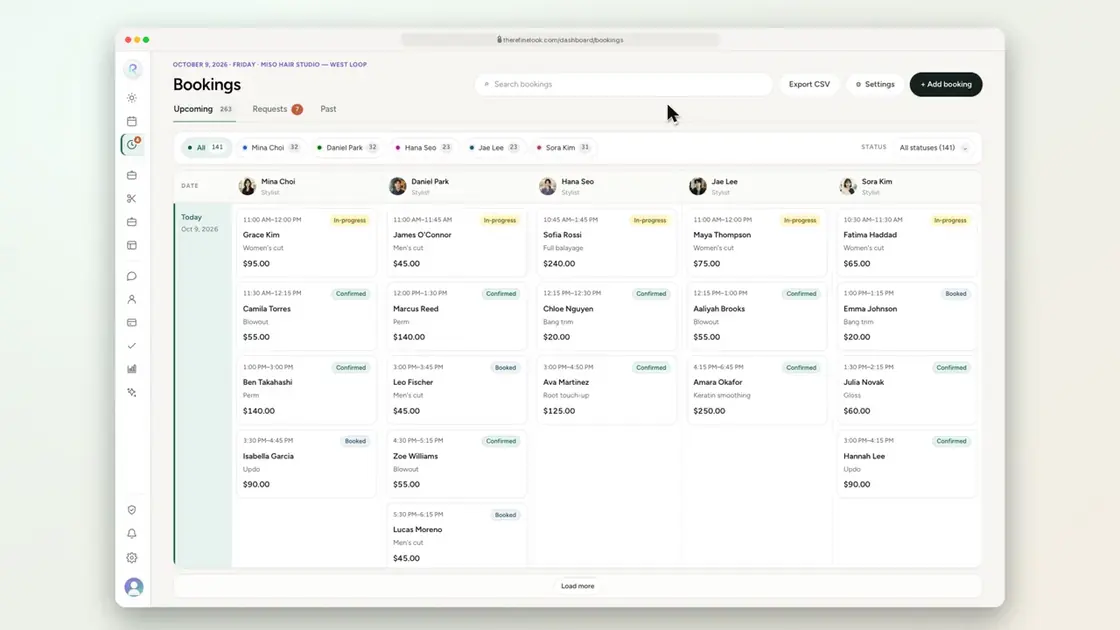 0:132-13Mark a late arrival
 0:142-14Finished appointments complete themselves
 0:252-15Change the stylist or service from one panel
 0:122-16See a booking's change history
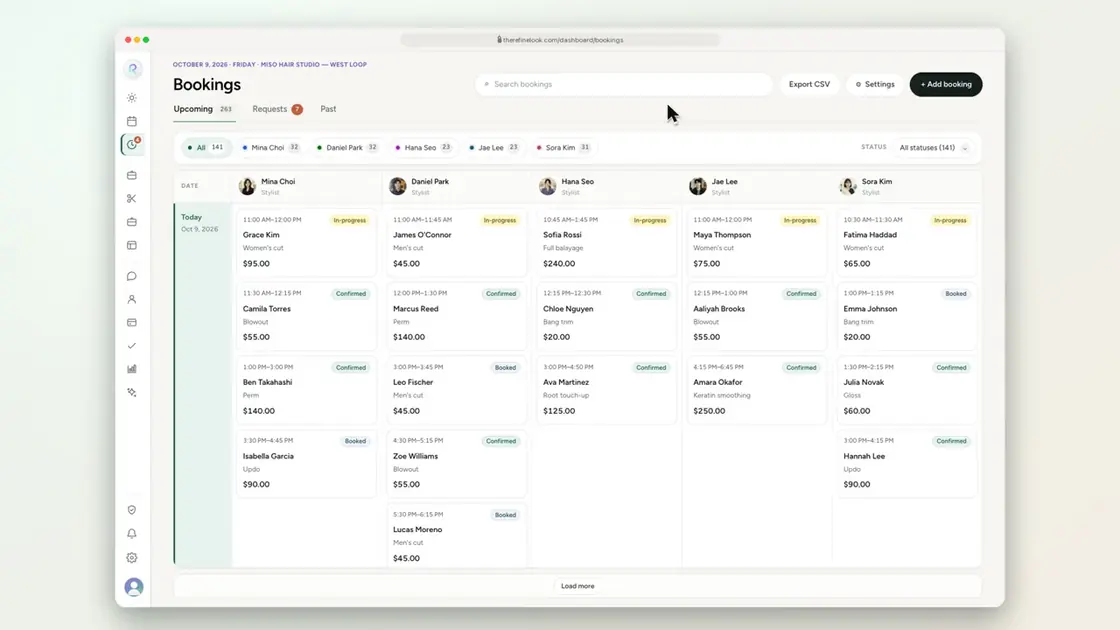 0:112-17Find a booking by its code
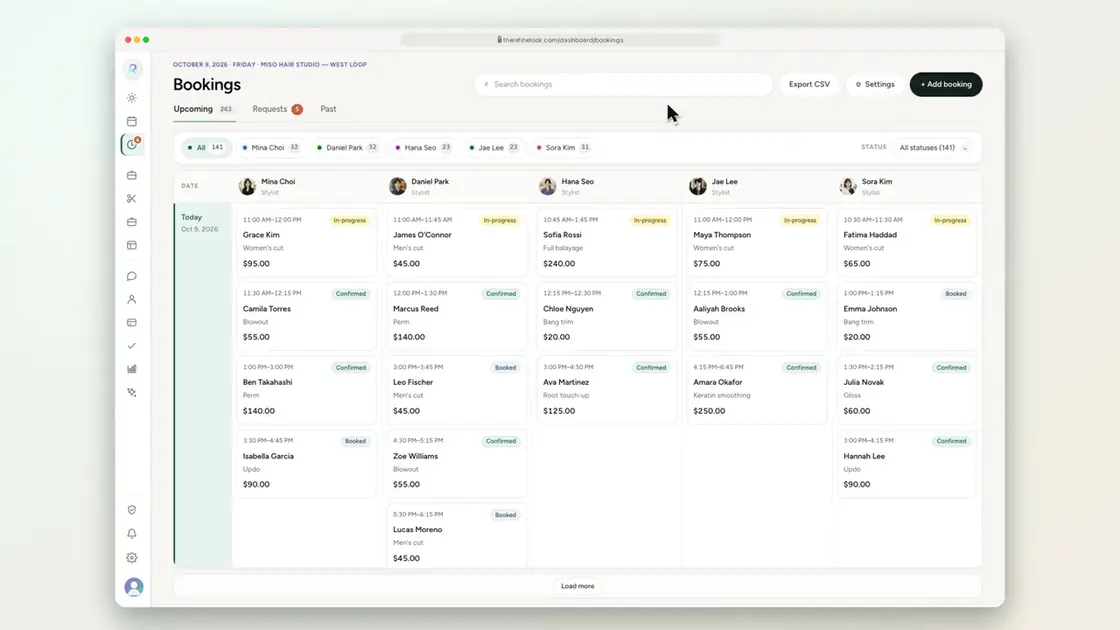 0:122-18Jump from a booking to the calendar
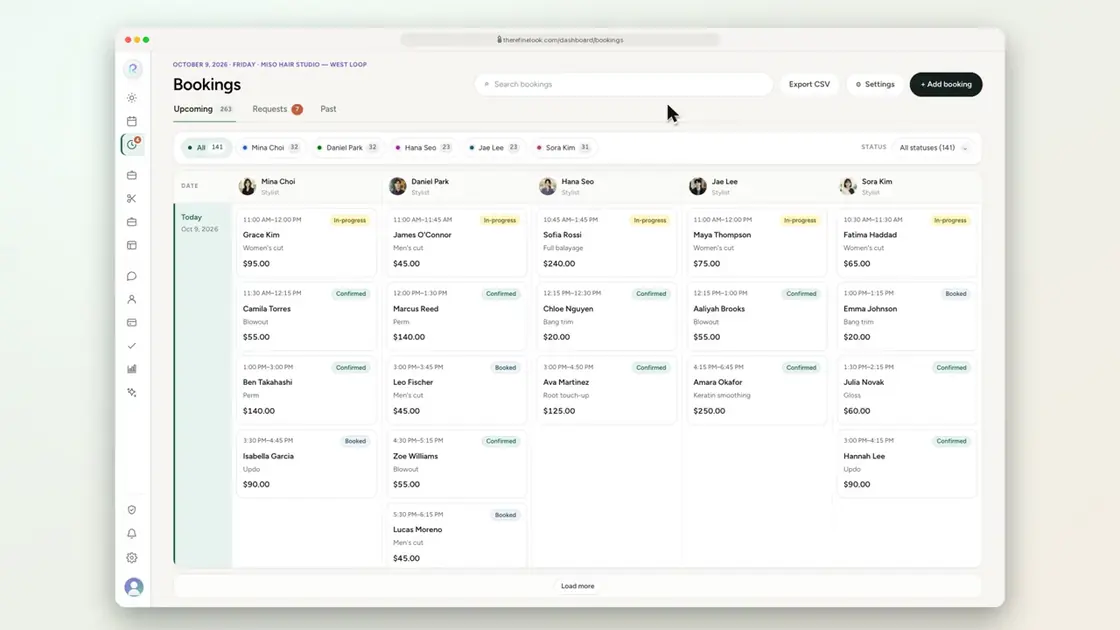 0:072-19Export bookings to CSV
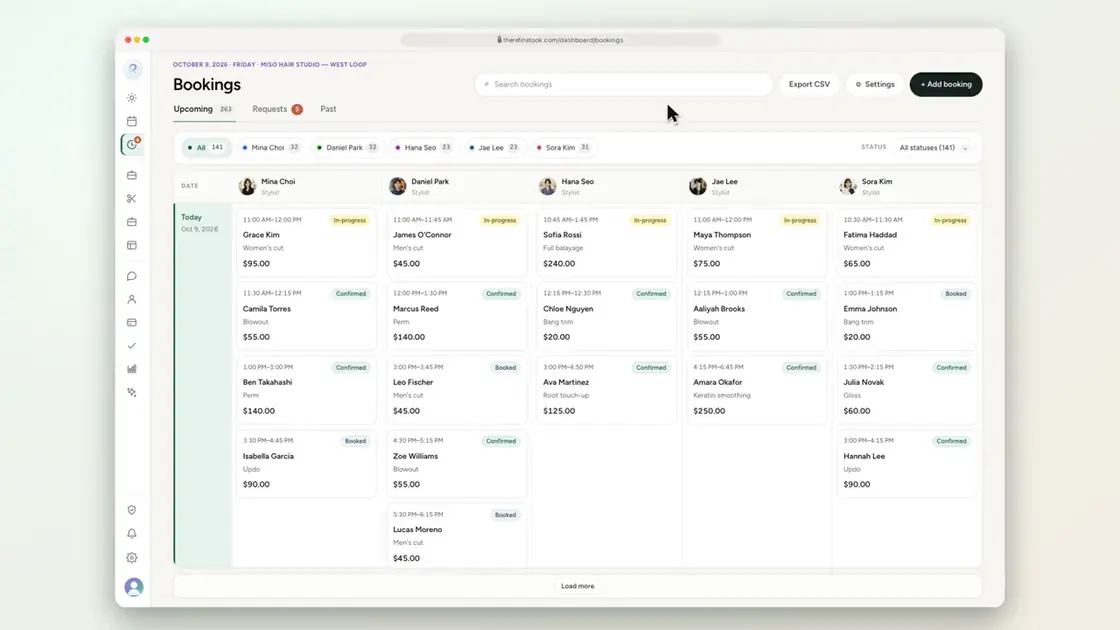 0:172-20Set limits on customer changes
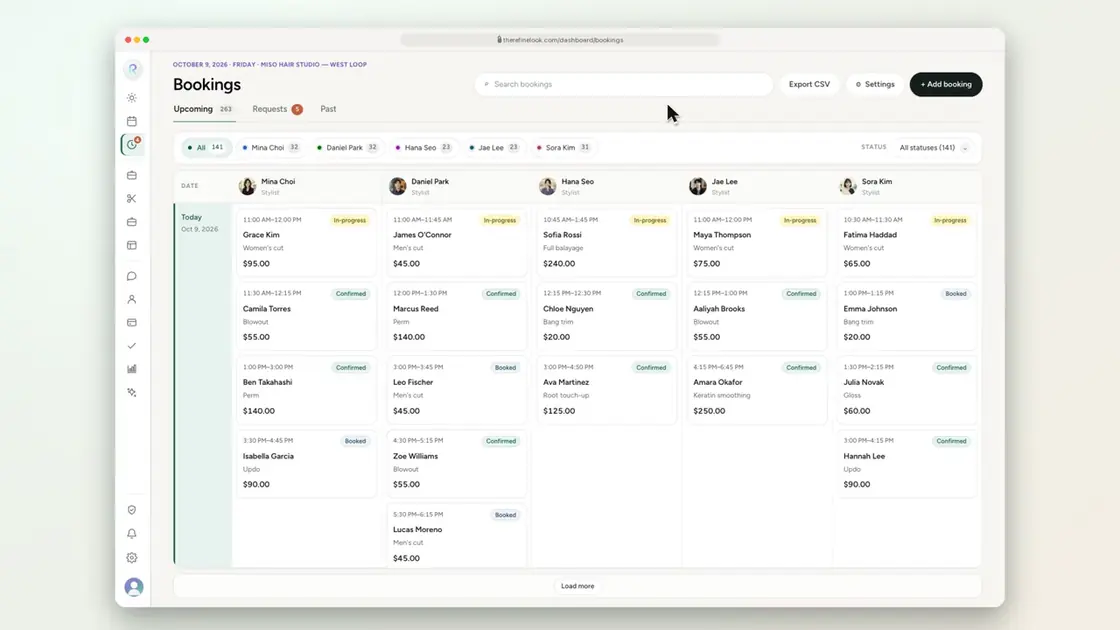 0:182-21Approve a customer's time change
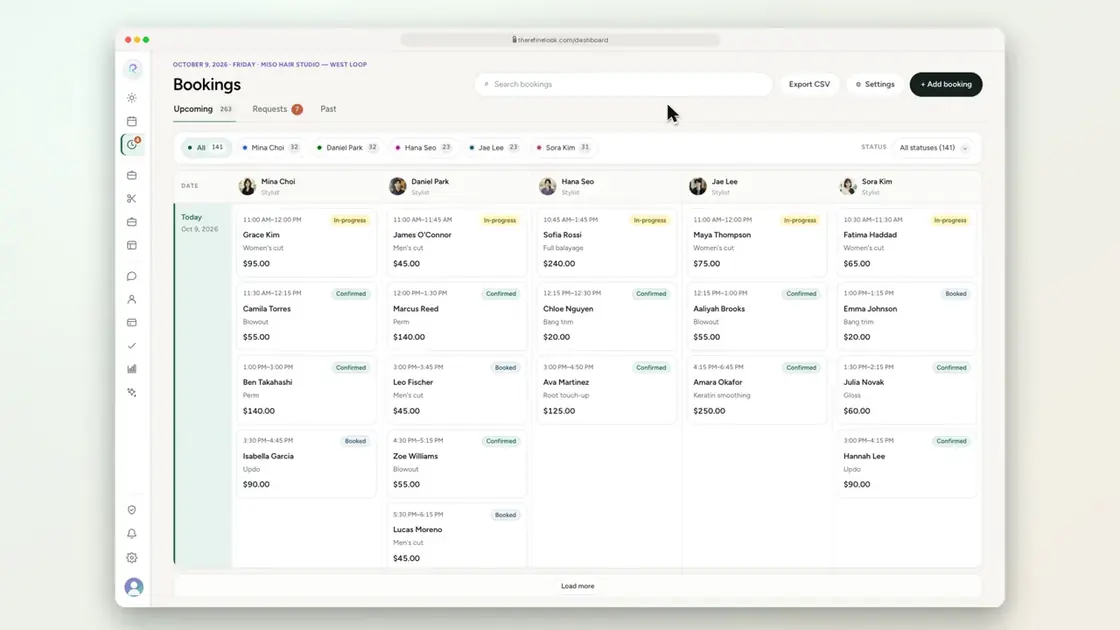 0:122-22See waitlist requests
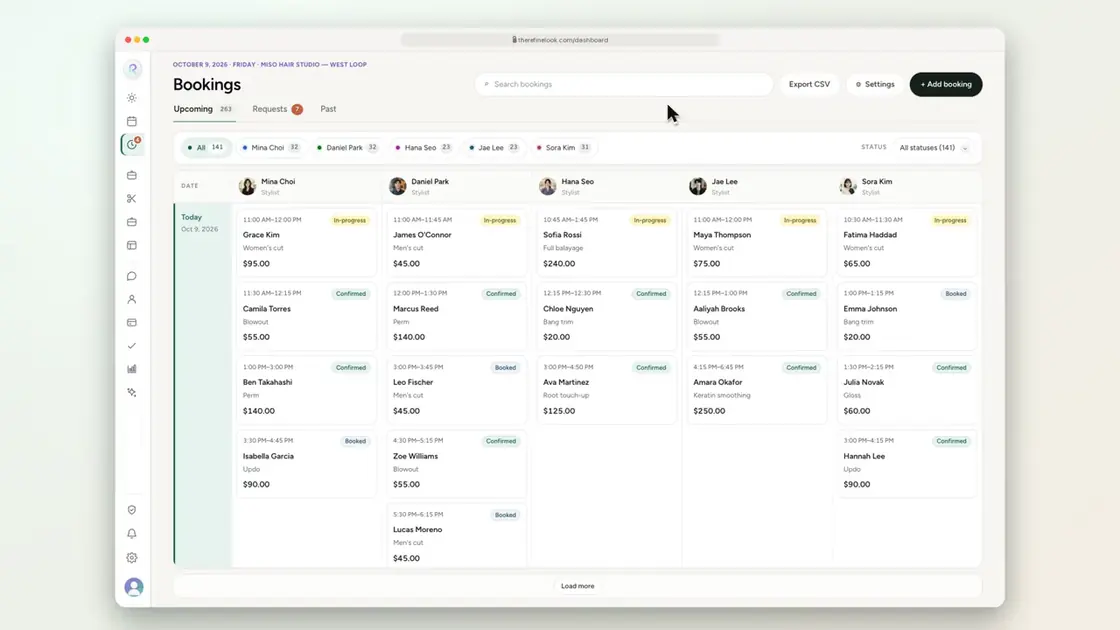 0:222-23Book a waitlist request at an exact time
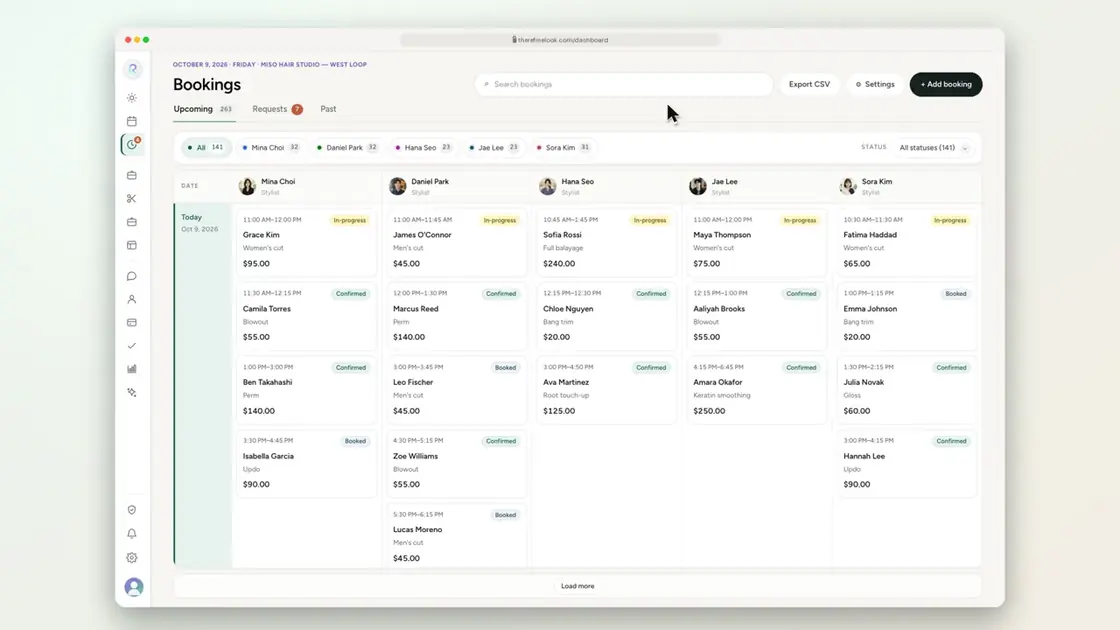 0:162-24Set when waitlist requests expire
No videos here match your search.
Online booking
A salon page with photos, team and reviews, and a booking flow that holds the time while the client finishes. You set lead time, group size and how “Any stylist” picks.
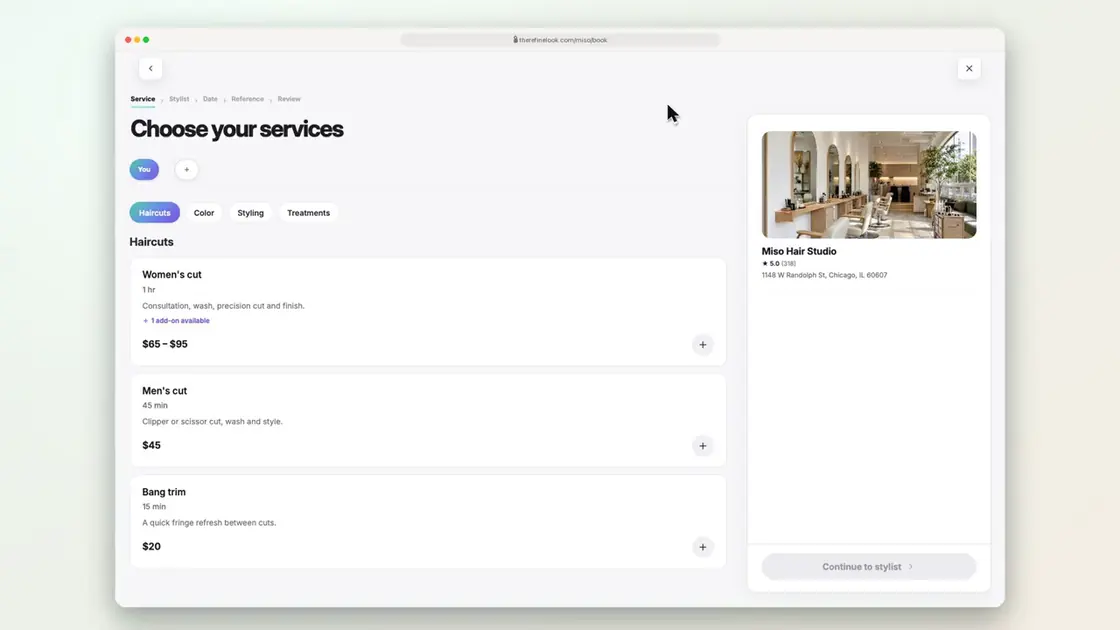 0:163-1Choose services and add-ons
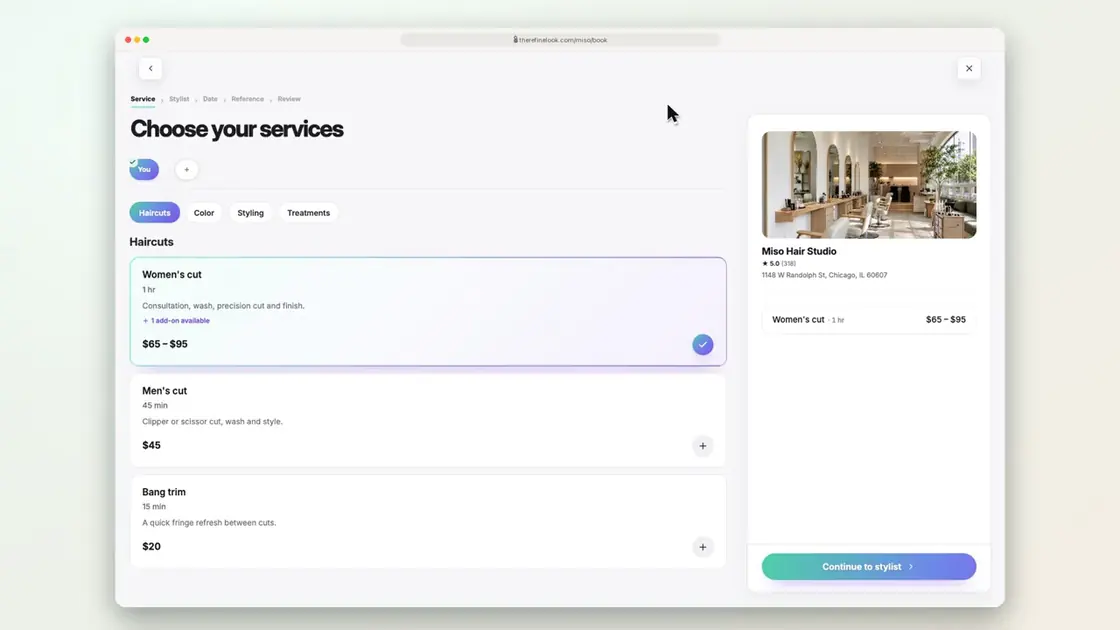 0:133-2Add guests to the same booking
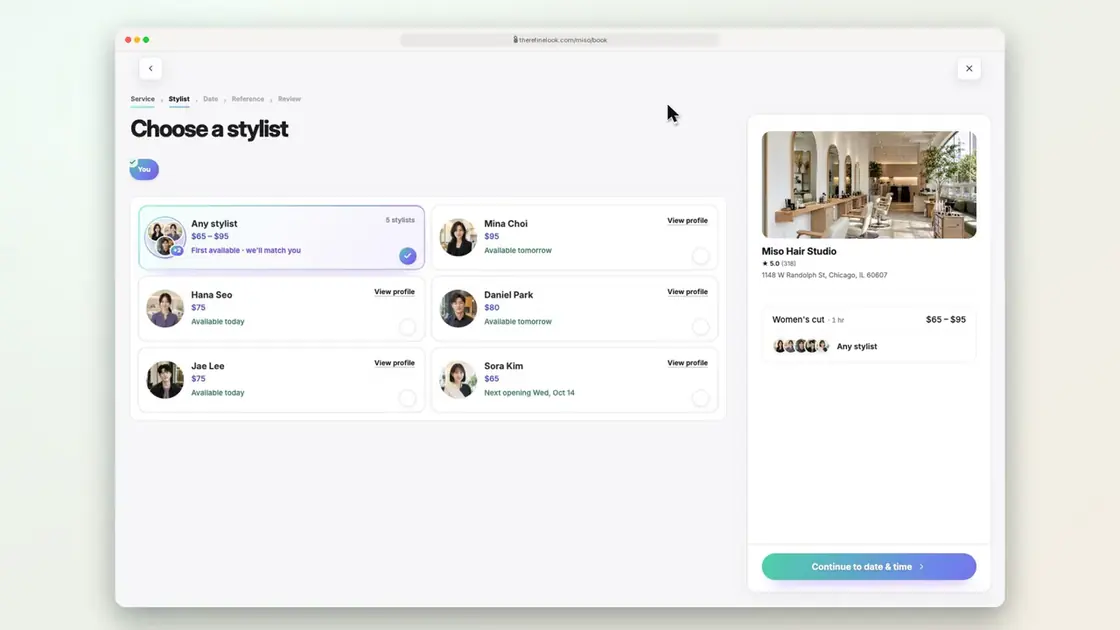 0:103-3Pick your stylist
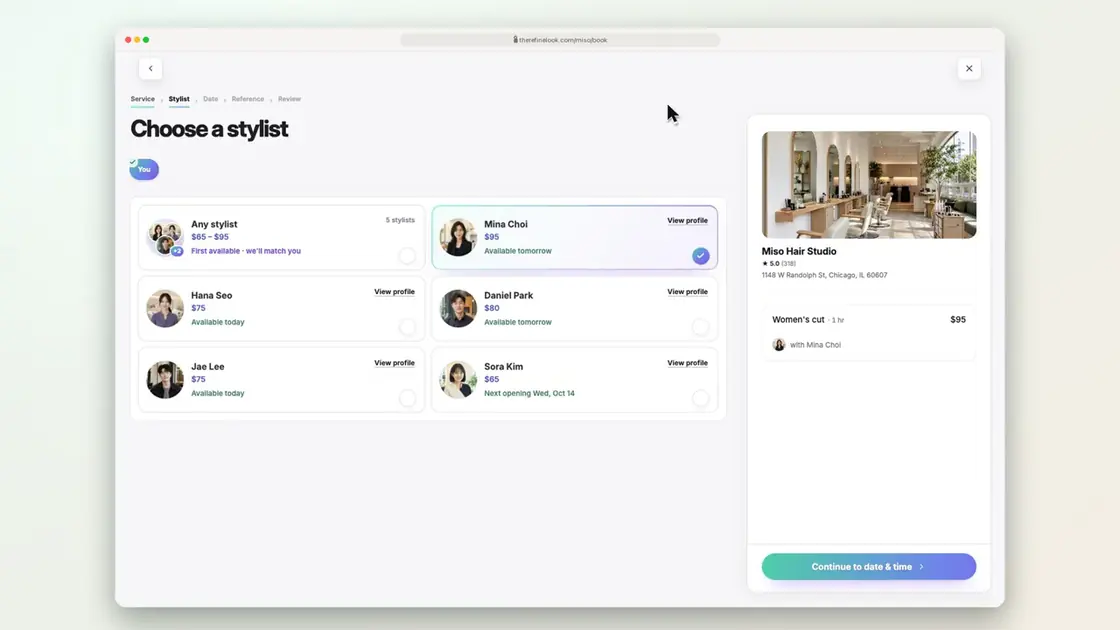 0:193-4Let the salon match any stylist
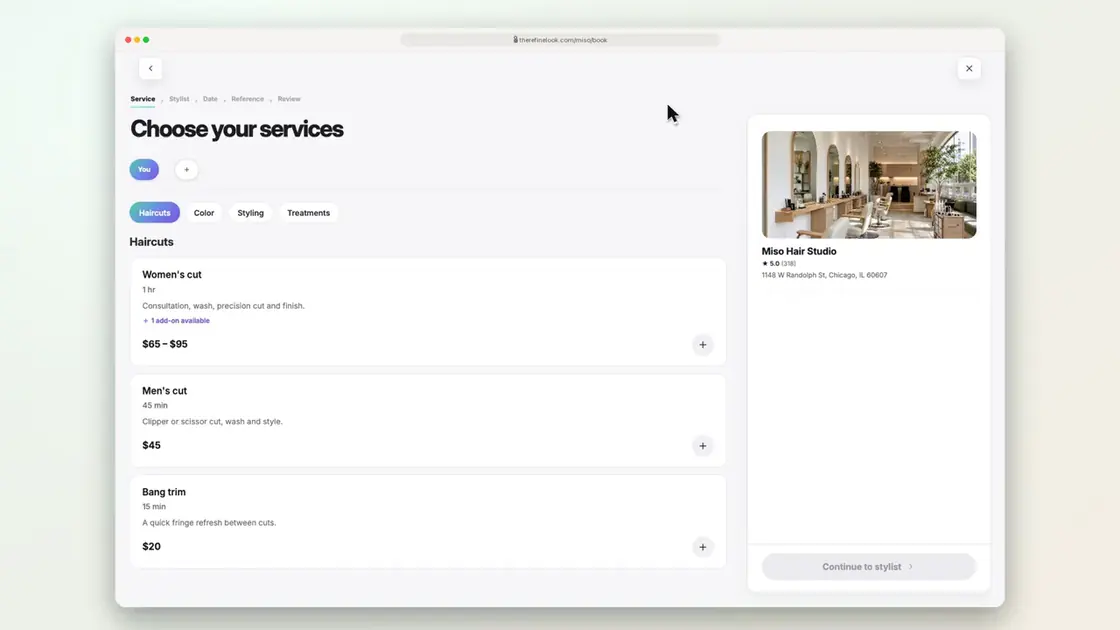 0:153-5Answer a question that sets the length
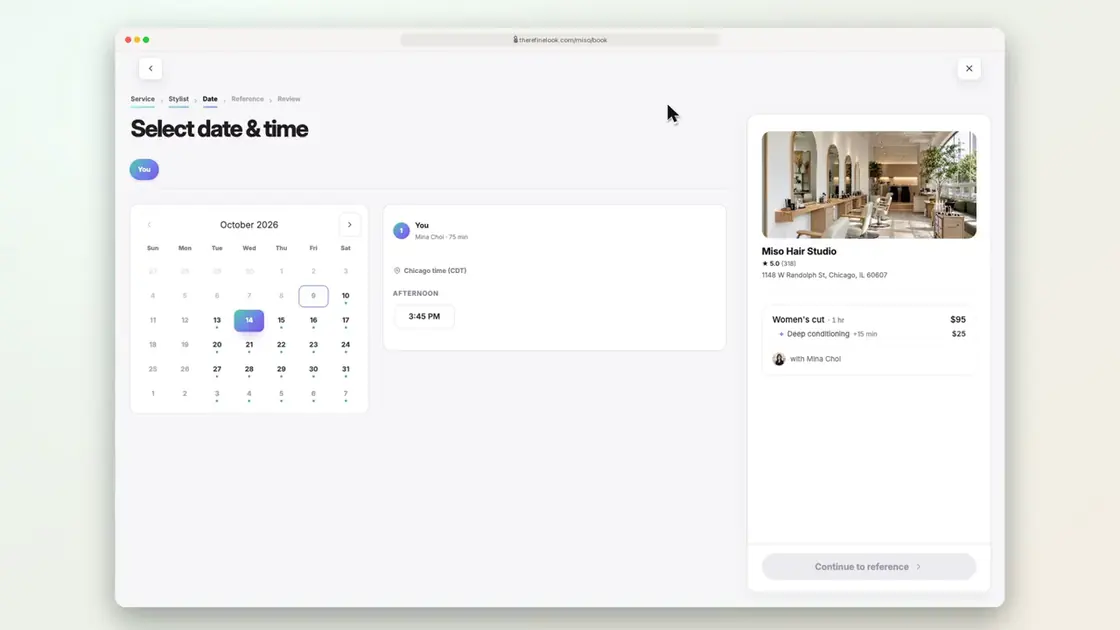 0:113-6See live available times
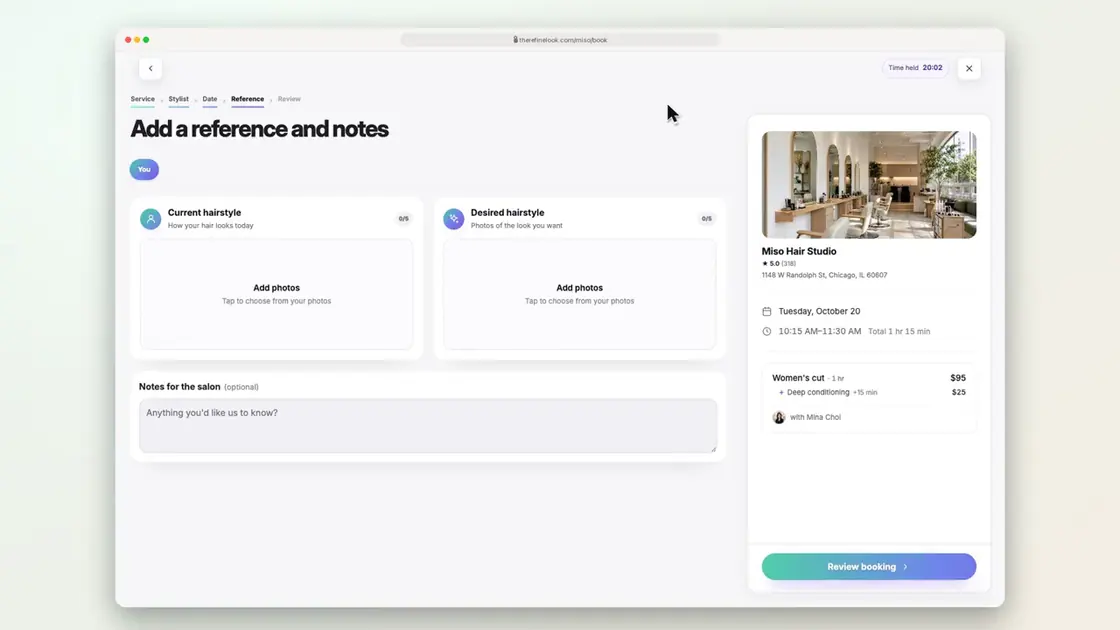 0:173-7Attach reference photos and notes
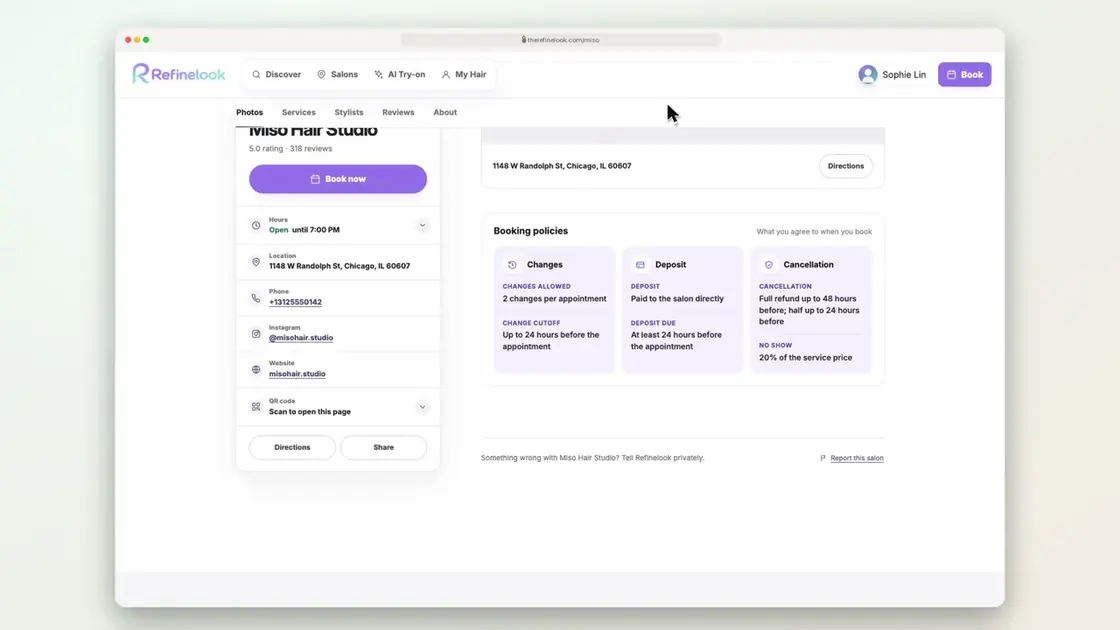 0:103-8See the booking policies before you book
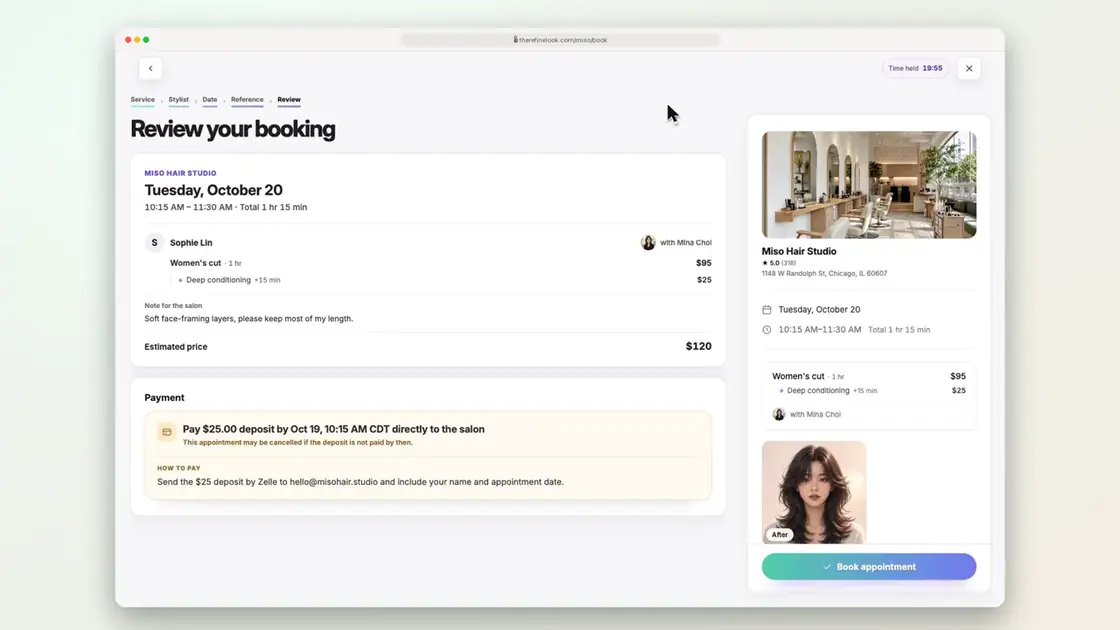 0:133-9Review the price and deposit, then book
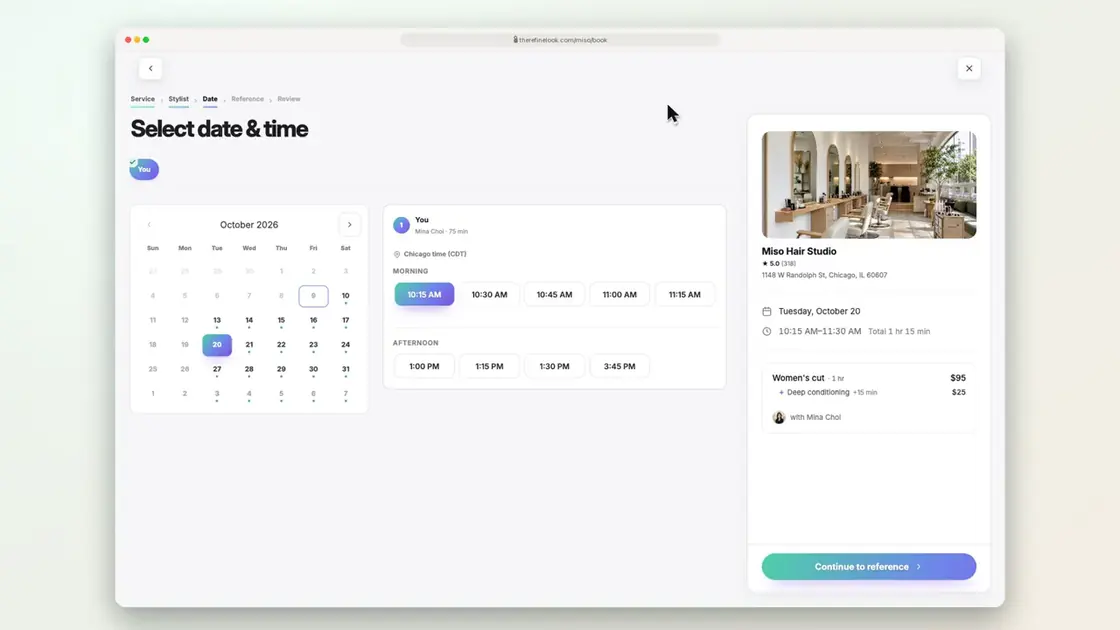 0:113-10Your time is held with a countdown
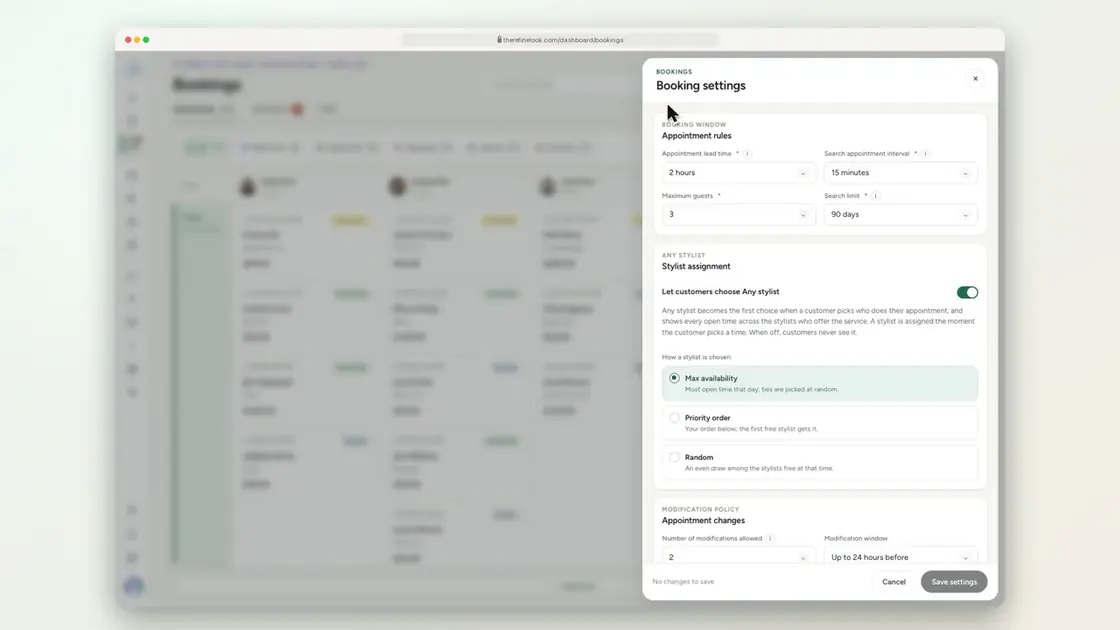 0:103-11Set how soon before a slot customers can book
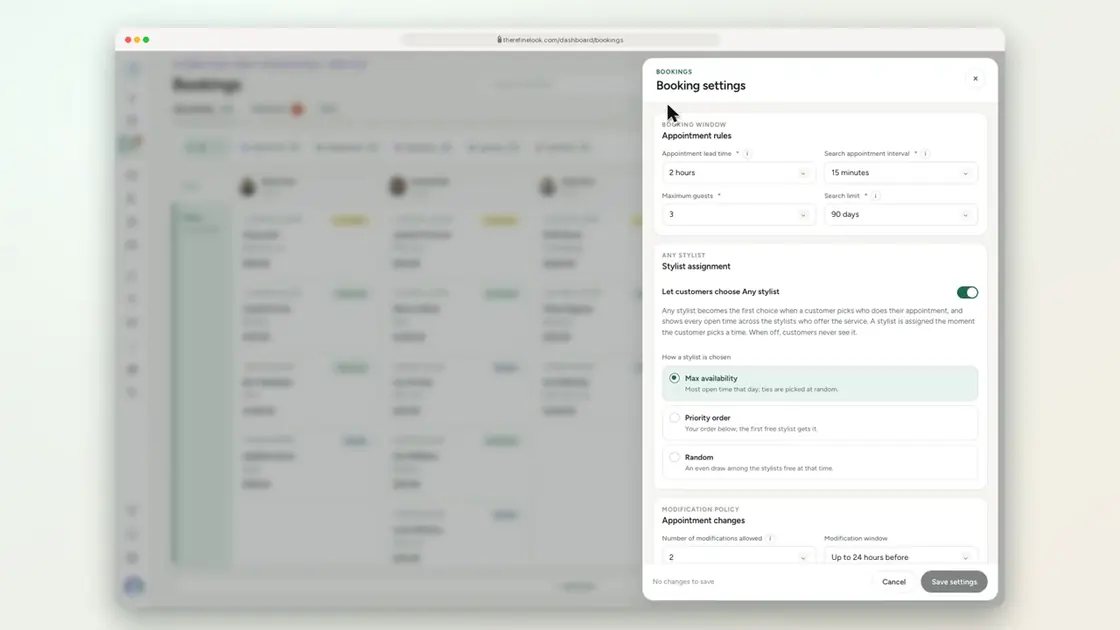 0:103-12Set how far apart start times are
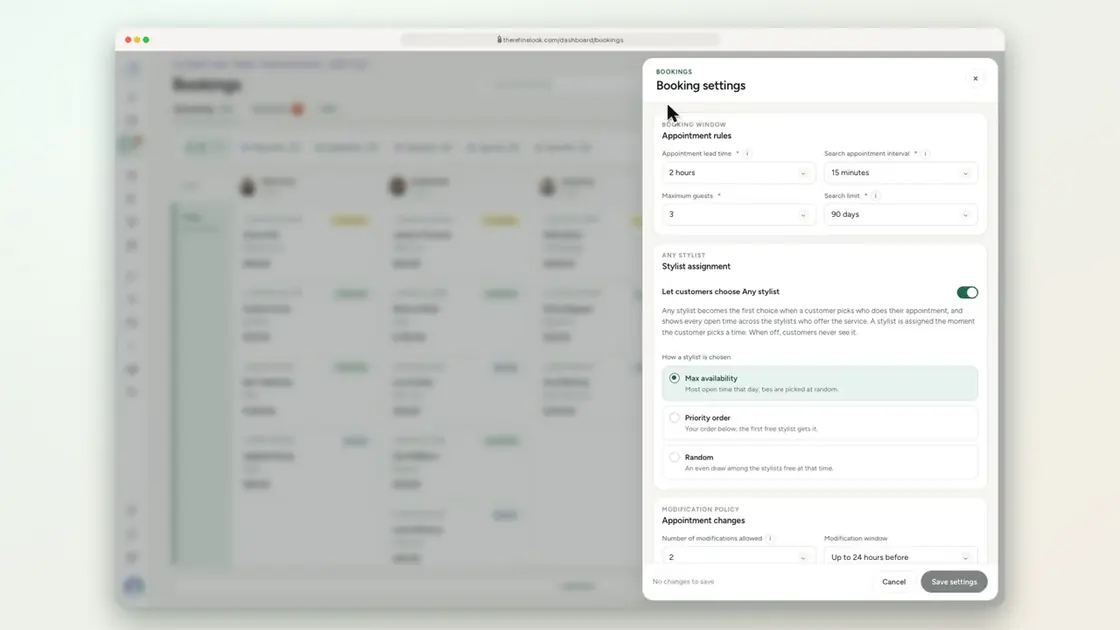 0:103-13Set how far ahead customers can book
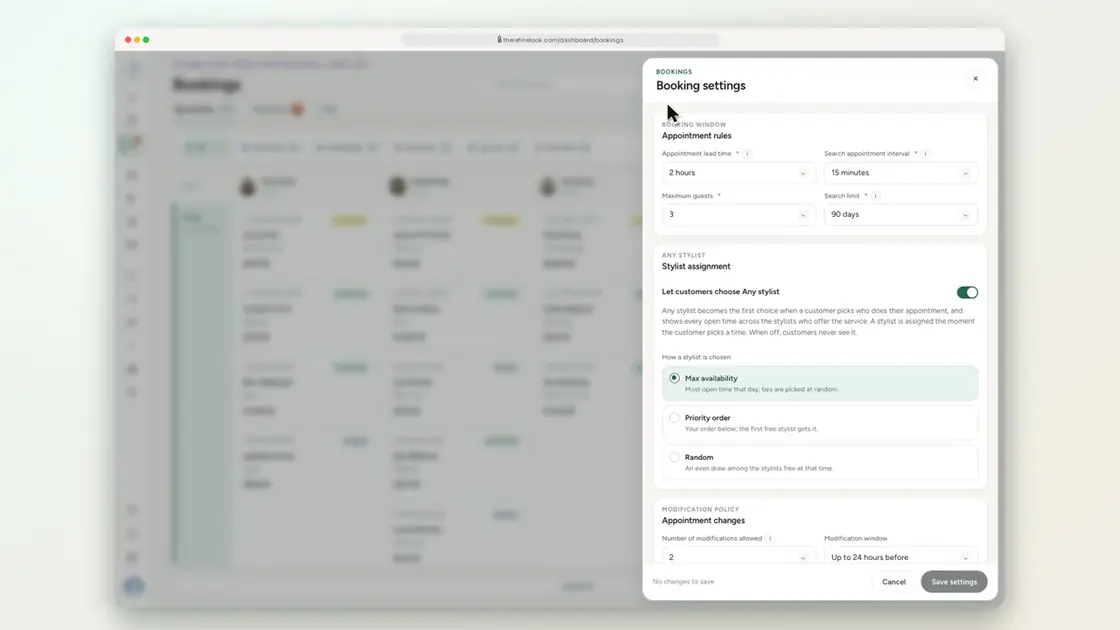 0:103-14Set the maximum group size
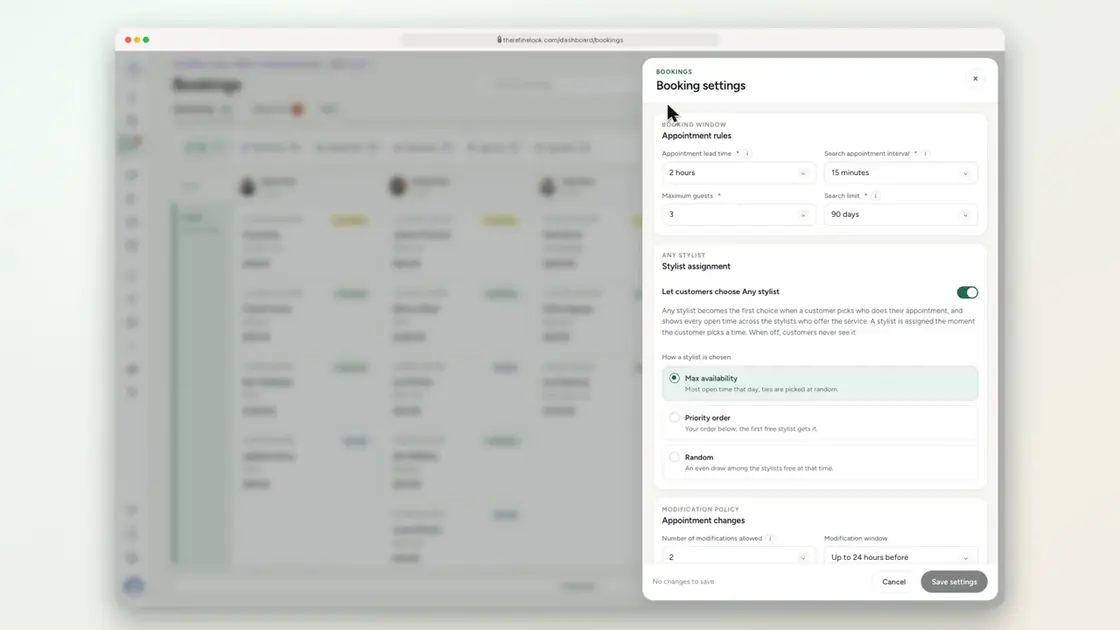 0:123-15Choose how Any stylist picks a stylist
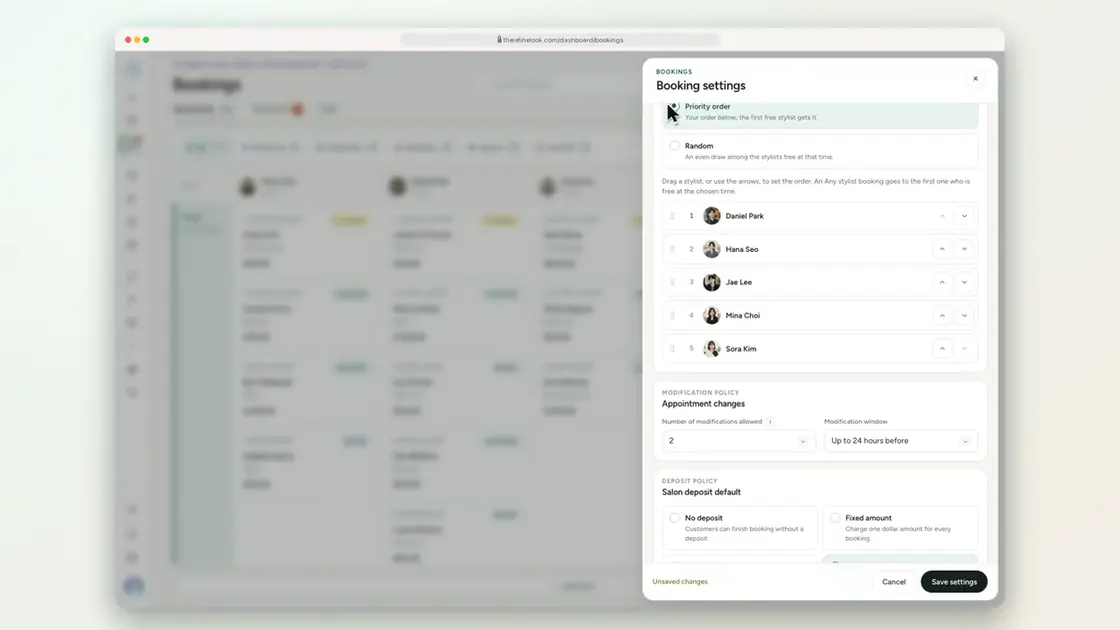 0:133-16Set your stylist priority order
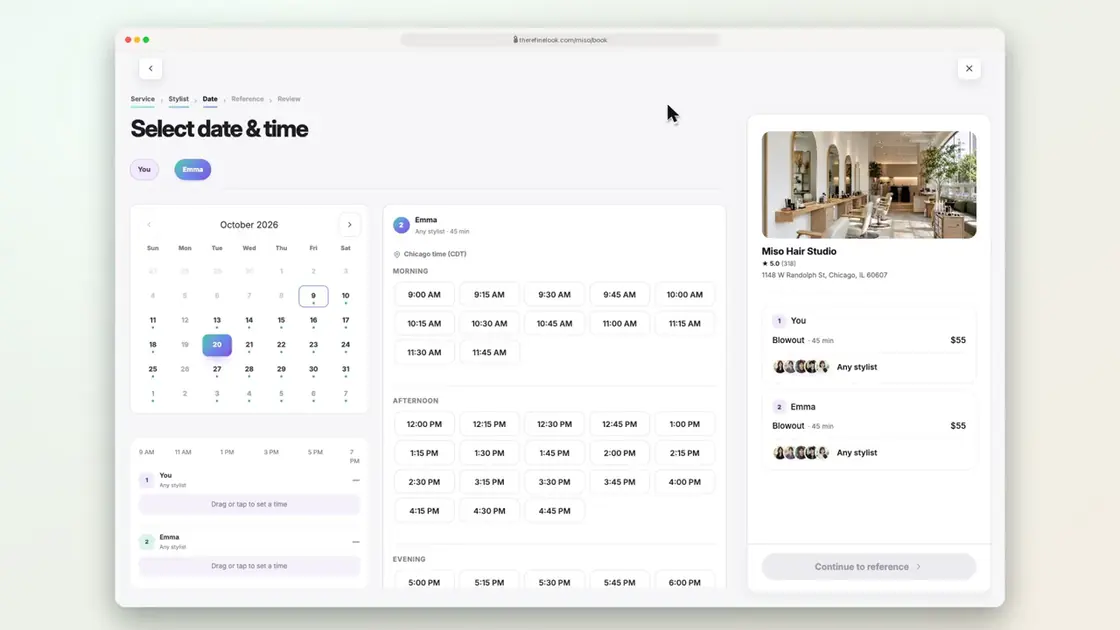 0:183-17Two guests at the same time get different stylists
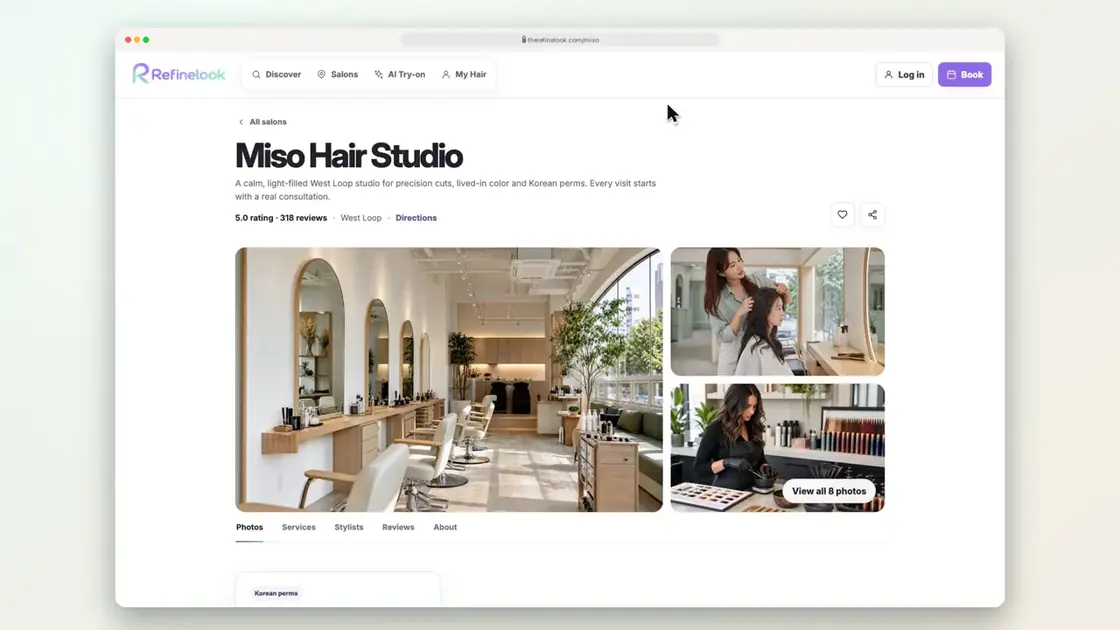 0:193-18Your salon page with photos and services
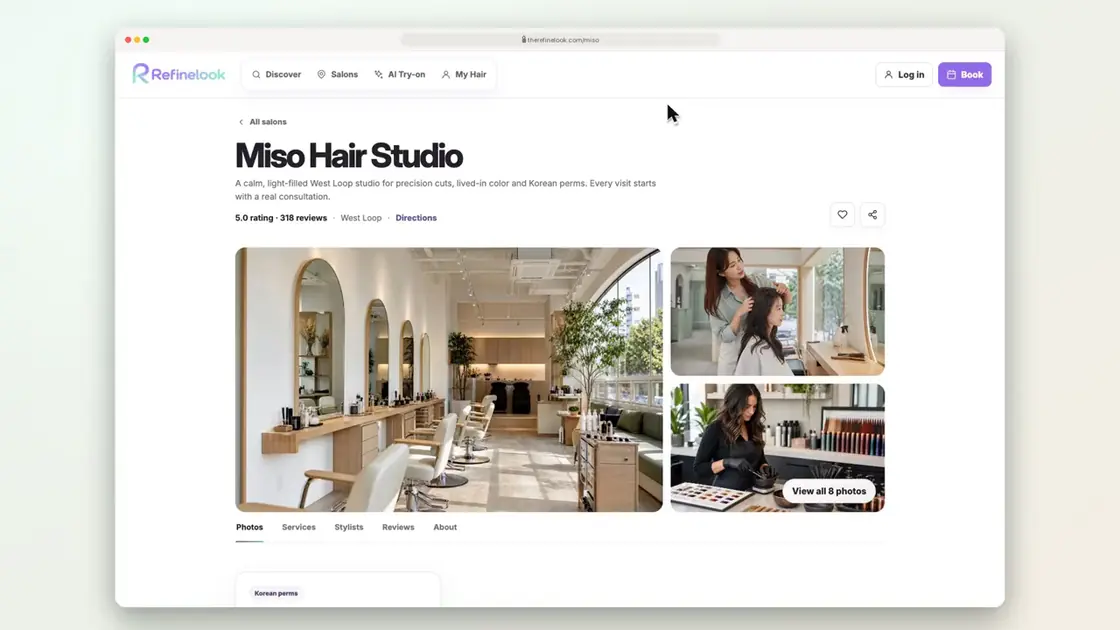 0:173-19Show your team and their portfolios
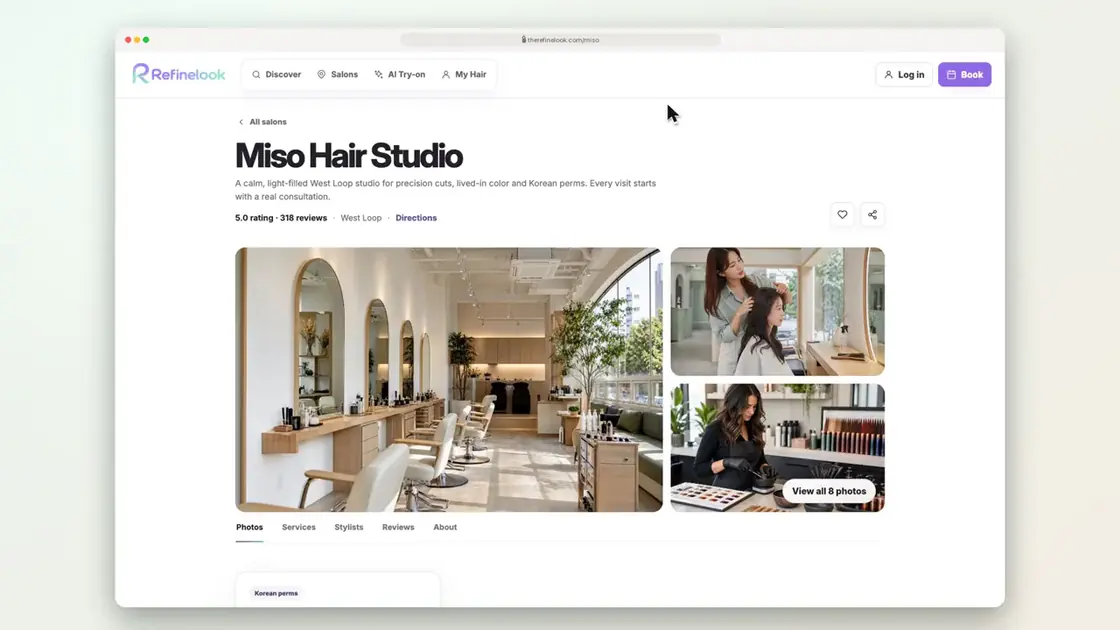 0:133-20Verified reviews from real visits
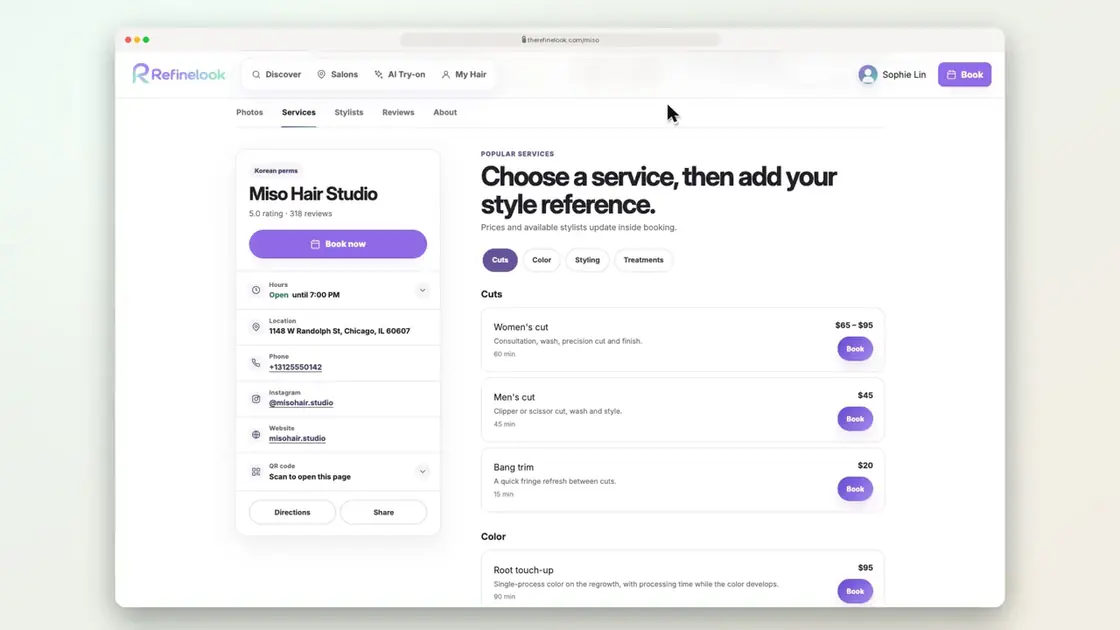 0:133-21Hours, location and Book now
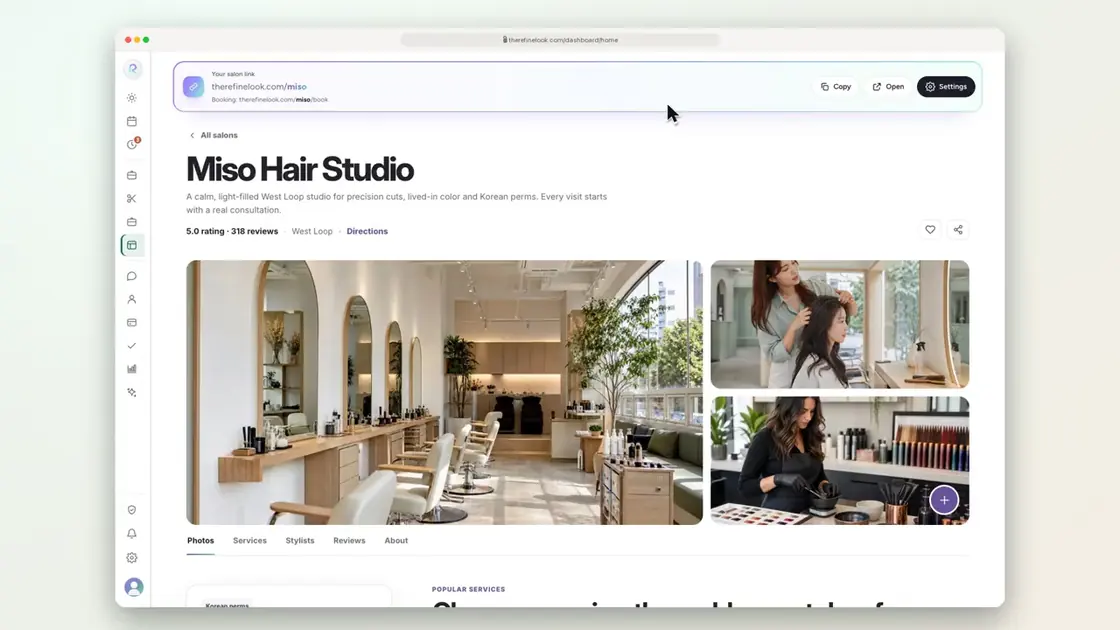 0:193-22Your own salon link
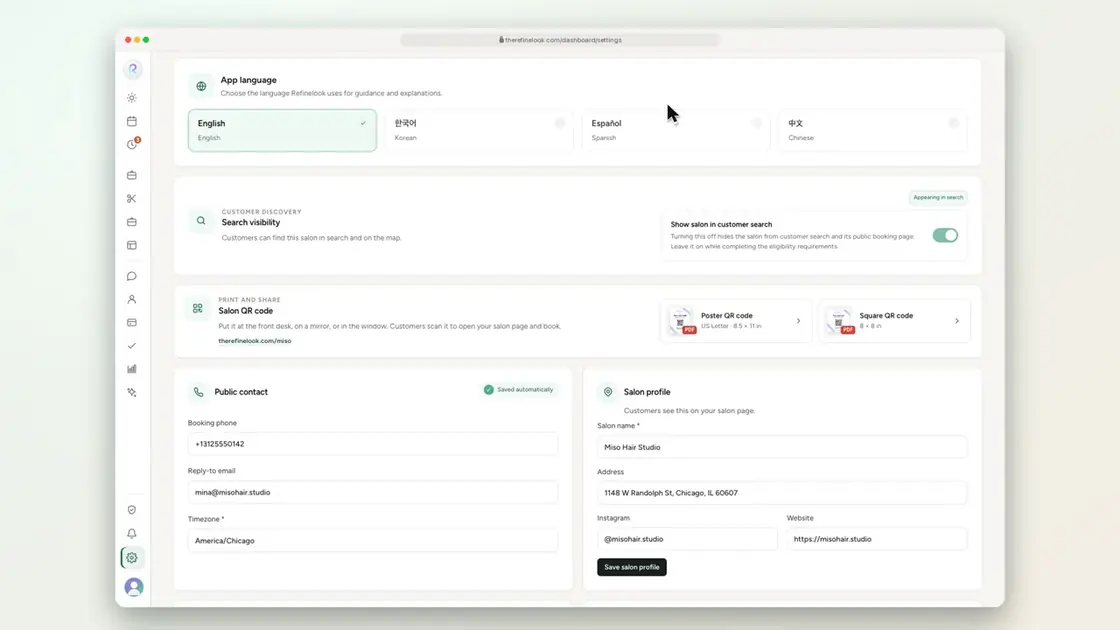 0:173-23Print a QR code poster
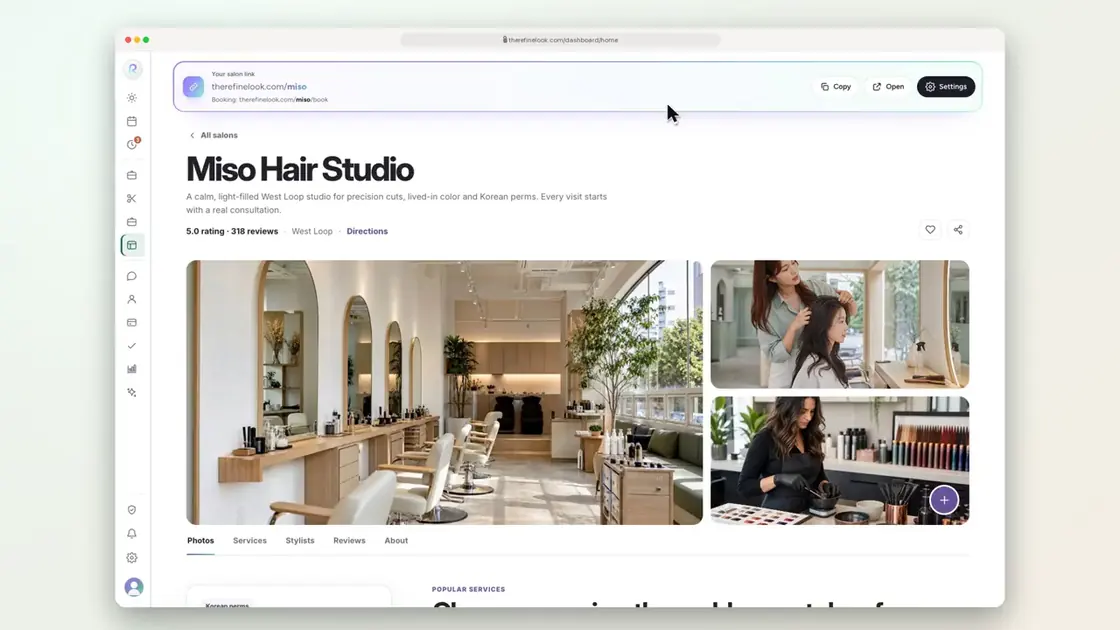 0:163-24Add photos to your live salon page
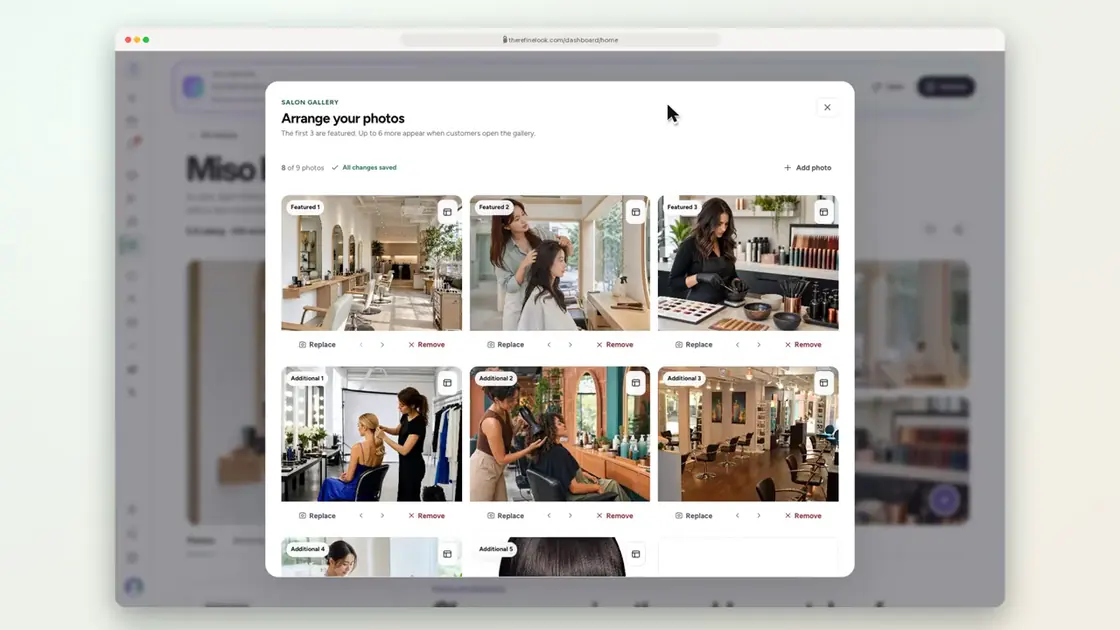 0:133-25Drag photos to reorder them
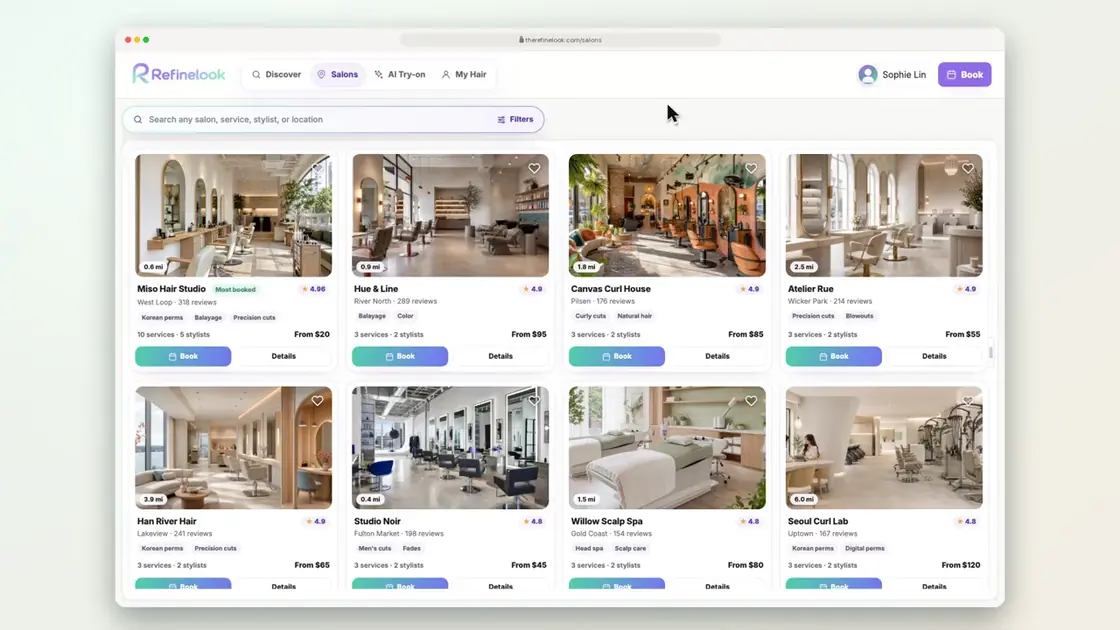 0:163-26Customers search salons, services and stylists
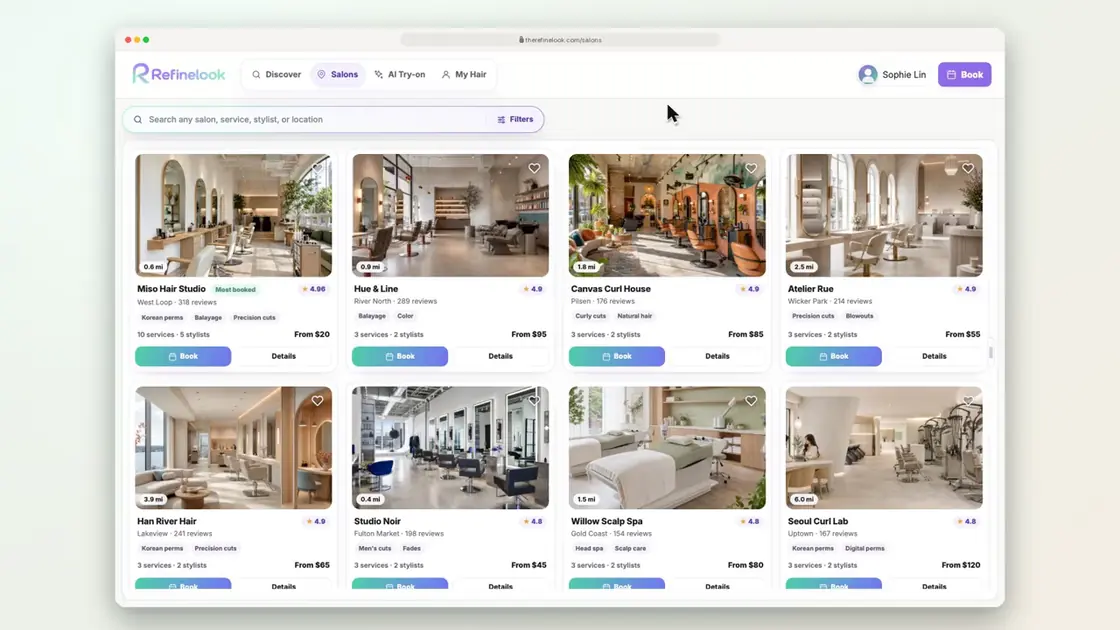 0:193-27Filter by price, rating and distance
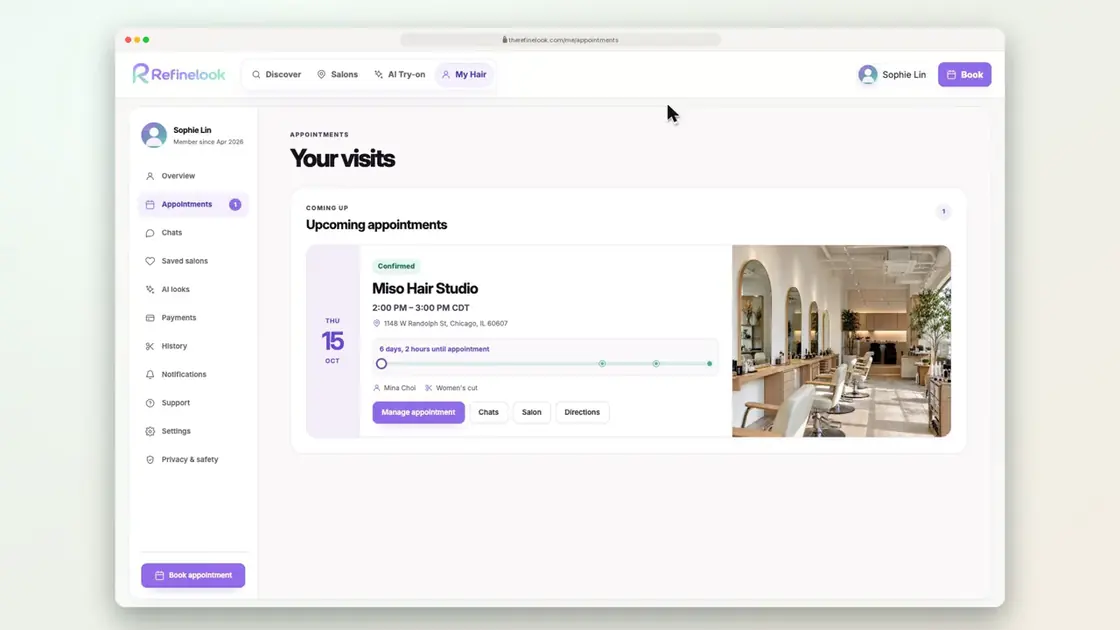 0:243-28Customers reschedule their own visit
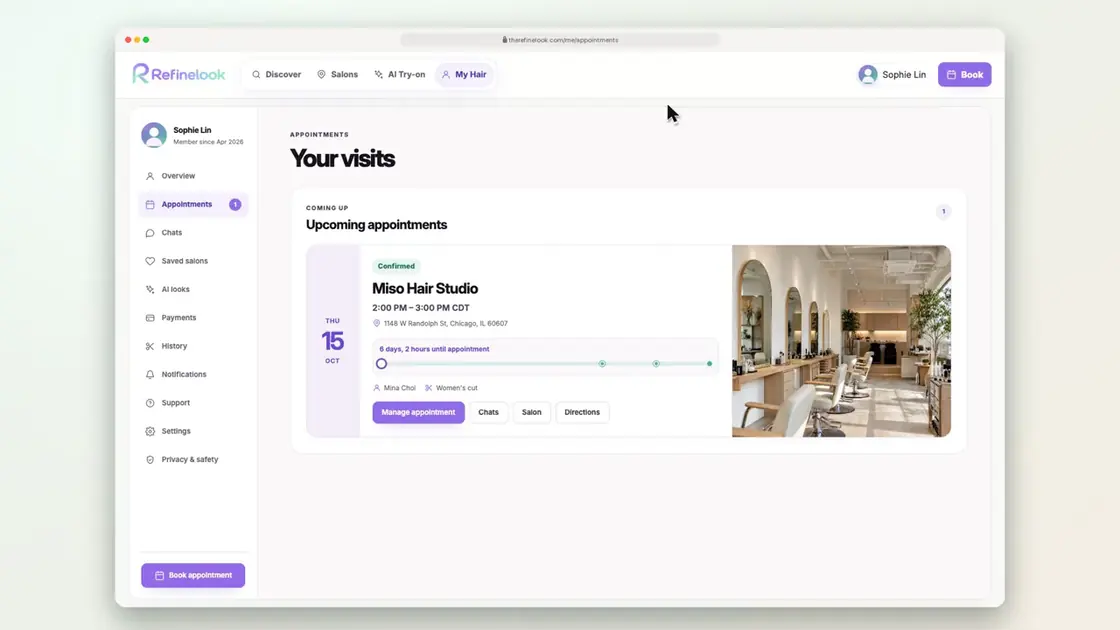 0:143-29Customers cancel within your limits
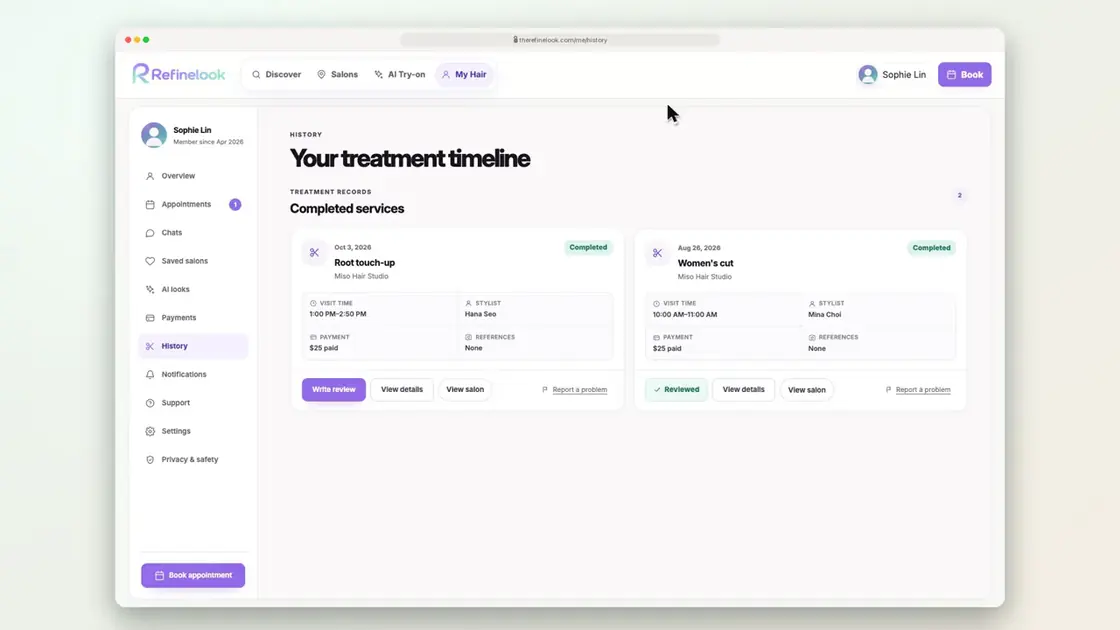 0:243-30Leave a review with photos
No videos here match your search.
Deposits & policies
Card deposits through Stripe or your own payment QR code. Refund cutoffs on sliders, a no-show fee, and a blocklist that keeps your calendar yours.
 0:174-1Choose your deposit
 0:184-2Give a service its own deposit
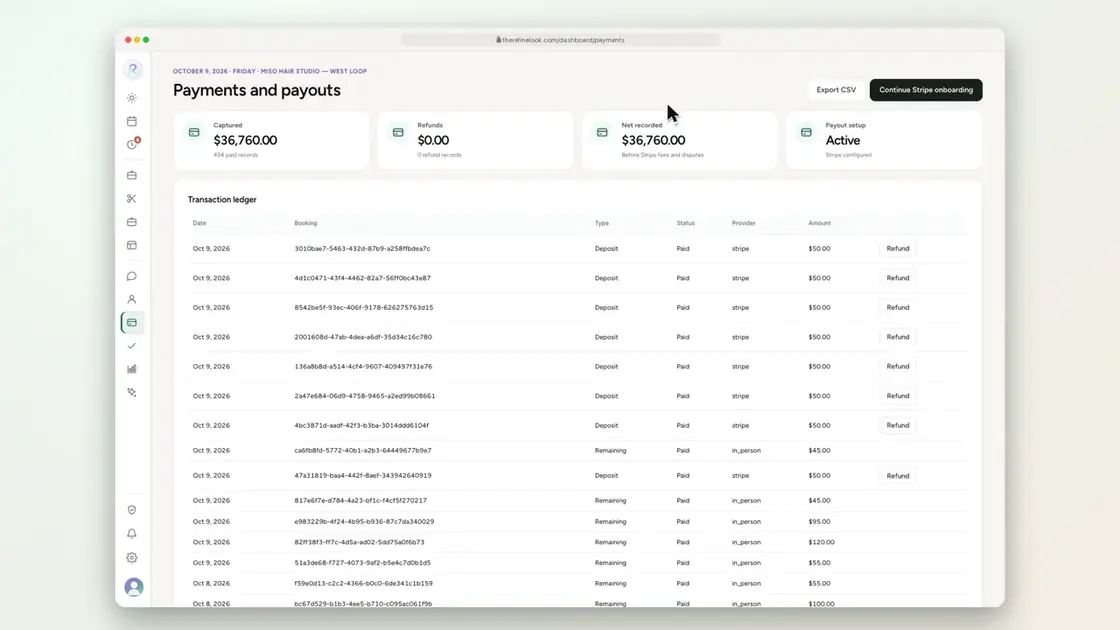 0:134-3Refund a card deposit
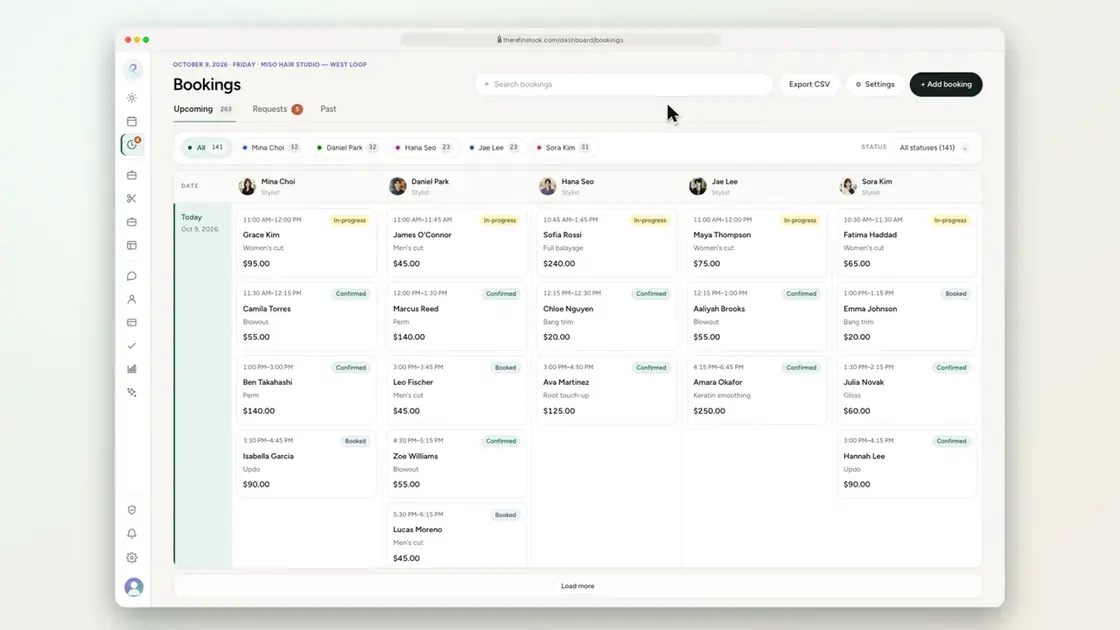 0:204-4Upload your payment QR code
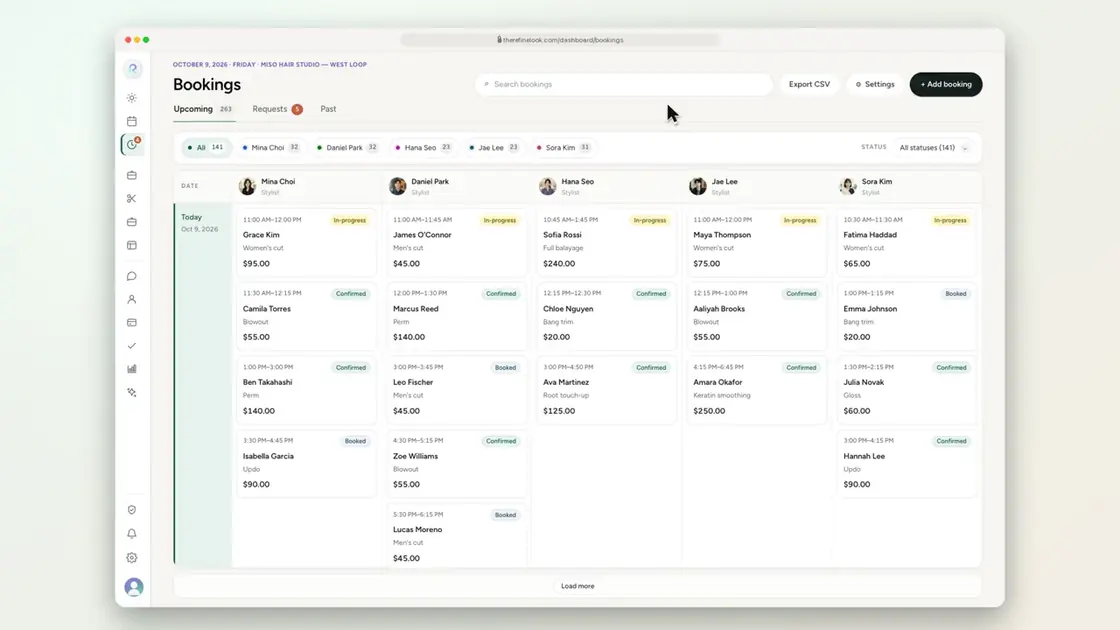 0:244-5Add payment instructions and a due date
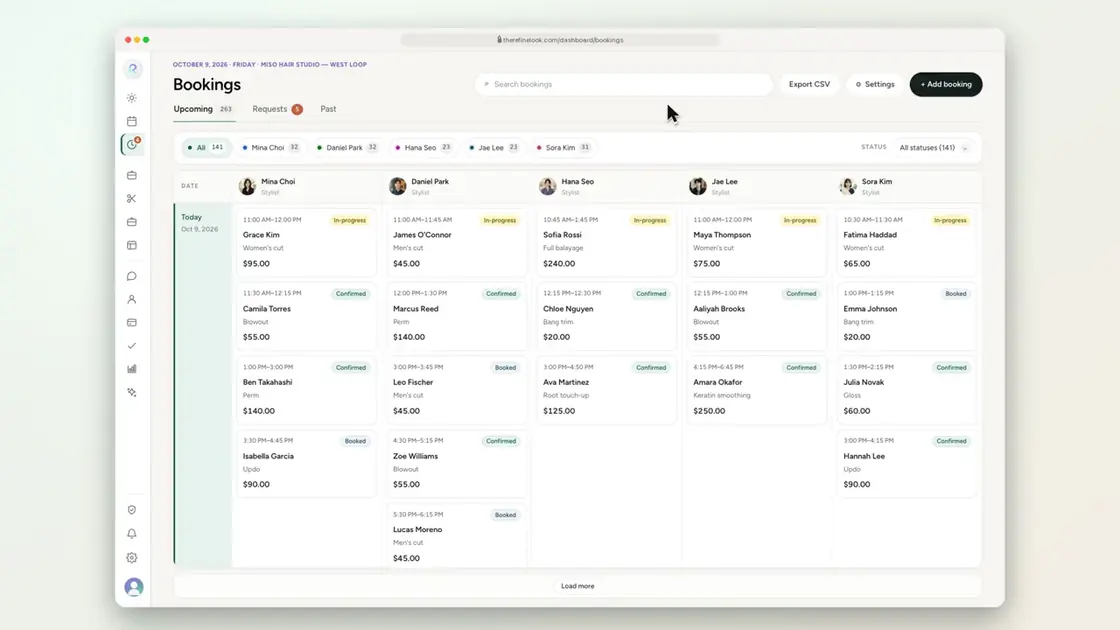 0:184-6Update your QR code for every booking
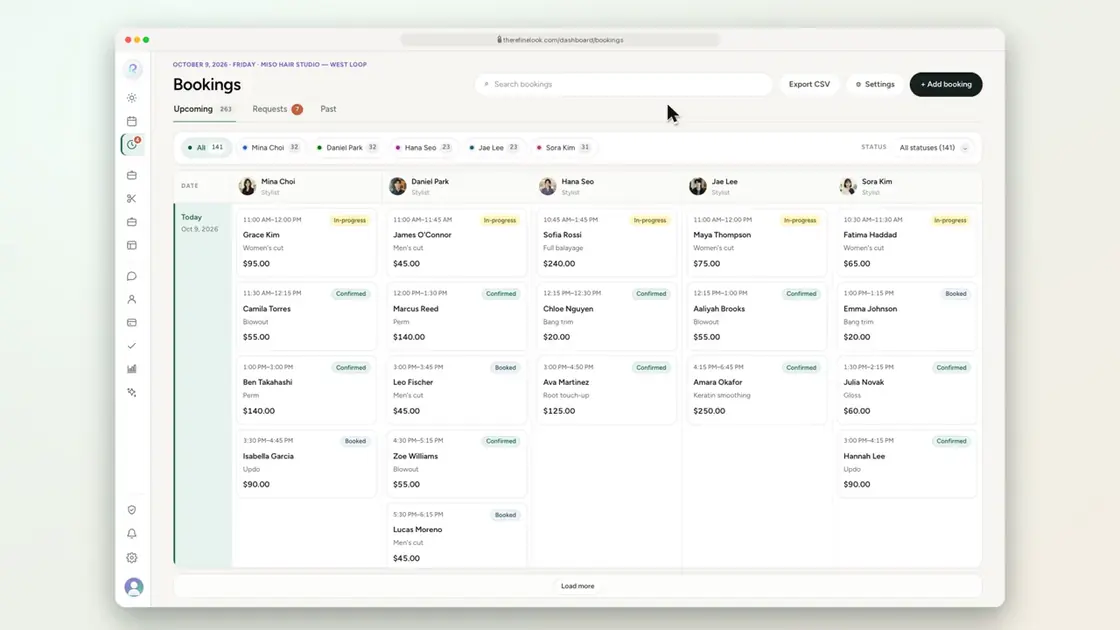 0:114-7Mark a deposit as received
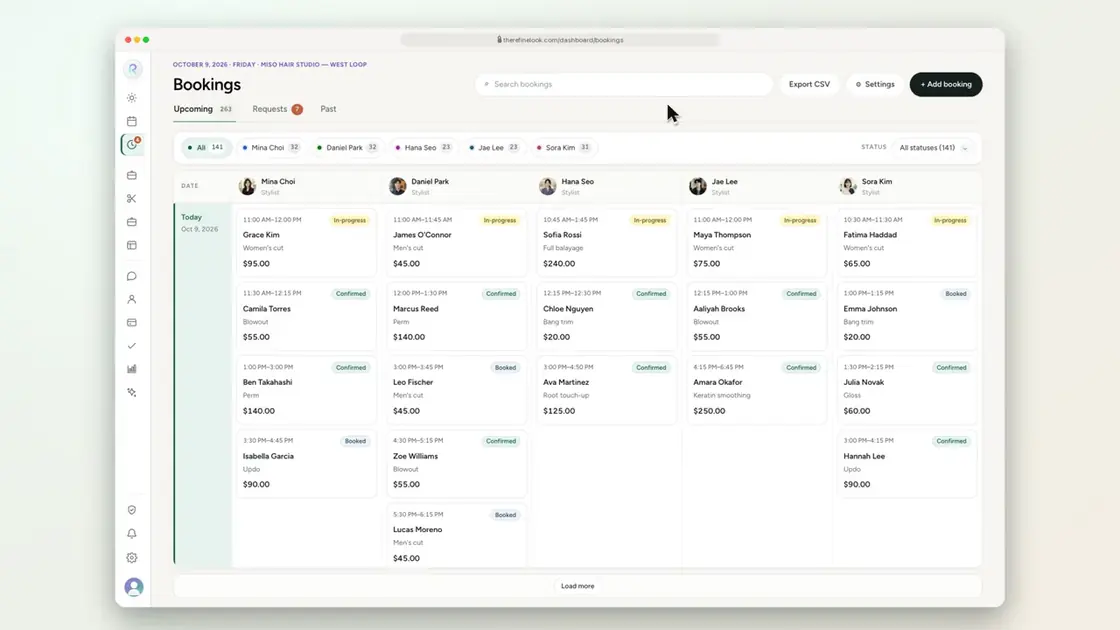 0:204-8Set refund cutoffs with sliders
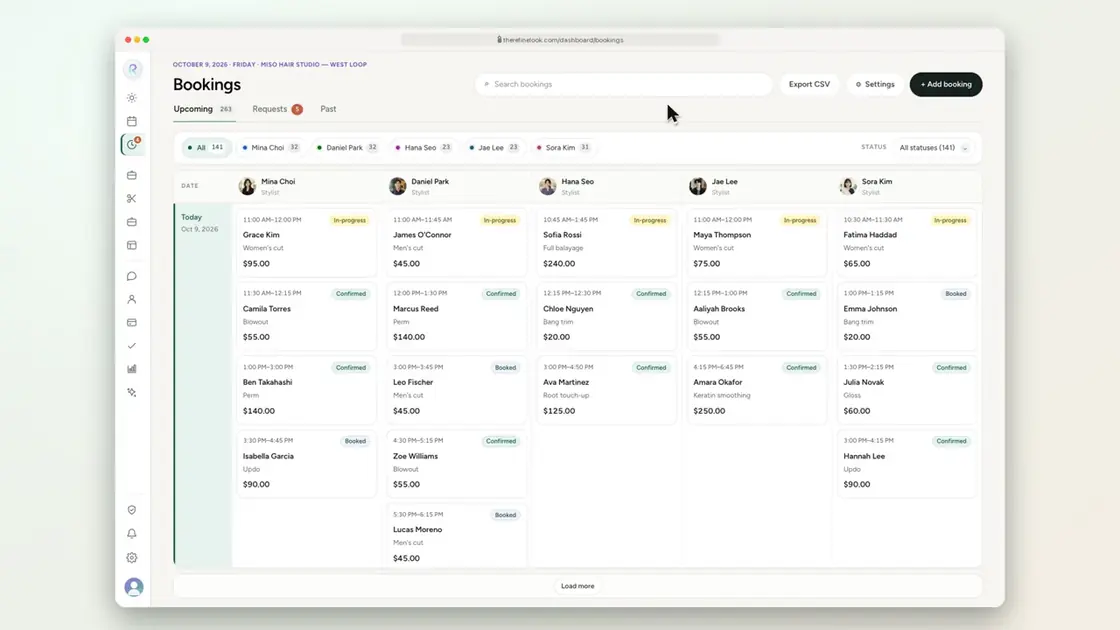 0:164-9Set your cancellation and no-show policy
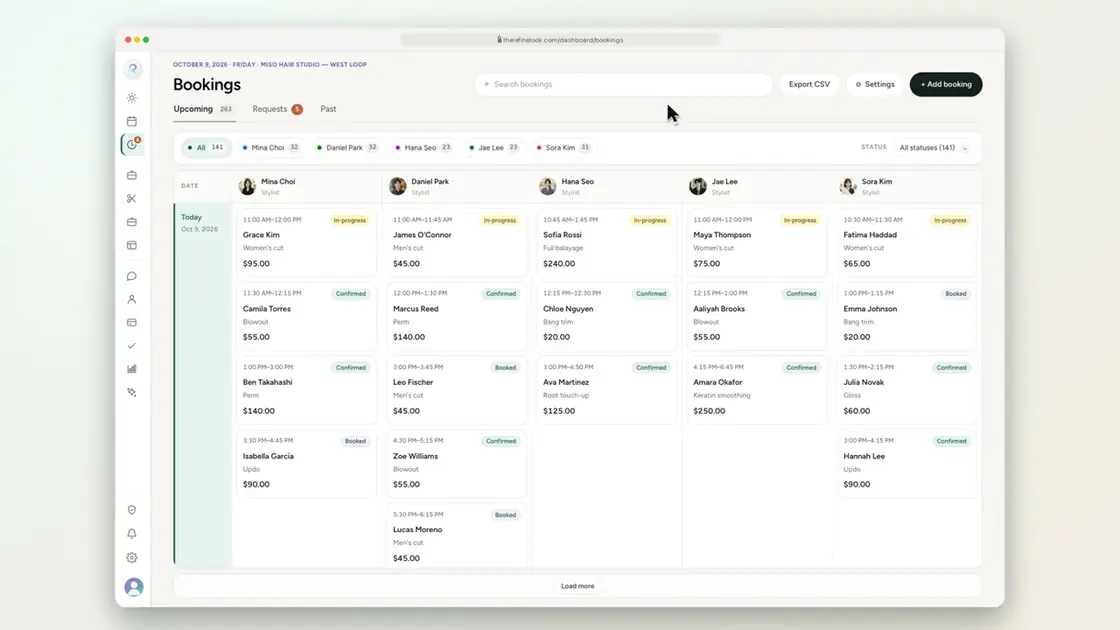 0:164-10Hide your salon from blacklisted customers
No videos here match your search.
Services
Categories with colors, add-ons, prices per stylist, and a question that sets the appointment length. Import your menu from a spreadsheet or a photo.
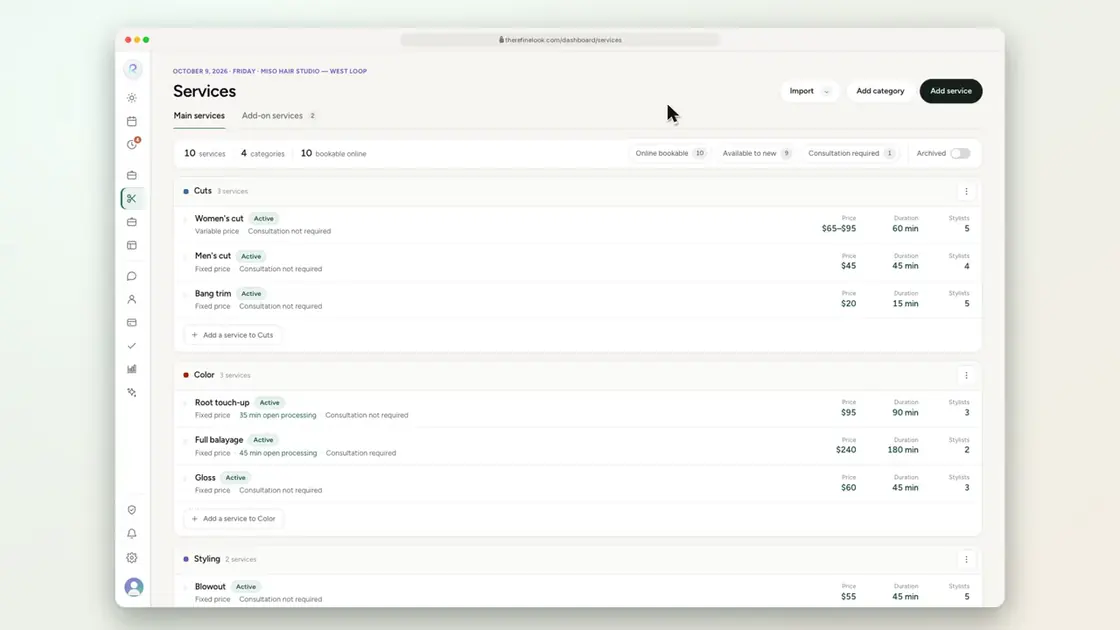
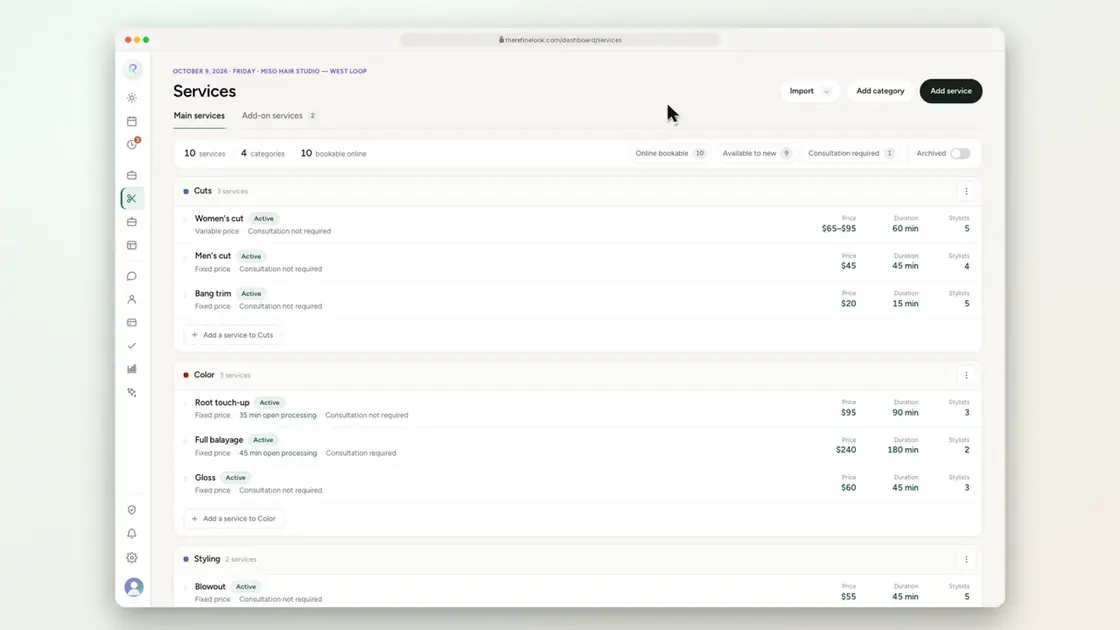 0:265-1Organize services into color-coded categories
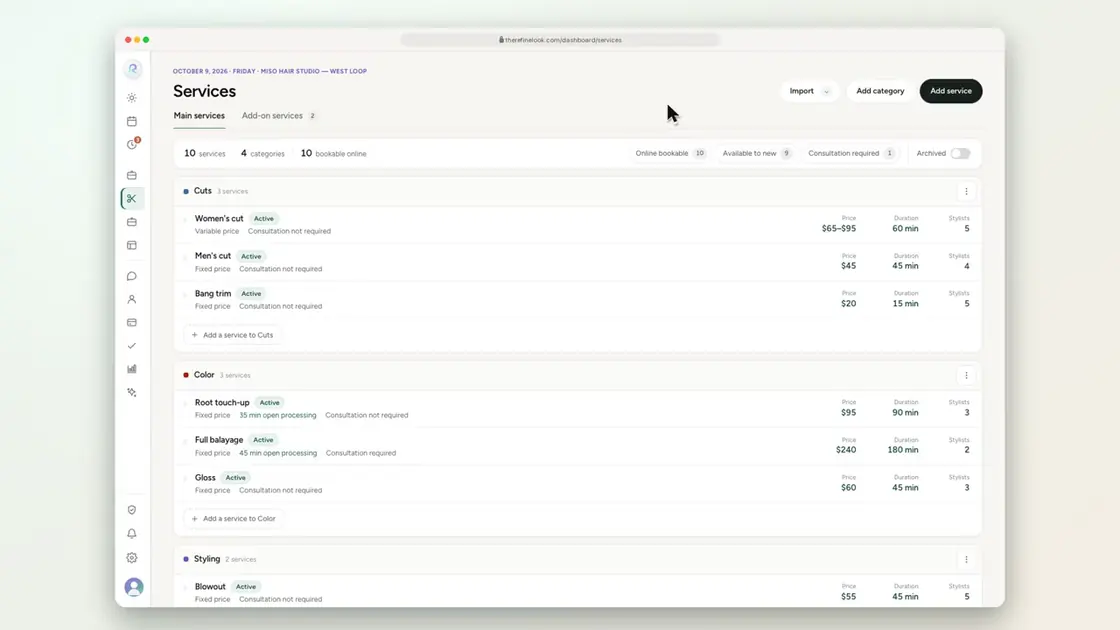 0:095-2Drag services to reorder them
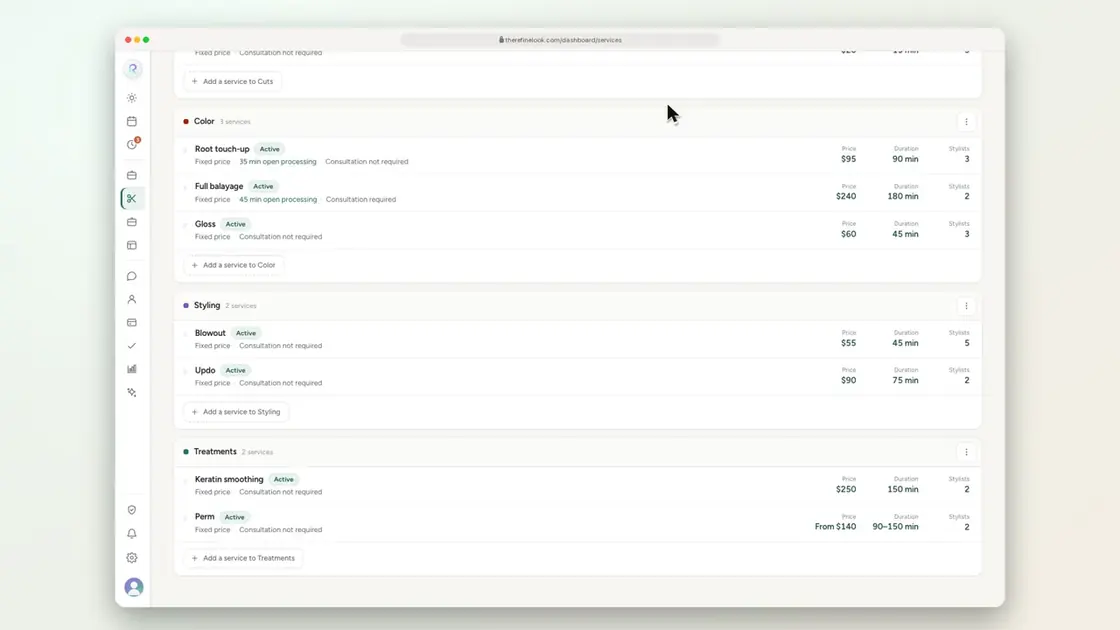 0:105-3Move a service to another category
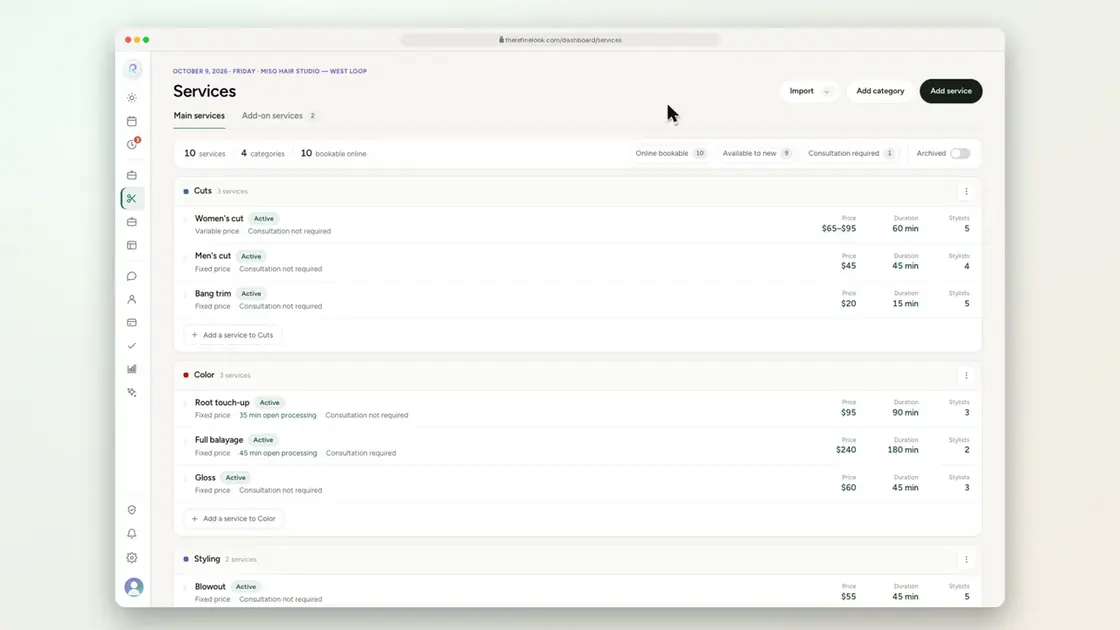 0:175-4Never lose an unsaved edit
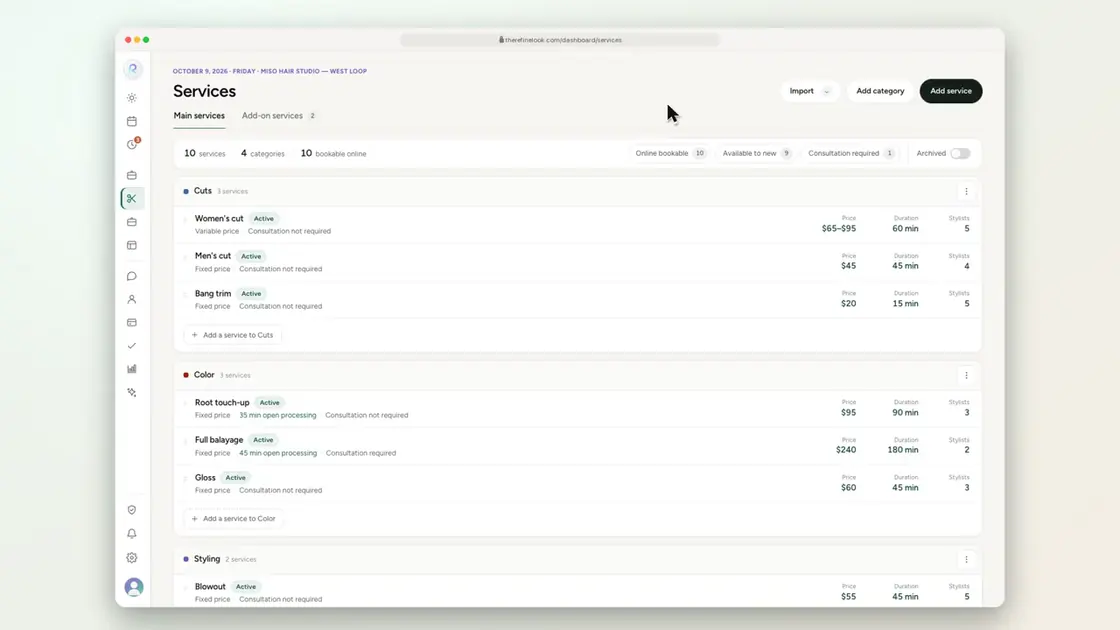 0:165-5Add a service photo by drag and drop
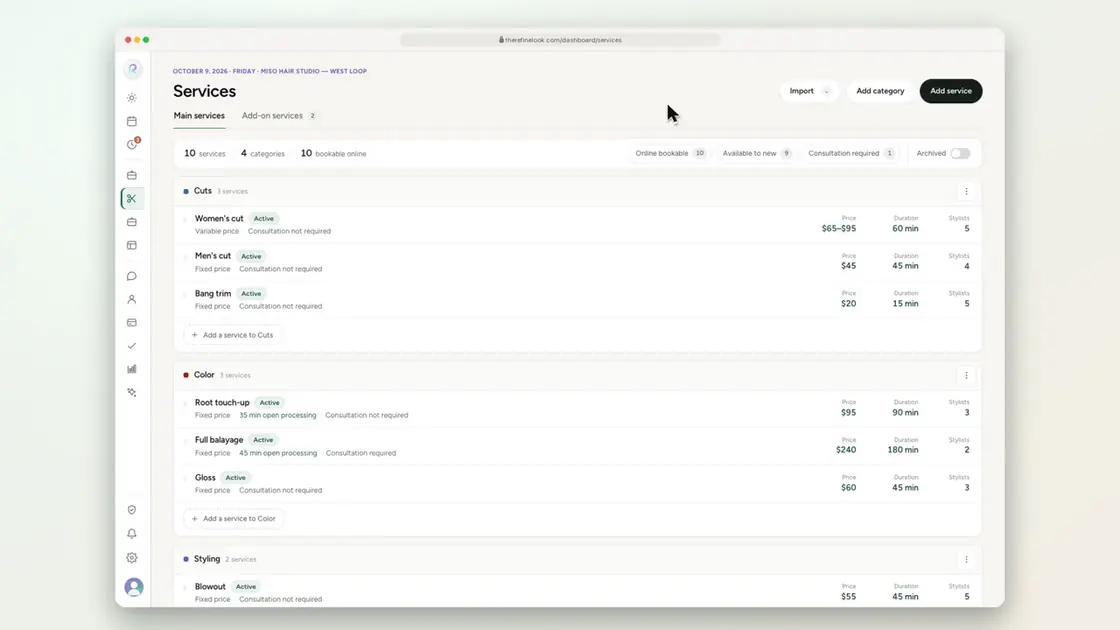 0:215-6Create an add-on with its own price and time
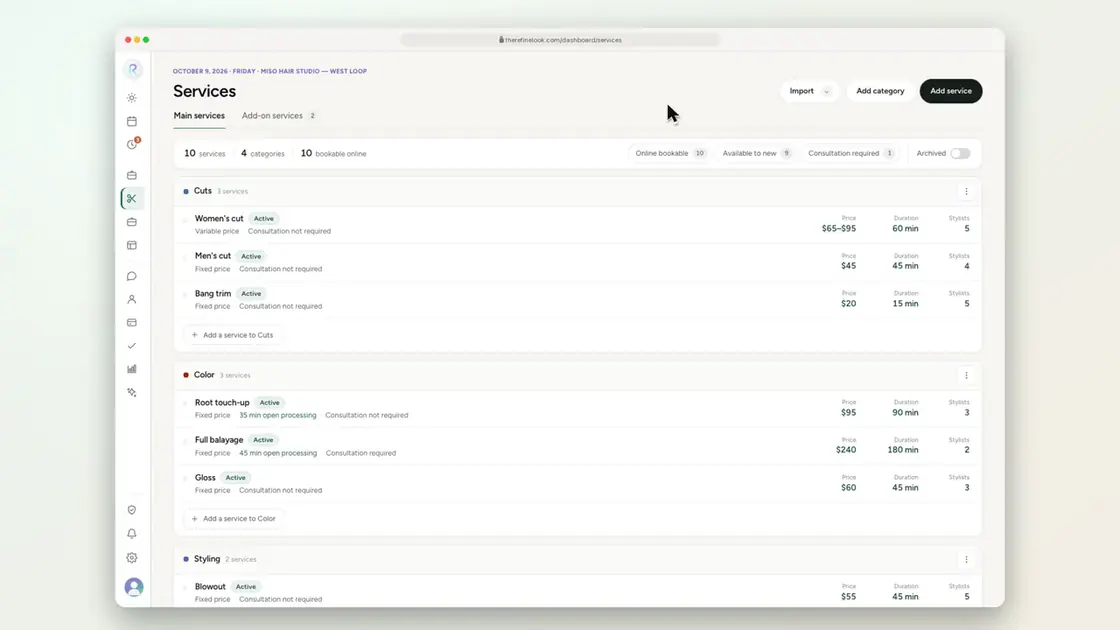 0:175-7Offer add-ons with a service
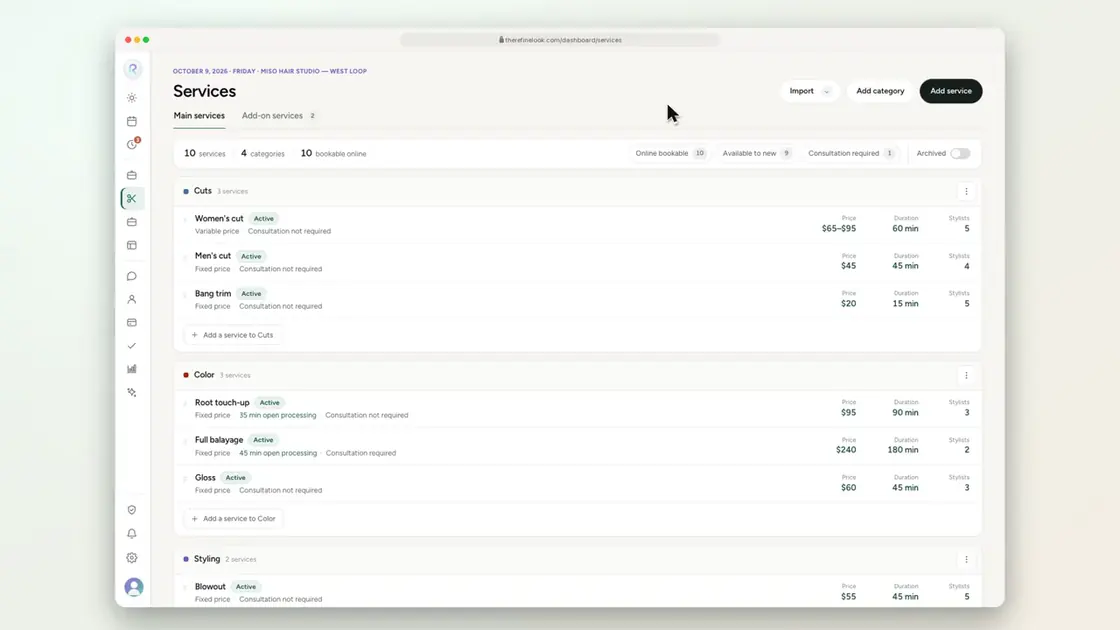 0:145-8One fixed price for everyone
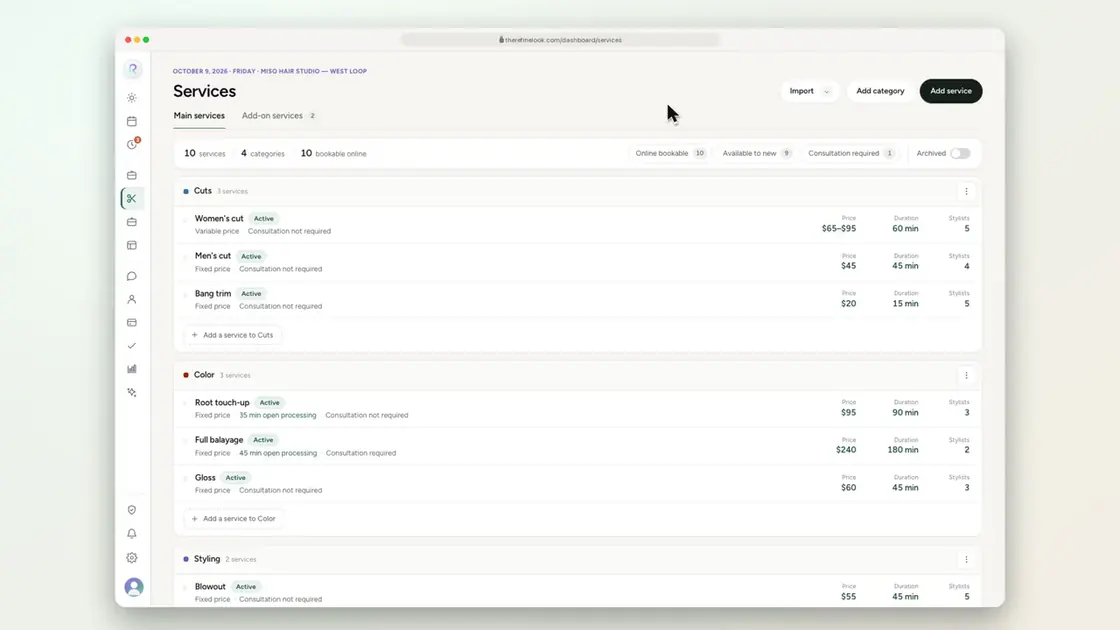 0:215-9Let each stylist set their own price
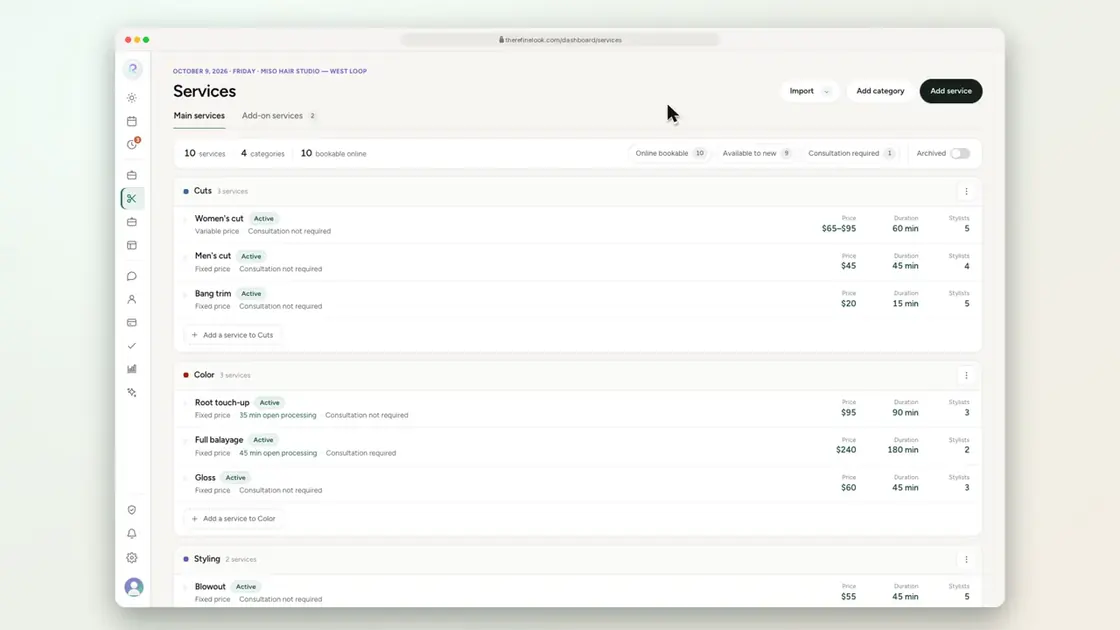 0:195-10Show a price range
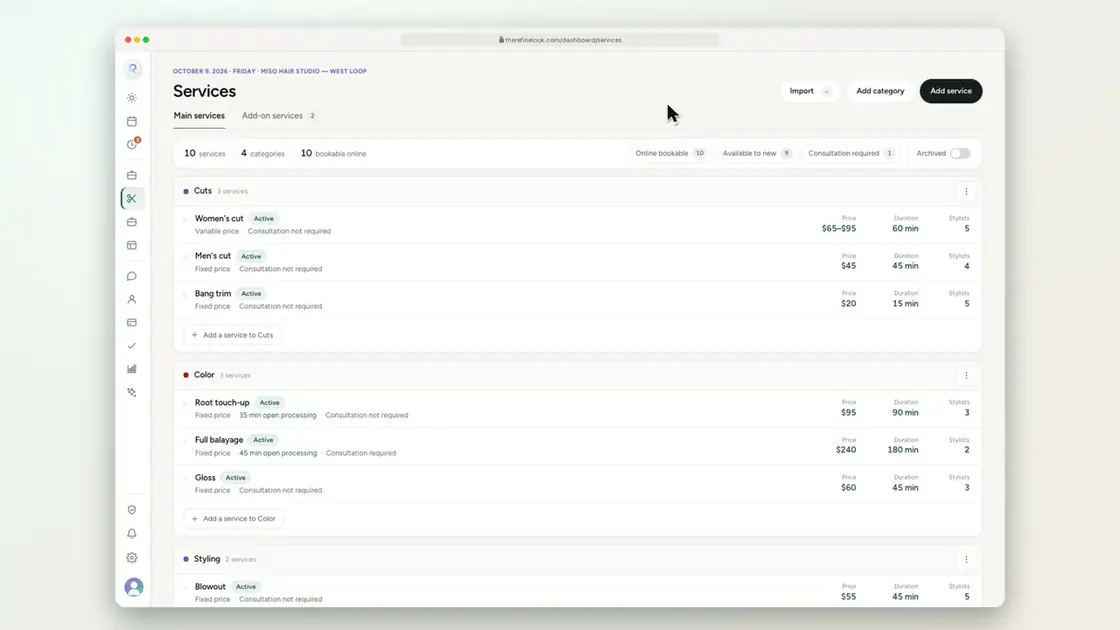 0:255-11Set the length from the client's answer
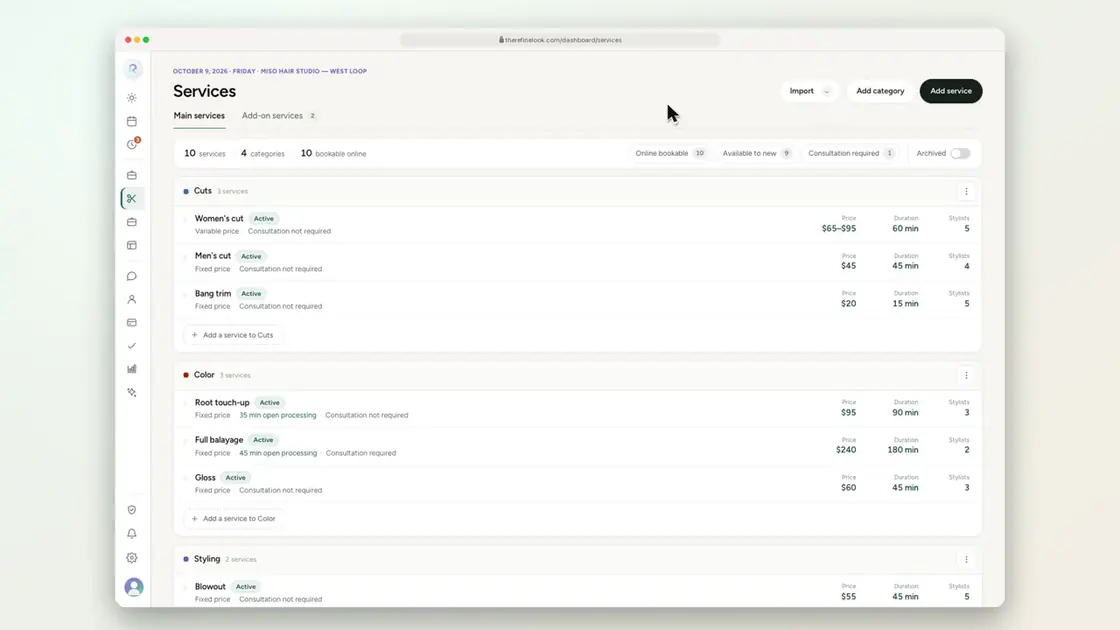 0:155-12Choose which stylists perform each service
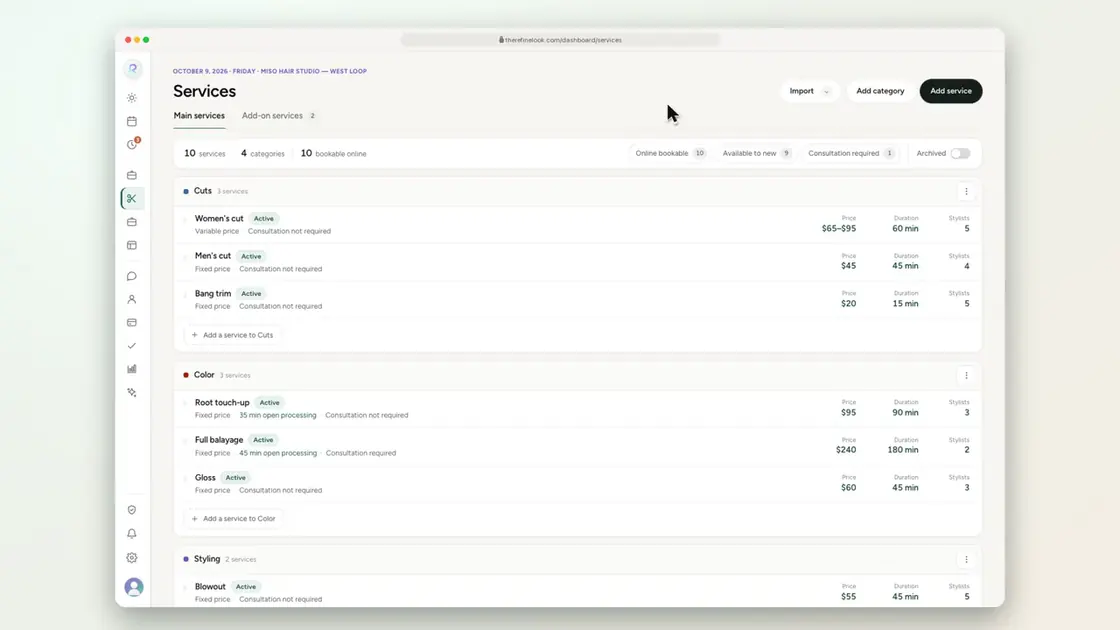 0:145-13Choose whether a service is bookable online
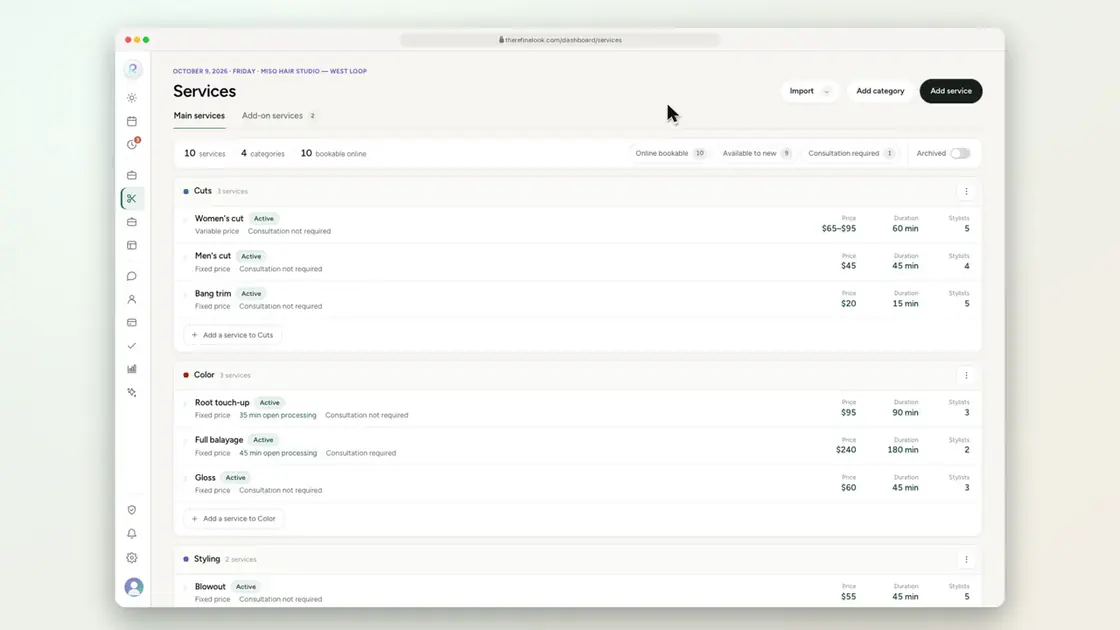 0:165-14Offer a service to existing clients only
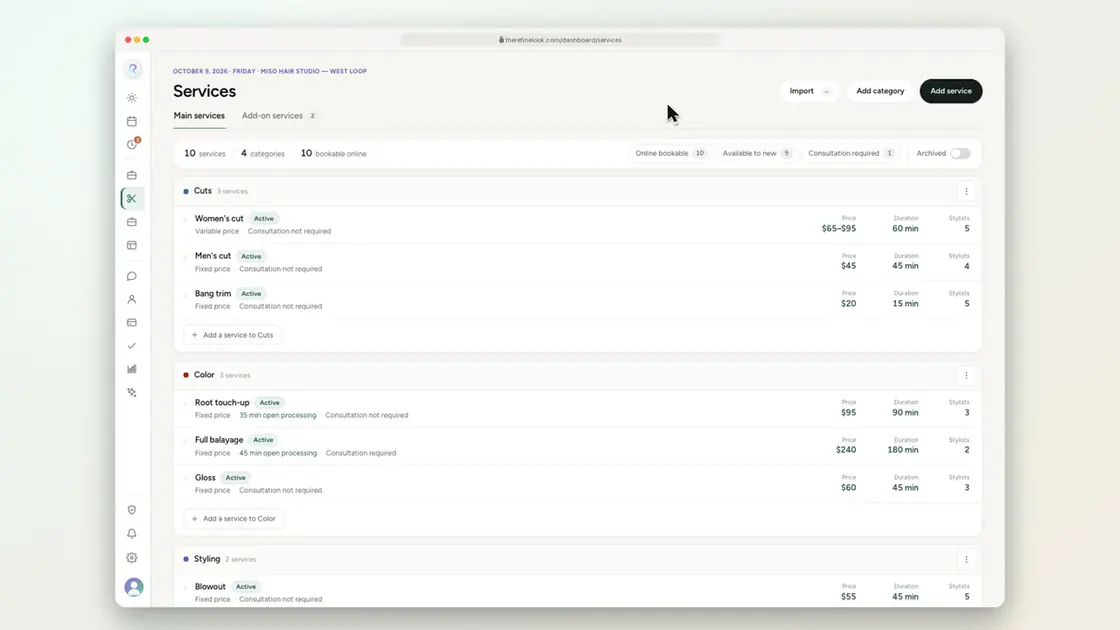 0:145-15Require a consultation for new or returning clients
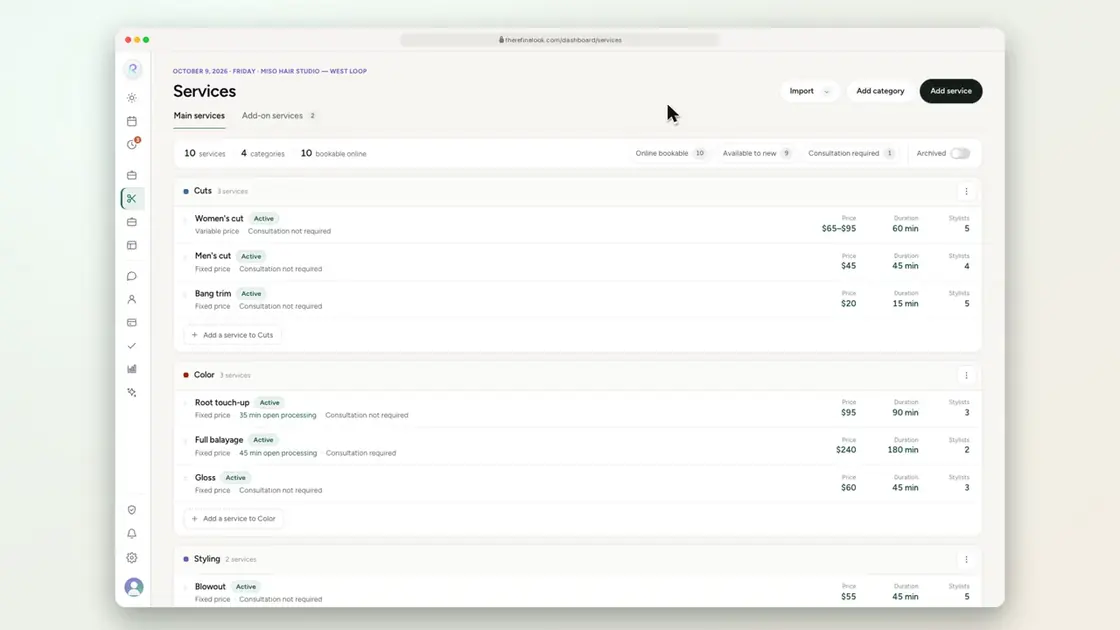 0:215-16Set buffers and gap time for a service
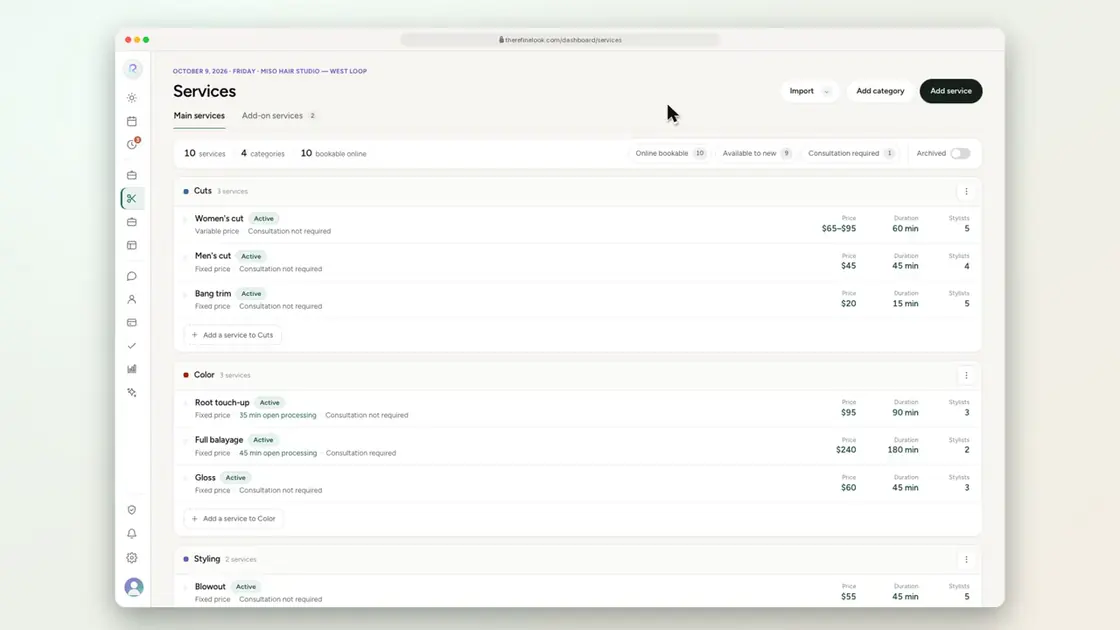 0:165-17Track the product each service uses
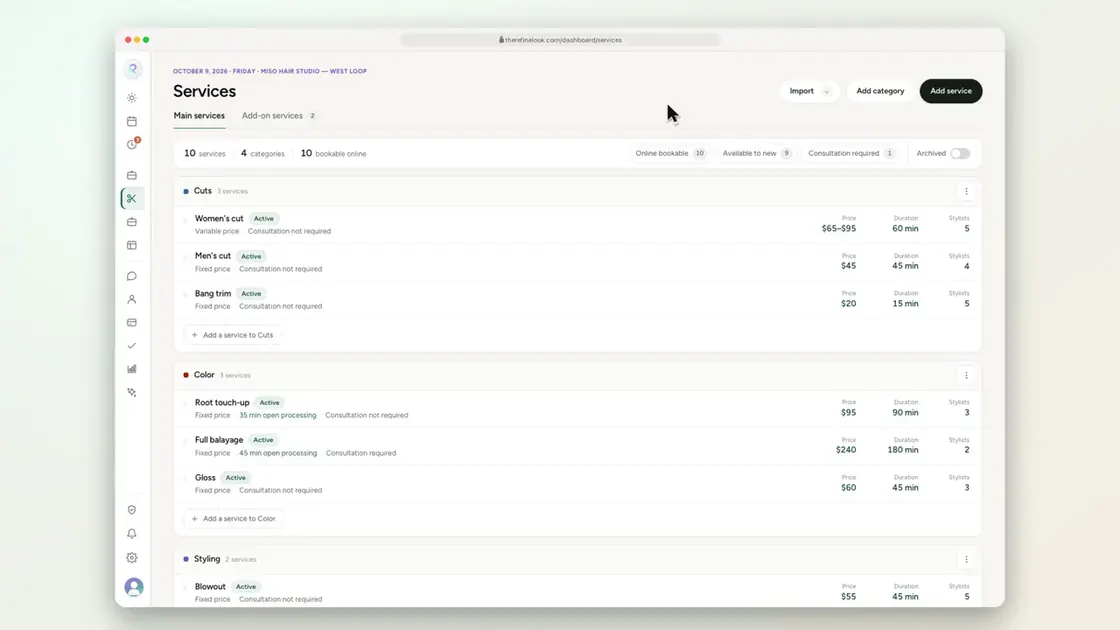 0:255-18Archive a service and restore it later
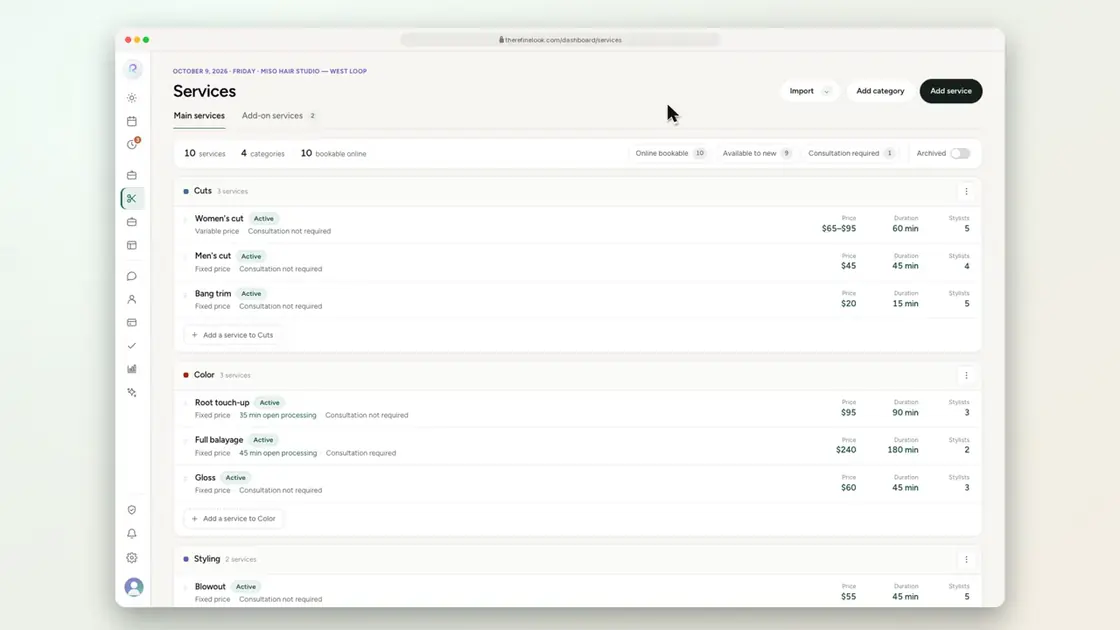 0:165-19Quick filters with counts
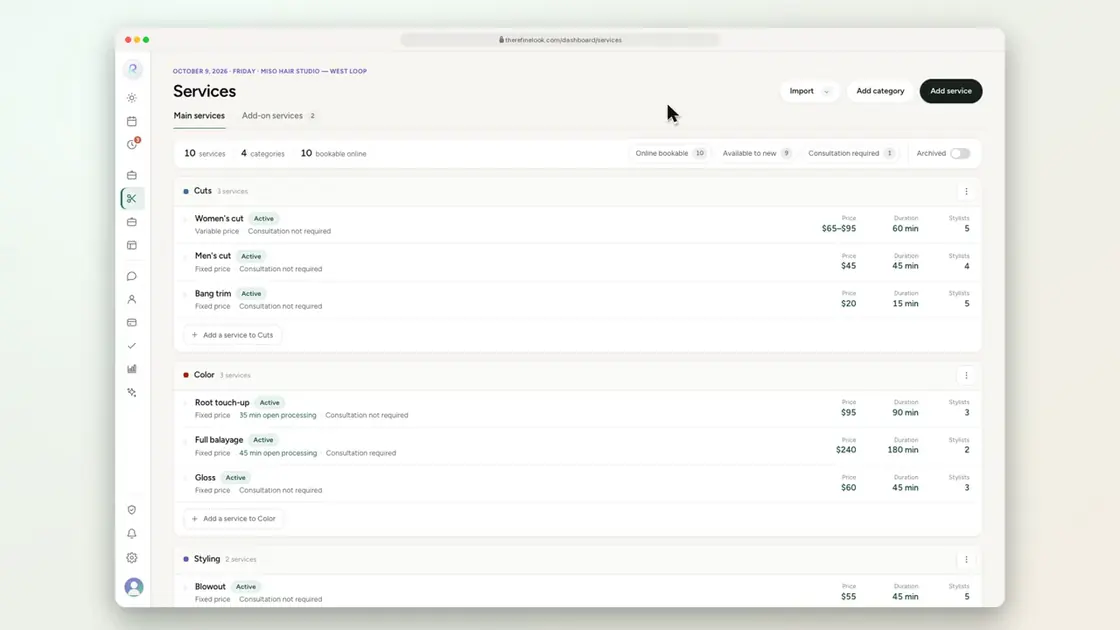 0:195-20Import your menu from a spreadsheet
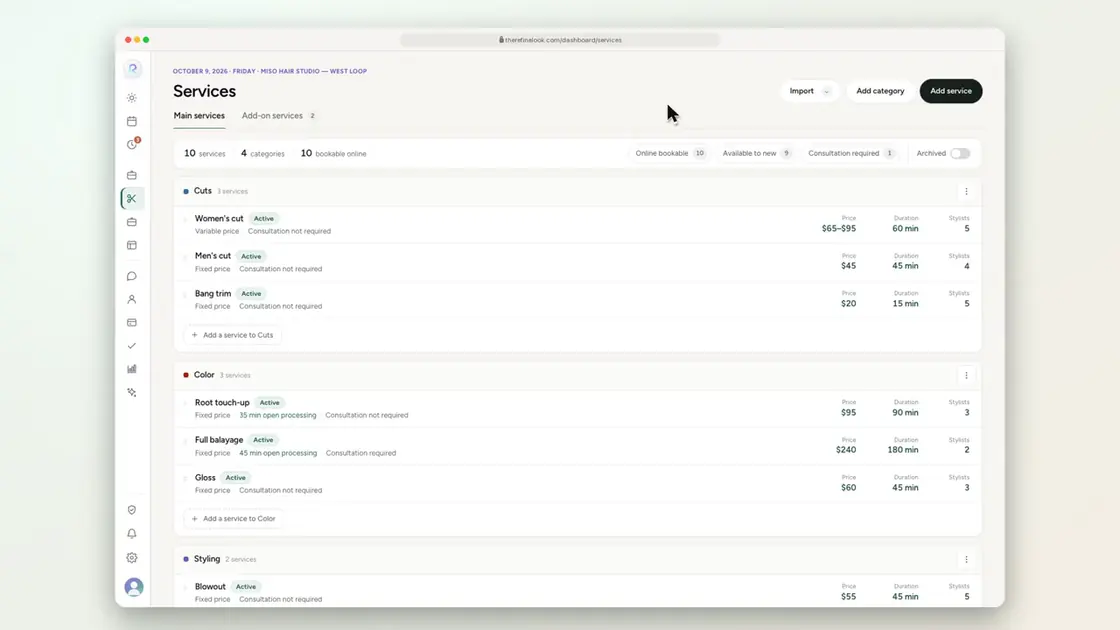 0:215-21Let AI read photos of your printed menu
No videos here match your search.
Team
Stylists join with your salon code. Roles decide what they see, booking permissions decide what they take, and pay reports do the math.
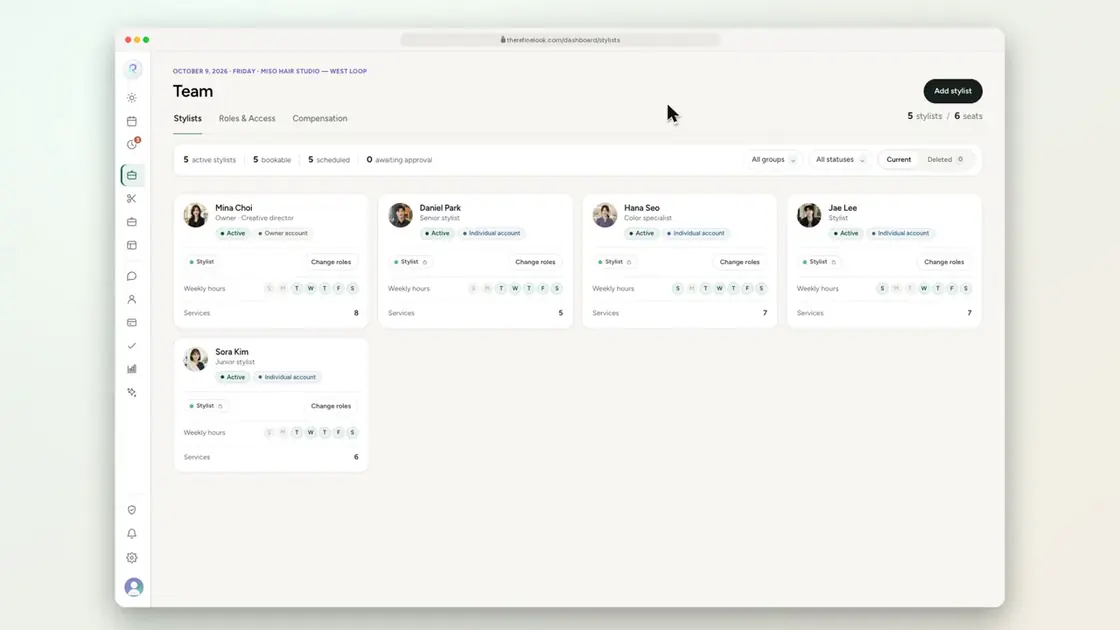 0:256-1Create a stylist profile
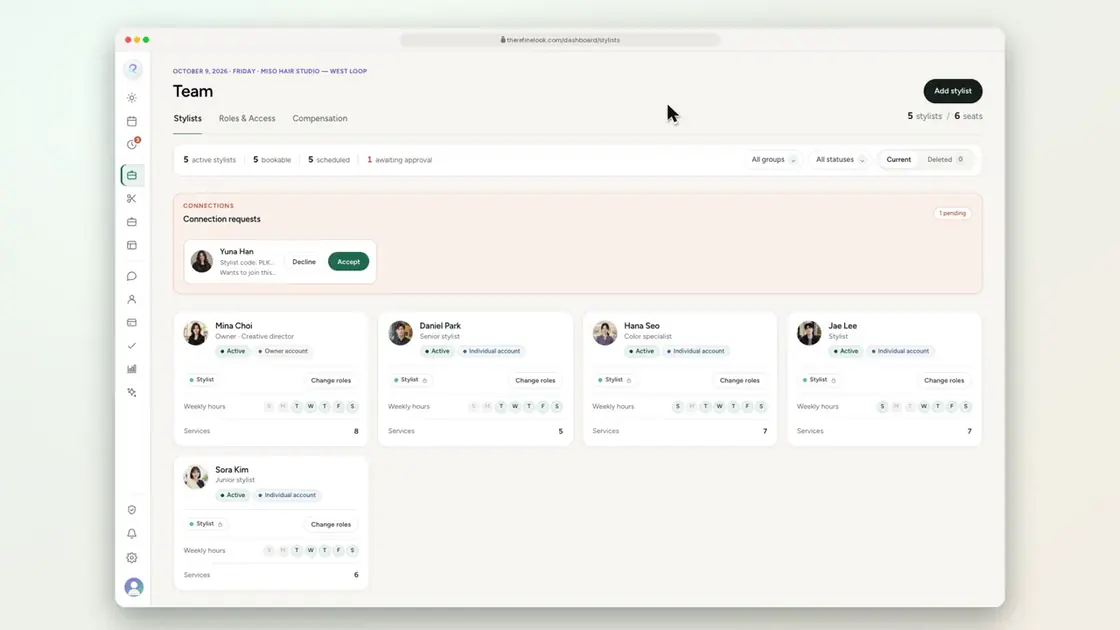 0:176-2Approve a stylist who joined with your salon code
 0:256-3Create a custom role
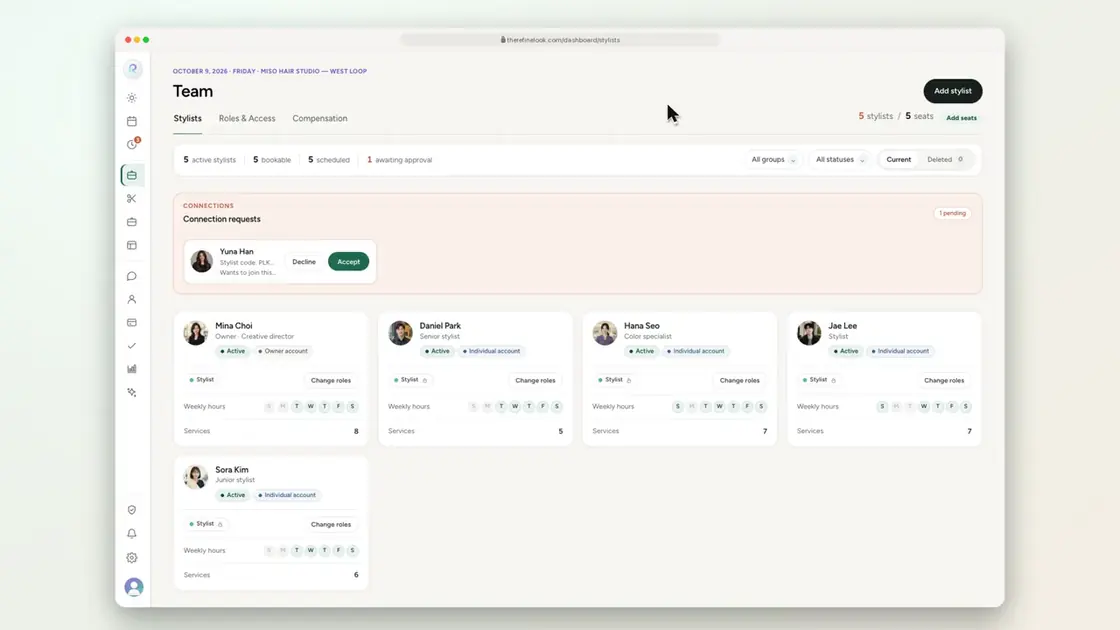 0:146-4Choose what each role can see
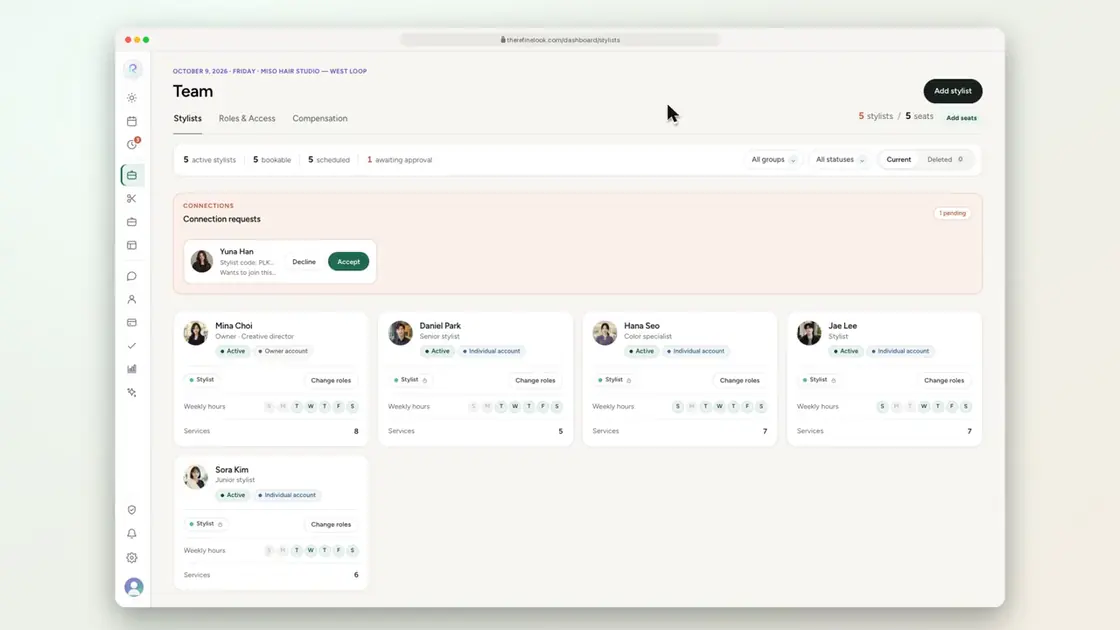 0:136-5Allow appointments outside a stylist's hours
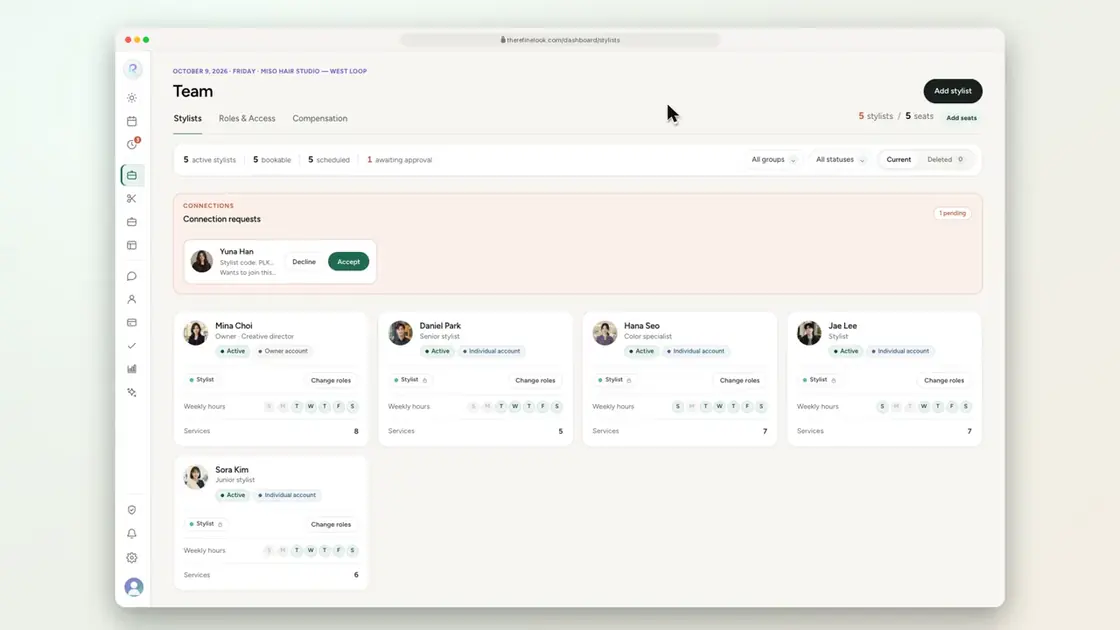 0:136-6Allow appointments outside salon hours
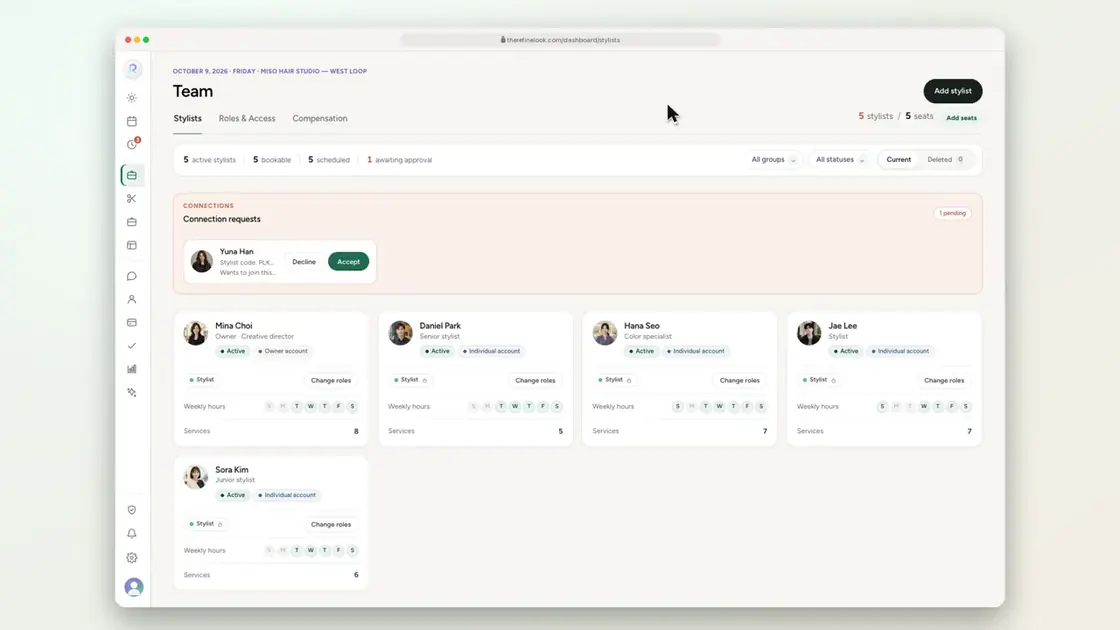 0:136-7Take returning clients only
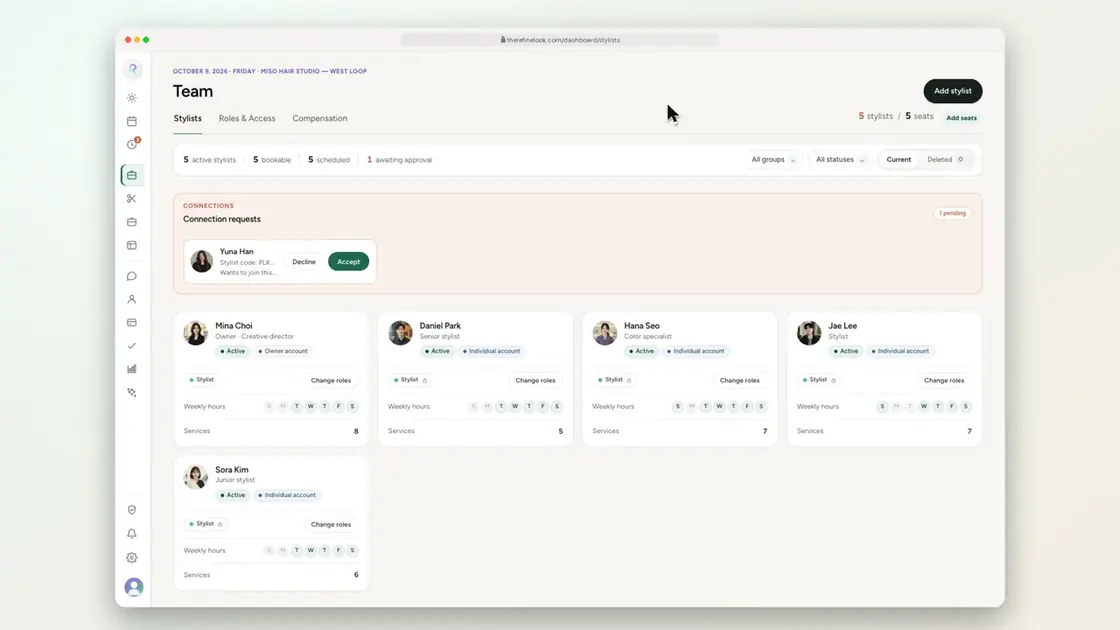 0:176-8Set a stylist's weekly hours
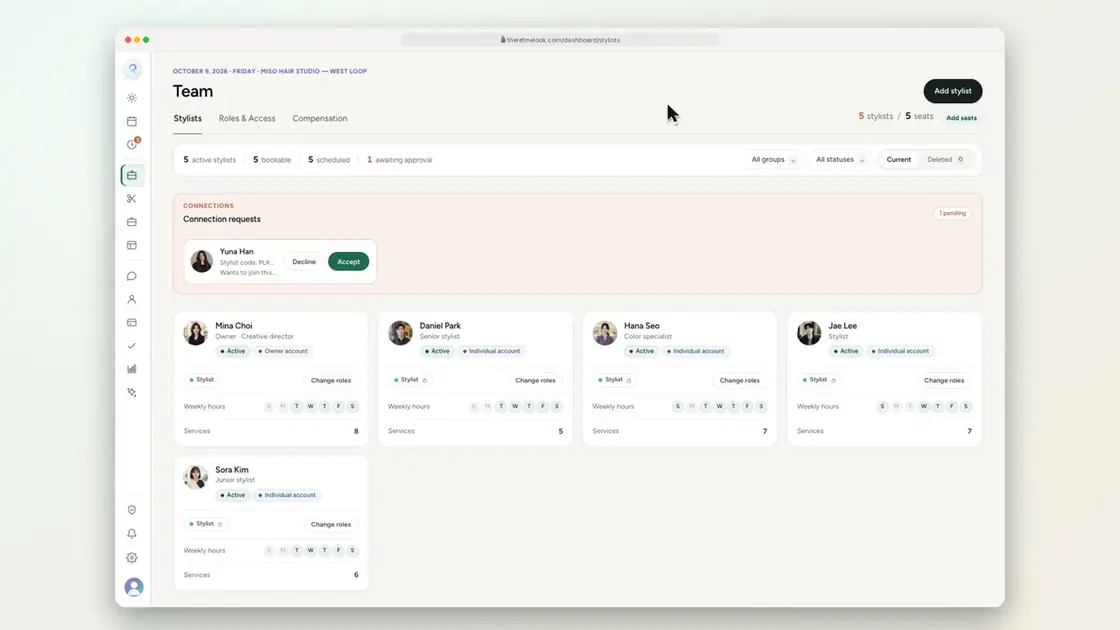 0:176-9Make a stylist inactive
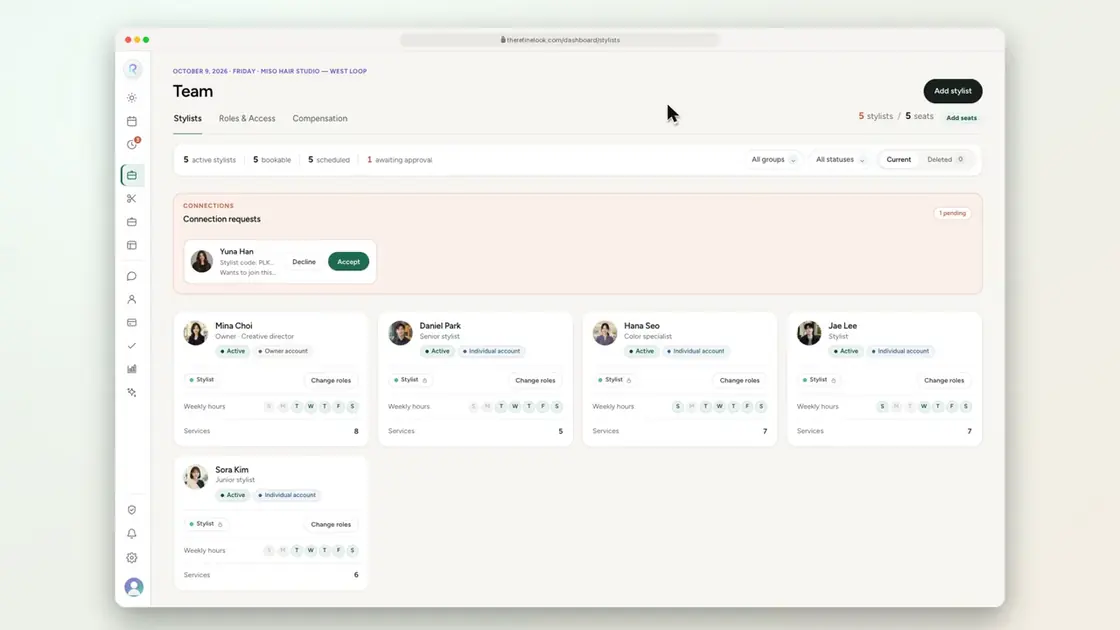
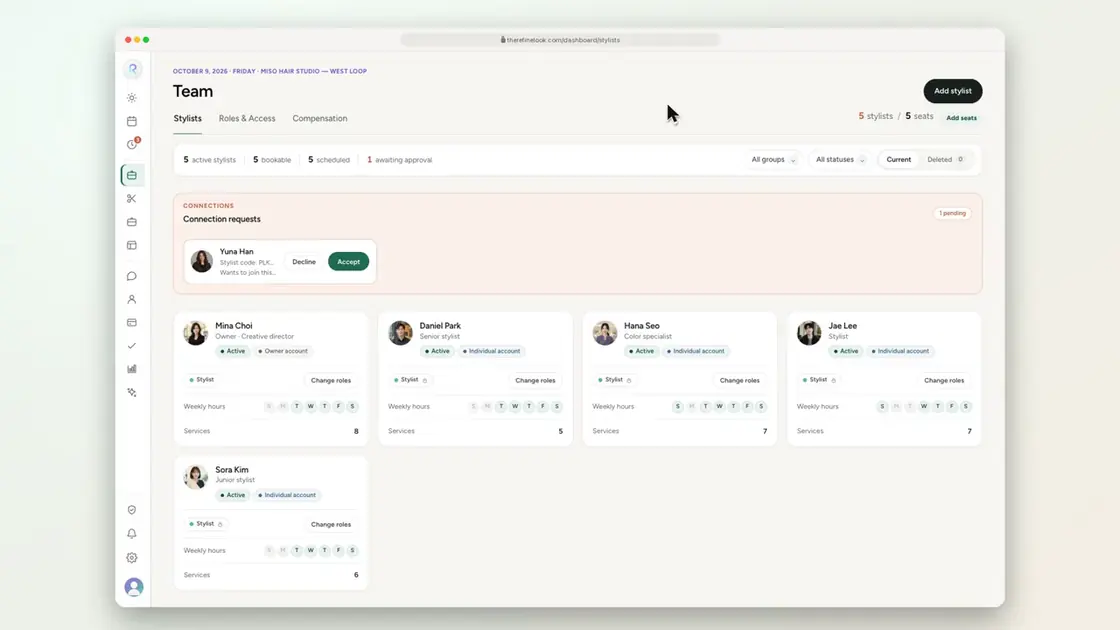 0:176-10See your seats and add more
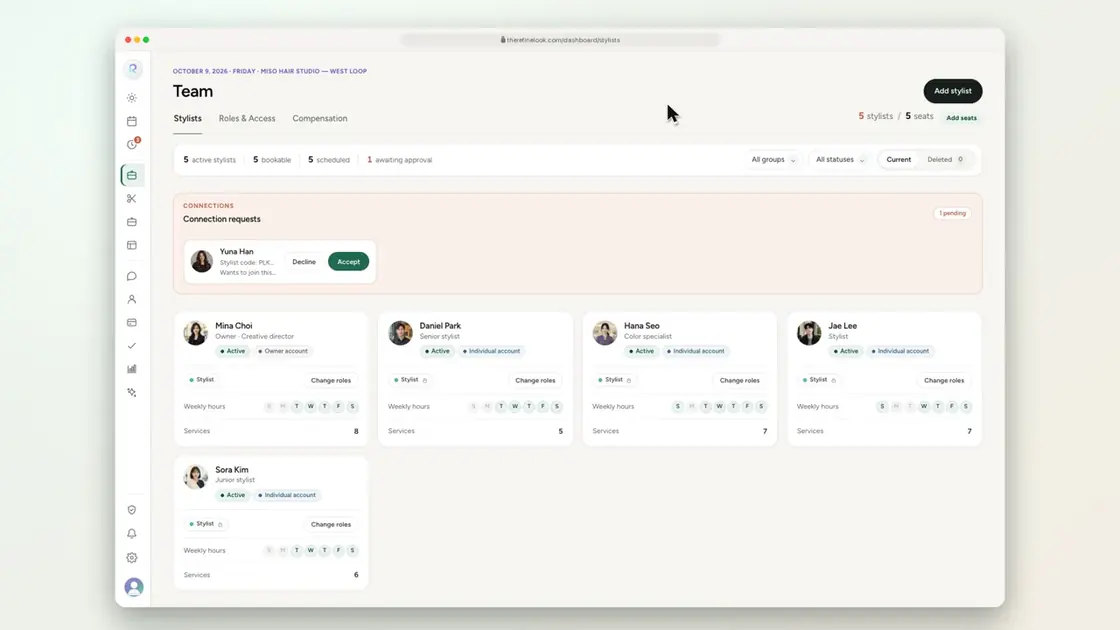 0:186-11Set hourly wage and commission
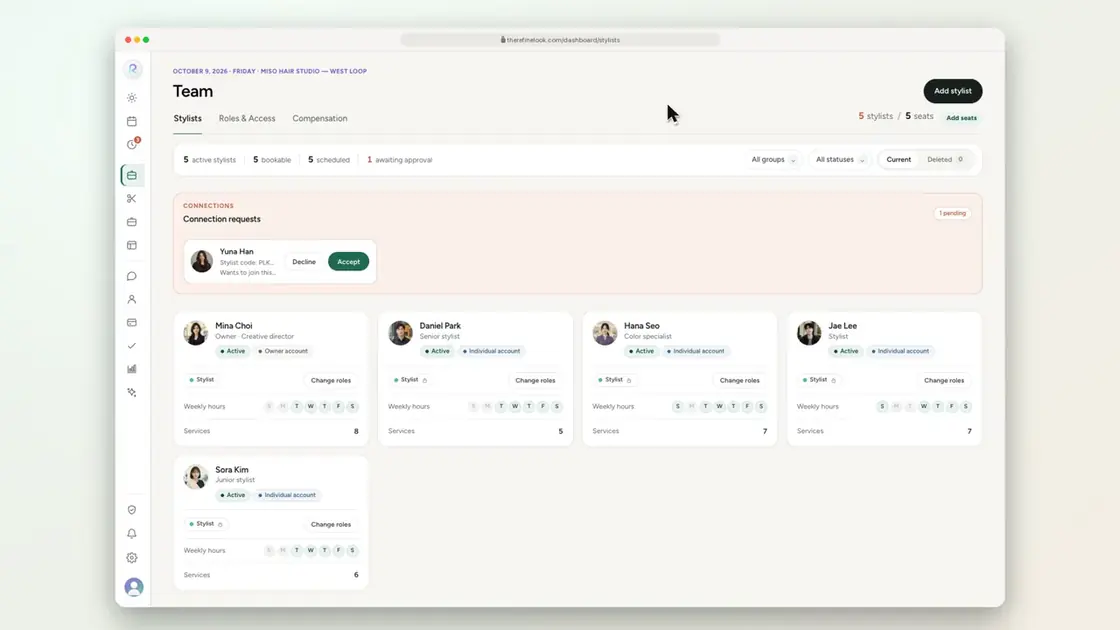 0:256-12Pay reports by month, quarter or year
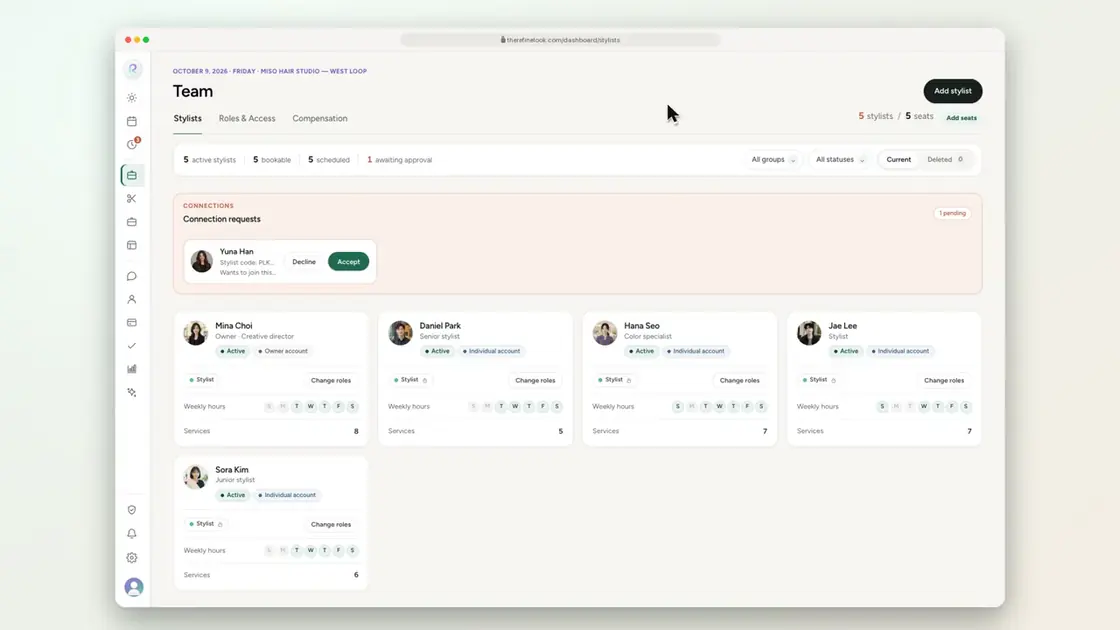 0:166-13Export payroll to Excel
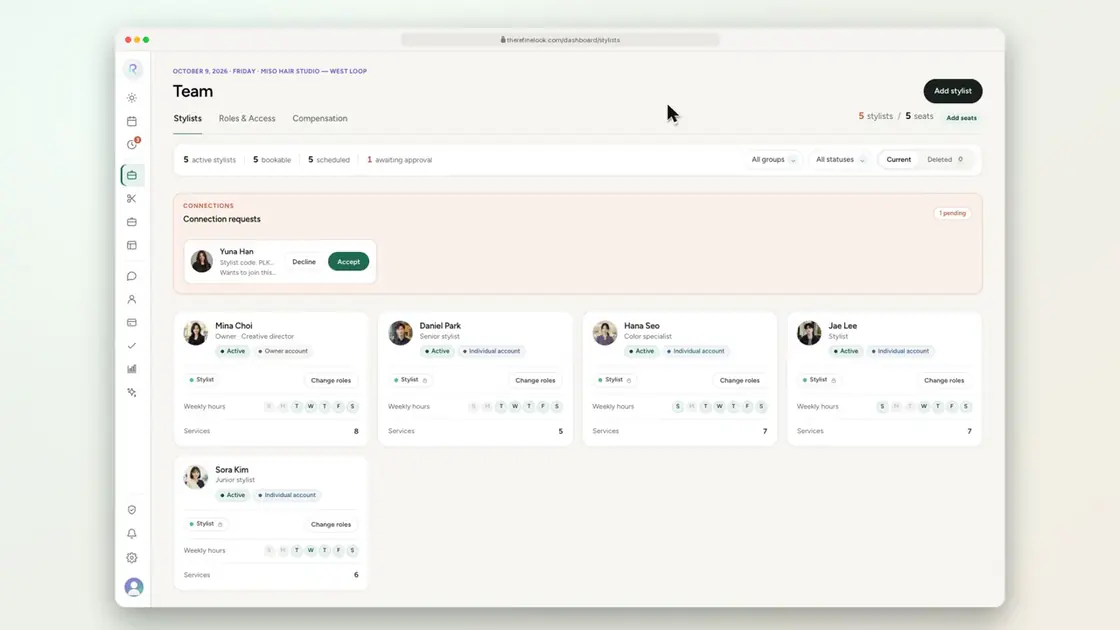 0:256-14Stylist portfolios, specialties and languages
No videos here match your search.
Clients
Private notes and formulas for each stylist, allergies shared with everyone, groups with colors, and an import that catches duplicates.
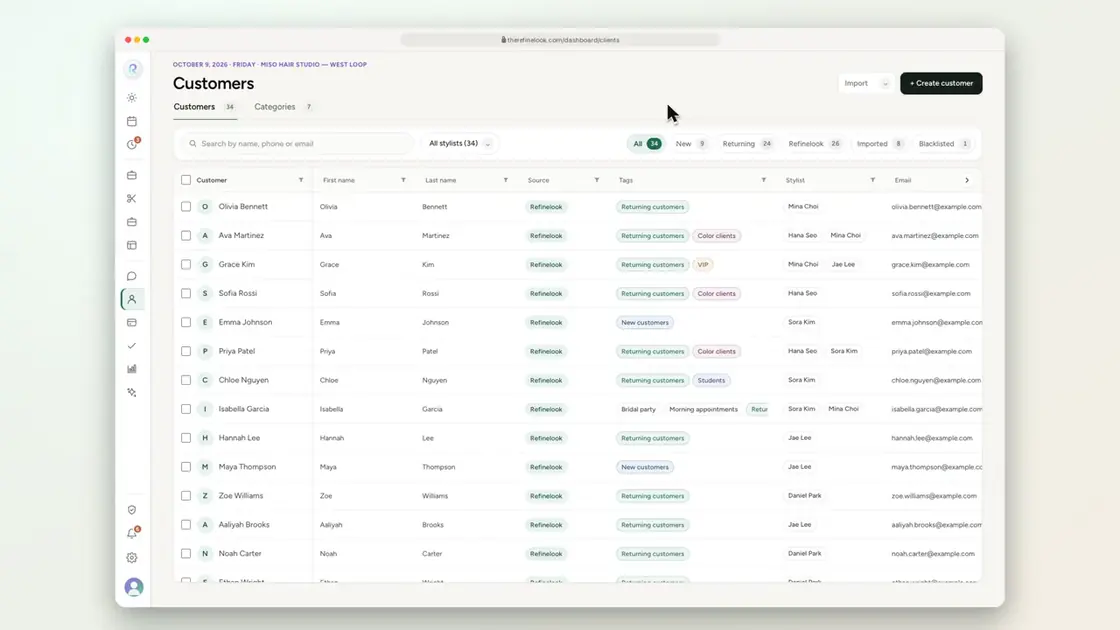 0:137-1Search clients by name, phone or email
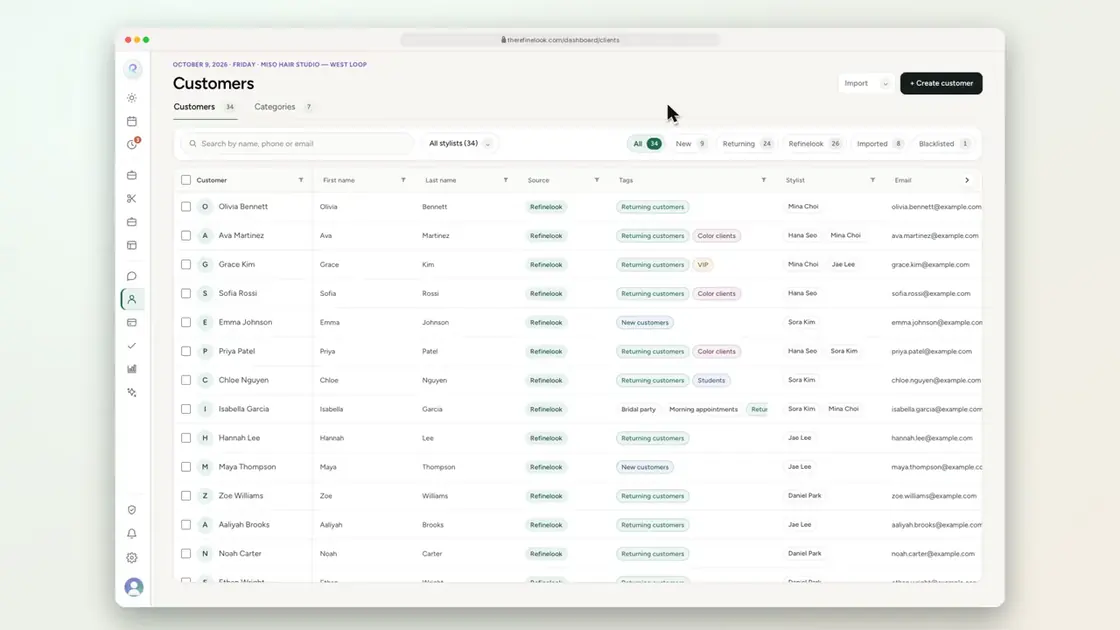 0:137-2Filter clients by stylist
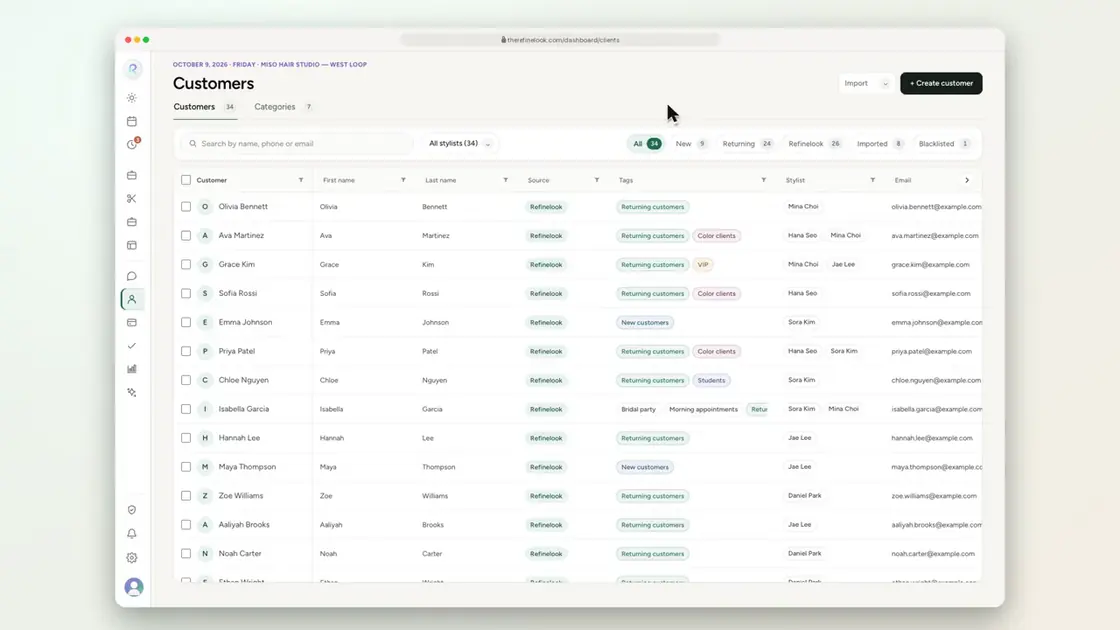 0:177-3One-tap client filters
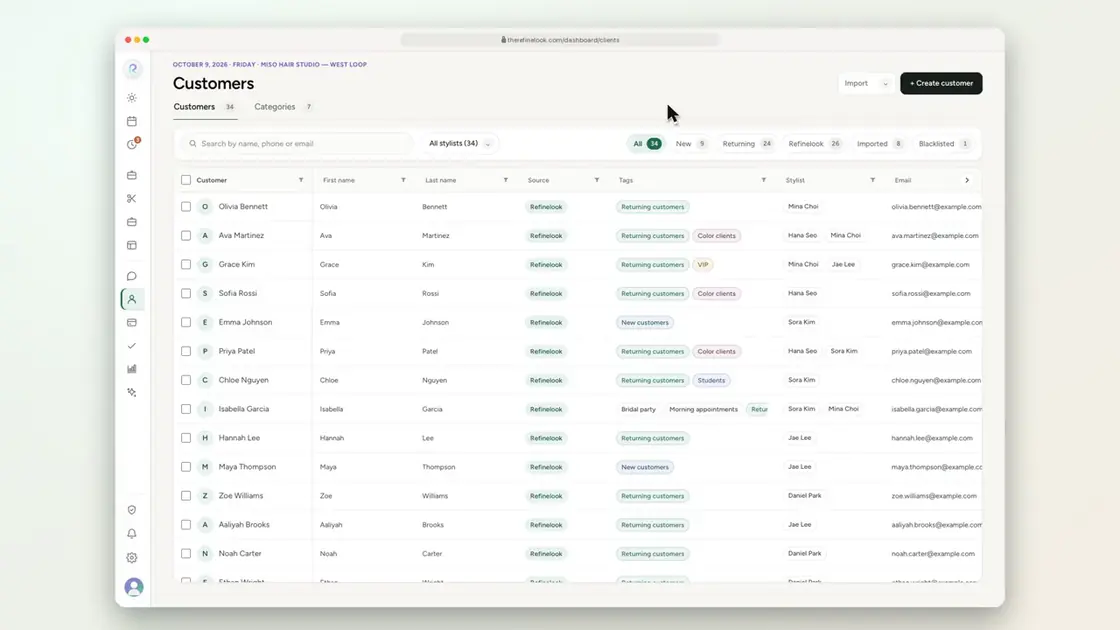 0:107-4Filter any column
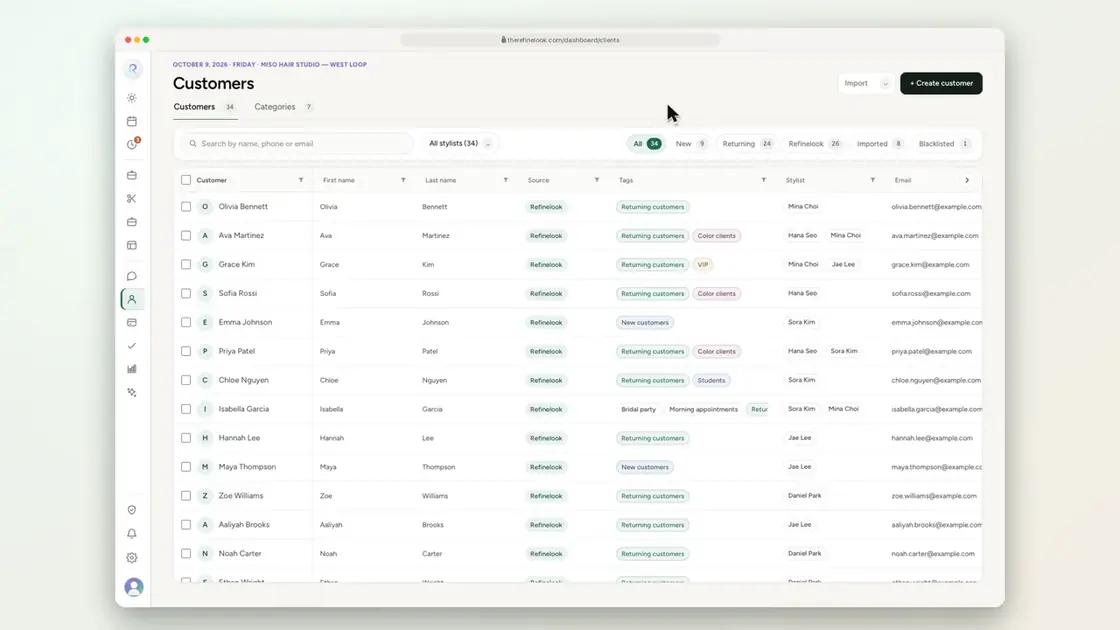 0:167-5Drag columns into your own order
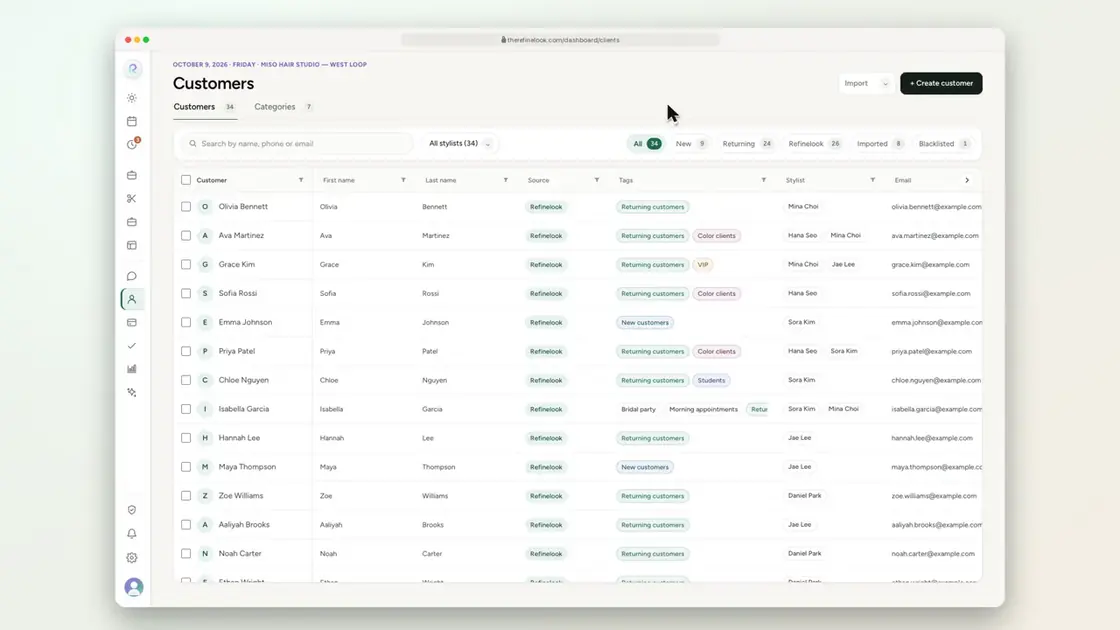 0:147-6Assign a stylist to many clients at once
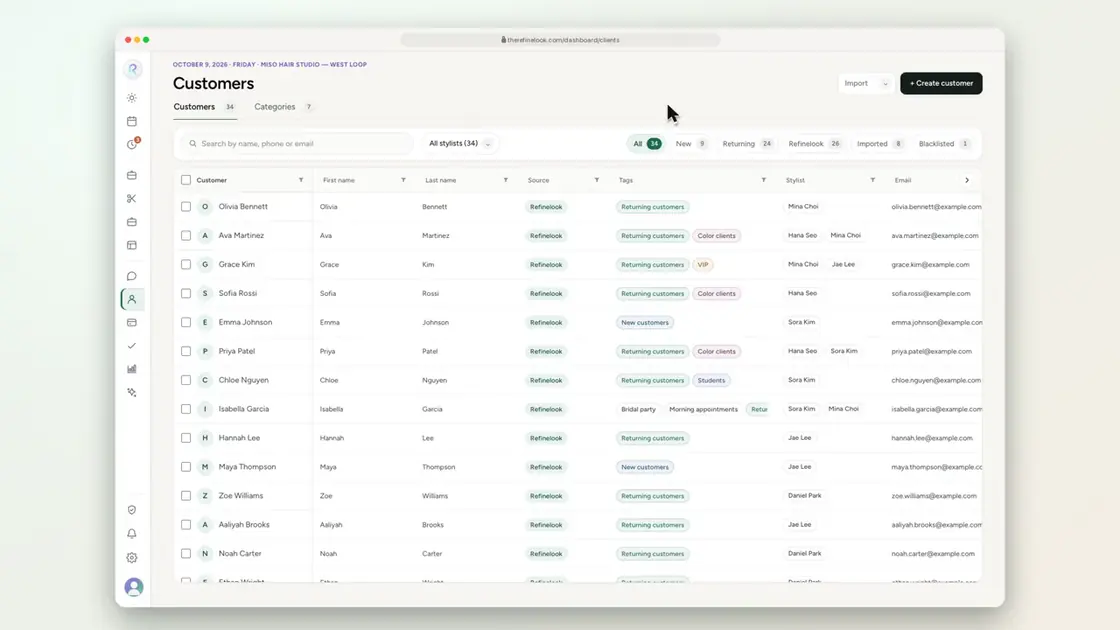 0:177-7Set the status of many clients at once
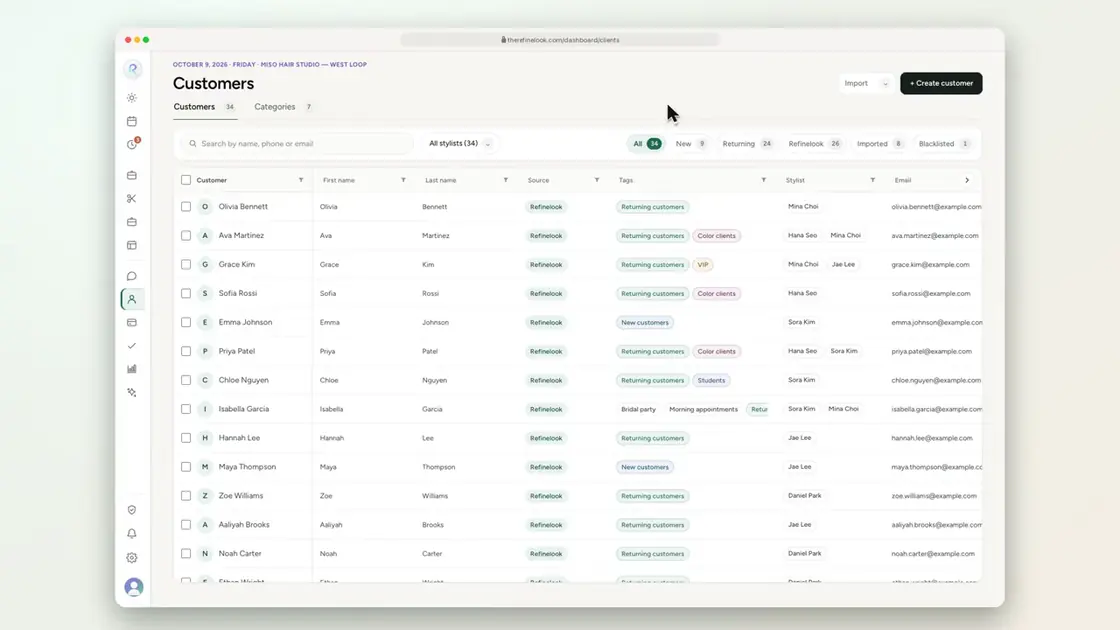 0:147-8Delete many clients at once
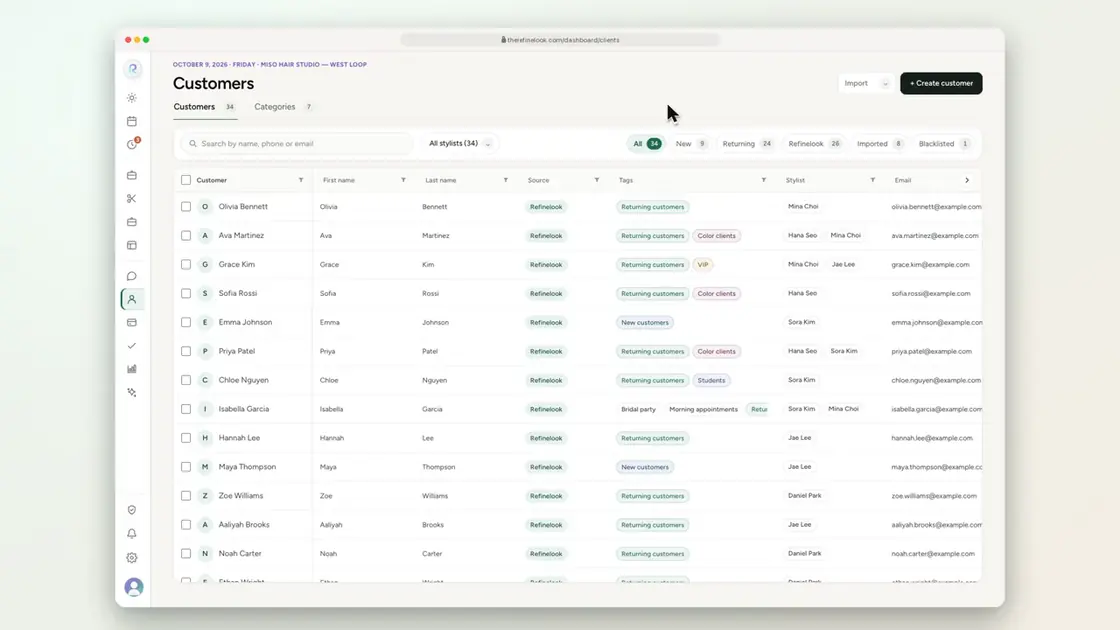 0:167-9Create a client group with its own color
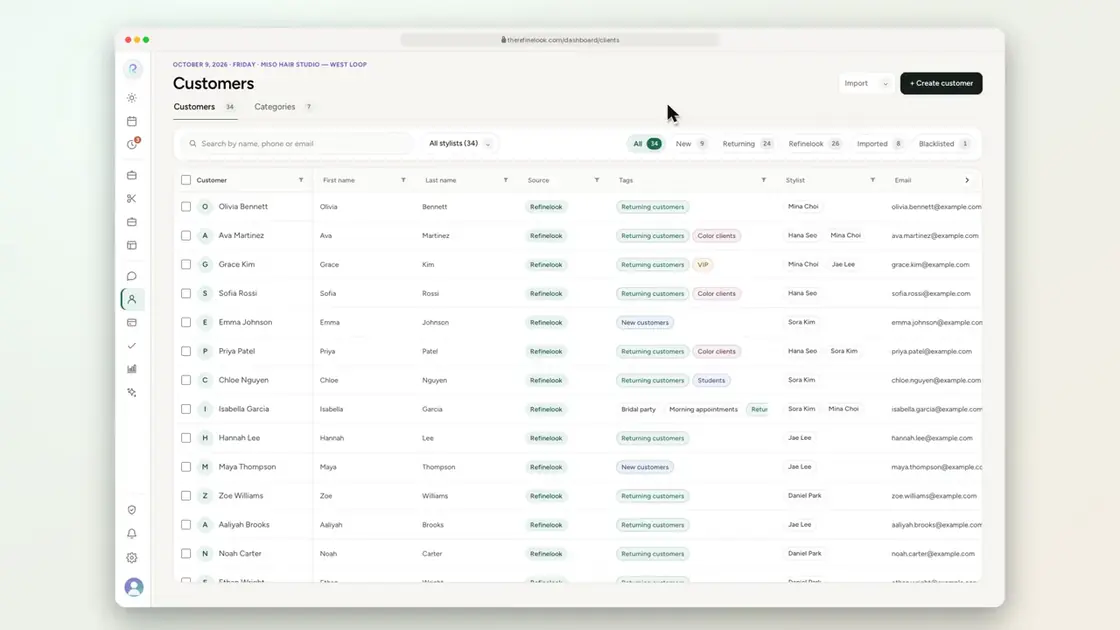 0:167-10Add a client to a group
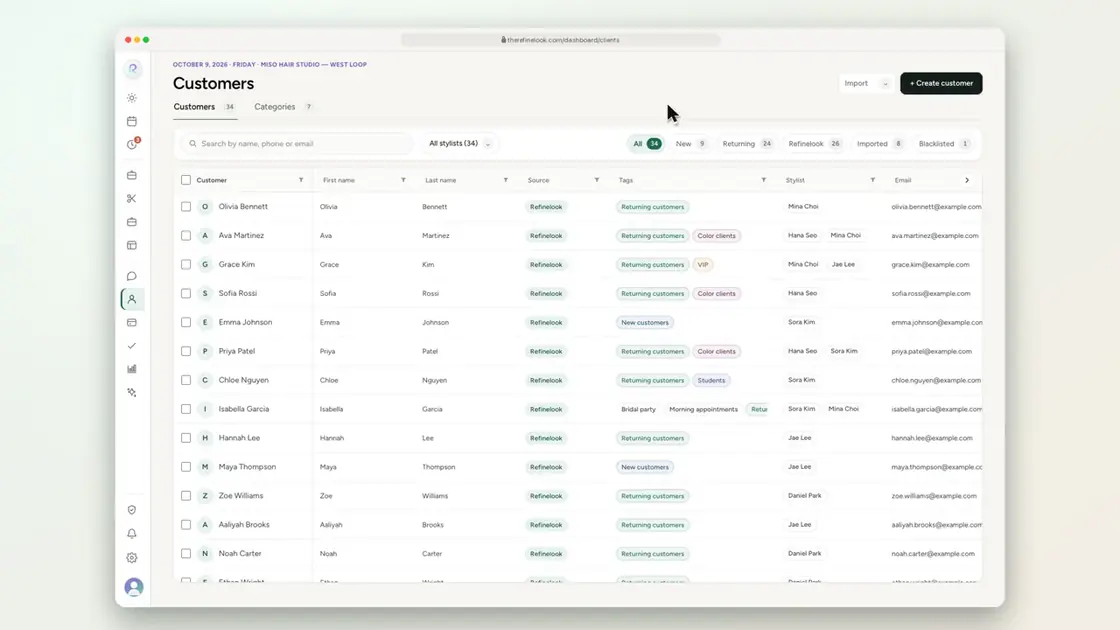 0:227-11New or returning, worked out from visits
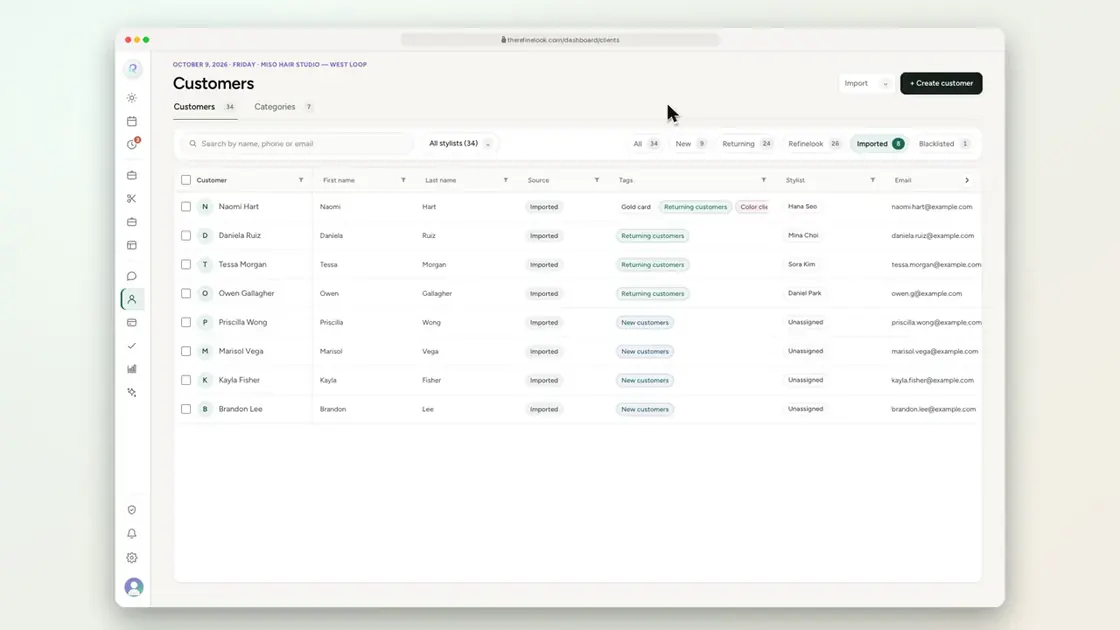 0:177-12Set a client's status yourself
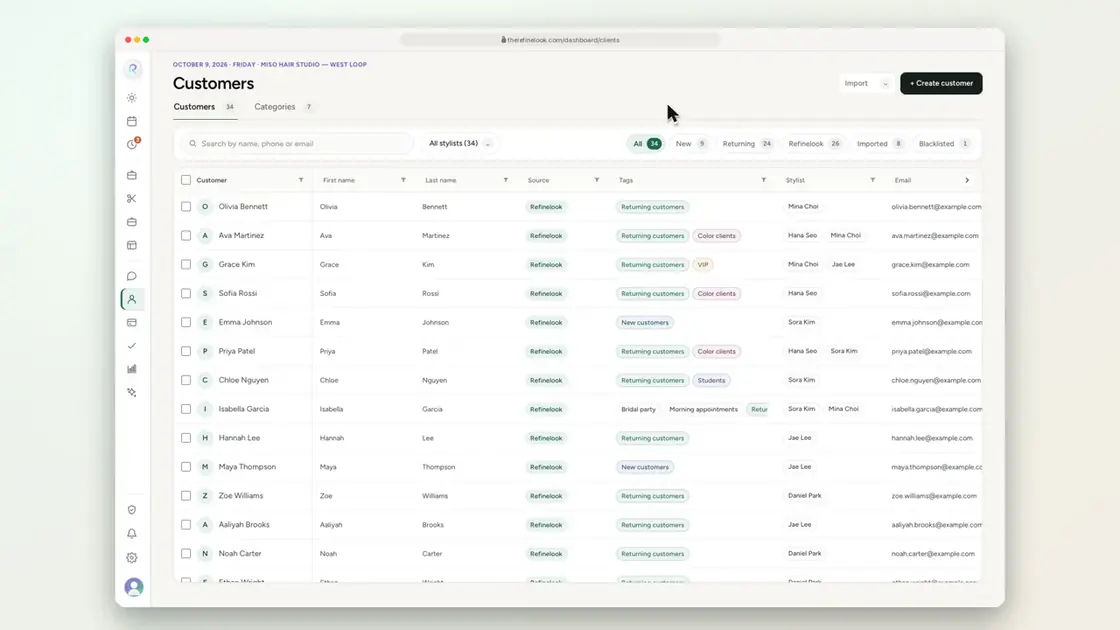 0:227-13Private notes and formulas for each stylist
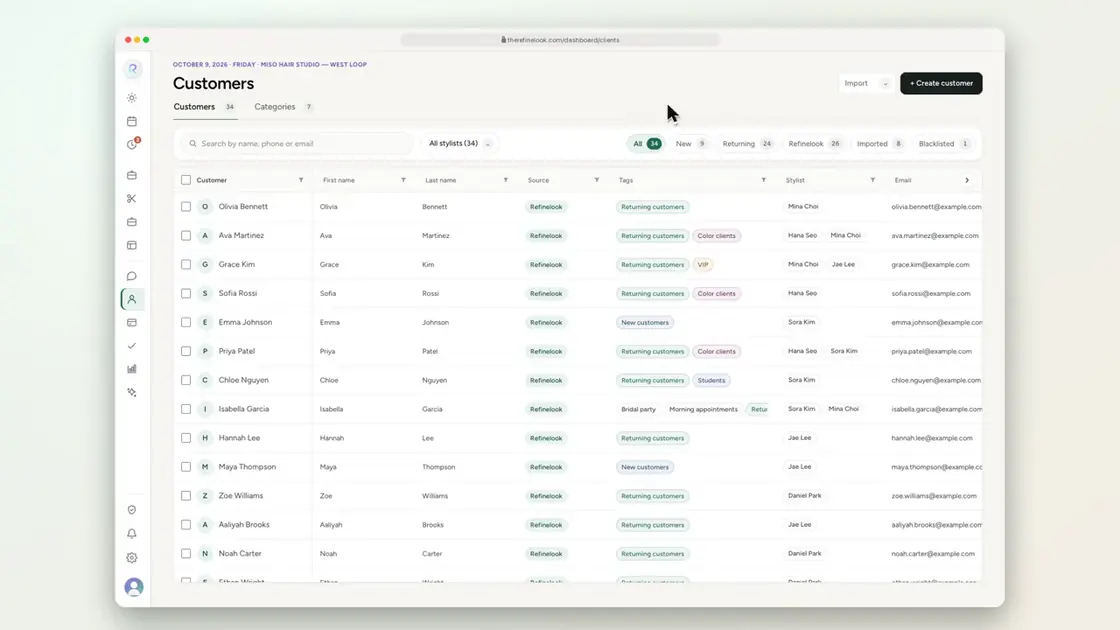 0:237-14Every stylist keeps their own notes
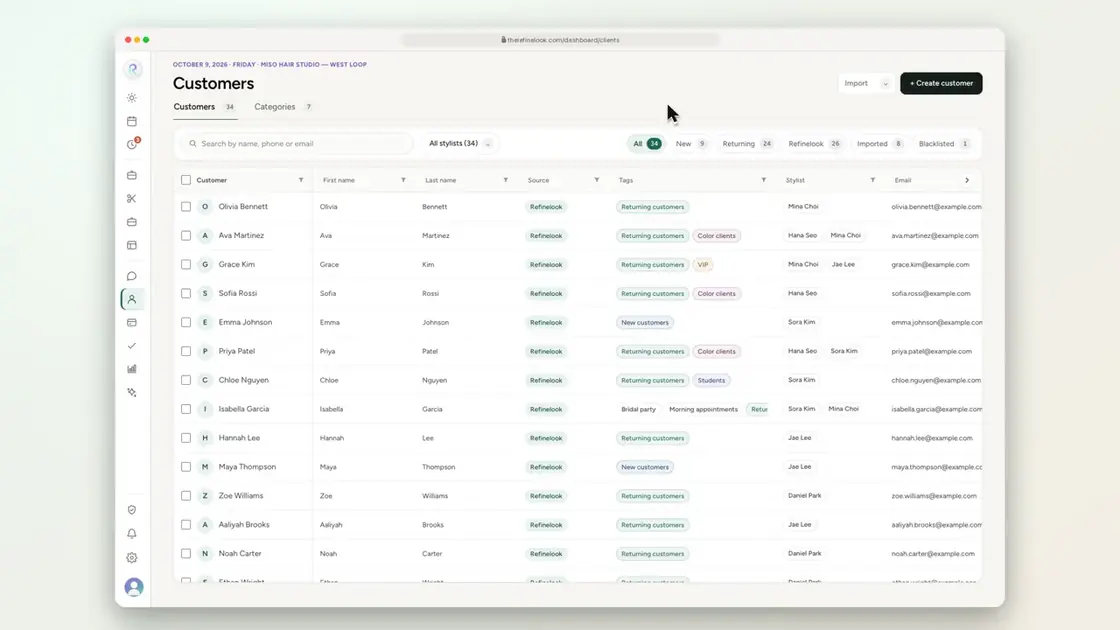 0:247-15Allergies are shared with the whole salon
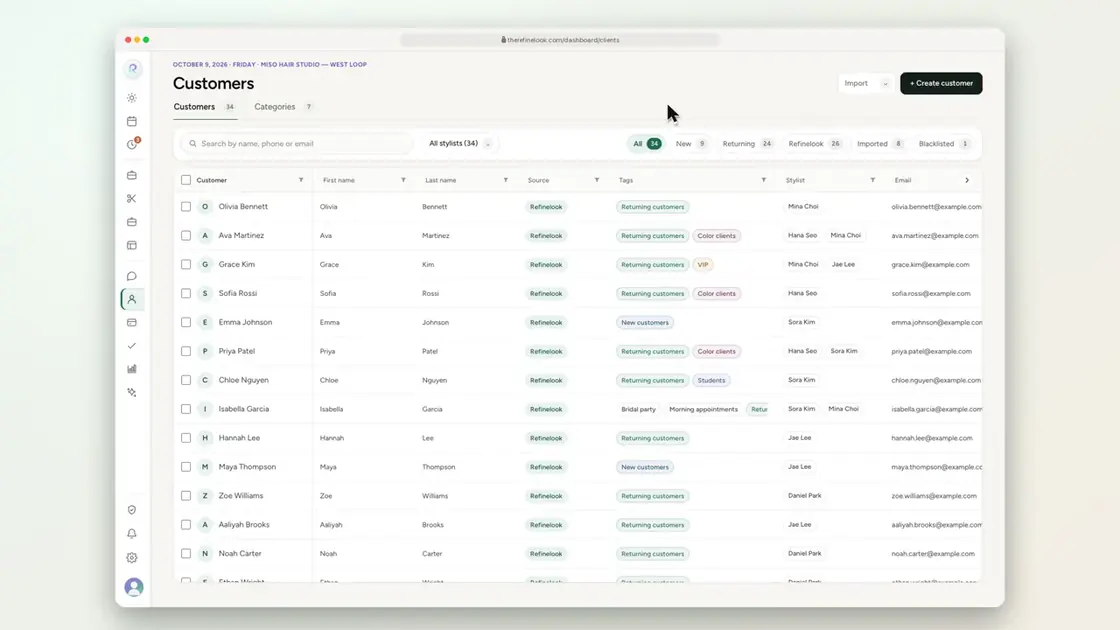 0:147-16Birthday, address, referrals and more on every profile
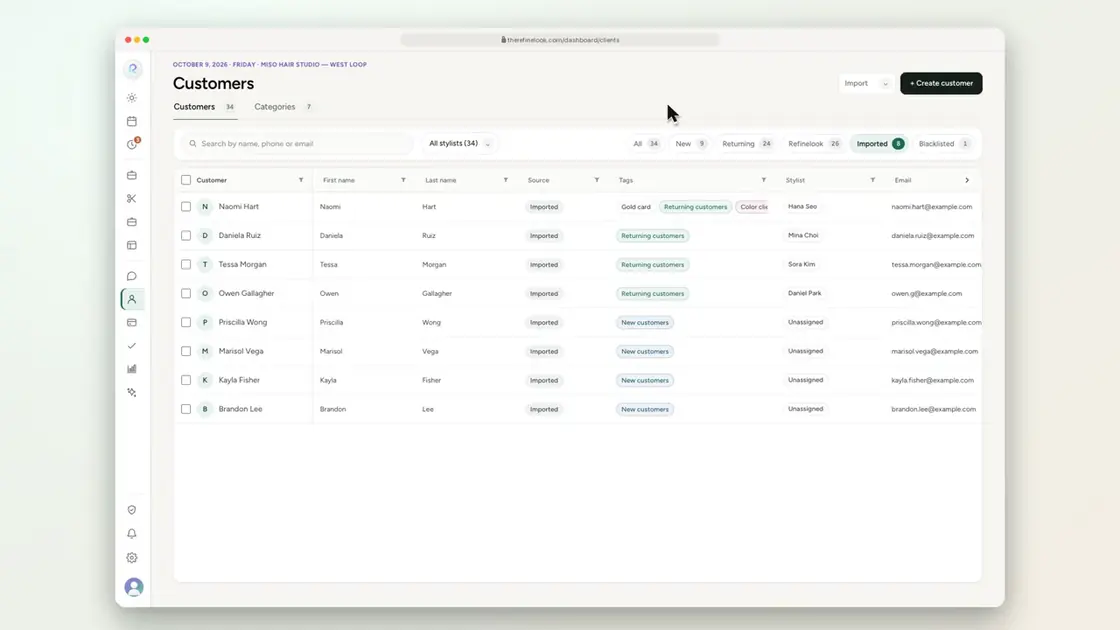 0:147-17Imported totals like spend and no-shows
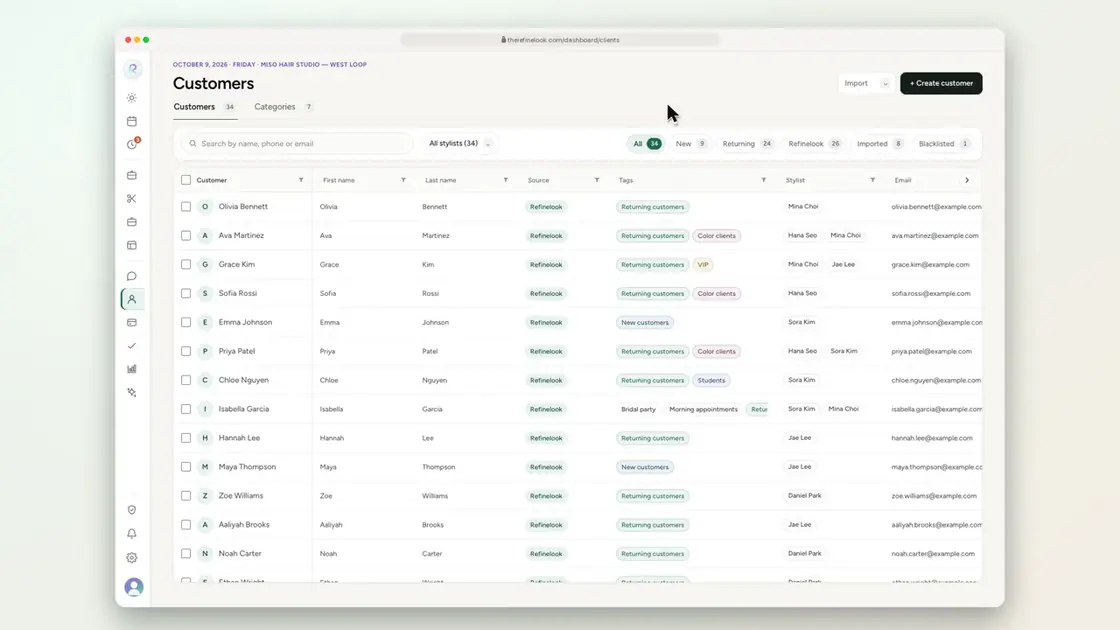 0:157-18Open any visit straight from the history
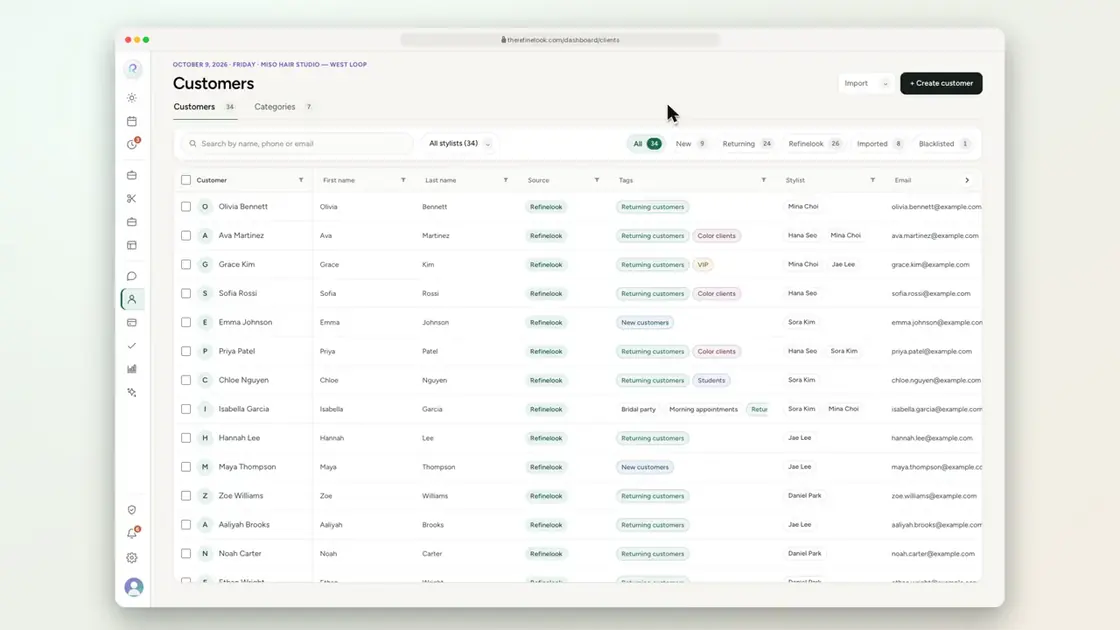 0:247-19Import your client list from a spreadsheet
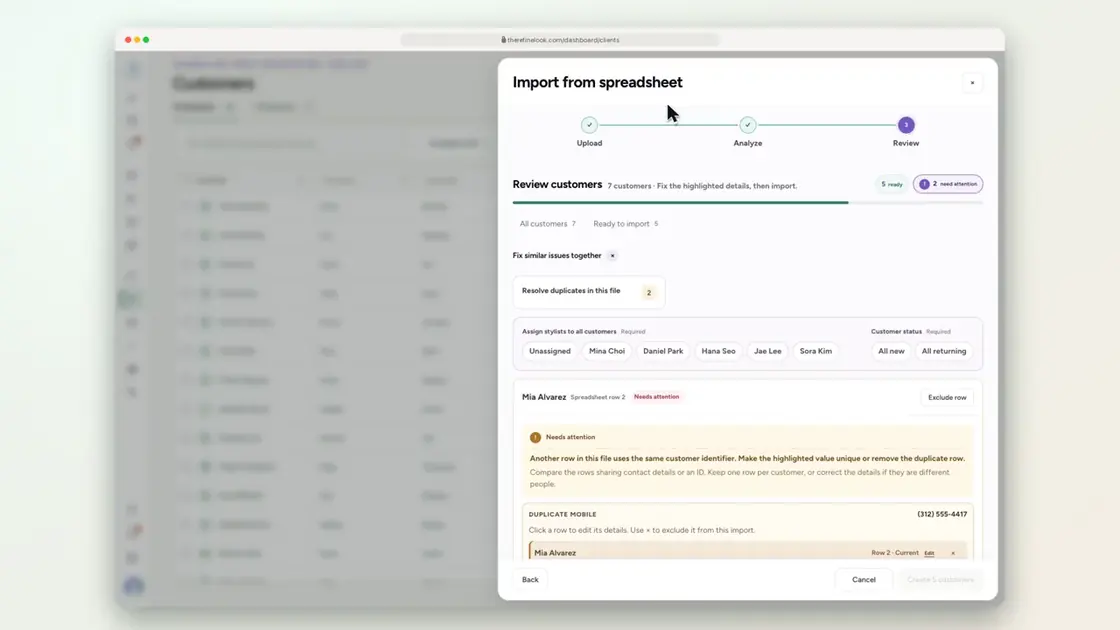 0:197-20Duplicates are caught before importing
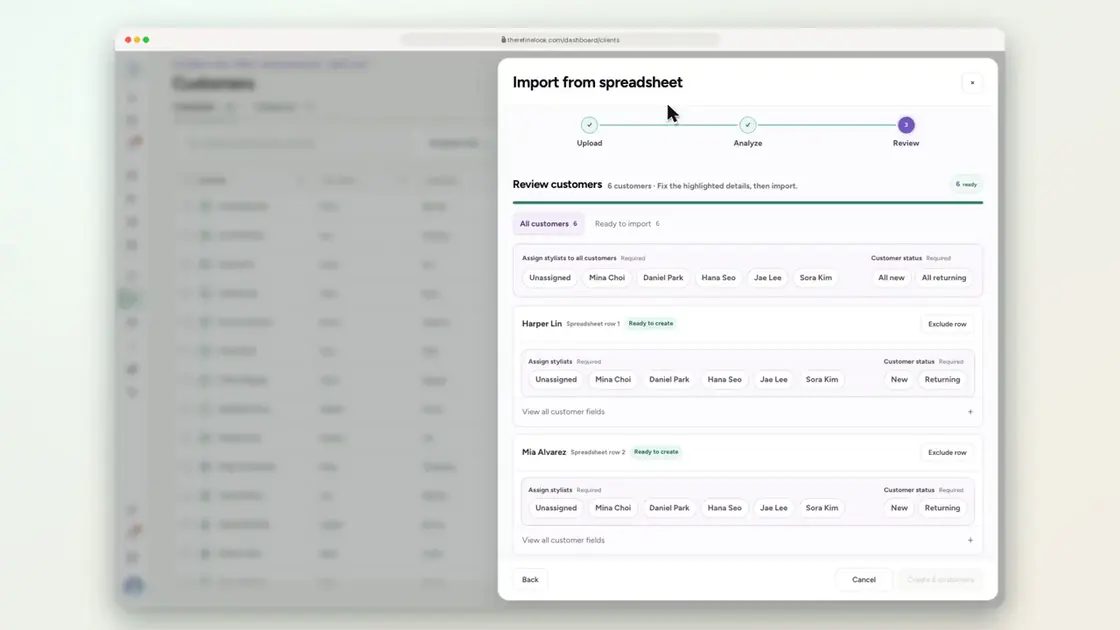 0:207-21Choose a stylist and status for each imported row
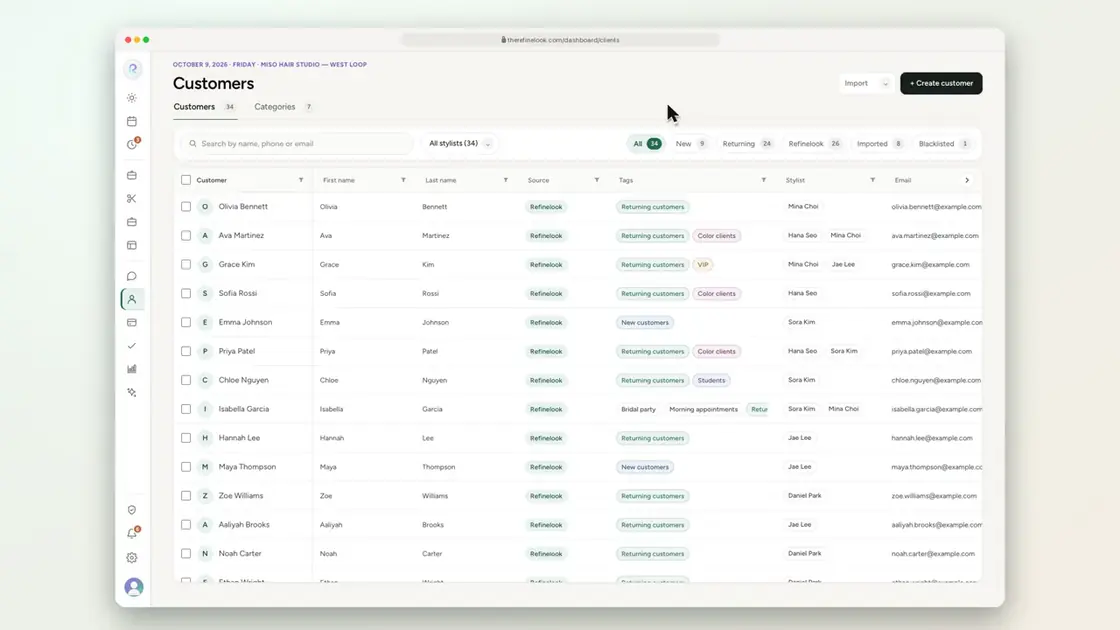 0:247-22AI reads a photographed client list
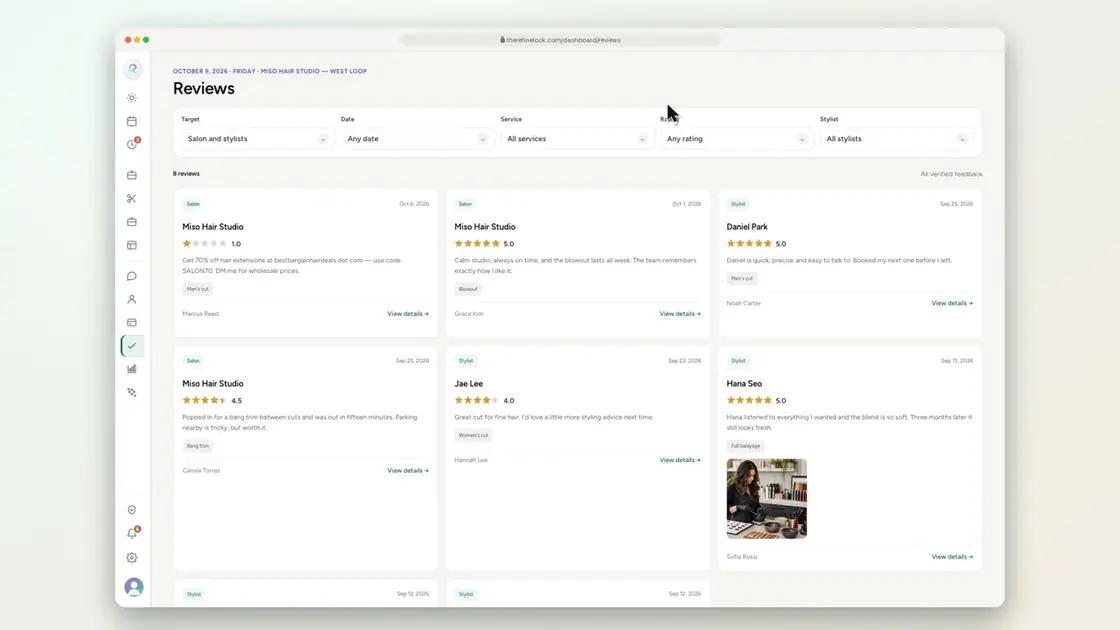 0:107-23Every review comes from a real completed appointment
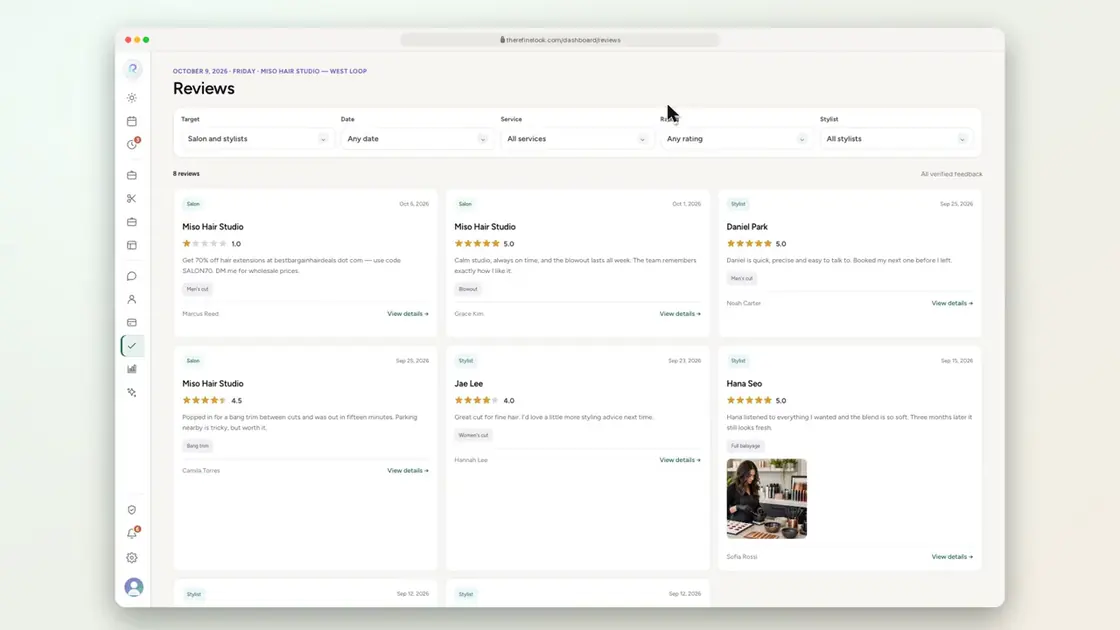 0:147-24Reply to a review publicly
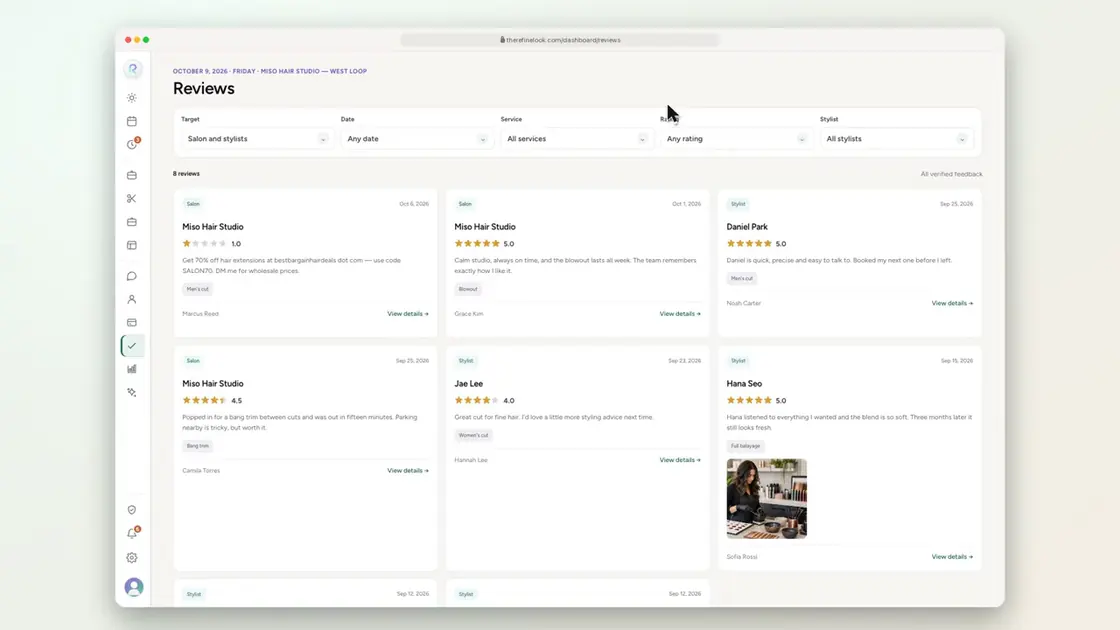 0:127-25Flag a review for moderation
No videos here match your search.
Messages
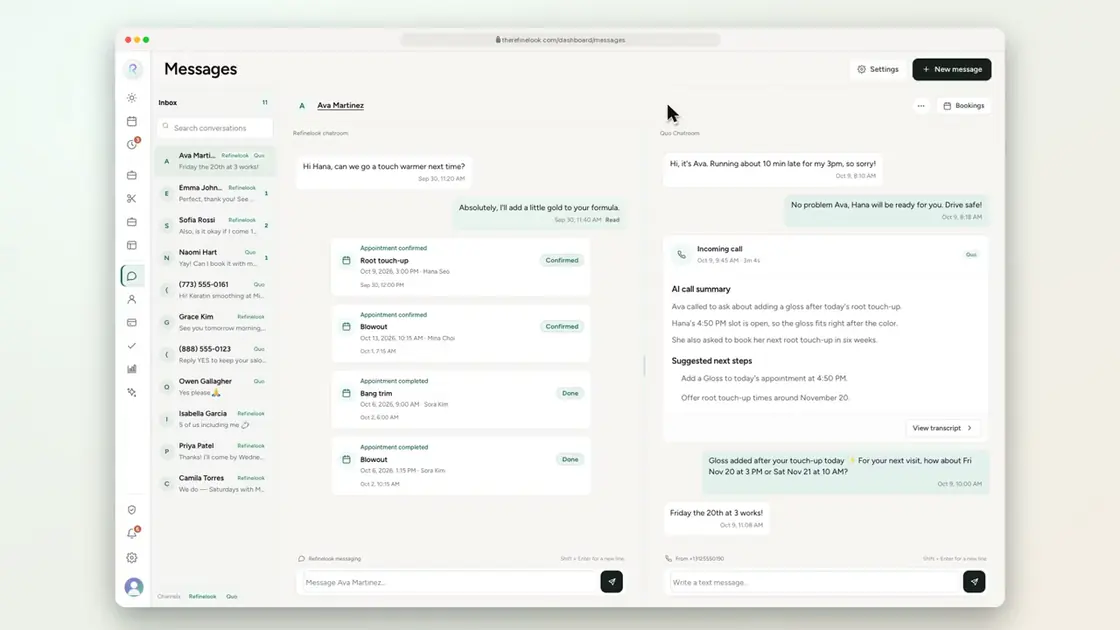
Chat and texts from your salon number side by side. Calls arrive with an AI summary and transcript. Pop-ups tell you when something needs you.
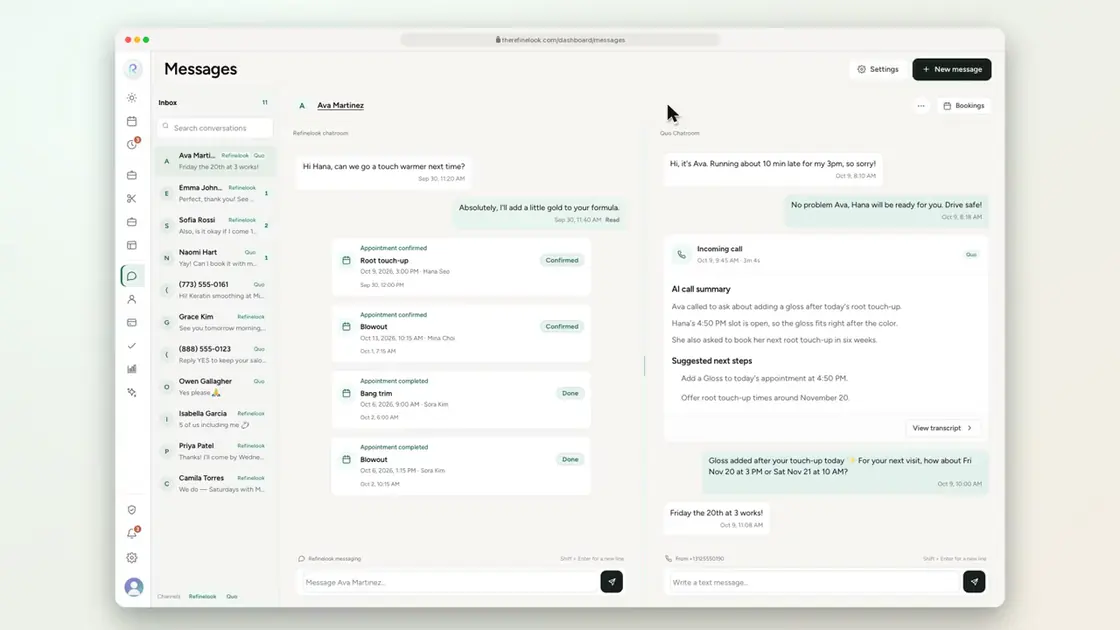 0:168-1Chat with clients in a two-pane inbox
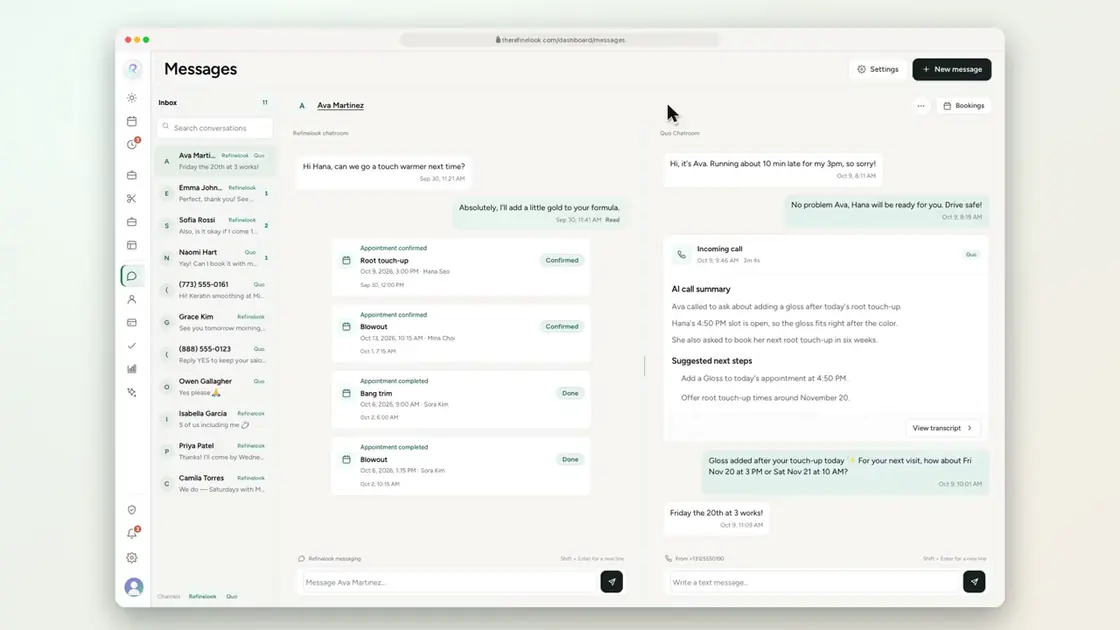 0:128-2Search every conversation
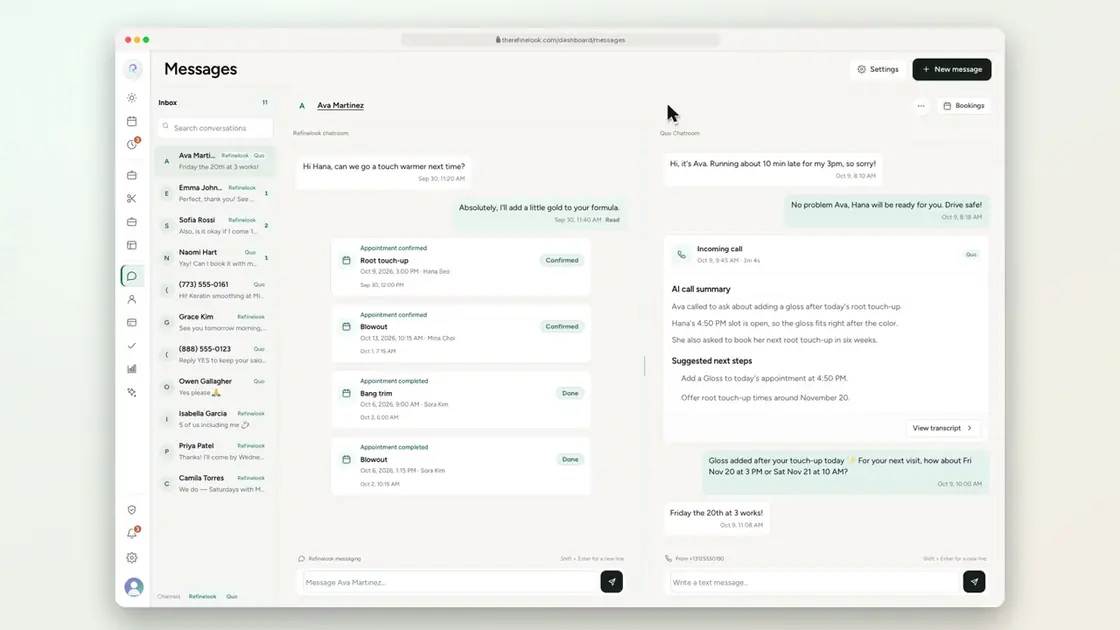 0:118-3Unread conversations stand out
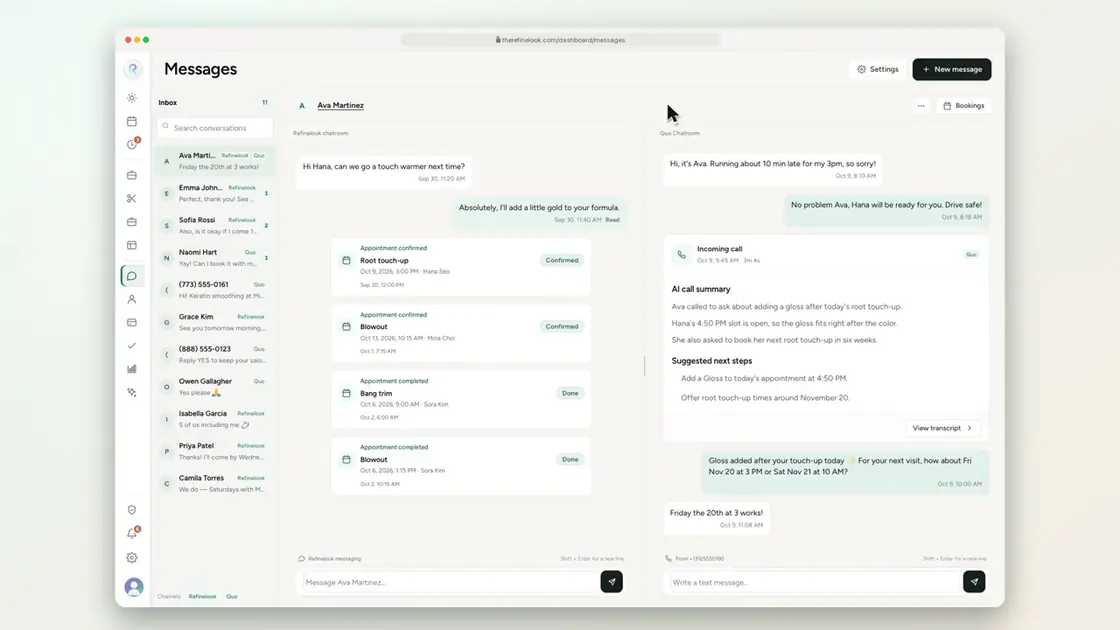 0:178-4All of a client's appointments in one conversation
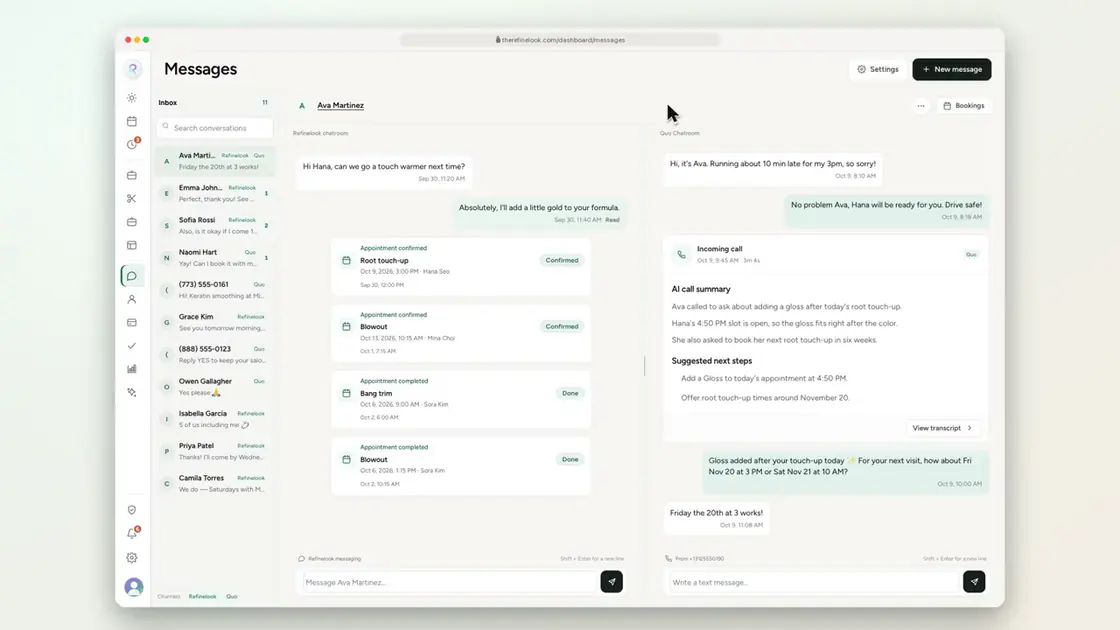 0:178-5See when a message has been read
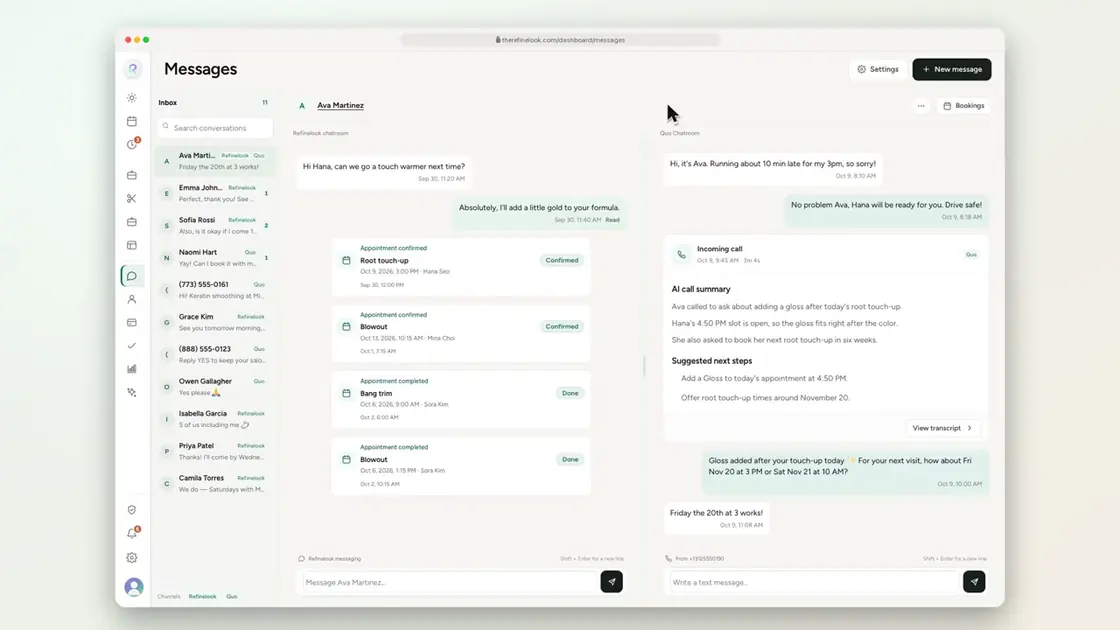 0:178-6Retry a failed message without sending it twice
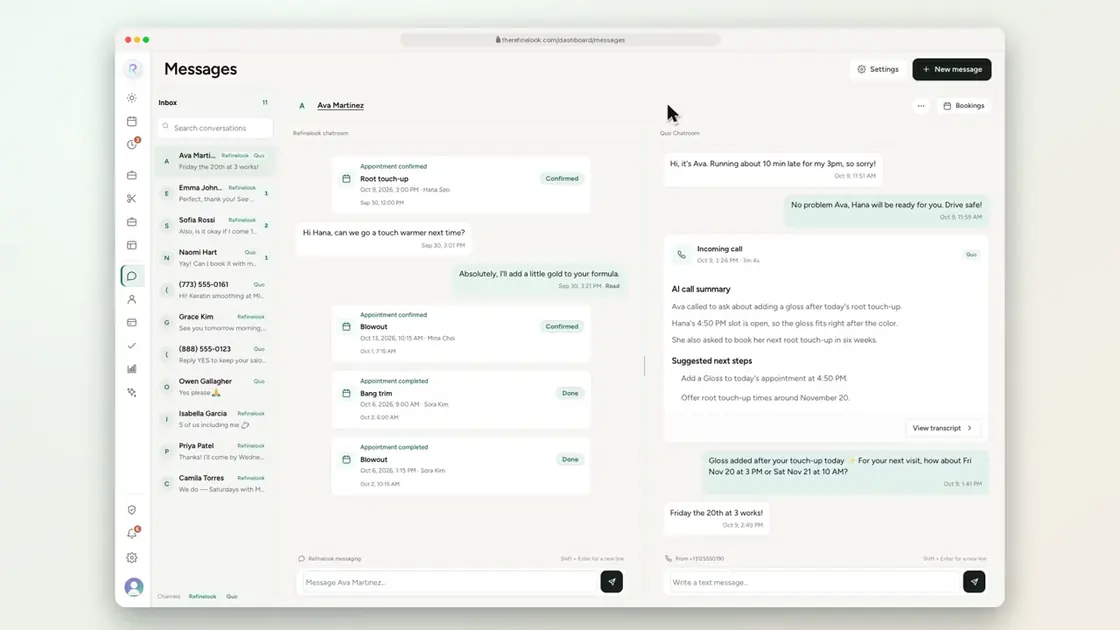 0:148-7Text clients from your salon number
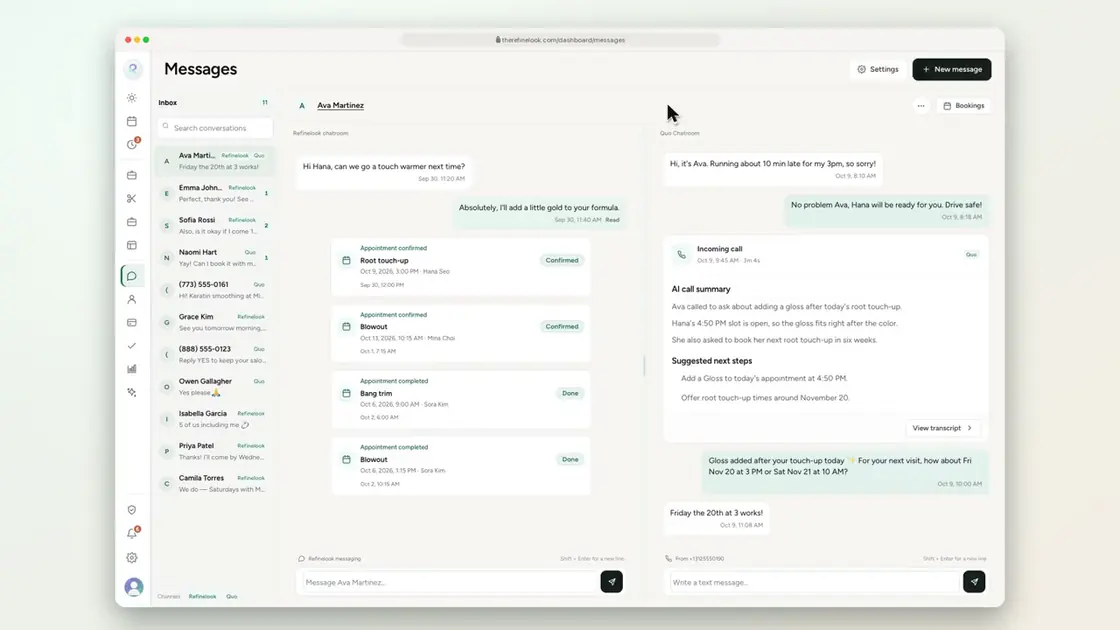 0:098-8Attachments arrive in the same text thread
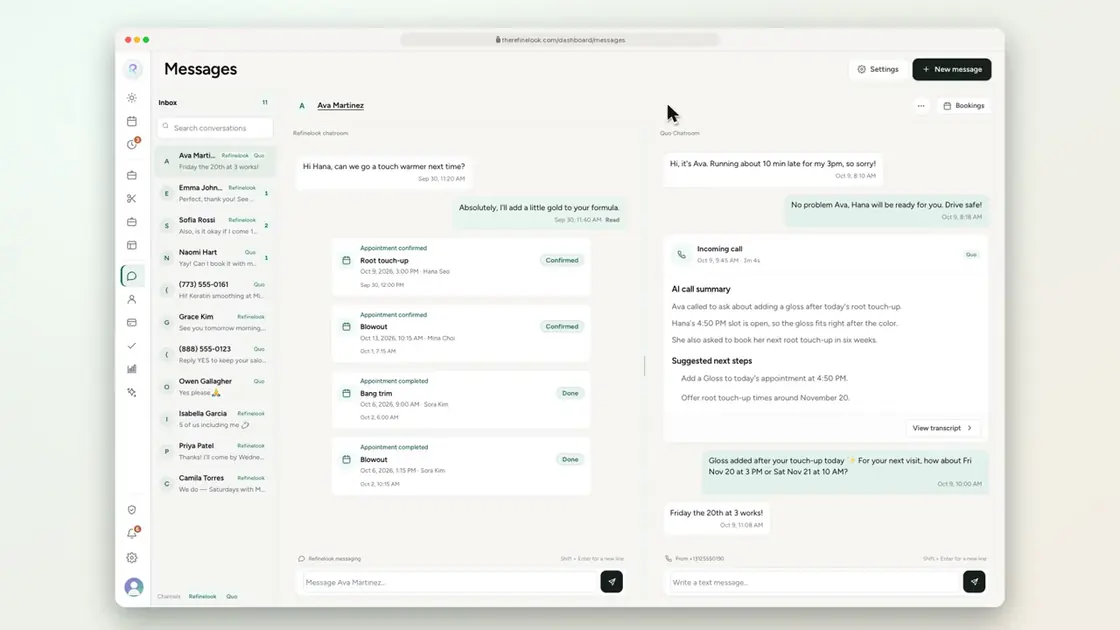 0:098-9Every call logged with an AI summary
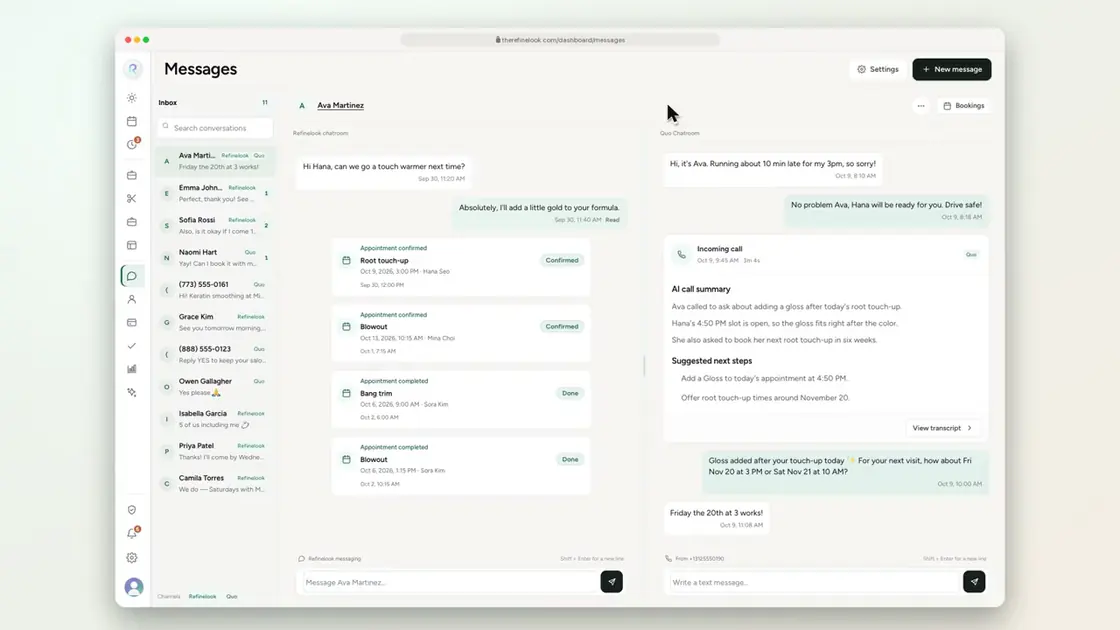 0:168-10Read the full call transcript
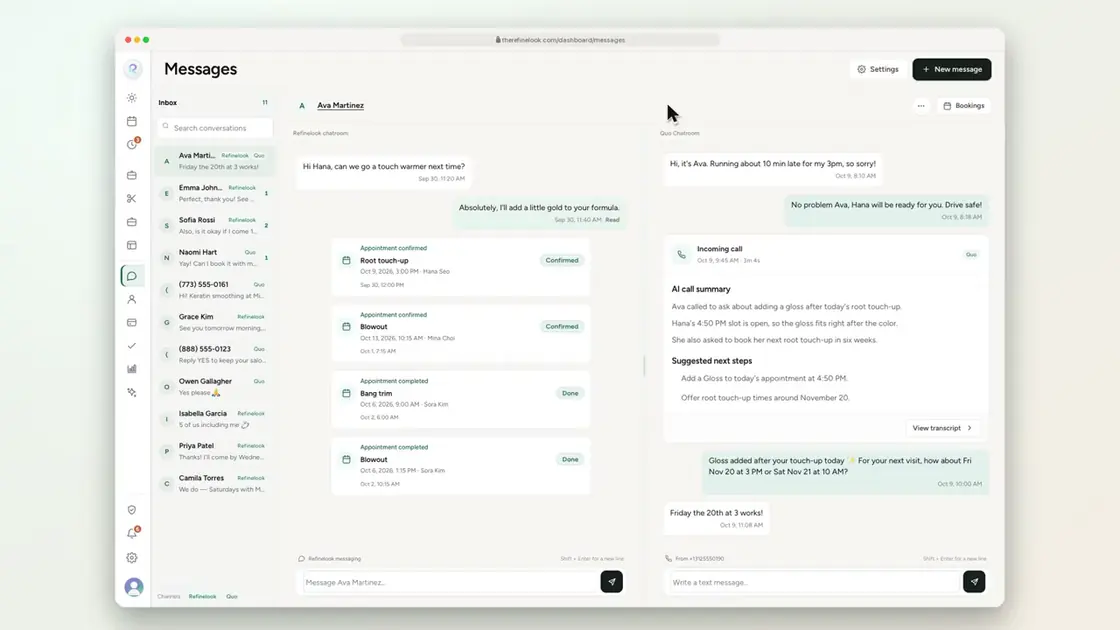 0:158-11Texts matched to the right client by phone number
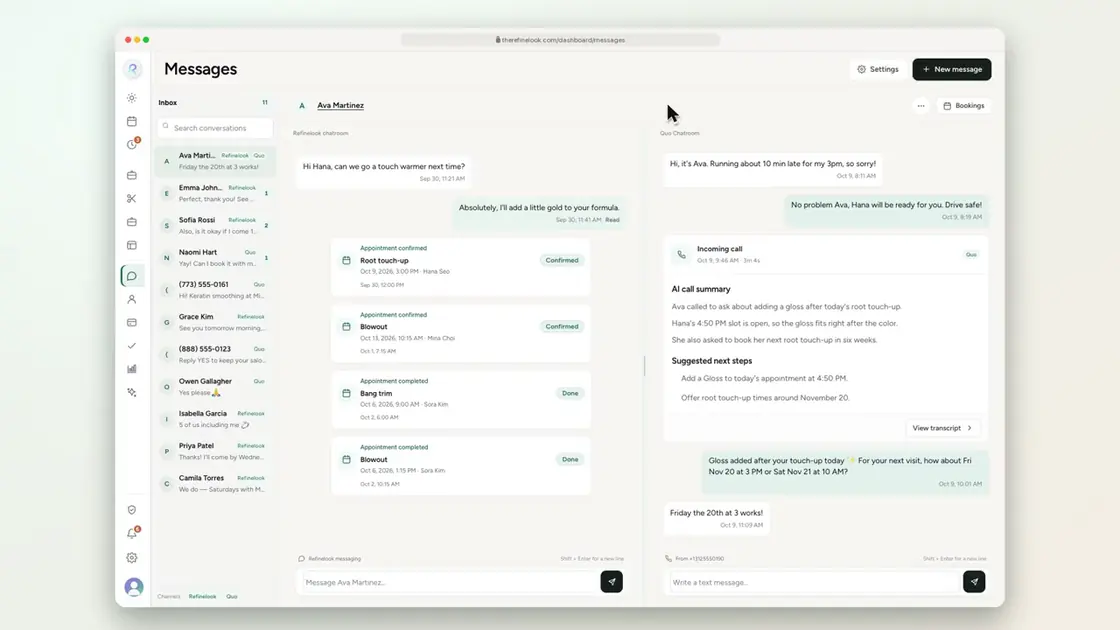 0:138-12Turn chat and texting on separately
 0:178-13Choose how long messages are kept
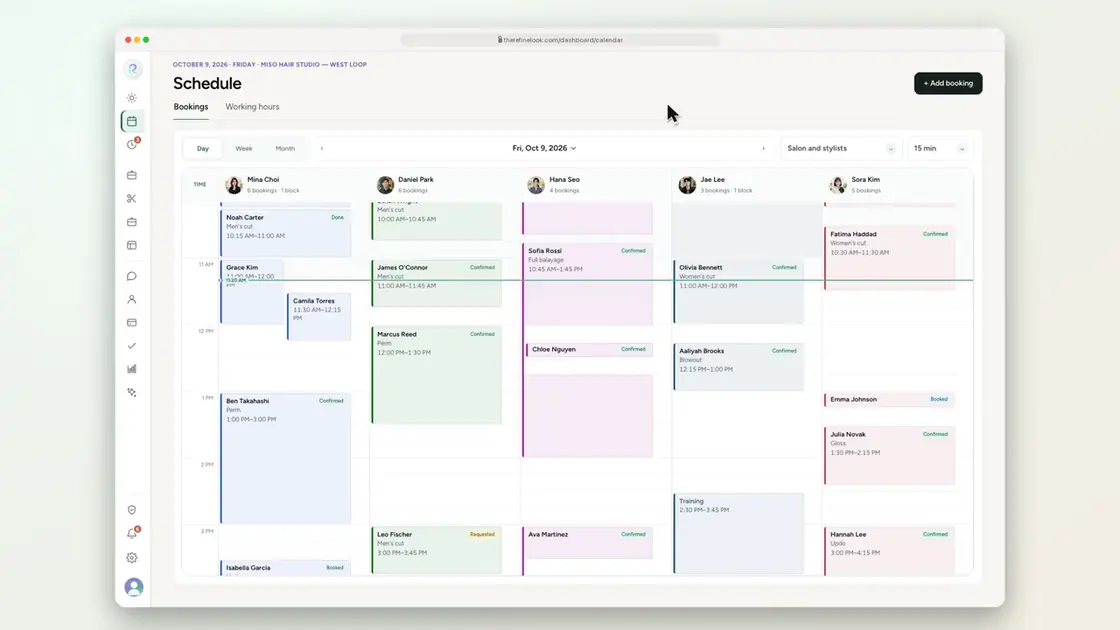
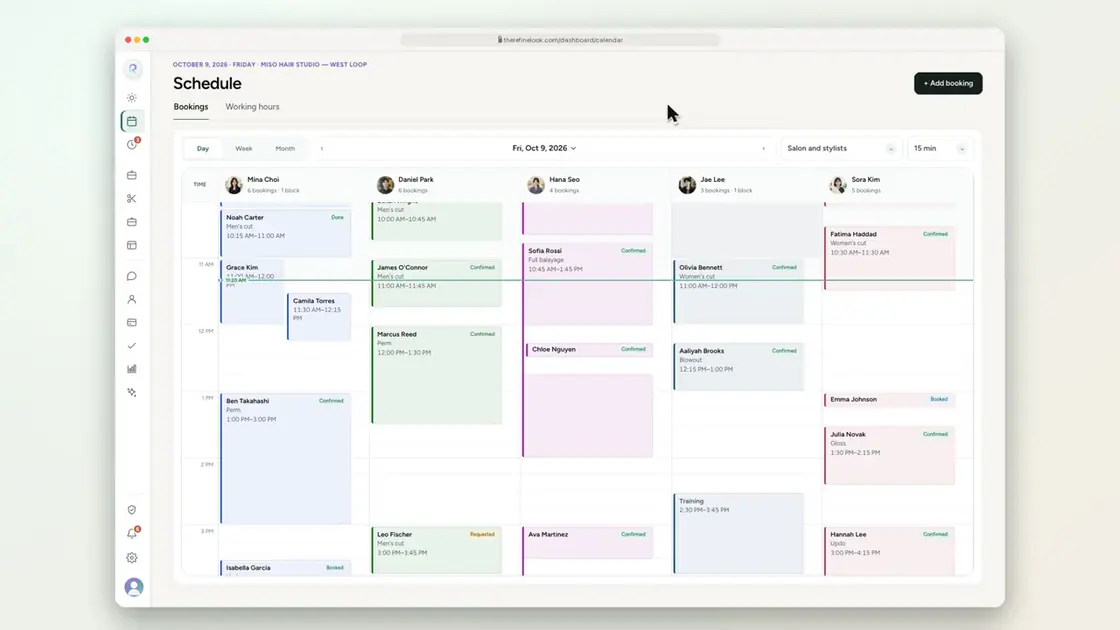 0:158-14Pop-up alerts for new bookings and changes
 0:198-15Pop-up alerts for messages and team requests
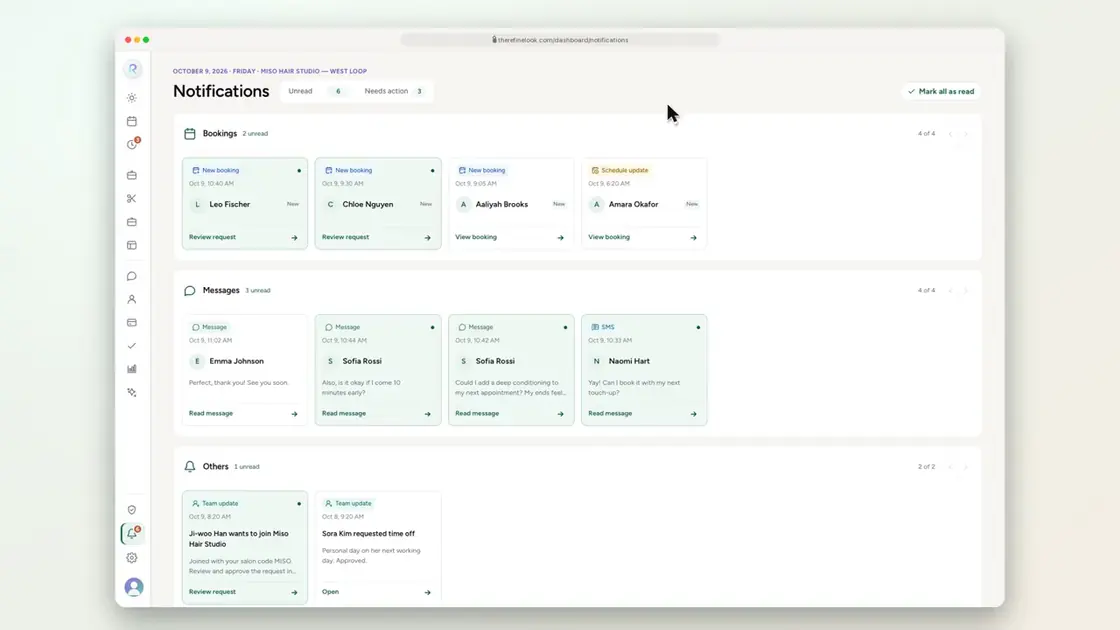 0:138-16A notifications page for anything that needs action
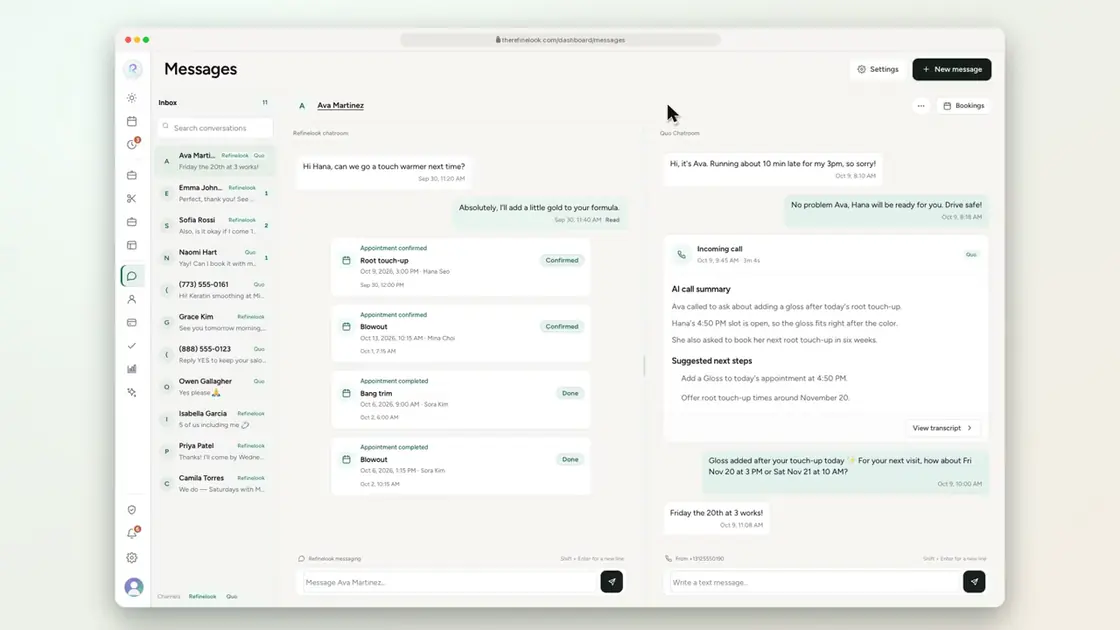 0:168-17Block a contact without losing the history
No videos here match your search.
AI
Ask about your salon in plain words, let AI draft a booking from a phone call, turn a menu photo into services, and let clients try a hairstyle on their own photo.
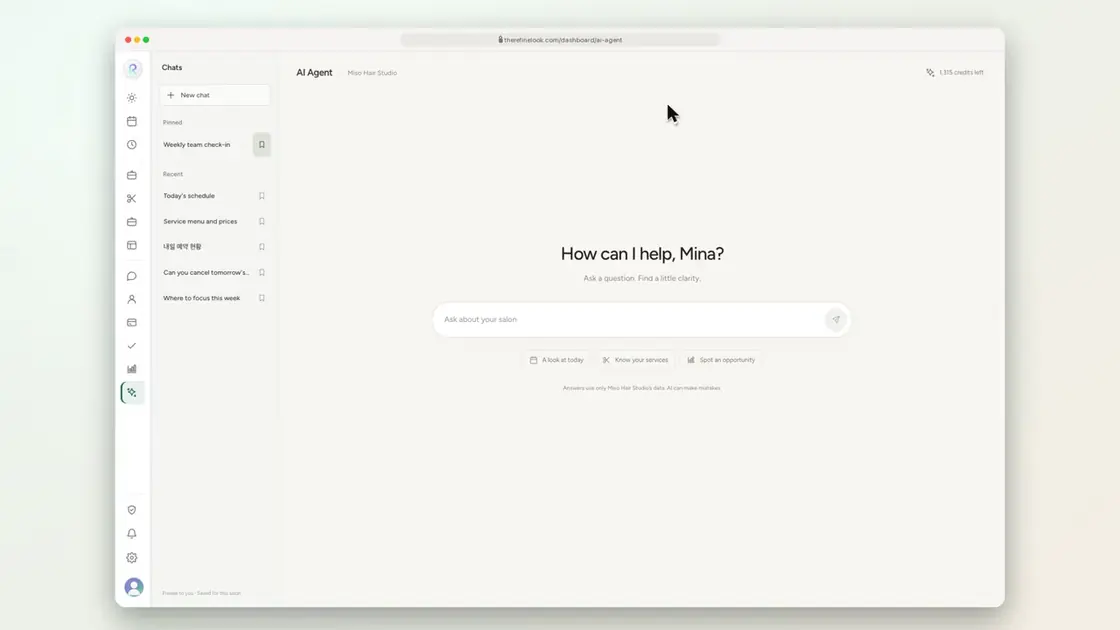 0:169-1Ask the AI agent about your salon
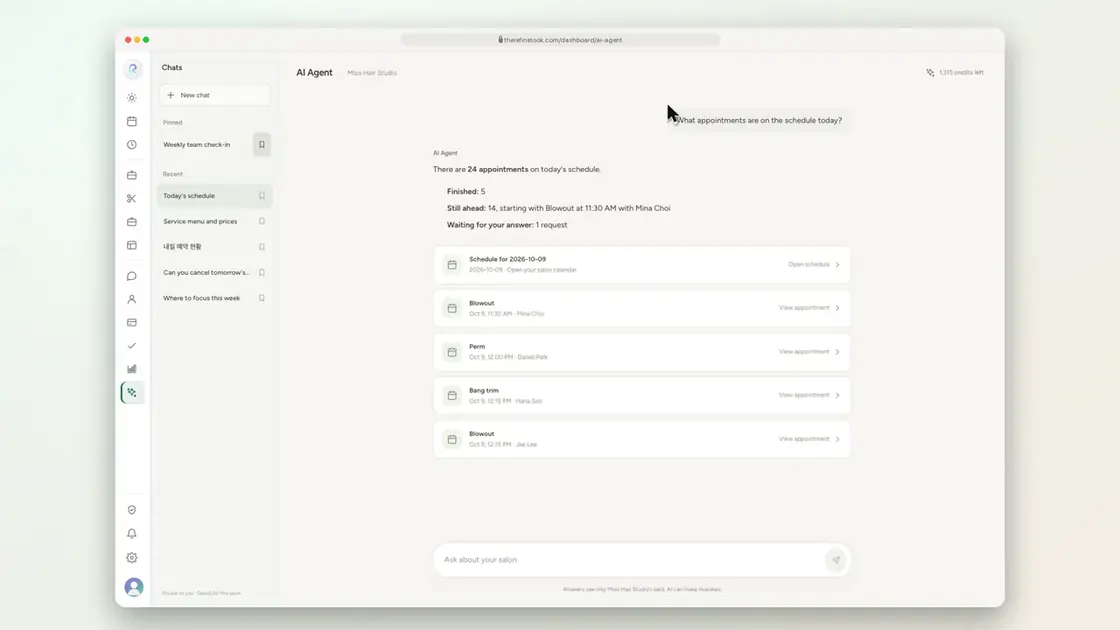 0:099-2Open an appointment from an answer
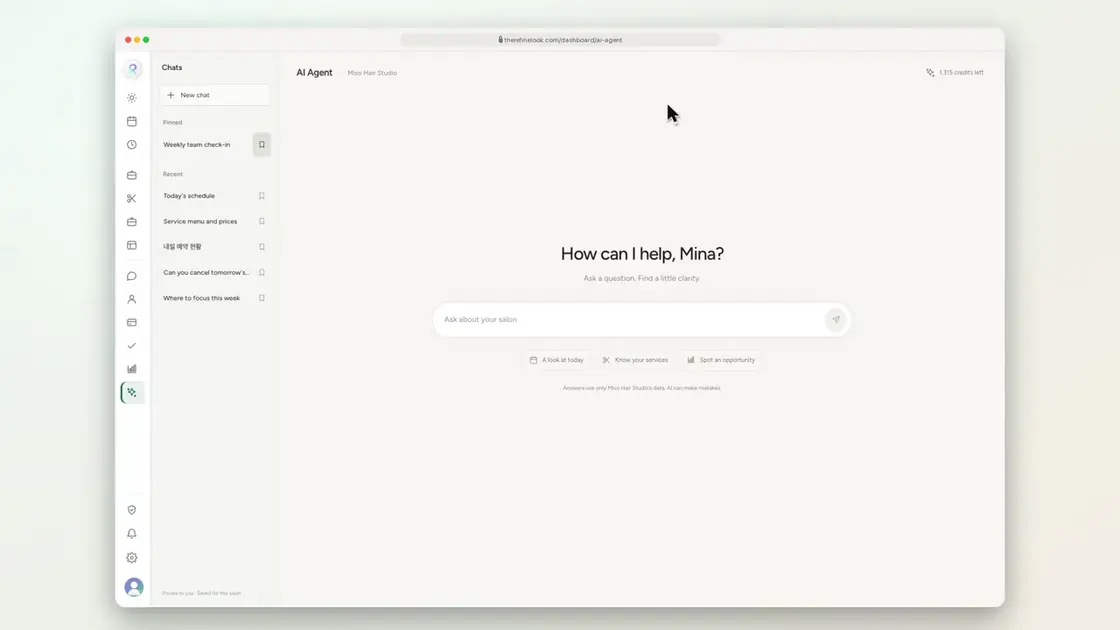 0:159-3Ask in Korean
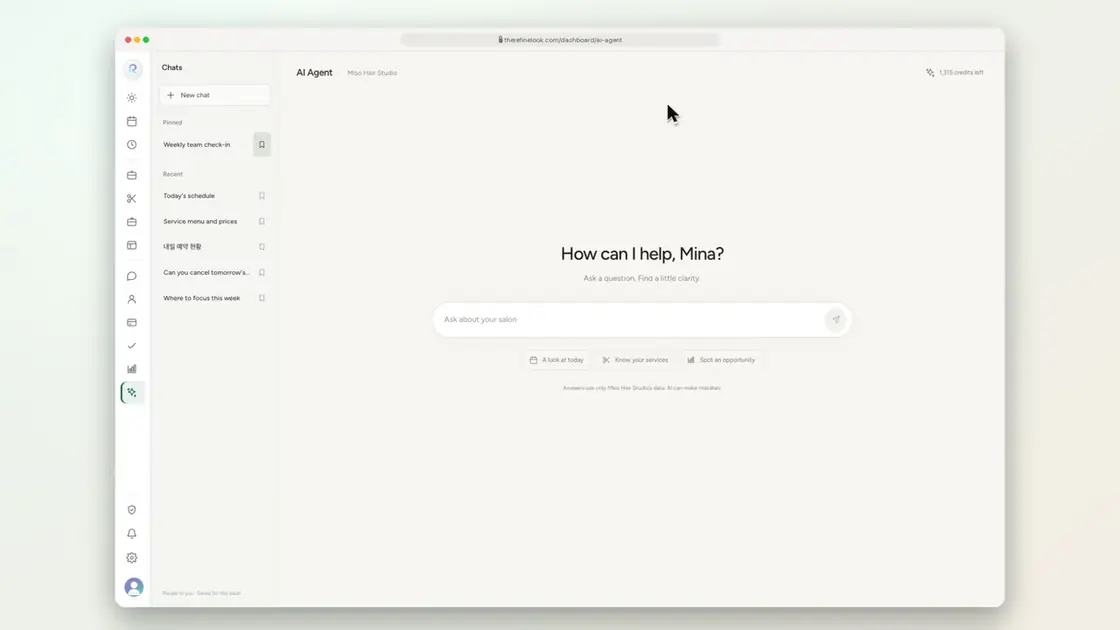 0:109-4Your chats are saved
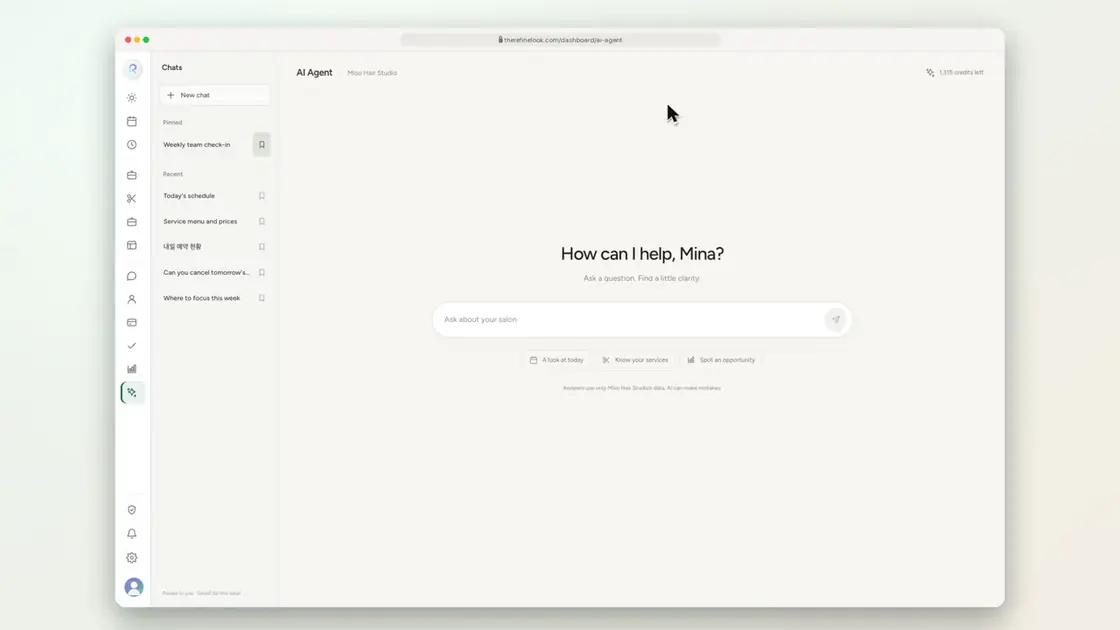 0:089-5Pin a chat
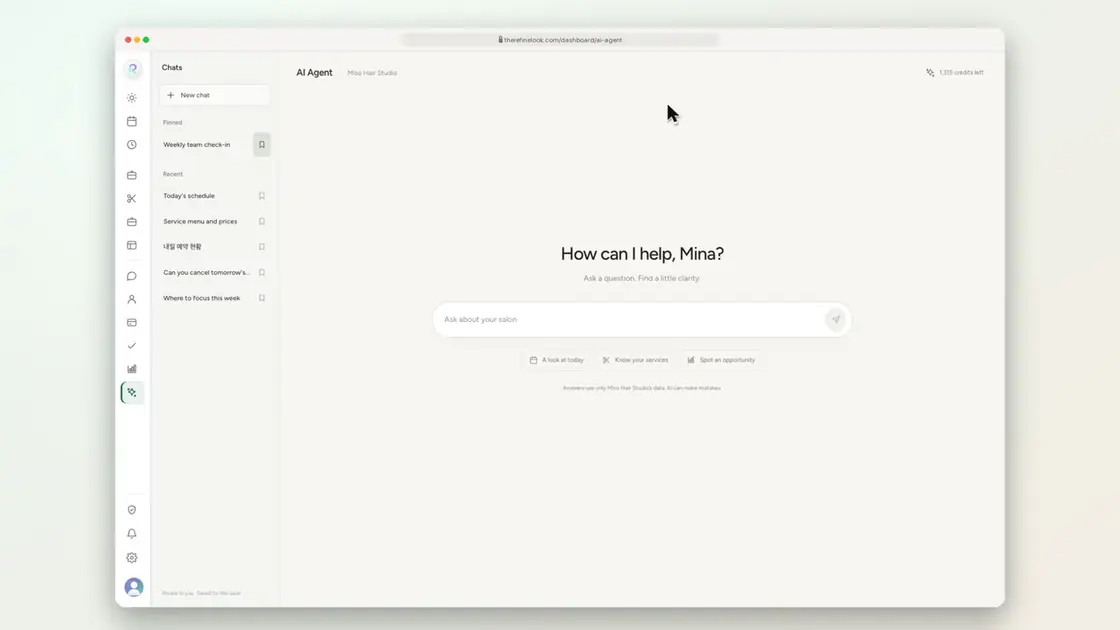 0:129-6Read-only and private by design
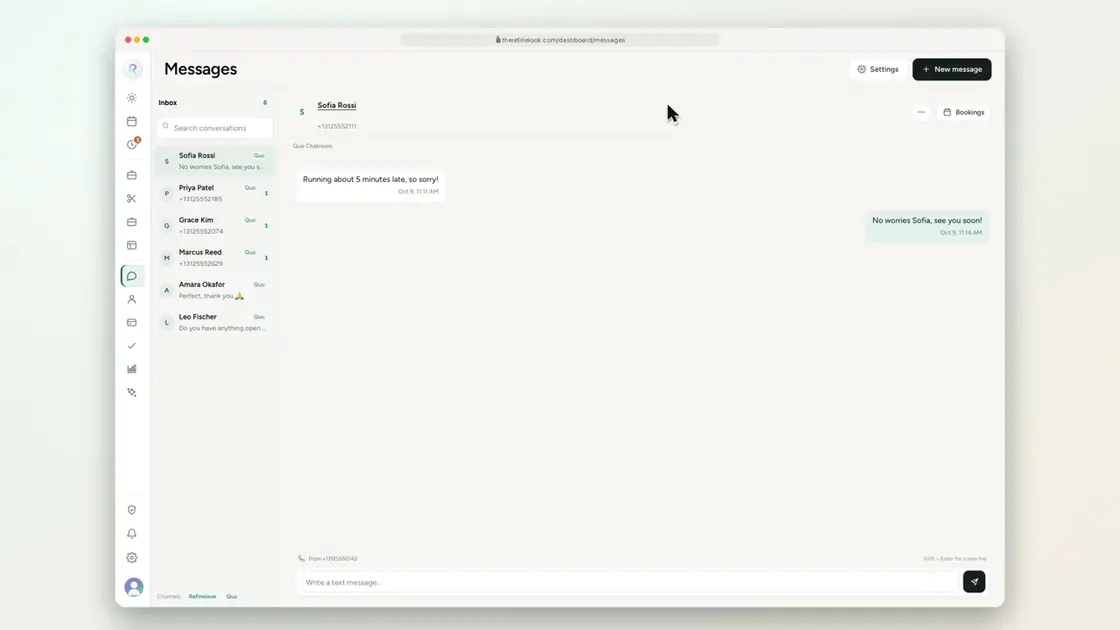 0:269-7AI drafts a booking from a phone call
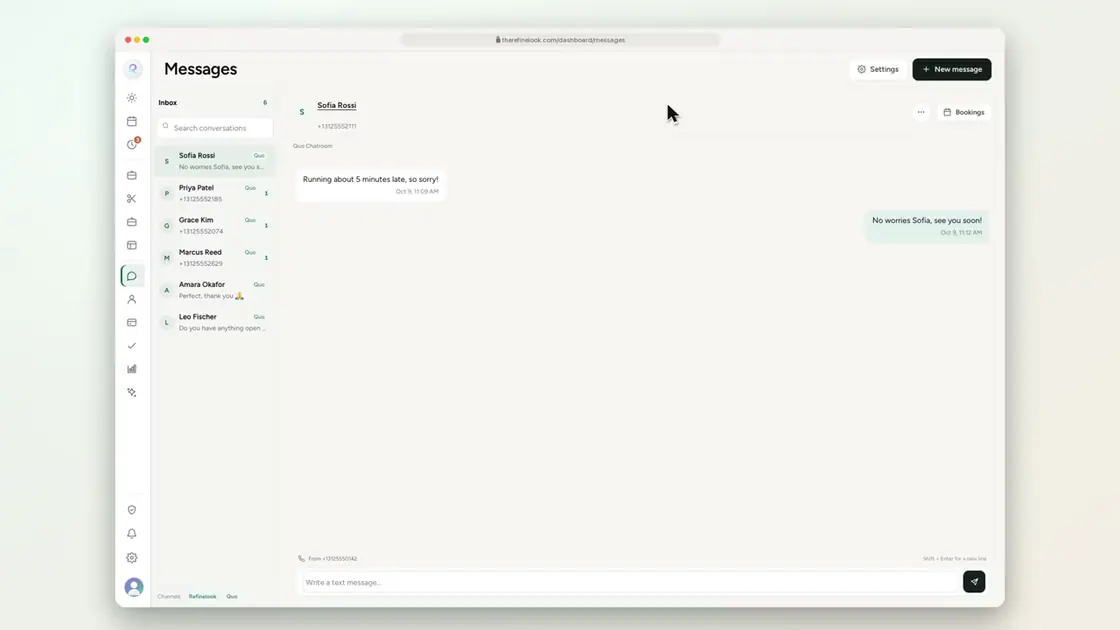 0:269-8AI drafts a cancellation for staff to confirm
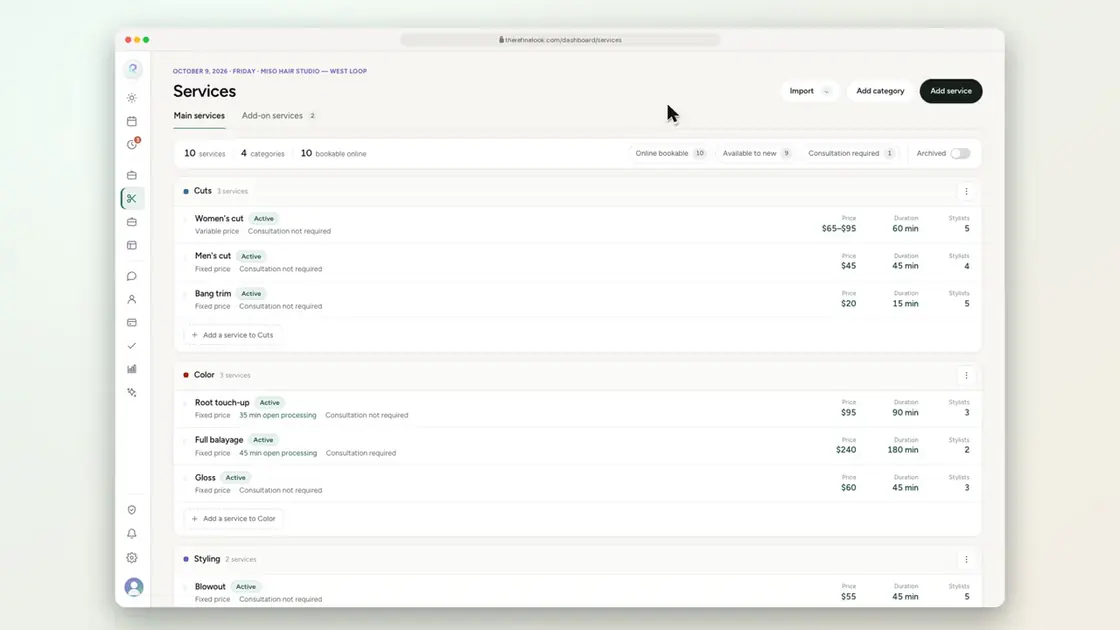 0:229-9AI turns a menu photo into services
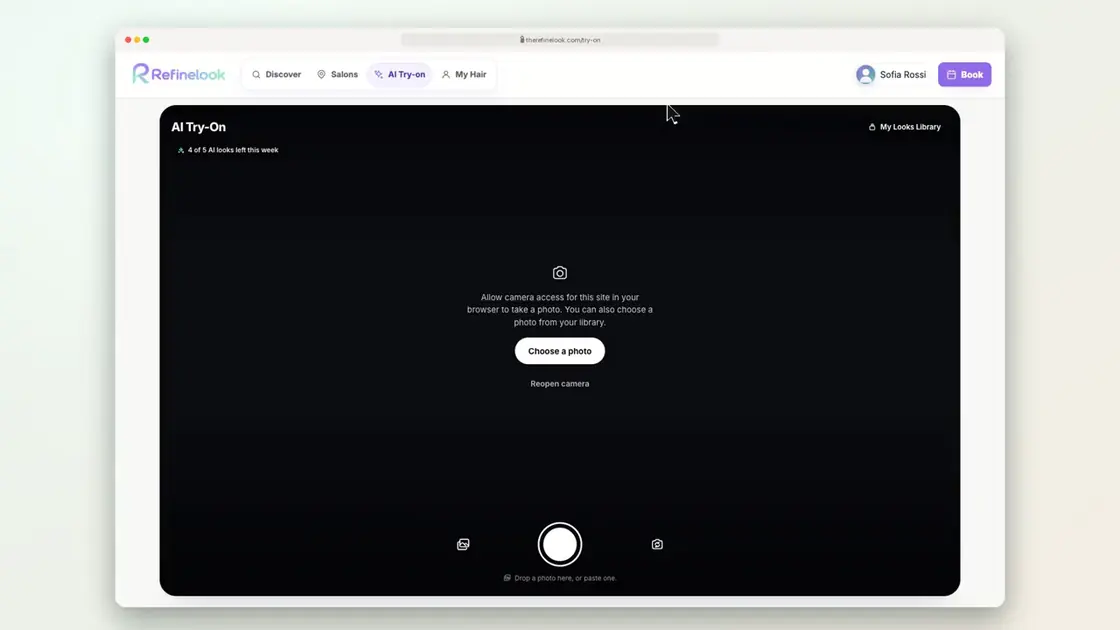 0:209-10Clients try a hairstyle on their own photo
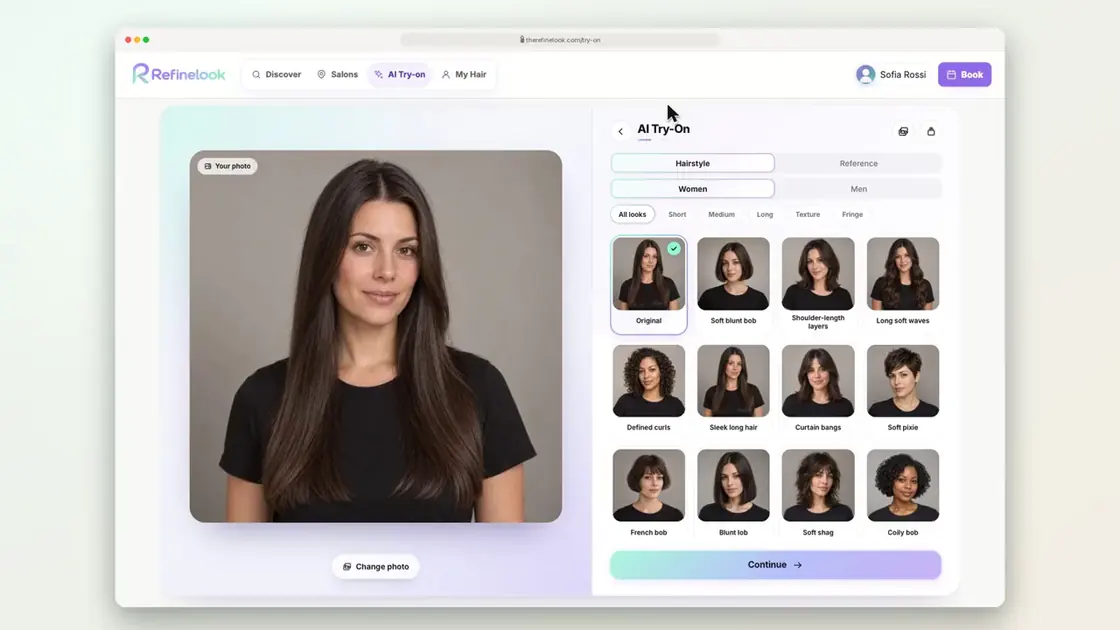 0:239-11Clients use their own inspiration photo in any color
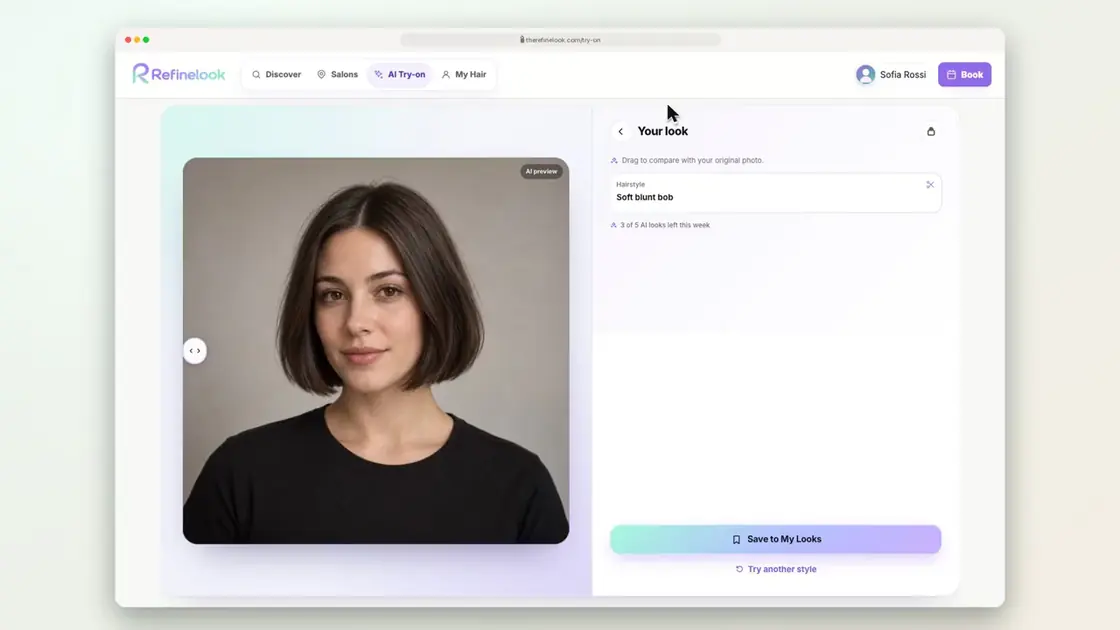 0:149-12Compare before and after
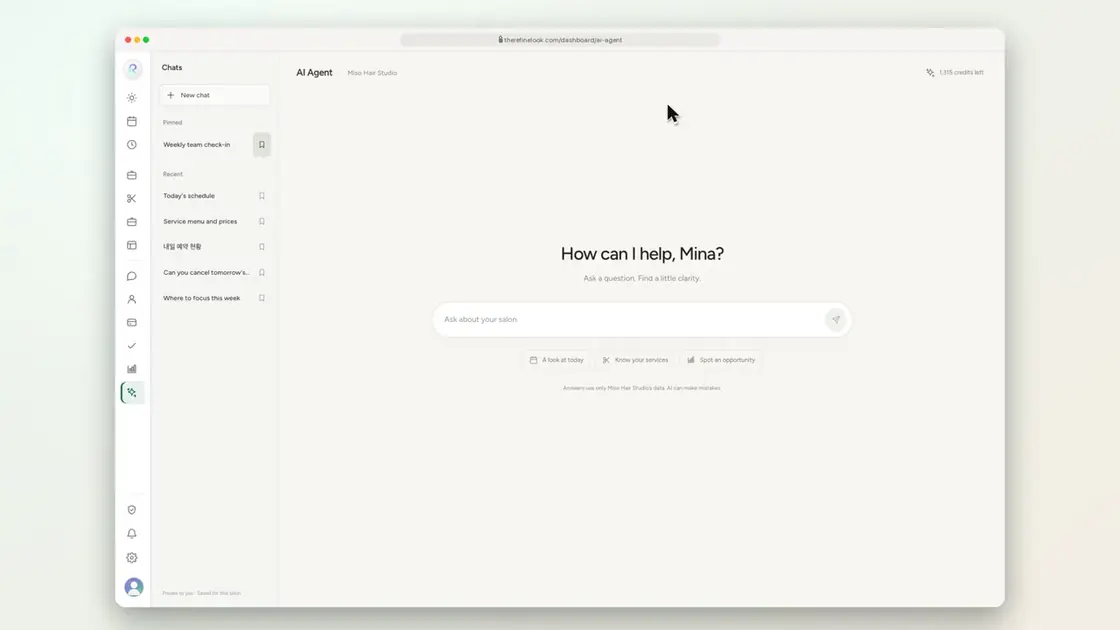 0:129-131,500 AI credits a month on Elite
No videos here match your search.
Insights & operations
Today at a glance, five dashboards, payments and payouts, inventory with purchase orders, and your data exported whenever you want it.
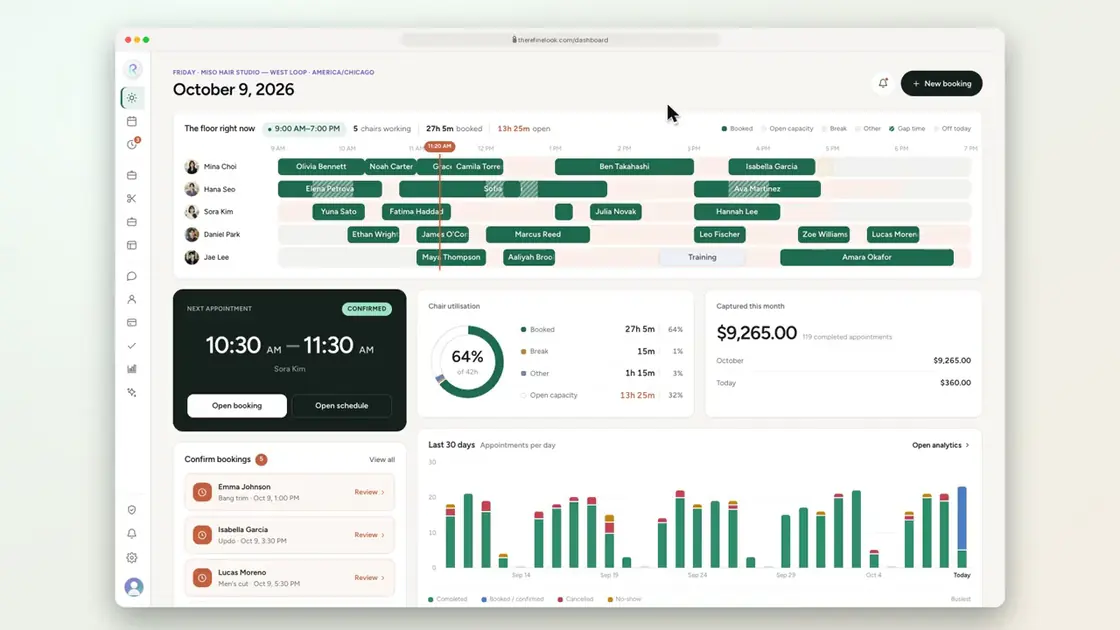 0:1310-1Today's revenue and appointments at a glance
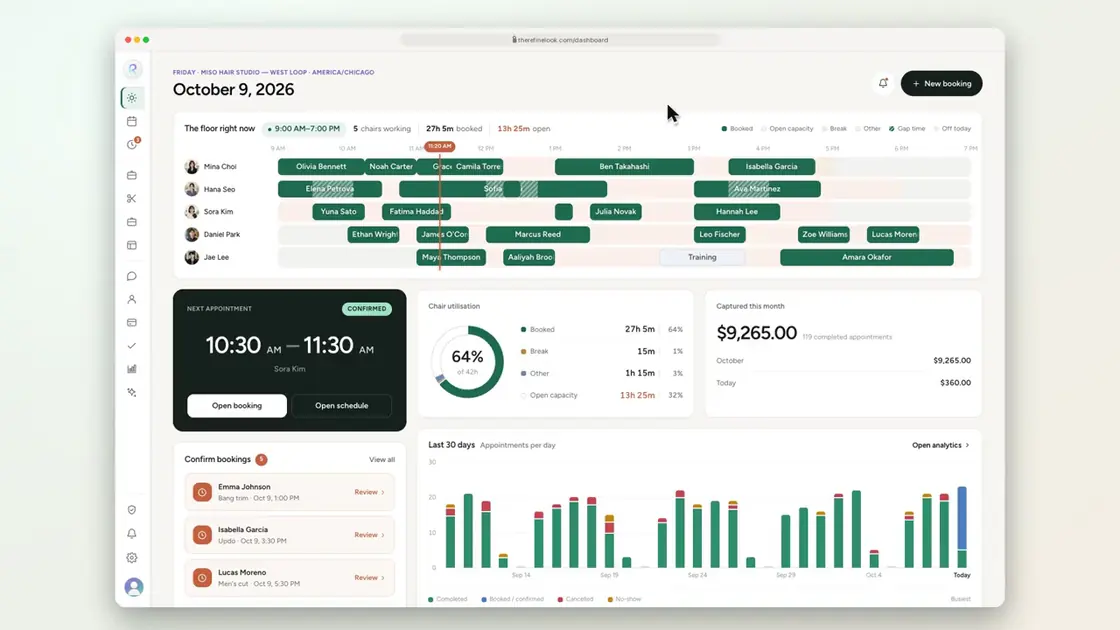 0:0710-2Each stylist's day on one timeline
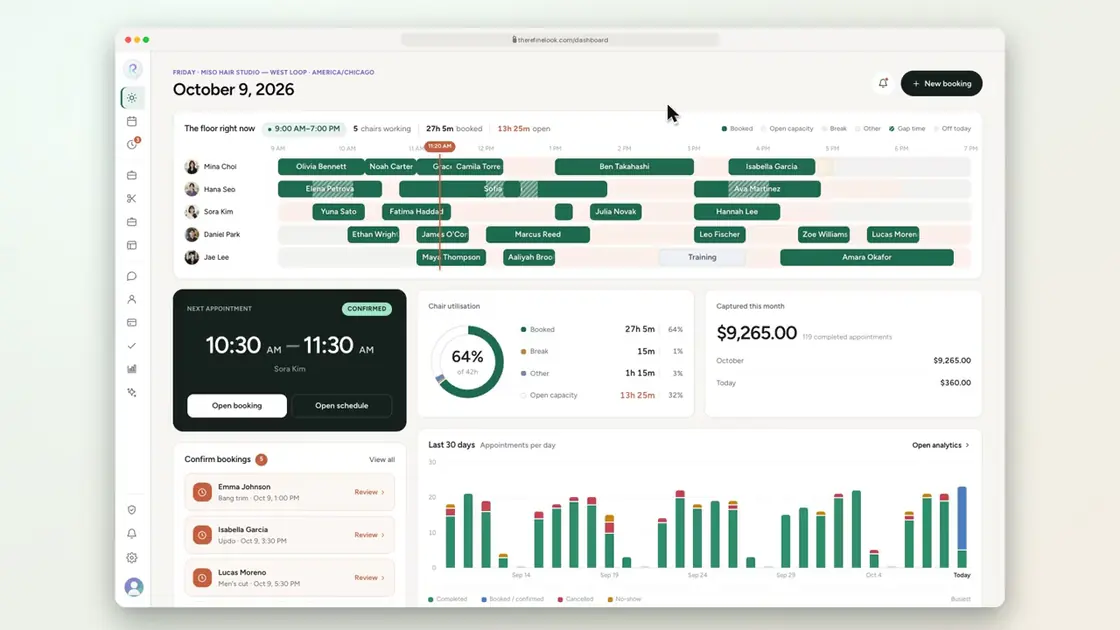 0:1110-3Requests waiting for you show on Today
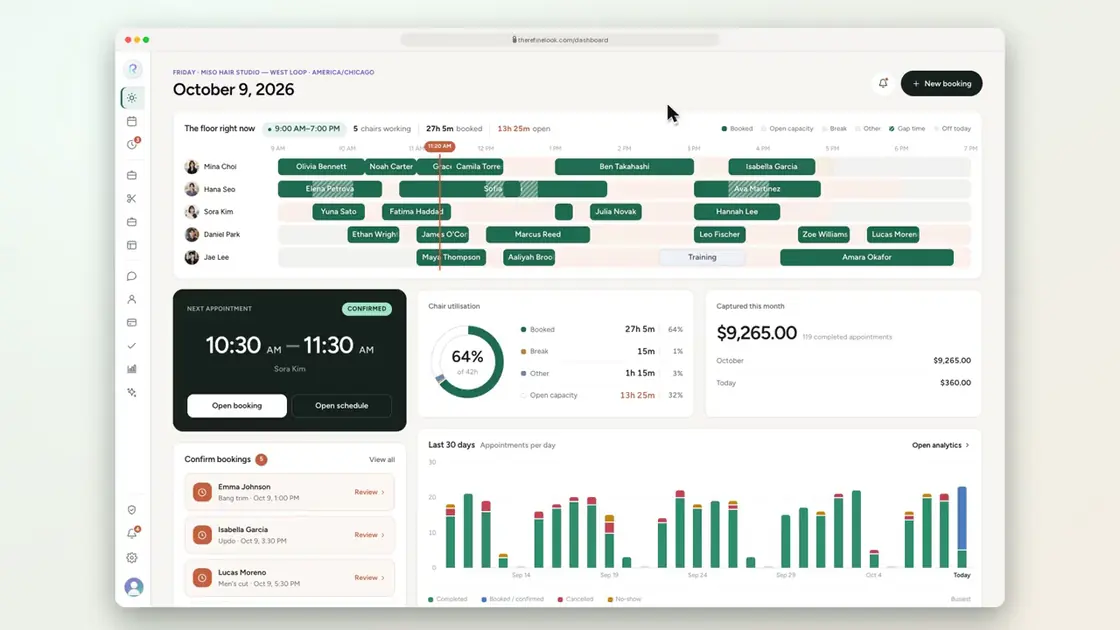 0:1310-4Alerts when requests wait or appointments move
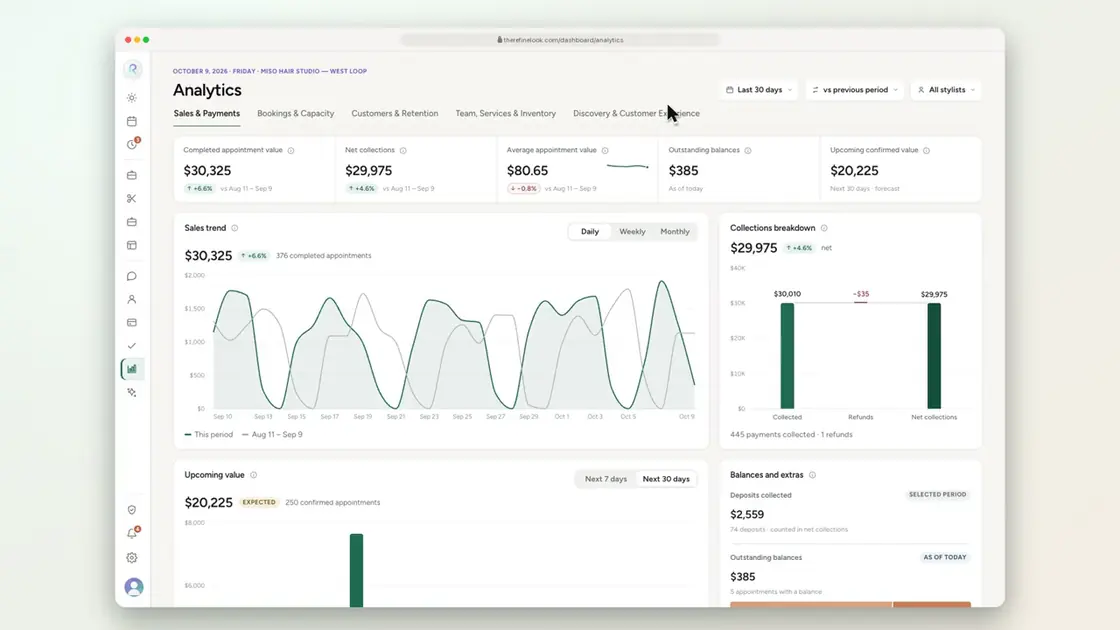 0:1210-5Sales dashboard
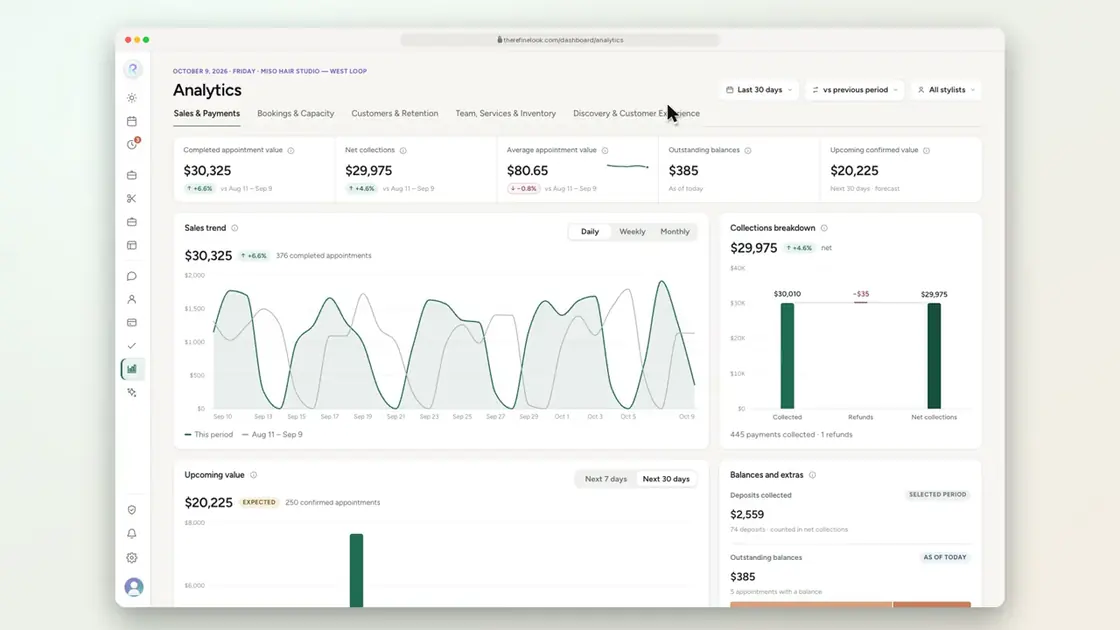 0:1210-6Bookings dashboard
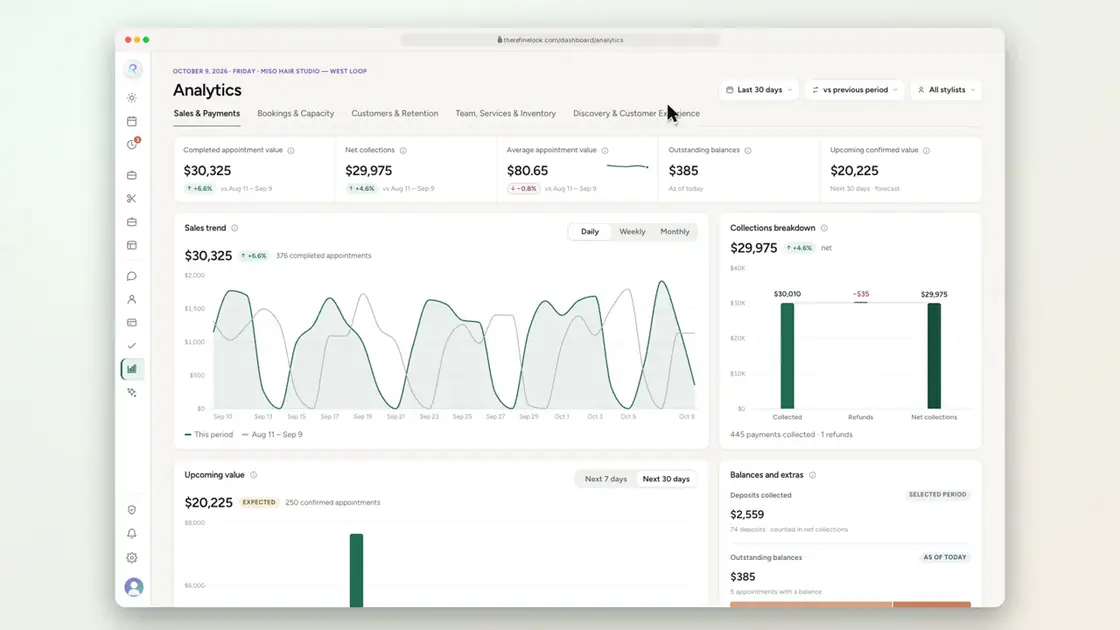 0:1210-7Customers dashboard
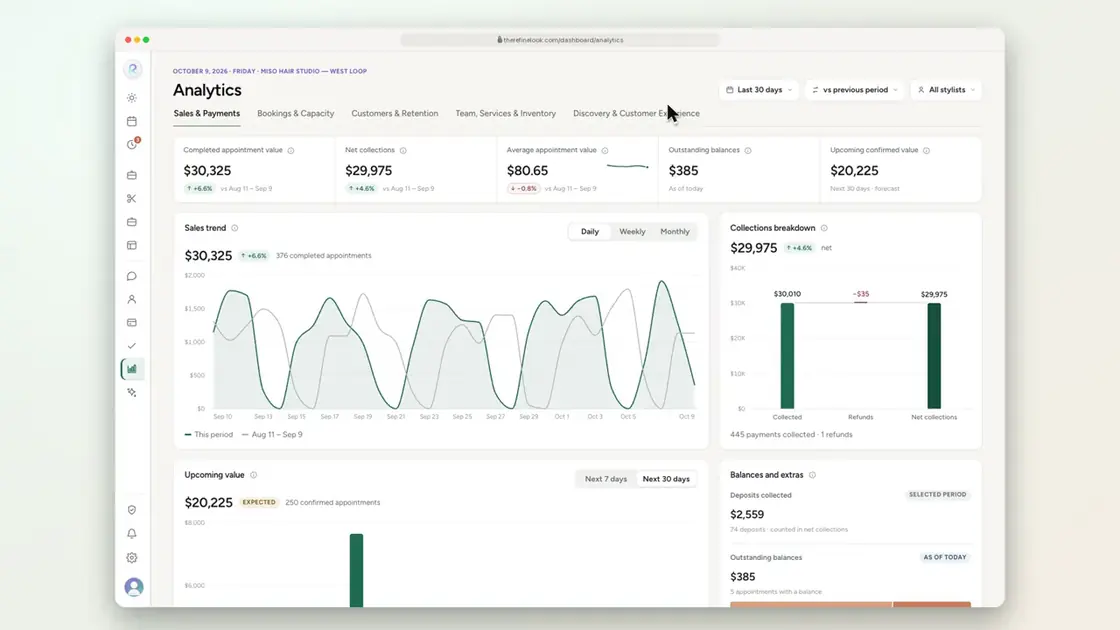 0:1210-8Team dashboard
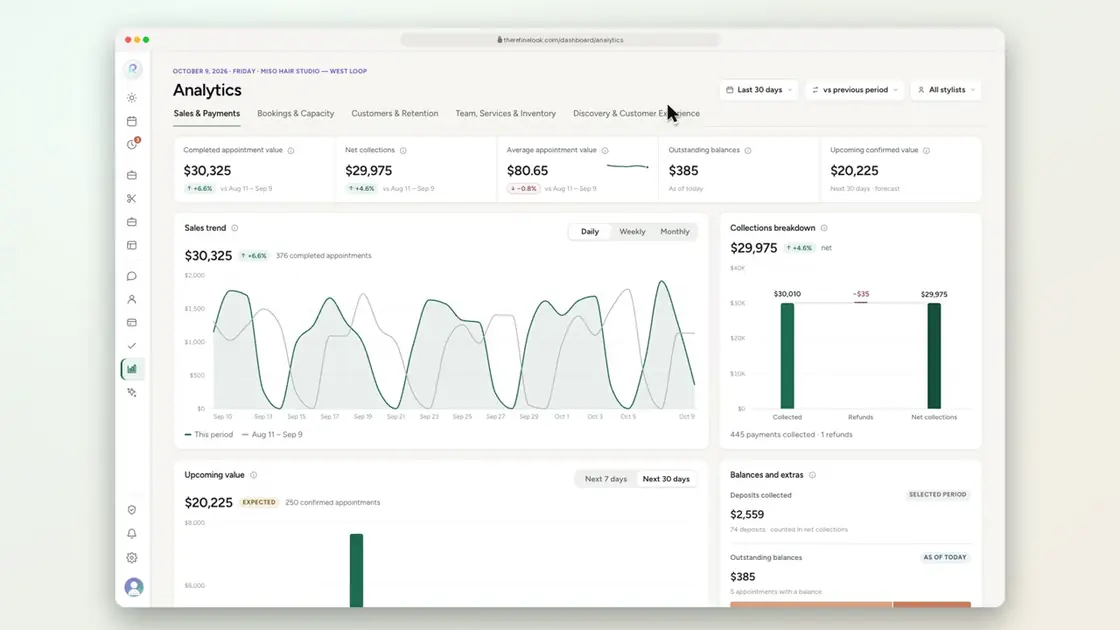 0:1410-9Discovery dashboard
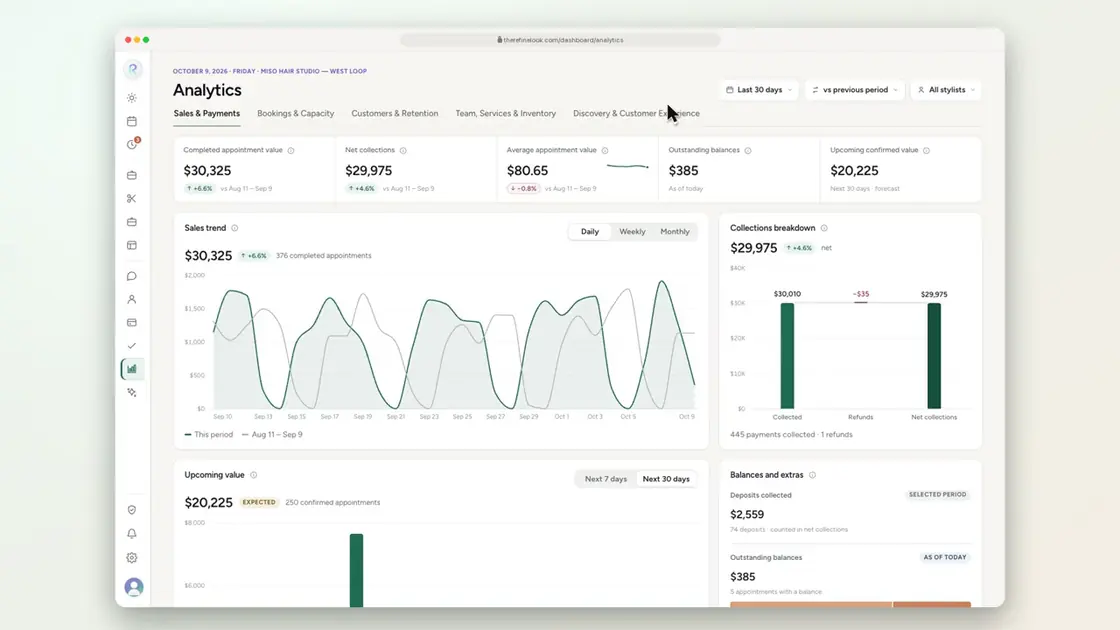 0:1610-10Compare any period with the one before
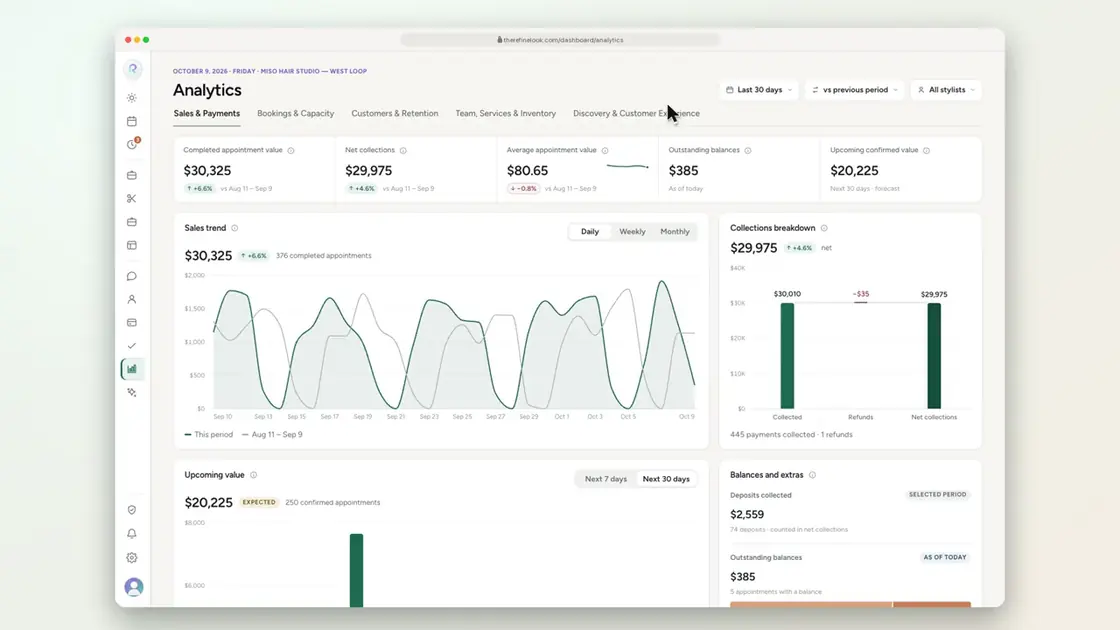 0:1110-11Filter by stylist
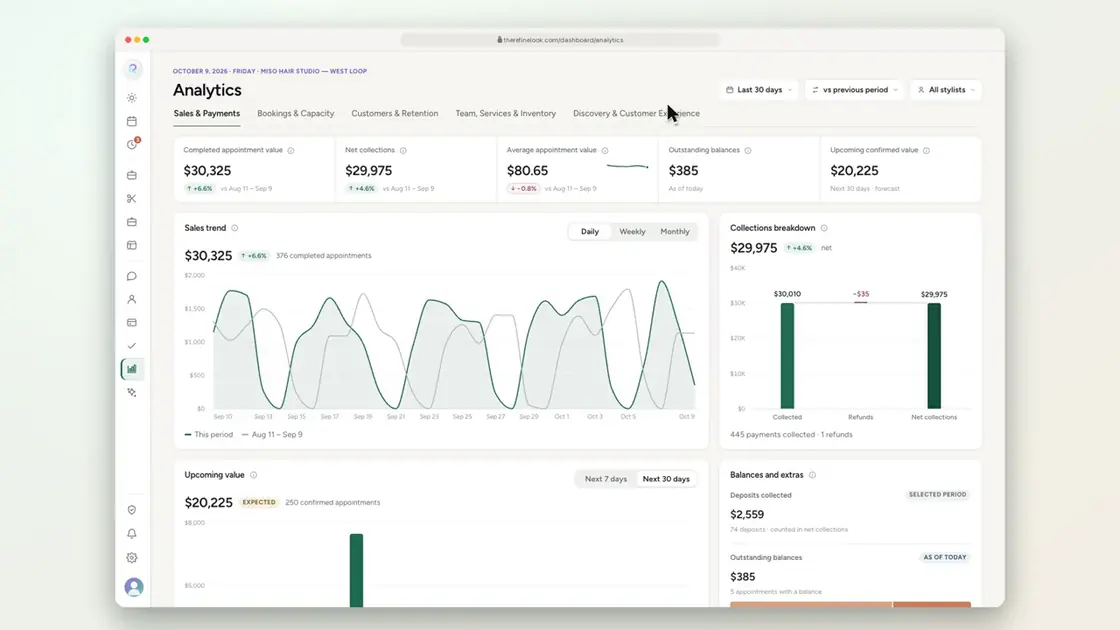 0:1610-12Click through to the underlying records
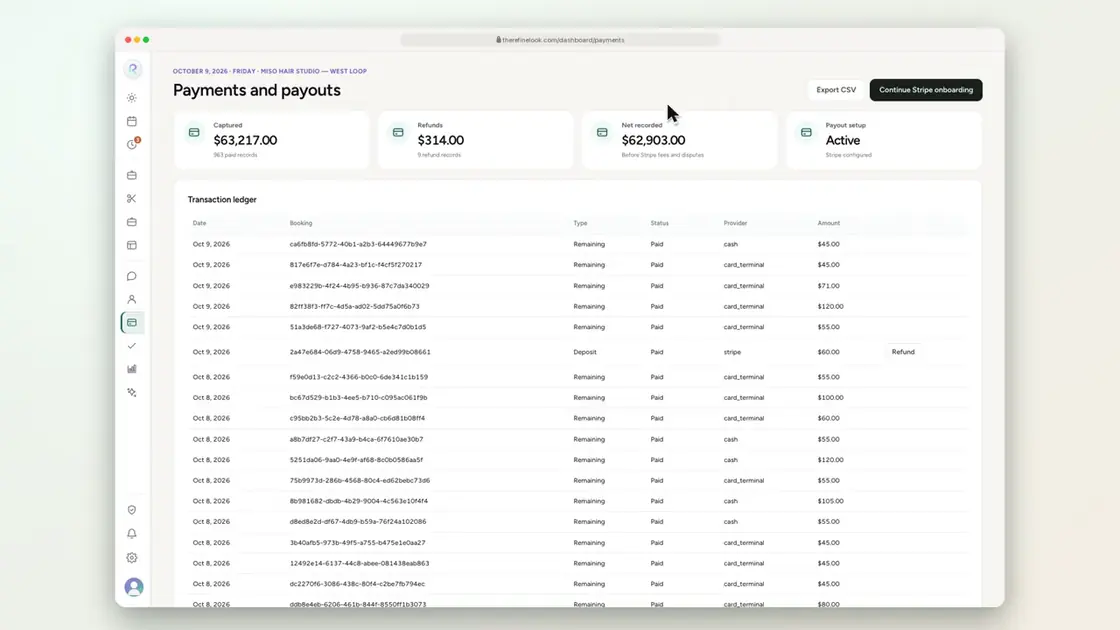 0:1210-13Payments, refunds and payouts in one place
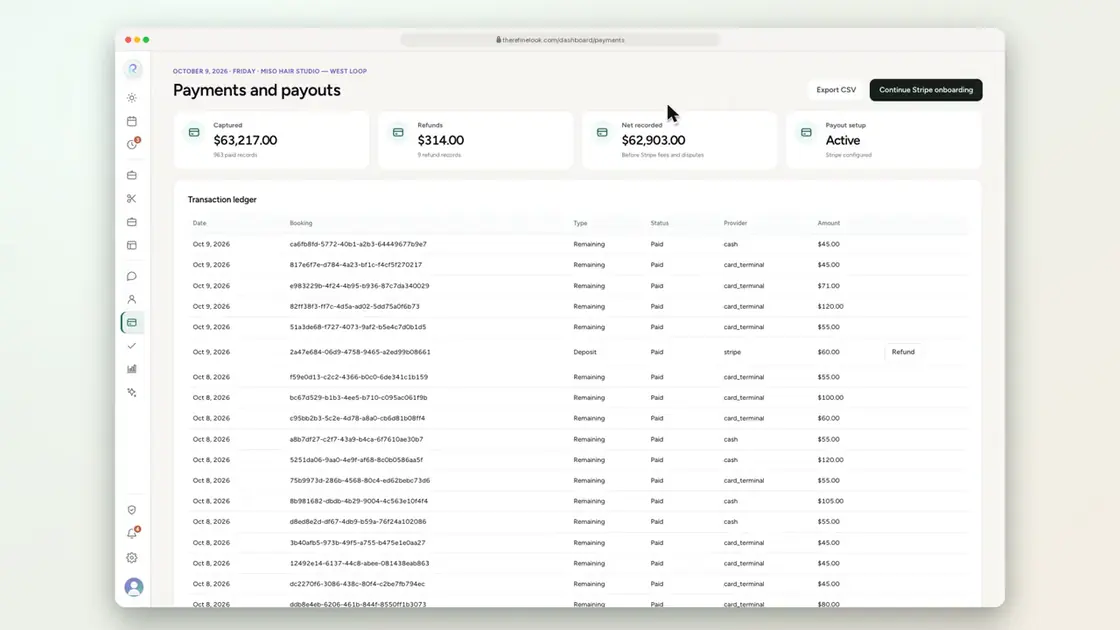 0:0710-14Export payments to CSV
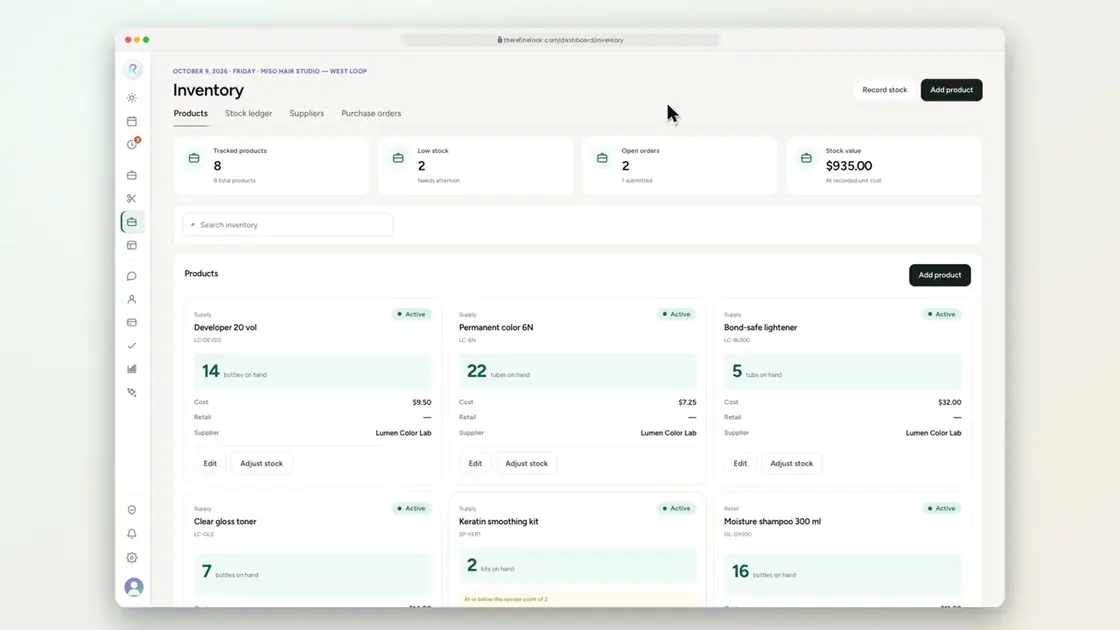 0:1410-15Track products and stock levels
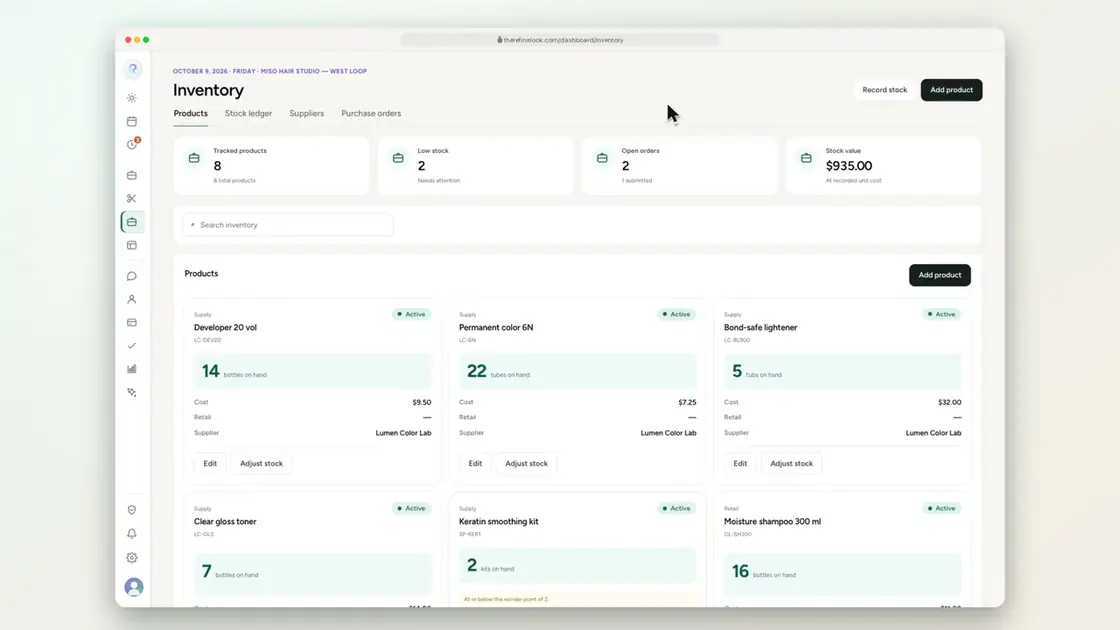 0:1810-16Record stock and keep a full history
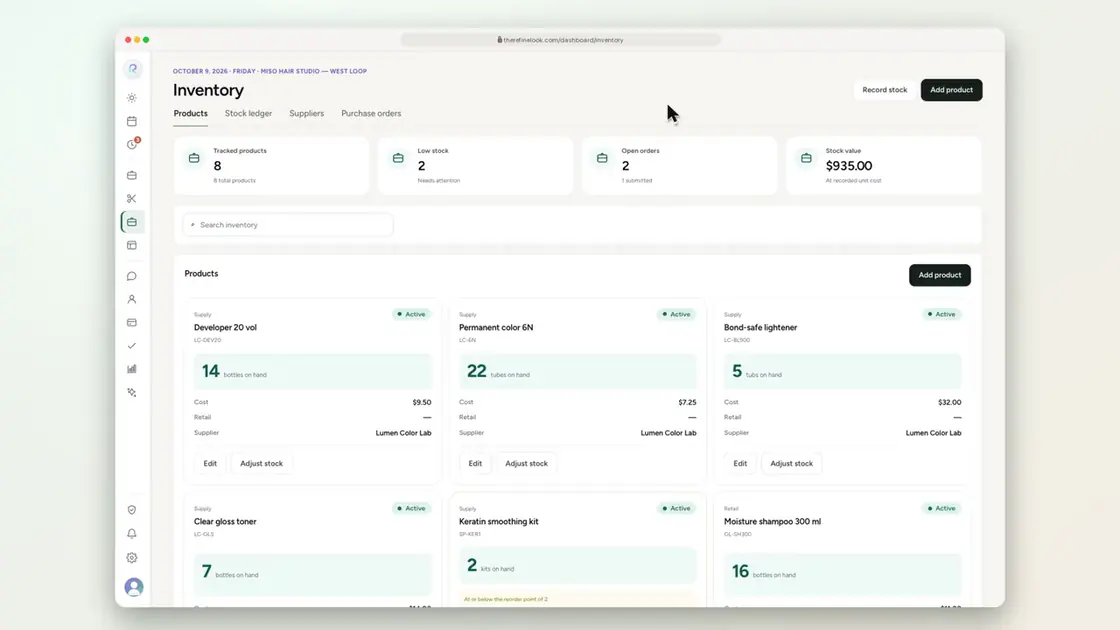 0:2010-17Keep your suppliers in one place
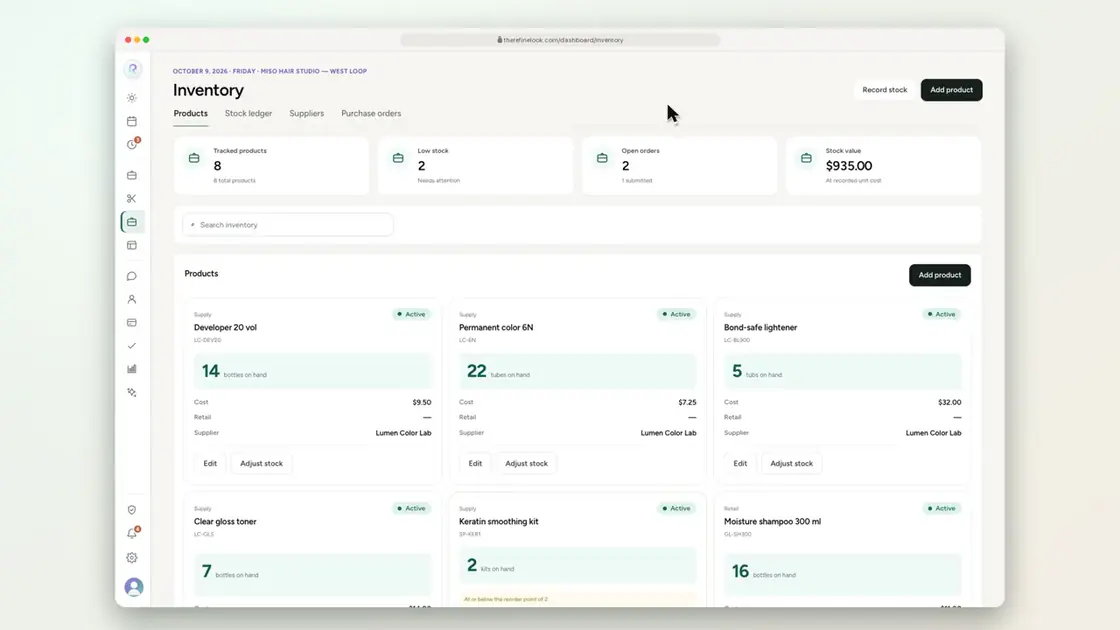 0:2510-18Purchase orders from draft to received
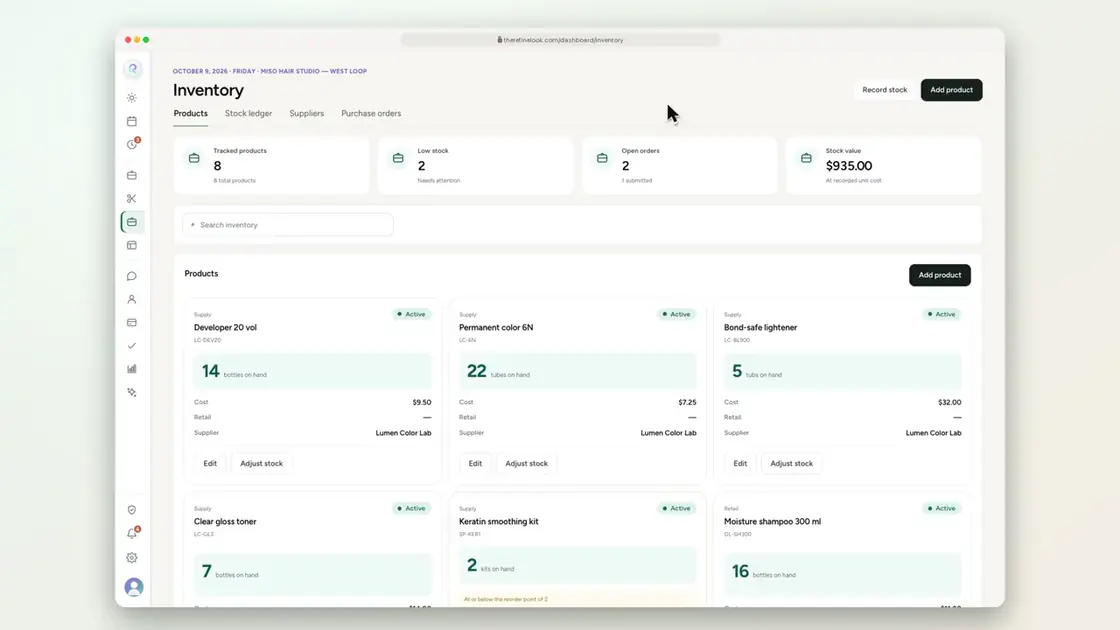 0:2010-19Stock comes off as services use it
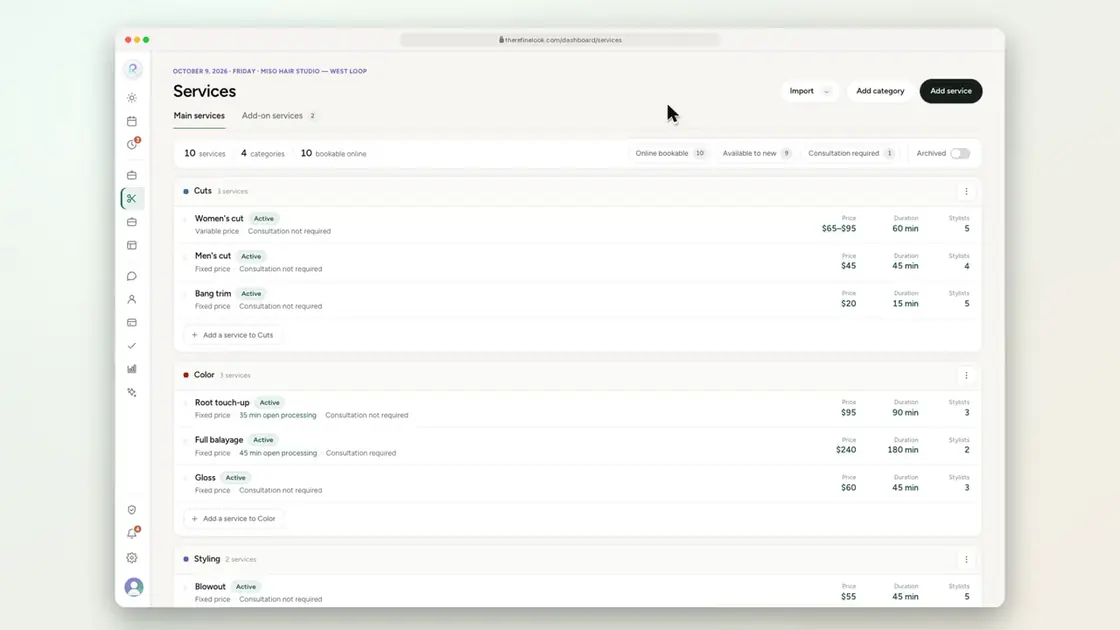 0:2610-20Set services and stock for each location
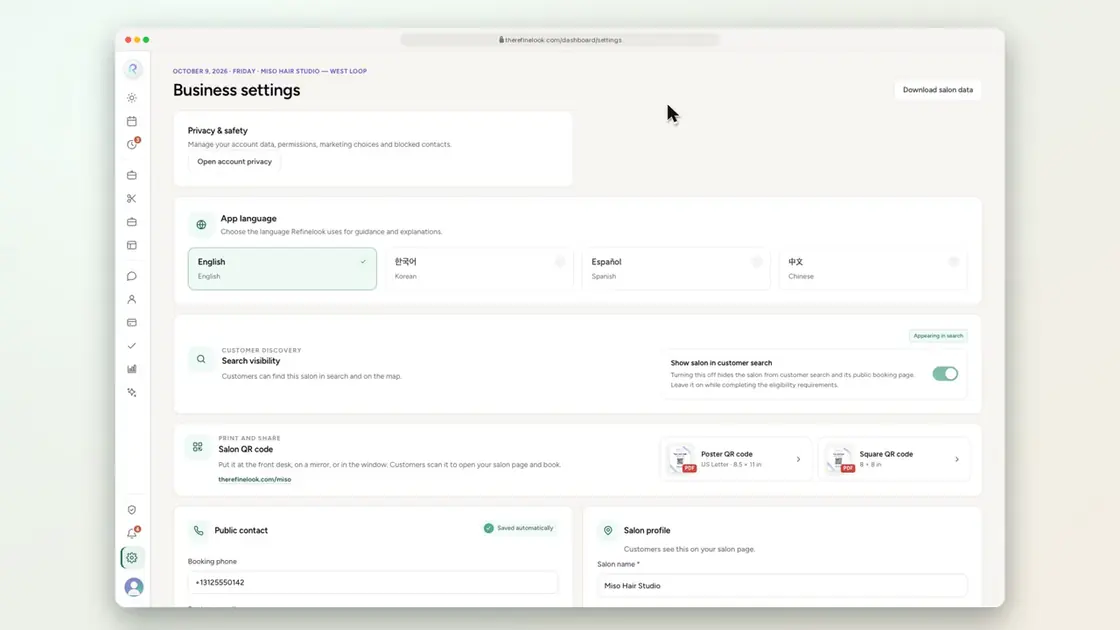 0:0710-21Download your whole salon's data
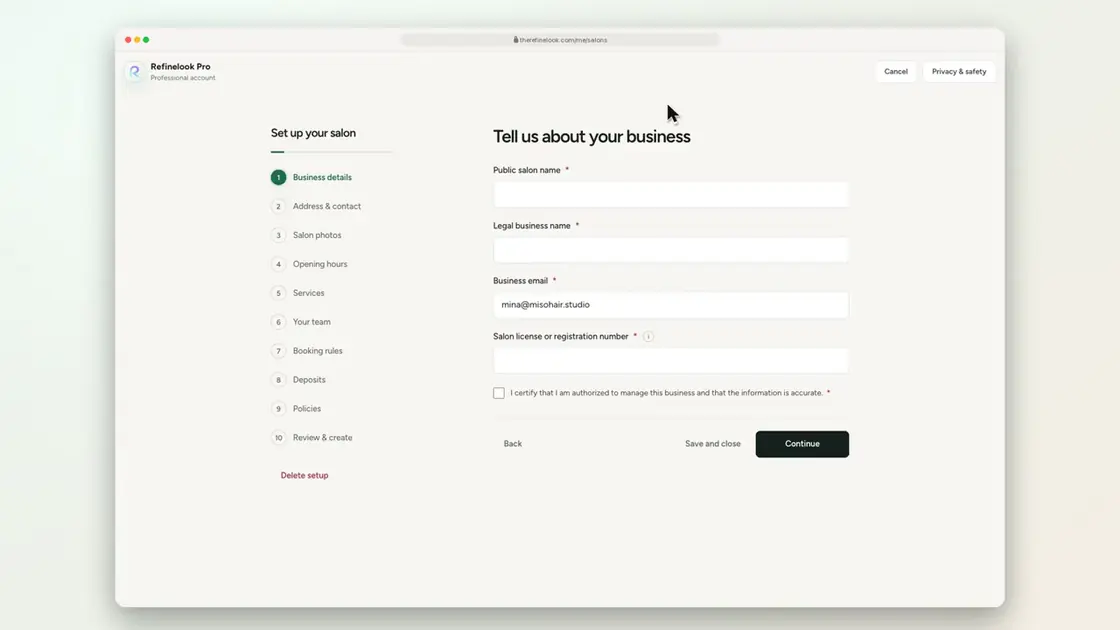 0:1710-22Guided setup from business details to payouts
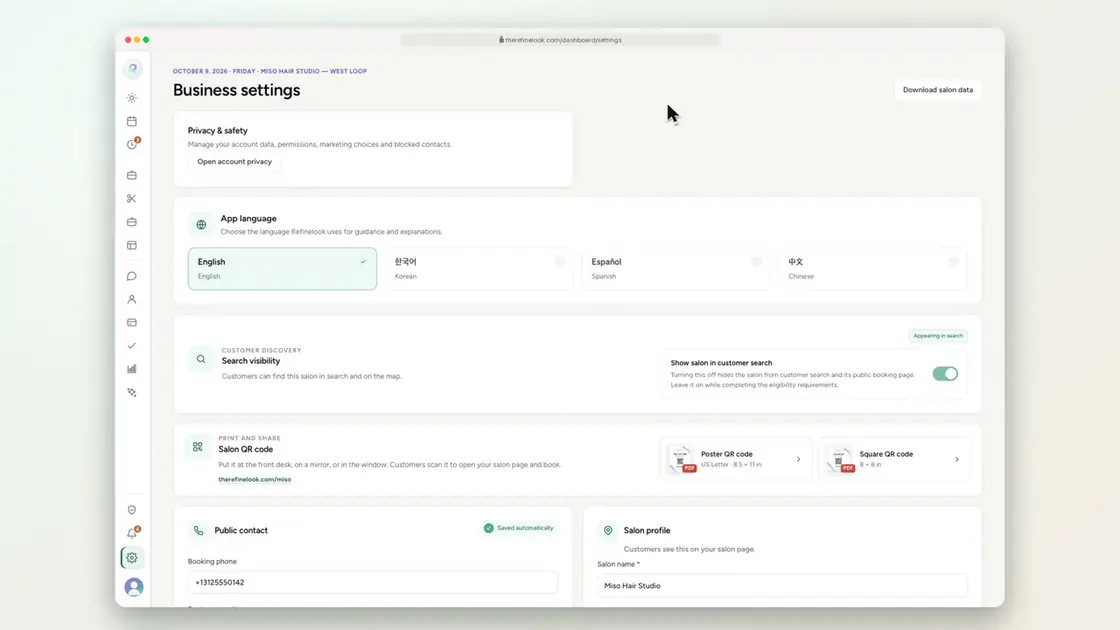 0:1510-23Switch between English, Korean, Spanish and Chinese
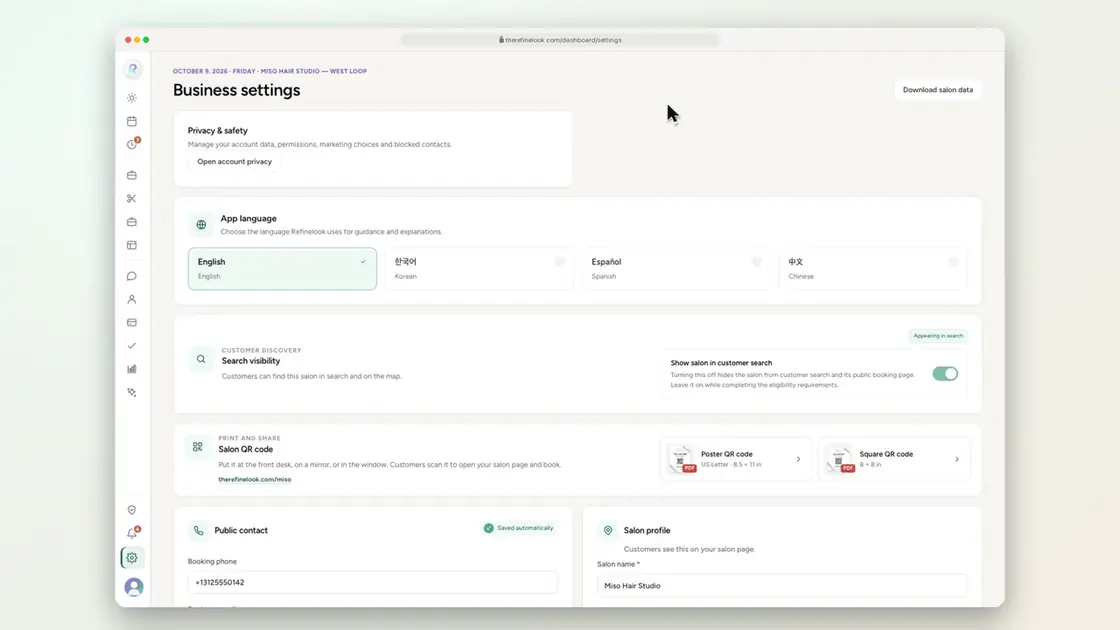 0:1610-24Times follow your salon's time zone
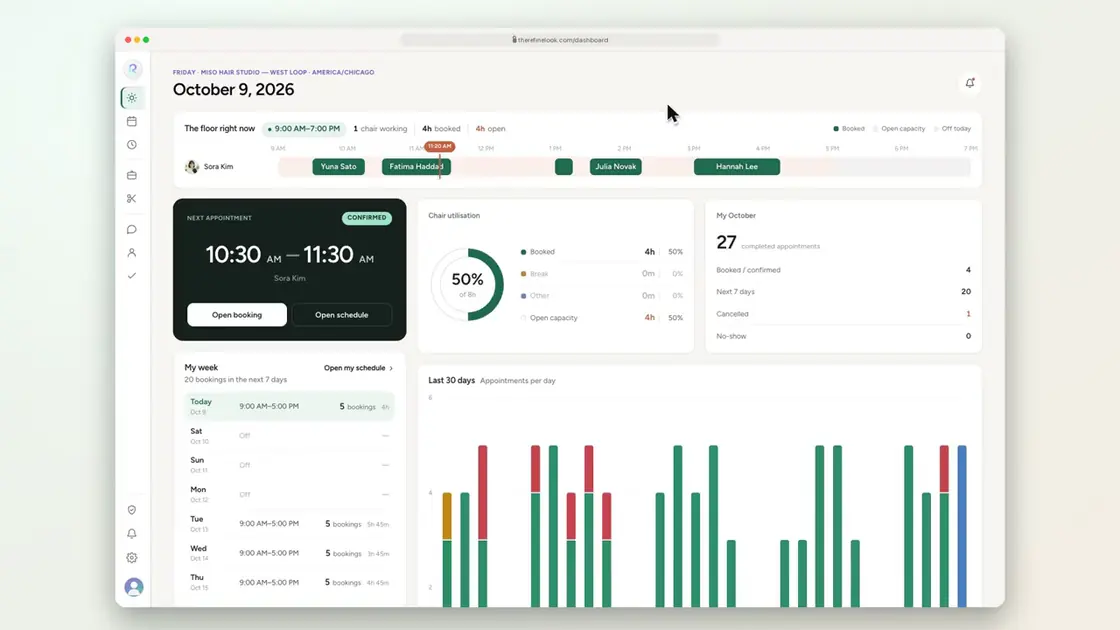 0:1510-25Staff see only what their role allows
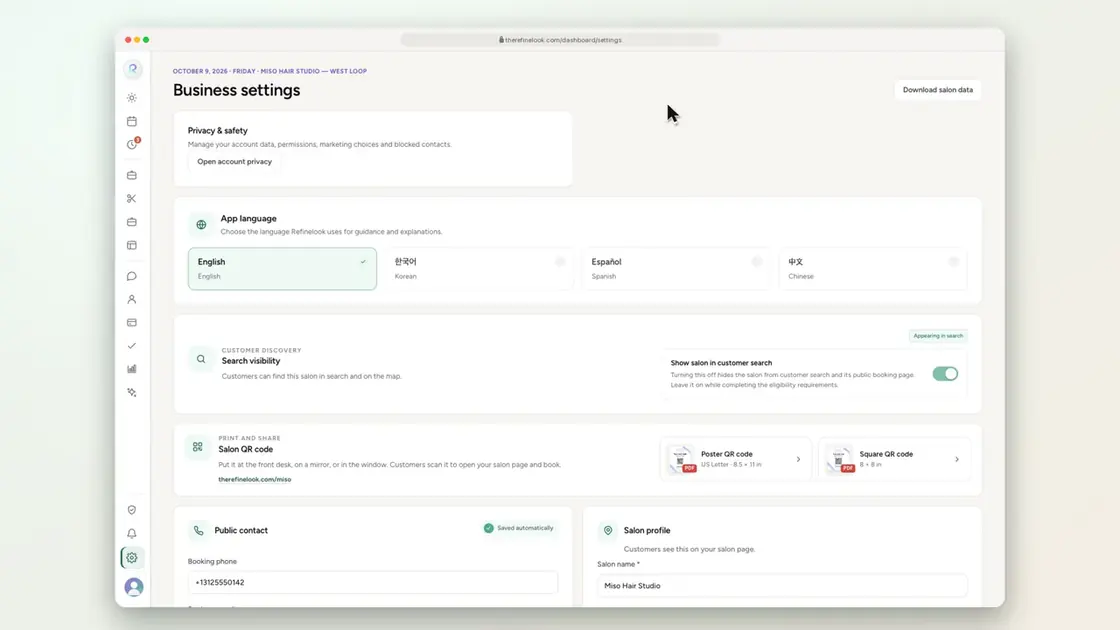 0:1710-26Get help from the Refinelook team
No videos here match your search.
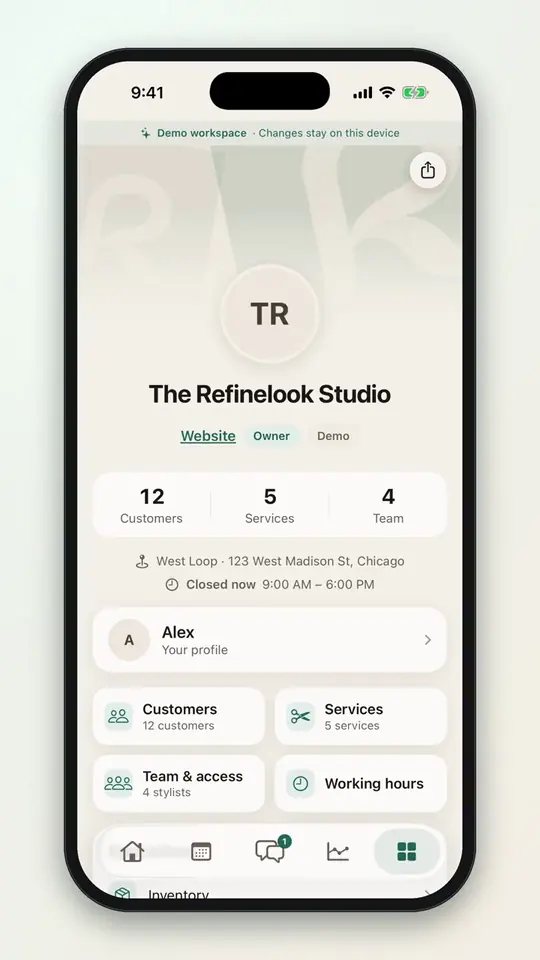
Refinelook Pro for iPhone. The owner app for the floor, the chair and the commute. Coming to the App Store.
Time management
Drag an appointment to a new time, a new stylist or a new day. Gap time, buffers and breaks keep the calendar honest.
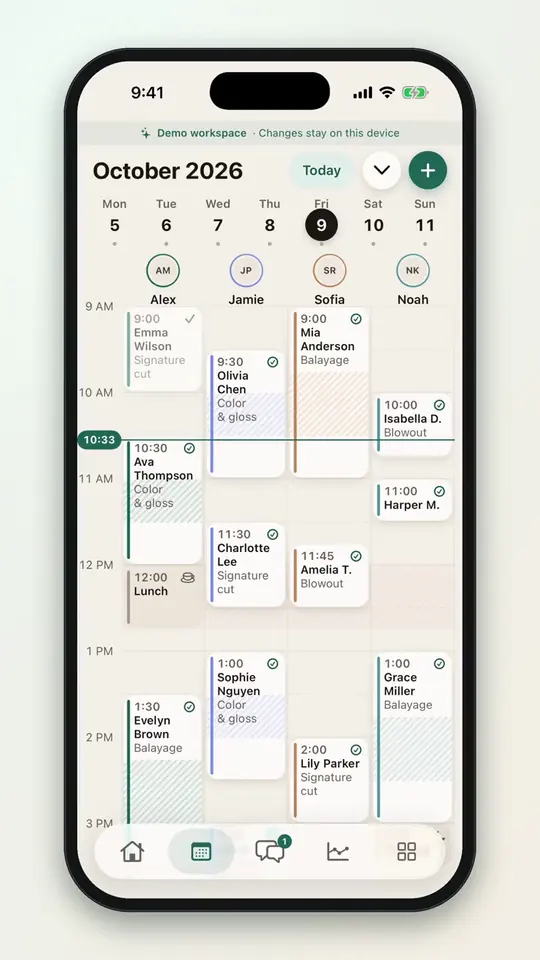
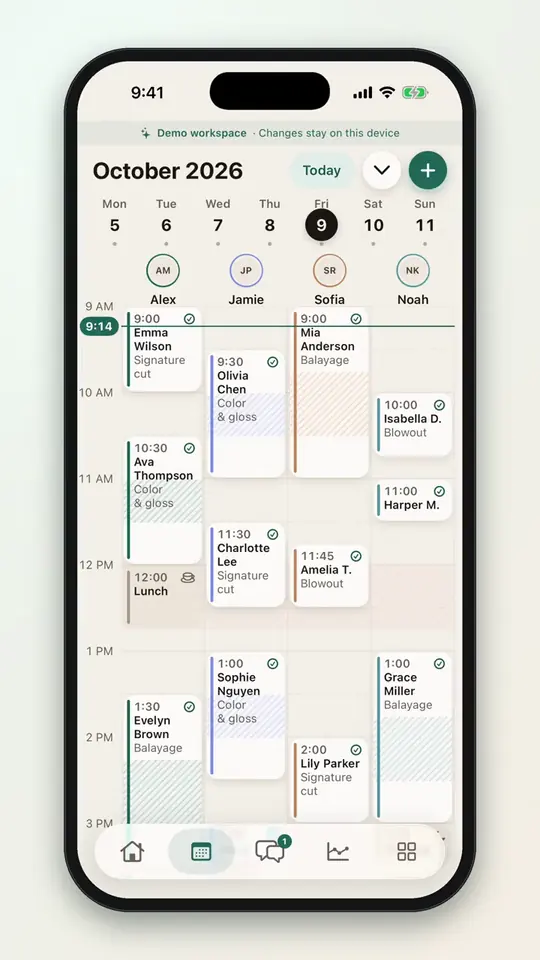 0:101-1Every stylist side by side
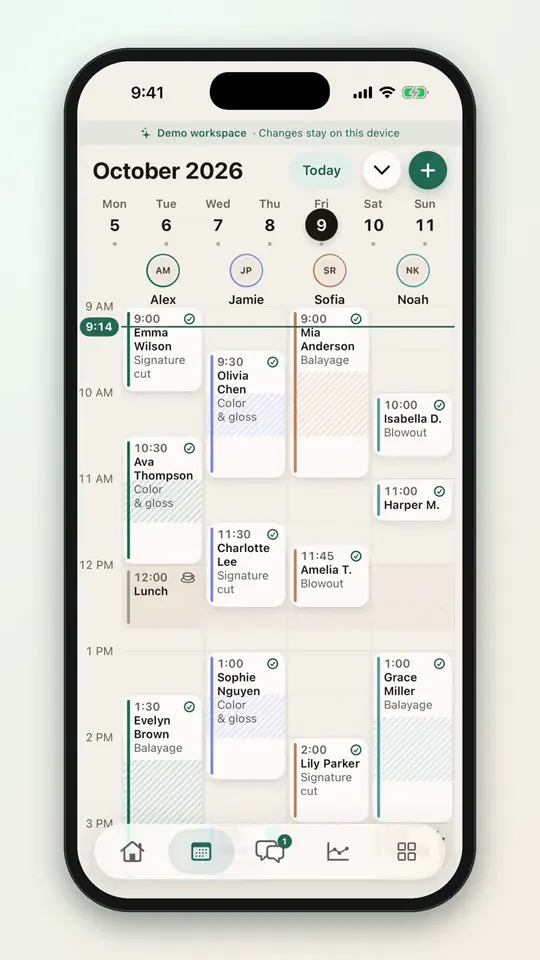 0:081-2Swipe between days
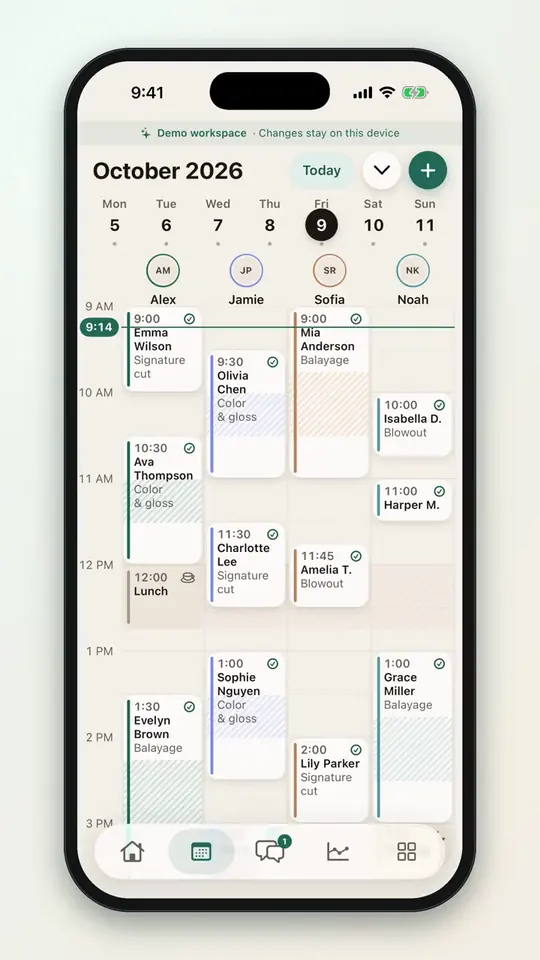 0:101-3Pick a day from the week strip
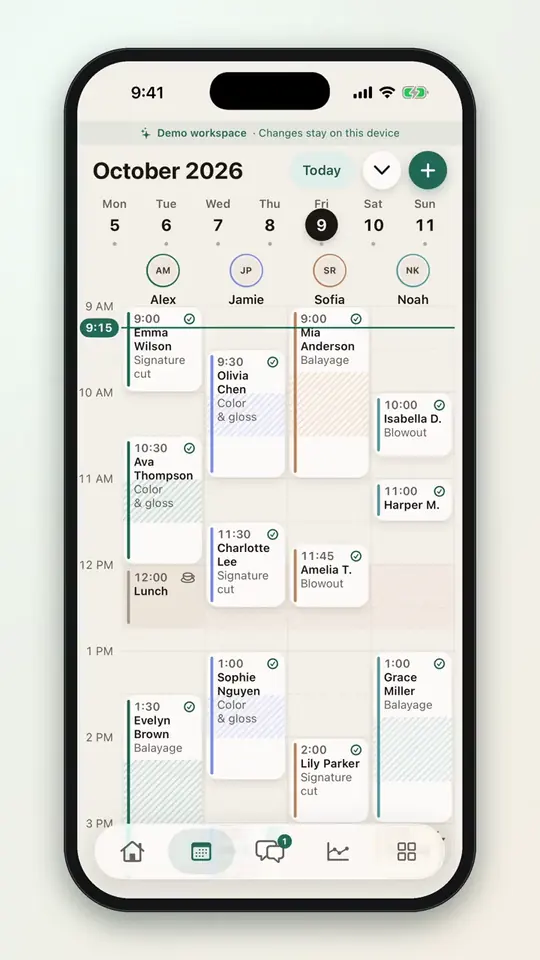 0:081-4Open the month view
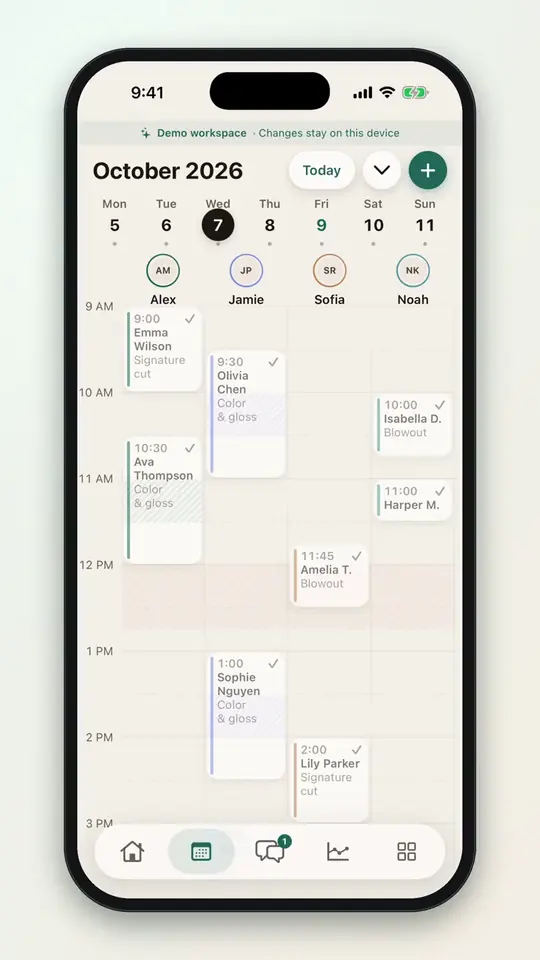
 0:091-5Jump to any date
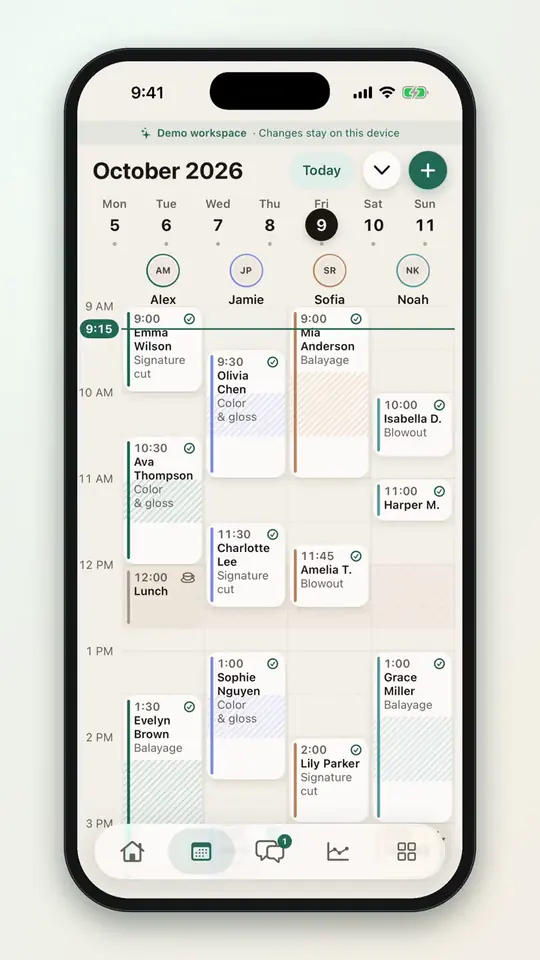
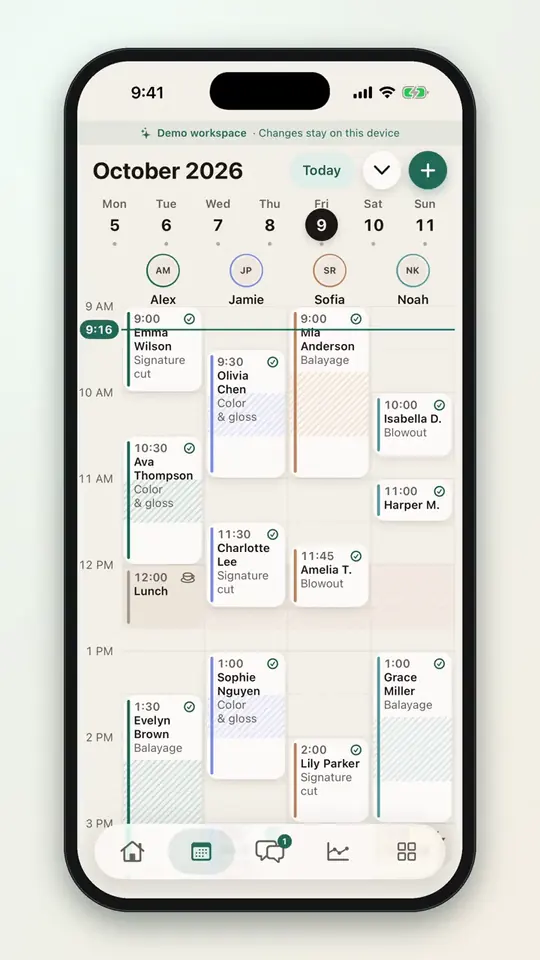
 0:041-6Back to today and the live time line
 0:141-7Show only some stylists
 0:061-8Reorder stylist columns
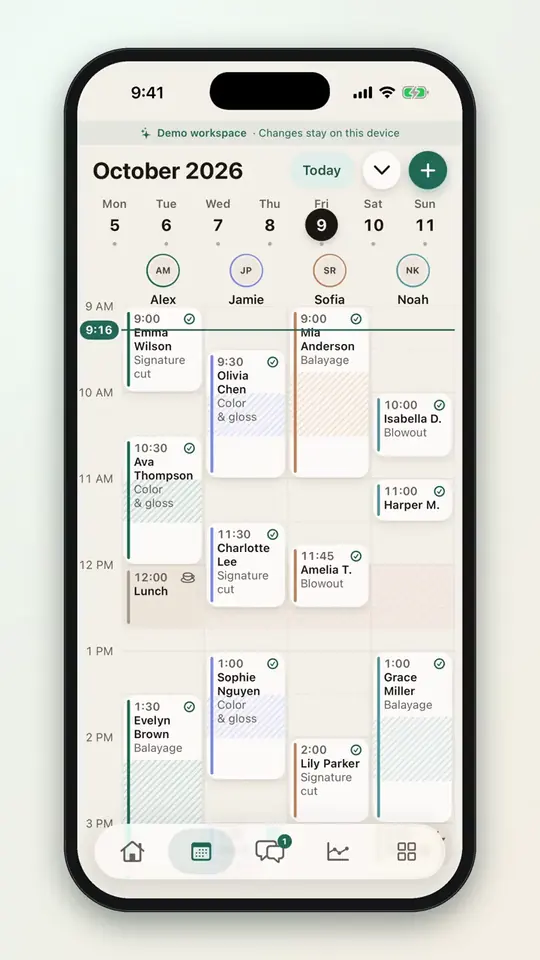 0:161-9Compact or comfortable columns
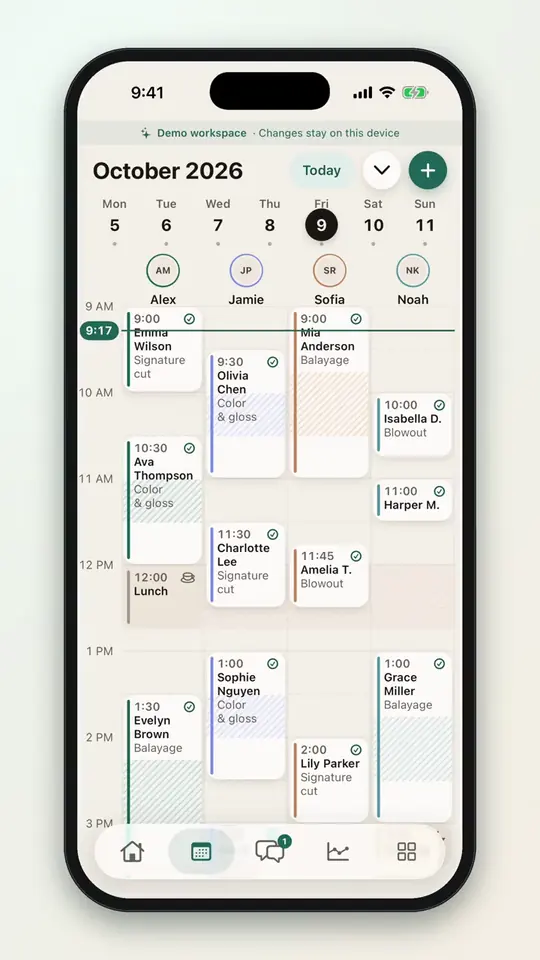 0:151-10Adjust gap time with a slider
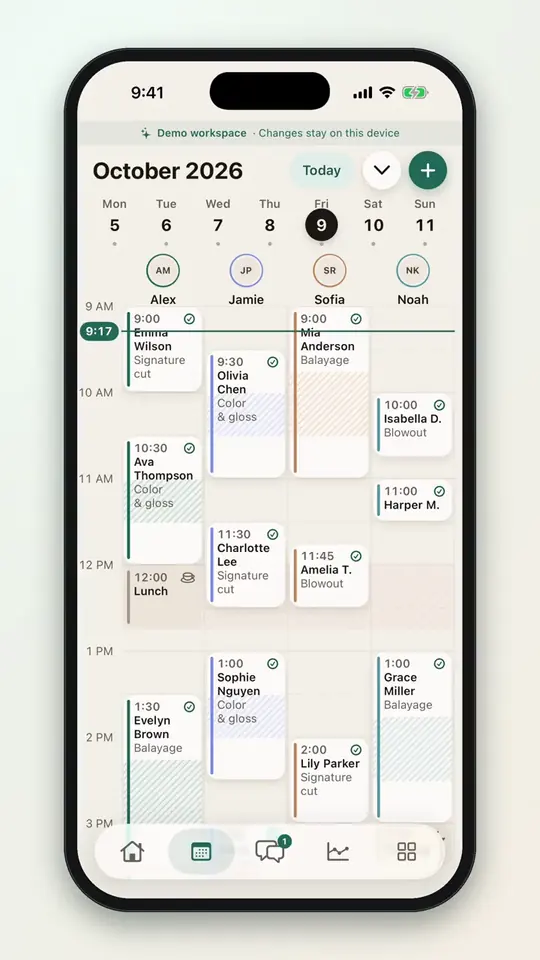 0:171-11Add gap time to an appointment
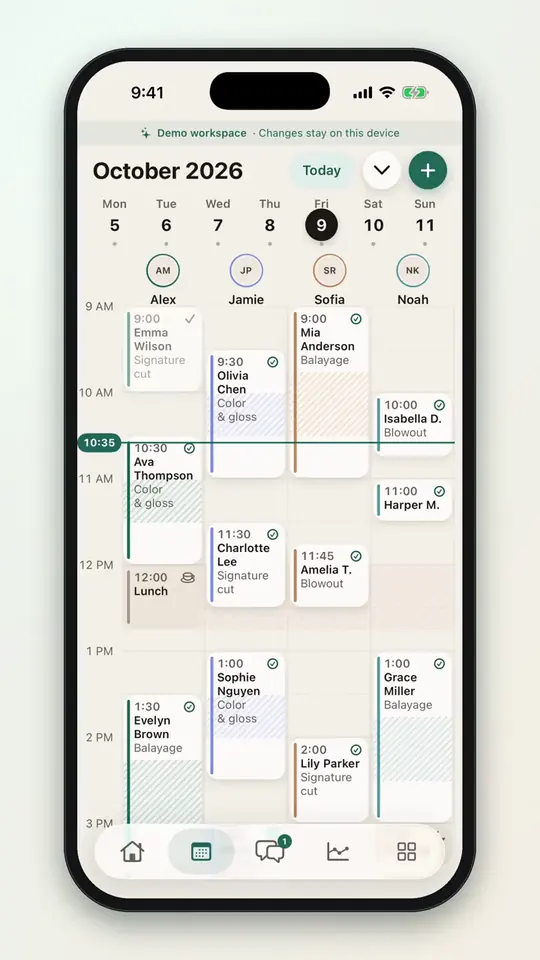 0:161-12Block time for a break
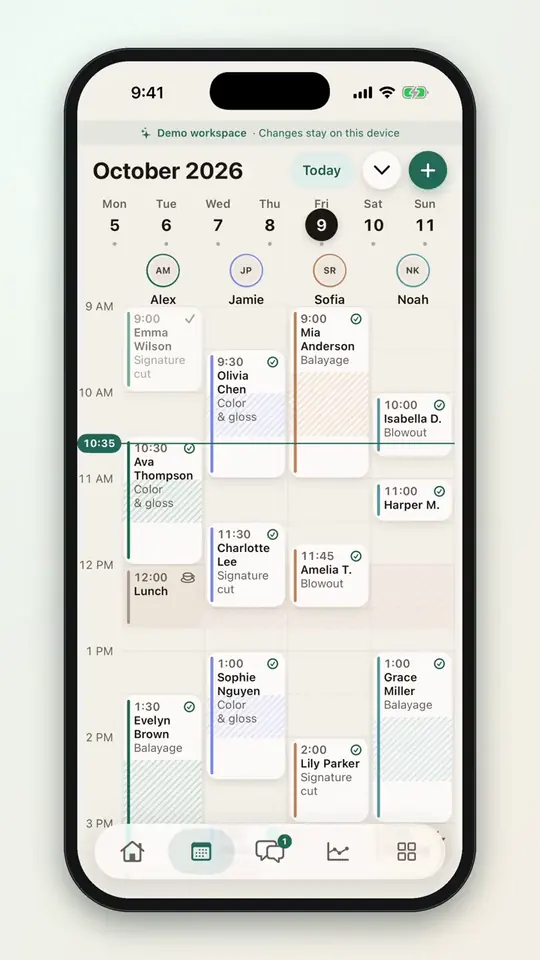 0:181-13Block time for the whole team
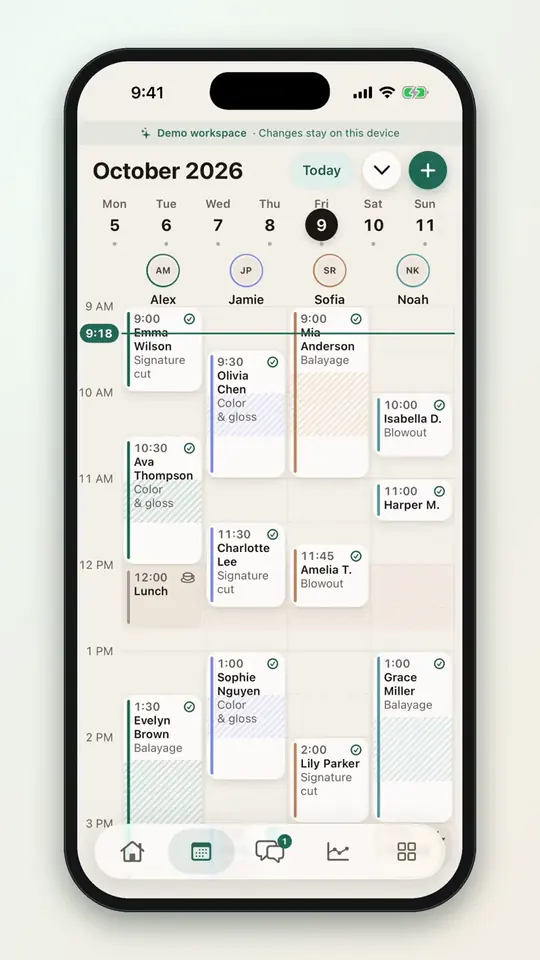 0:101-14Remove a calendar entry
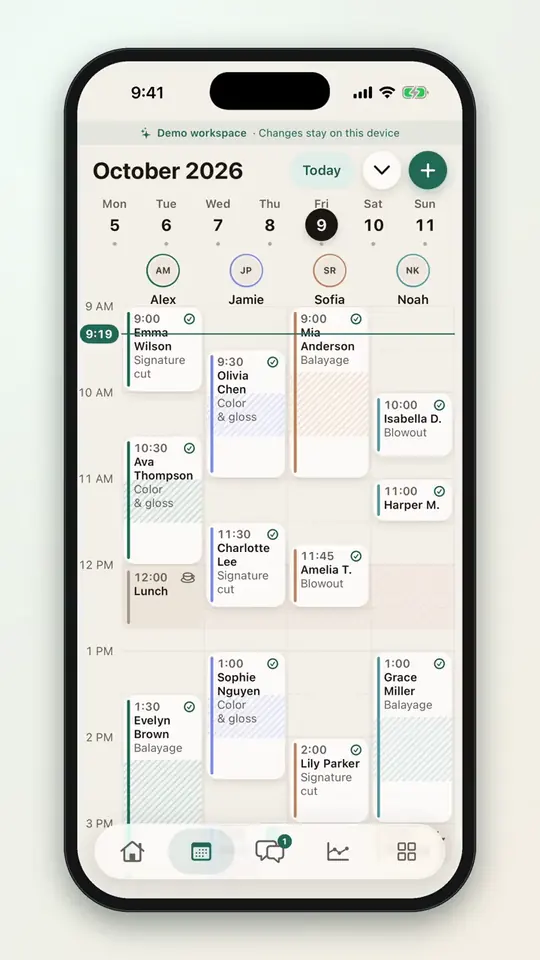 0:331-15Book into an open time
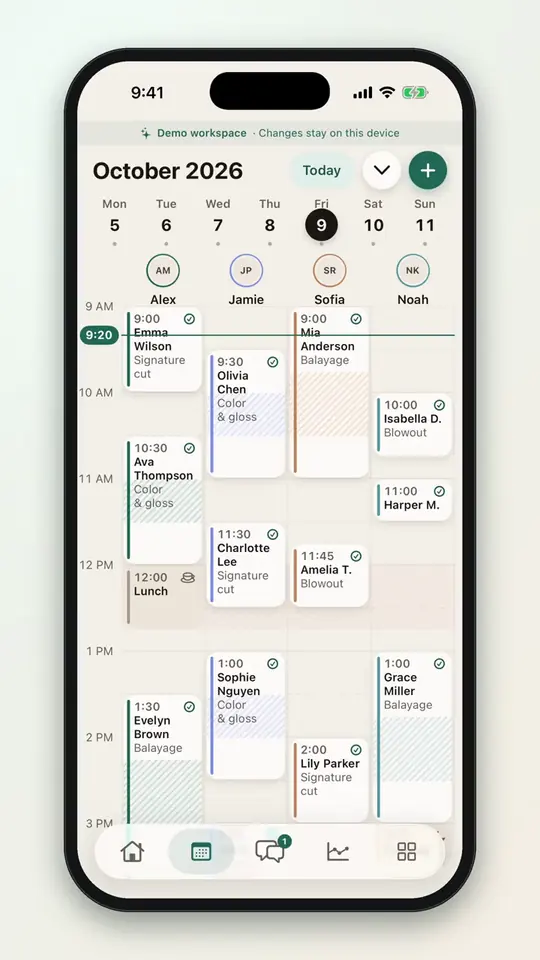 0:291-16Reschedule an appointment
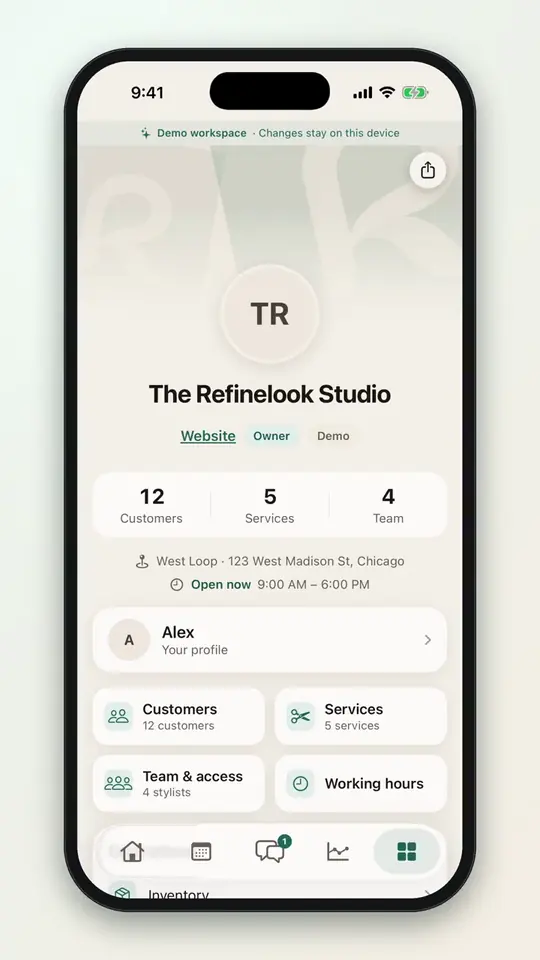 0:251-17Set salon opening hours
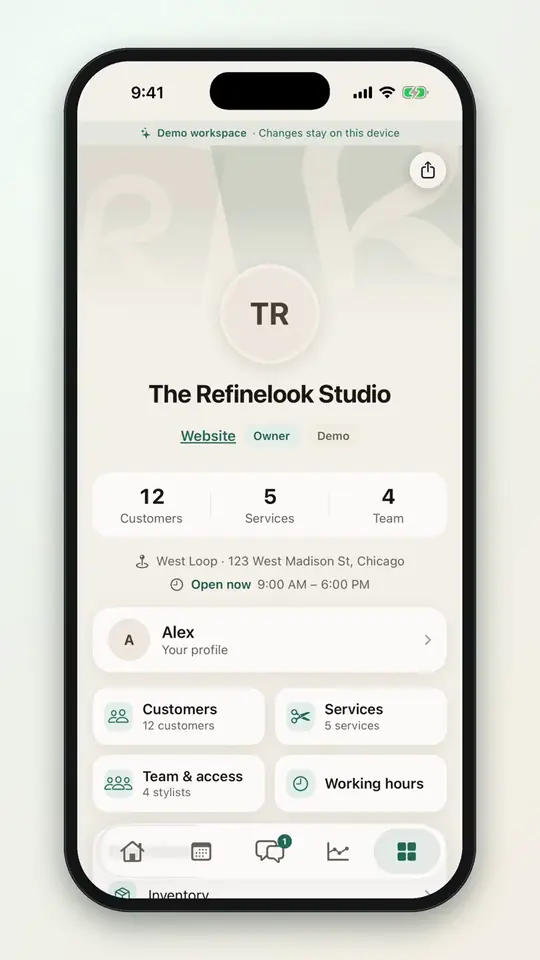 0:201-18Set each stylist's weekly hours
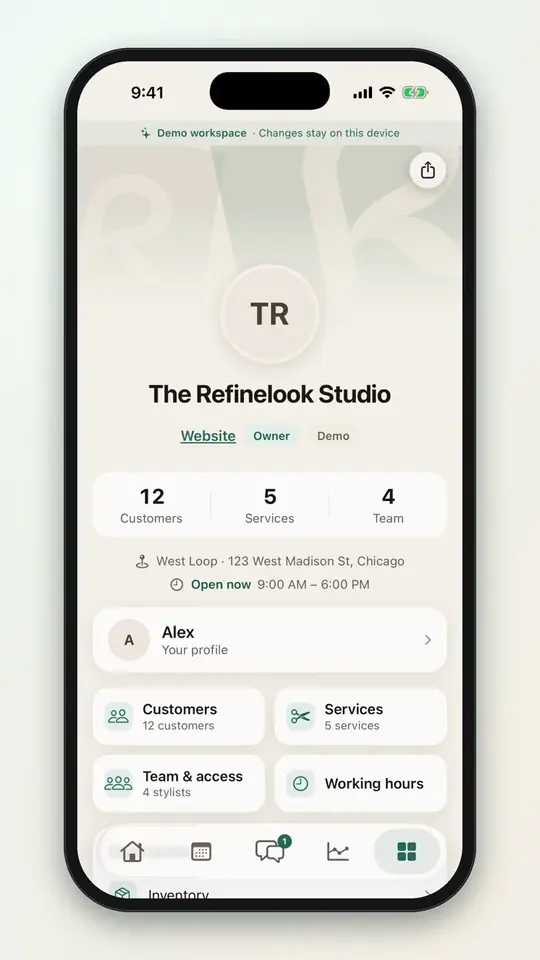 0:251-19Give a stylist a day off
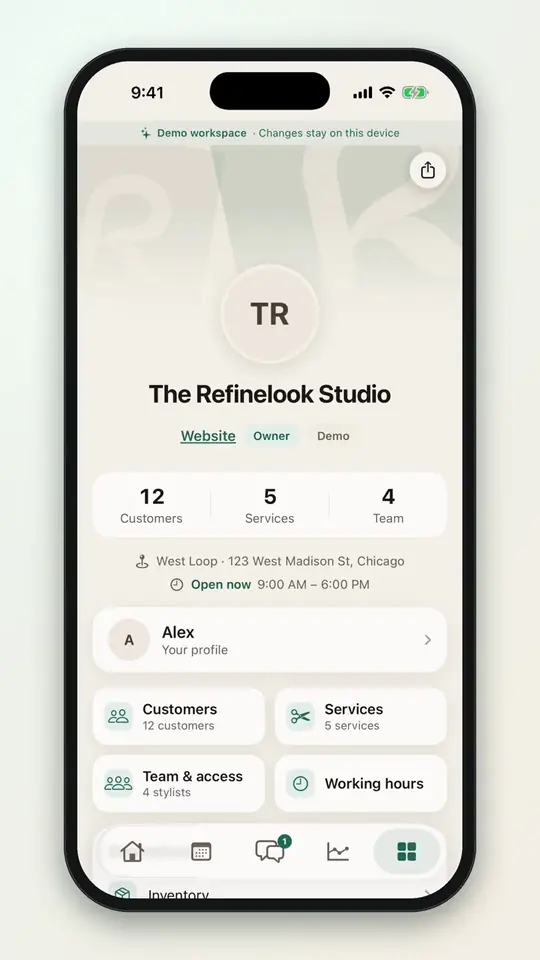 0:241-20Set booking rules
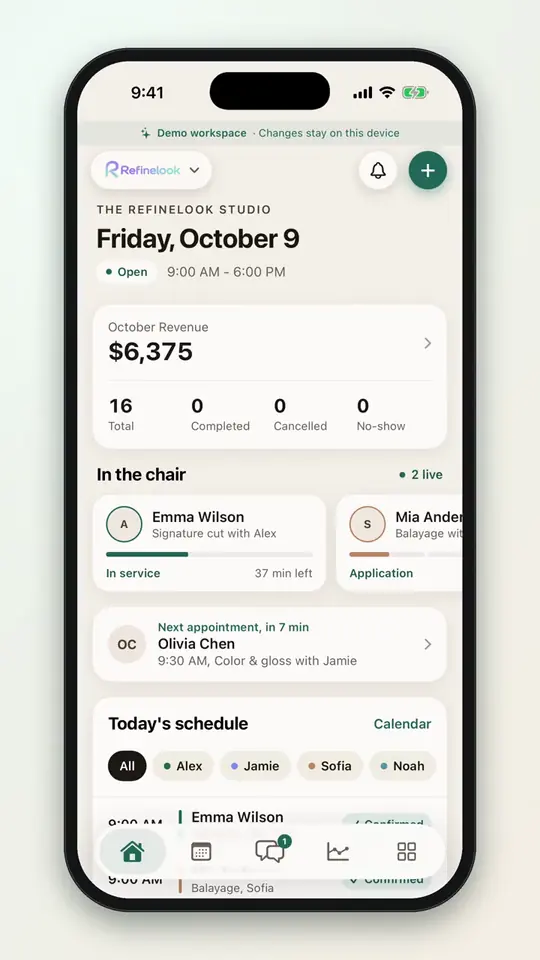 0:091-21See who is in the chair
No videos here match your search.
Appointments
Accept requests, record walk-ins, mark no-shows and change a booking from one panel. Every change is kept in its history.
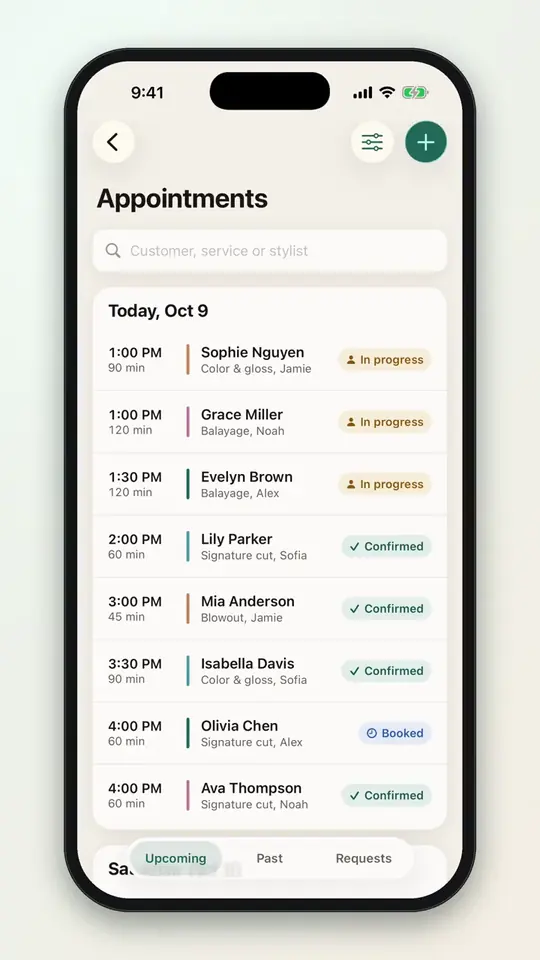 0:332-1Book a returning client
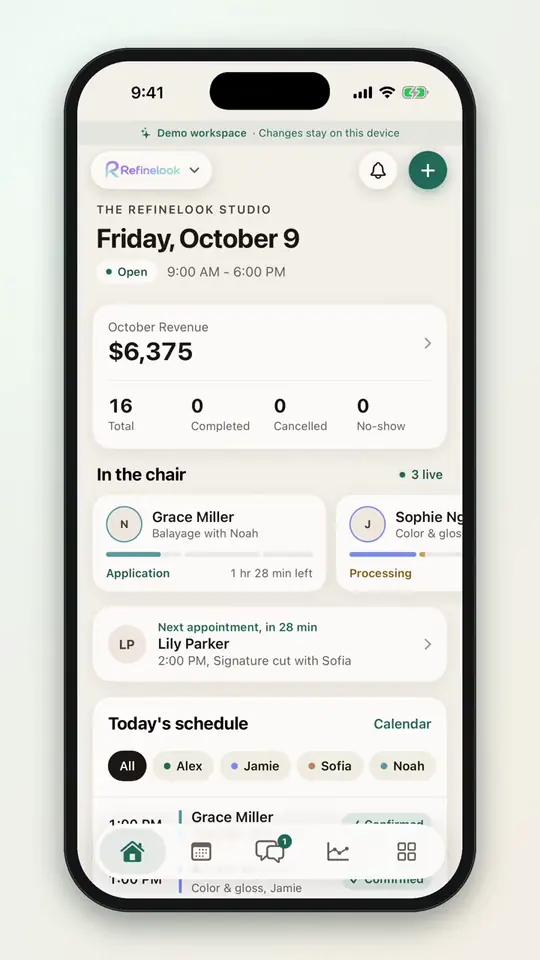 0:392-2Book a new guest
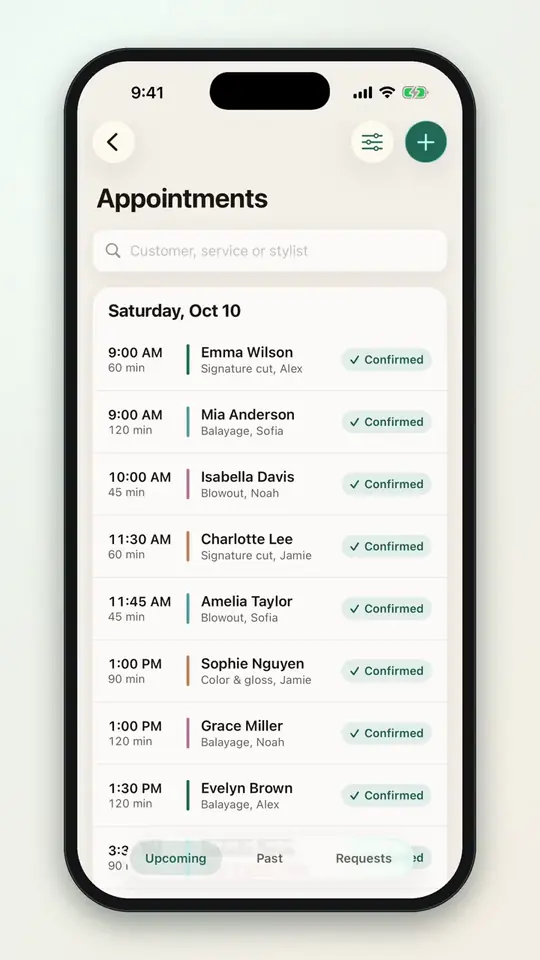
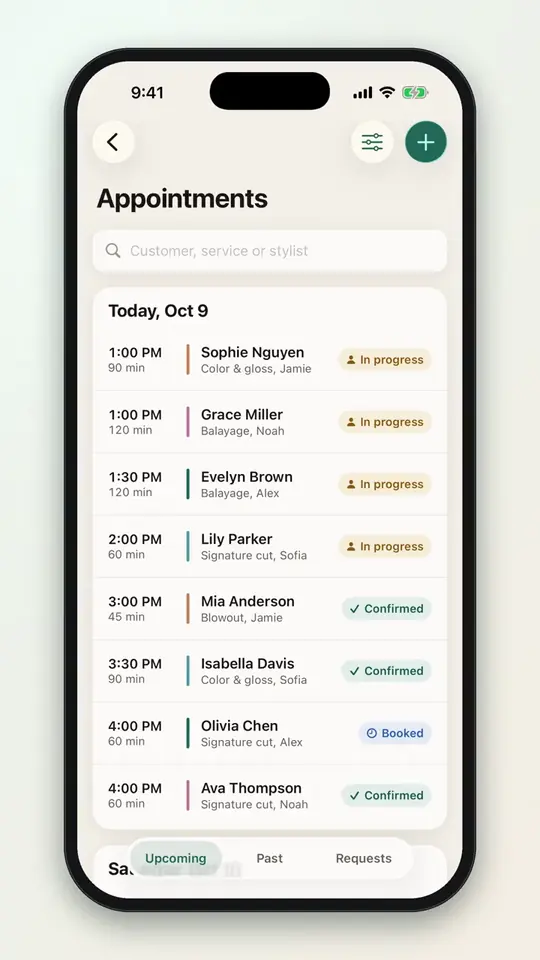
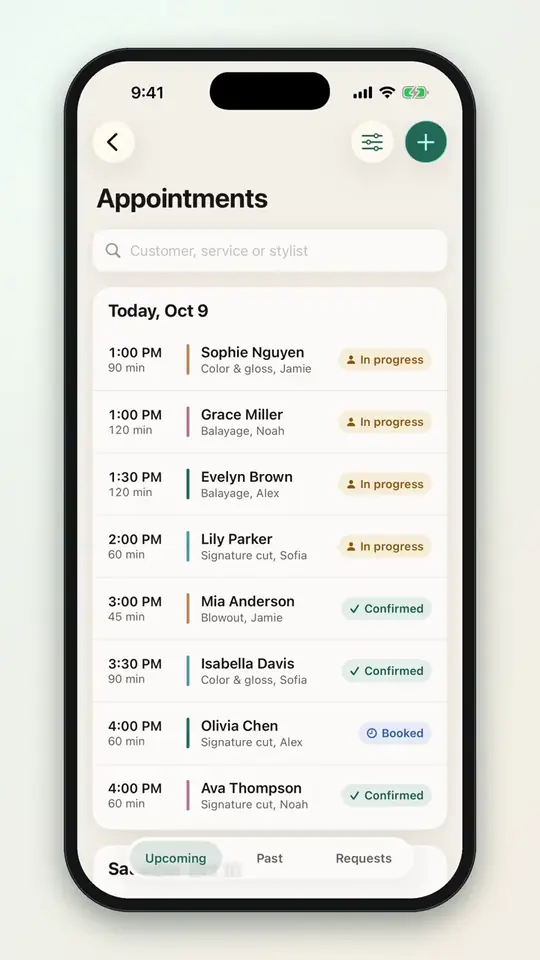
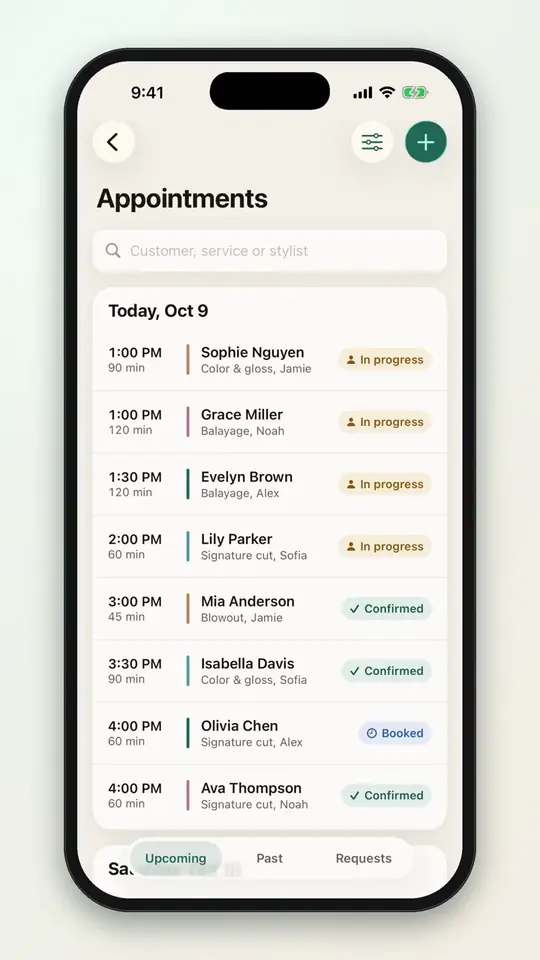 0:092-3Switch between upcoming, past and requests
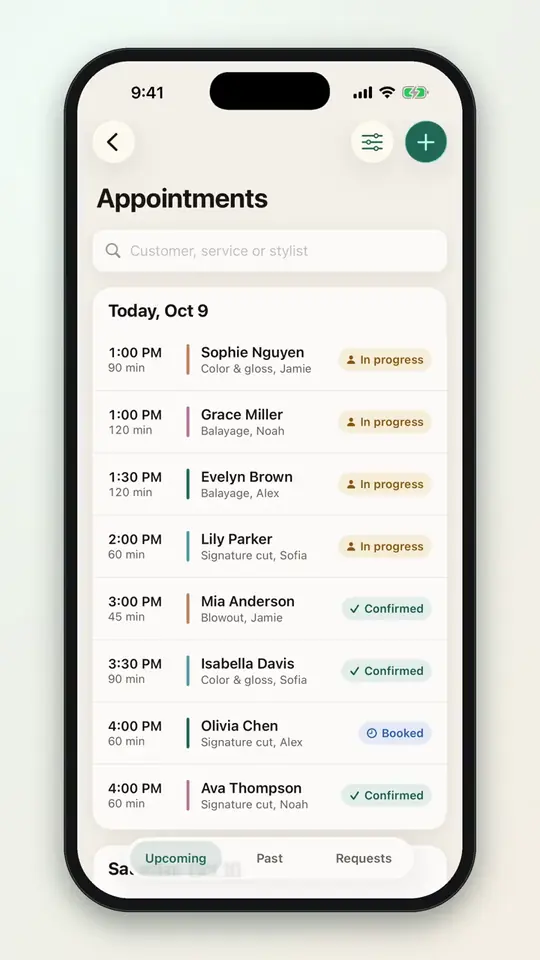 0:062-4Search appointments
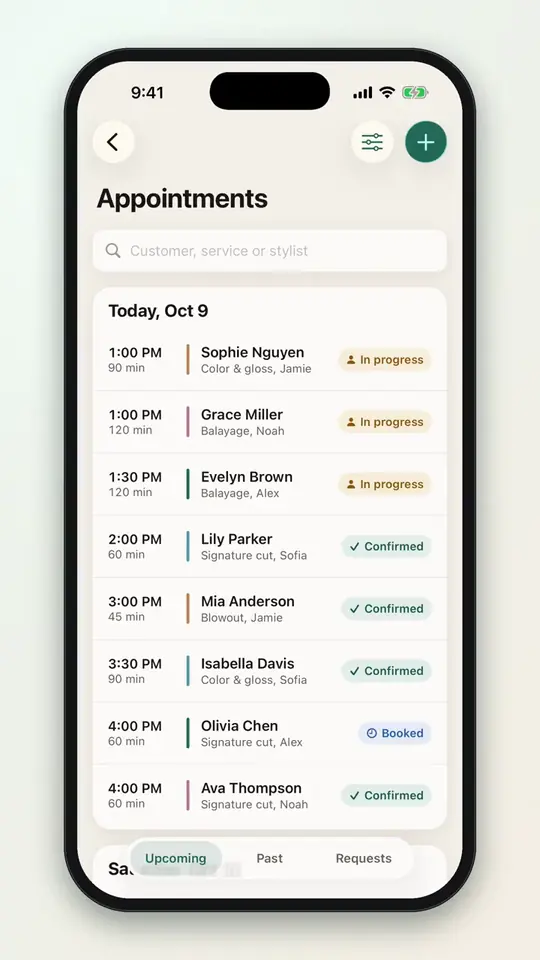 0:182-5Confirm a booking request
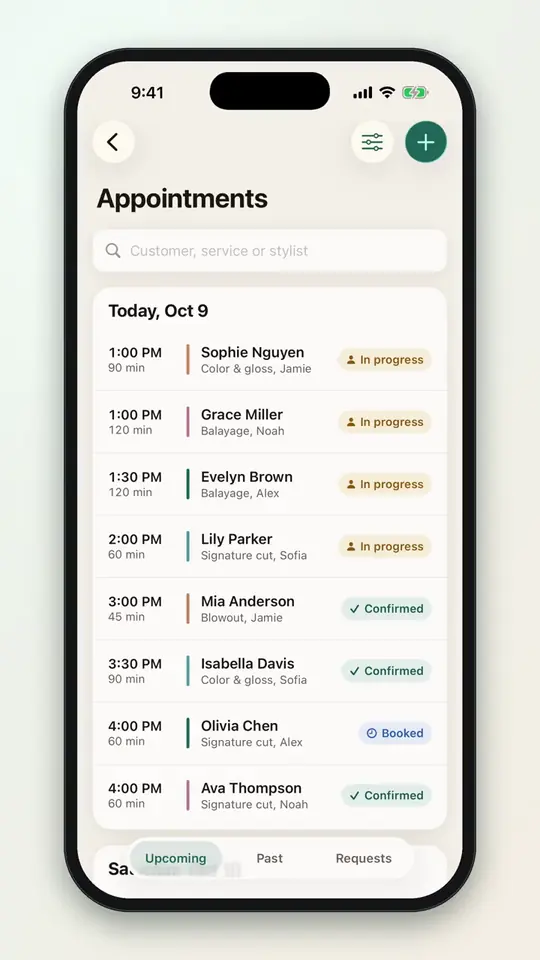 0:202-6Cancel an appointment with a reason
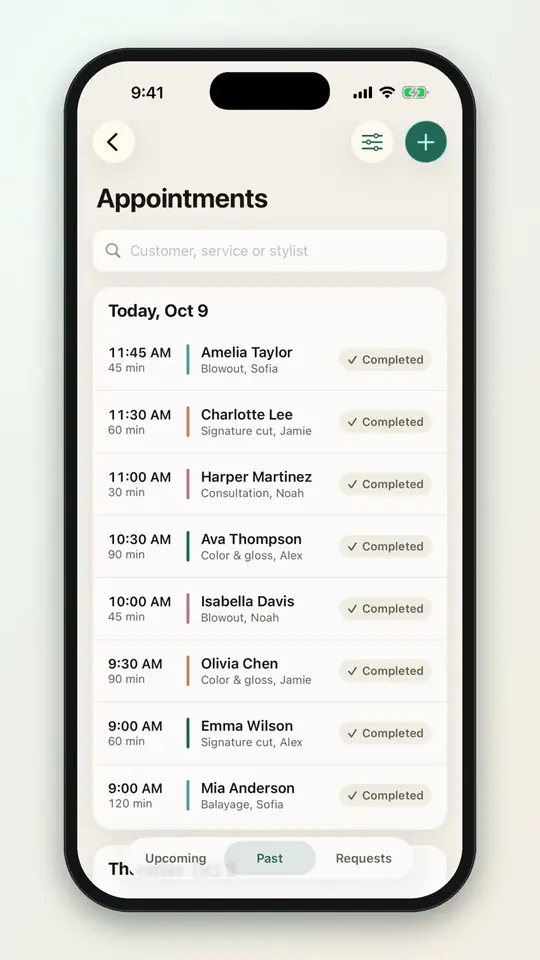 0:212-7Mark a no-show
 0:142-8Mark a late arrival
 0:242-9Reschedule from the appointment list
 0:122-10See every detail of an appointment
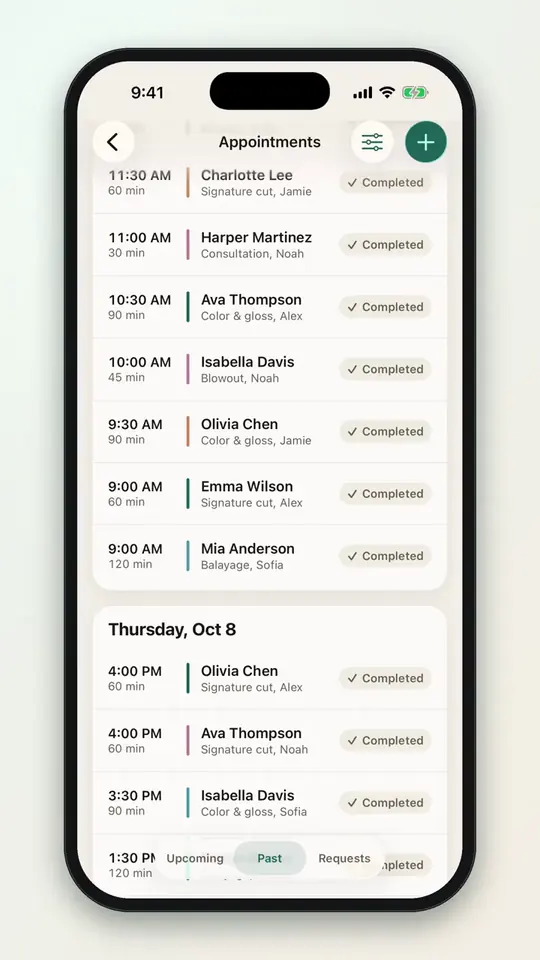
 0:152-11Look up past appointments by date
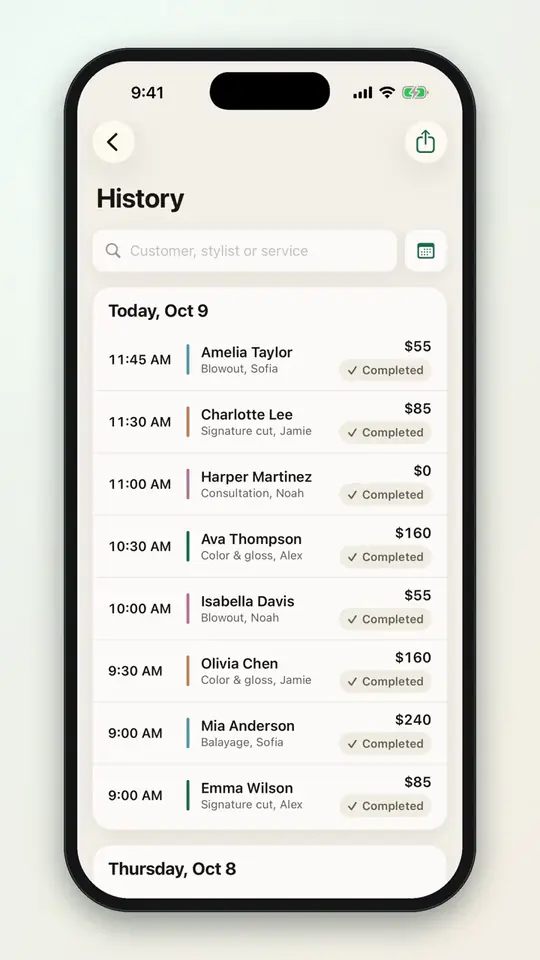 0:072-12Export appointment history
 0:232-13Set how customers can change bookings
No videos here match your search.
Online booking
A salon page with photos, team and reviews, and a booking flow that holds the time while the client finishes. You set lead time, group size and how “Any stylist” picks.
 0:183-1Set how soon customers can book
 0:183-2Space out offered start times
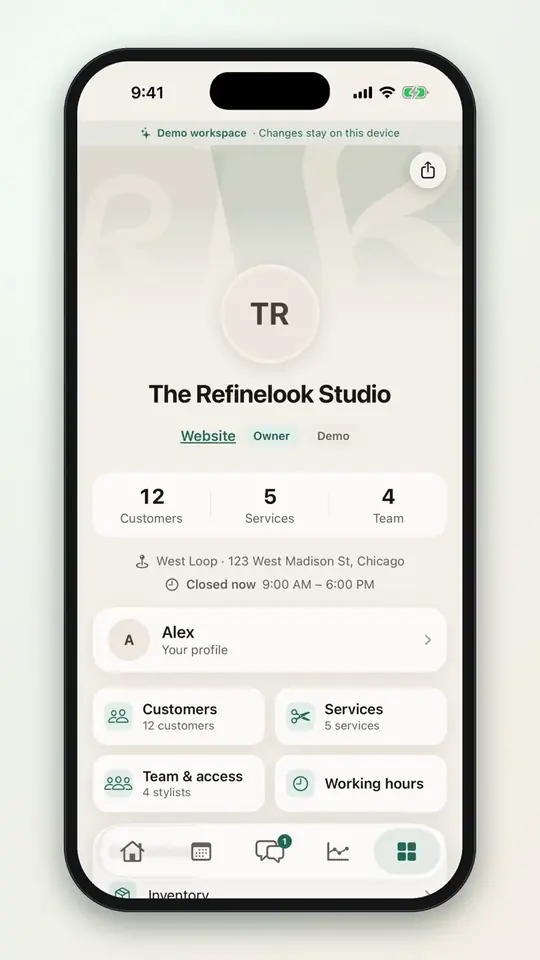 0:173-3Set how far ahead customers can book
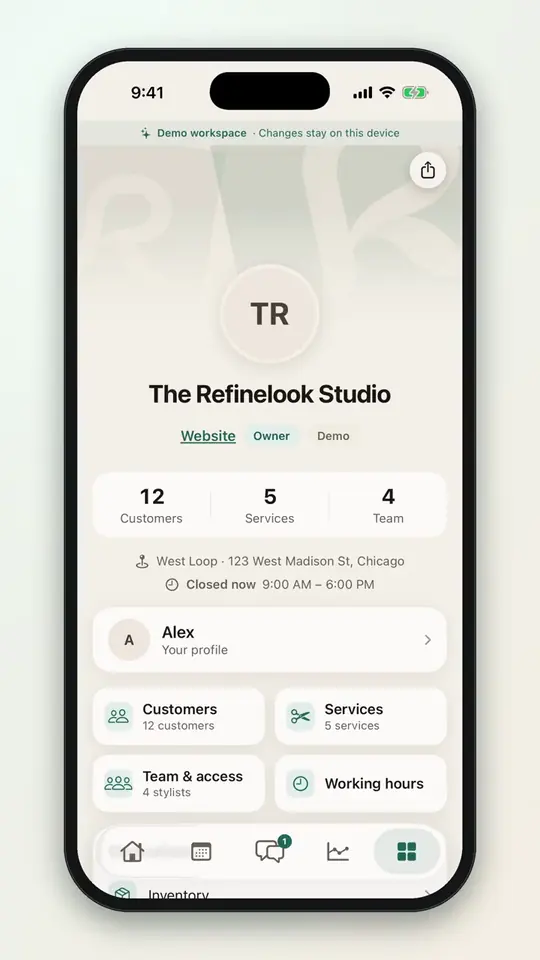 0:173-4Set the largest group
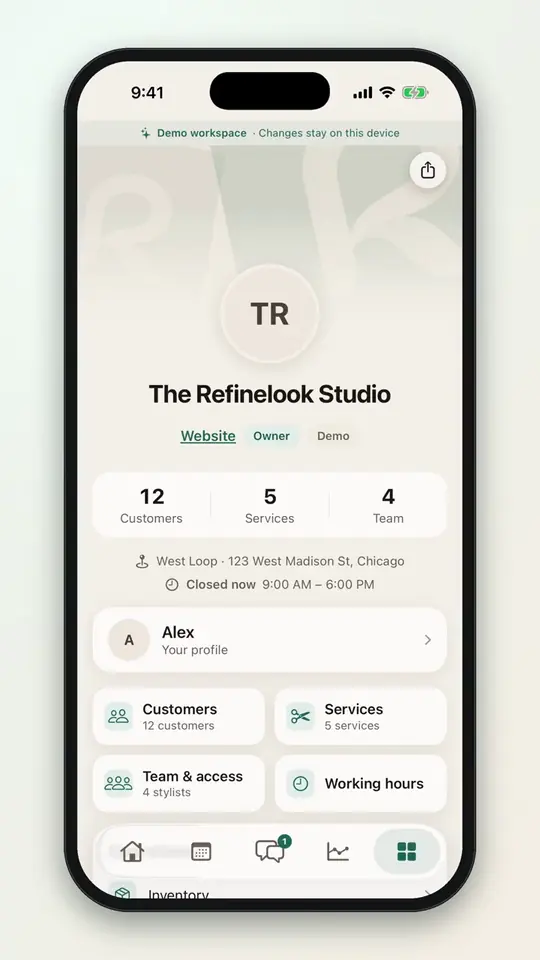 0:243-5Let customers choose any stylist
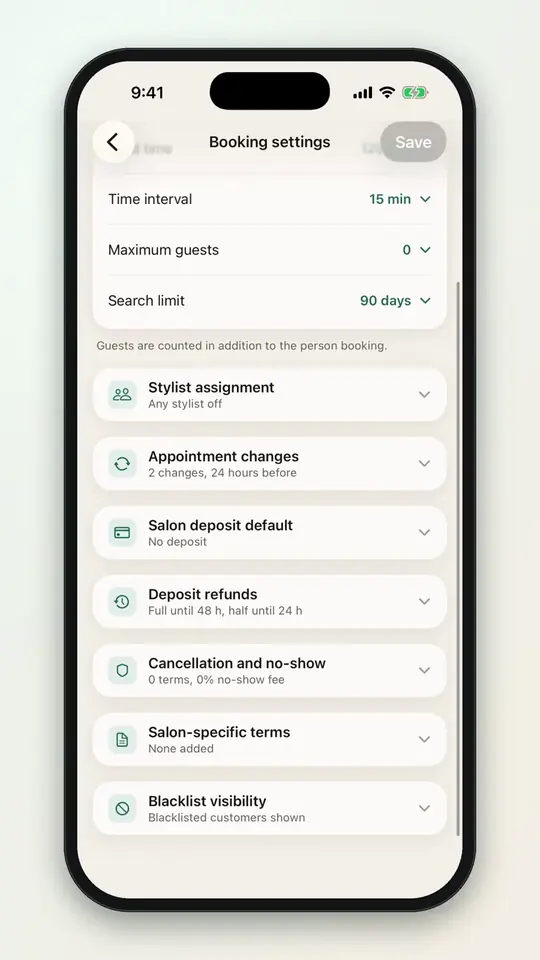 0:233-6Set the stylist priority order
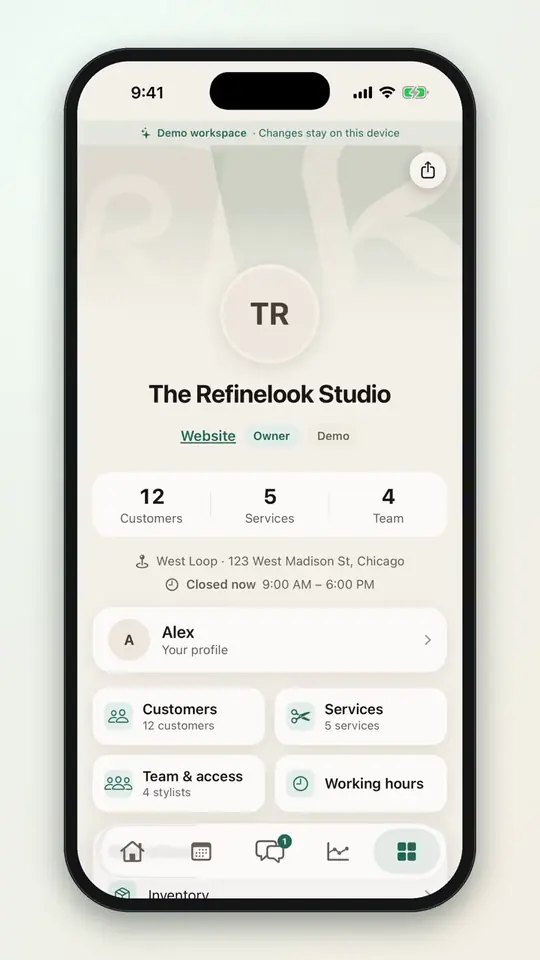 0:163-7Share your booking link
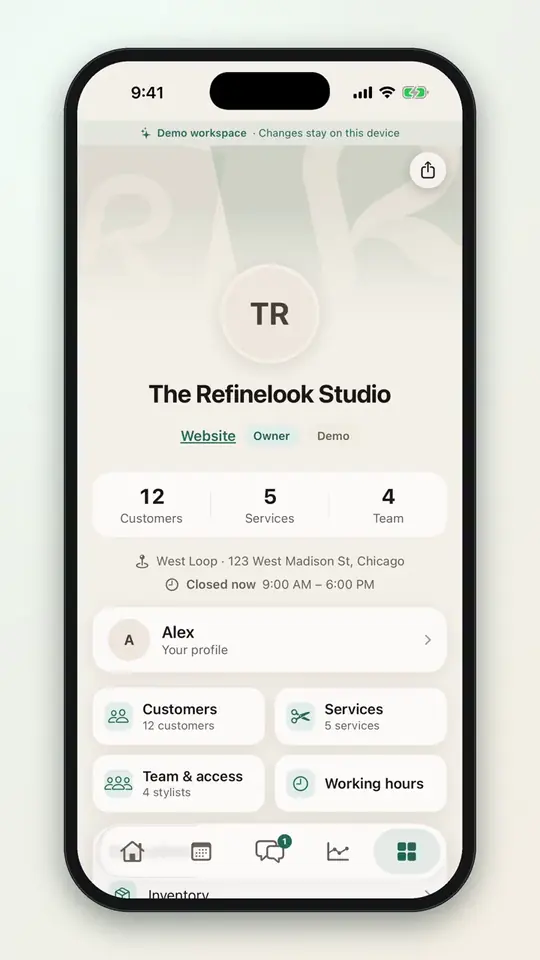 0:333-8Edit your salon details
No videos here match your search.
Deposits & policies
Card deposits through Stripe or your own payment QR code. Refund cutoffs on sliders, a no-show fee, and a blocklist that keeps your calendar yours.
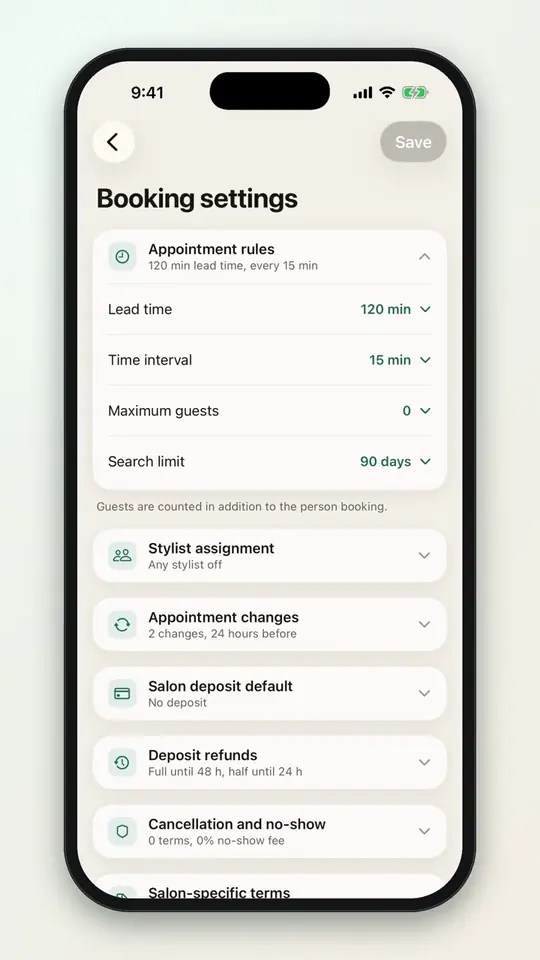 0:154-1Ask for a fixed deposit
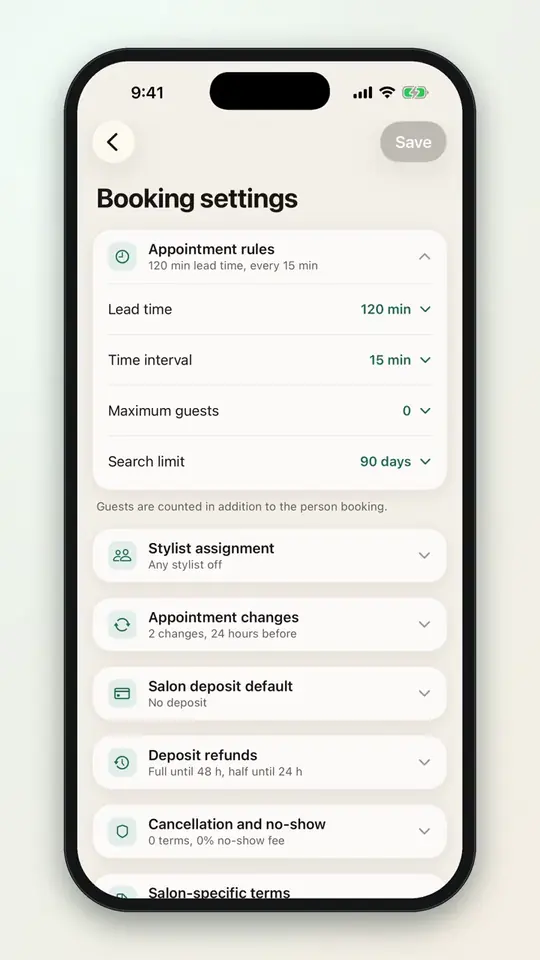 0:154-2Ask for a percentage deposit
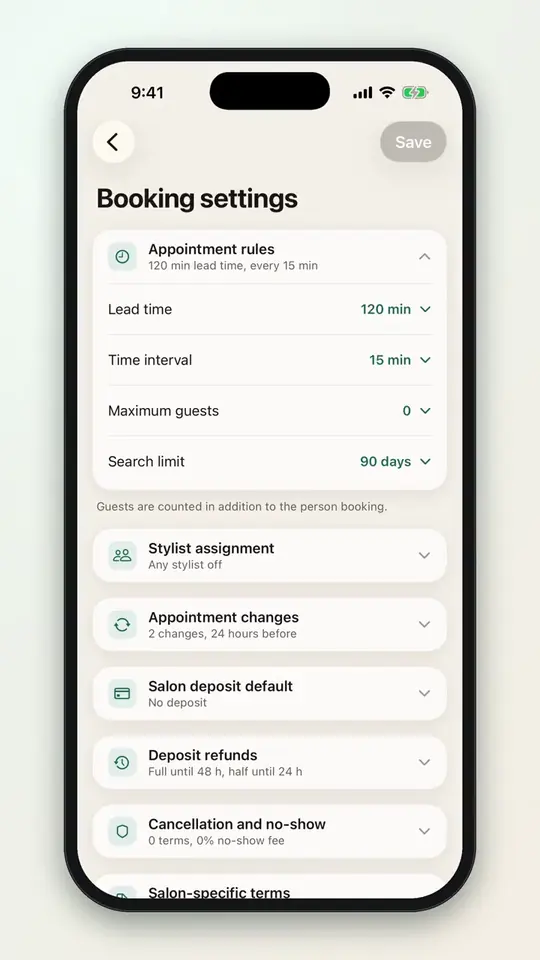 0:244-3Take deposits outside Refinelook
 0:204-4Set a deposit for one service
 0:104-5Mark a deposit as received
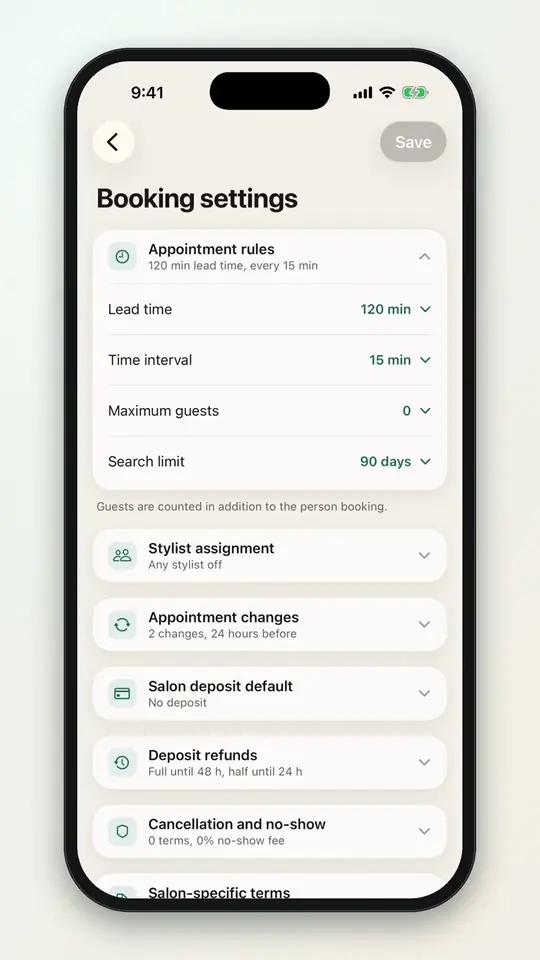 0:174-6Set refund cutoffs
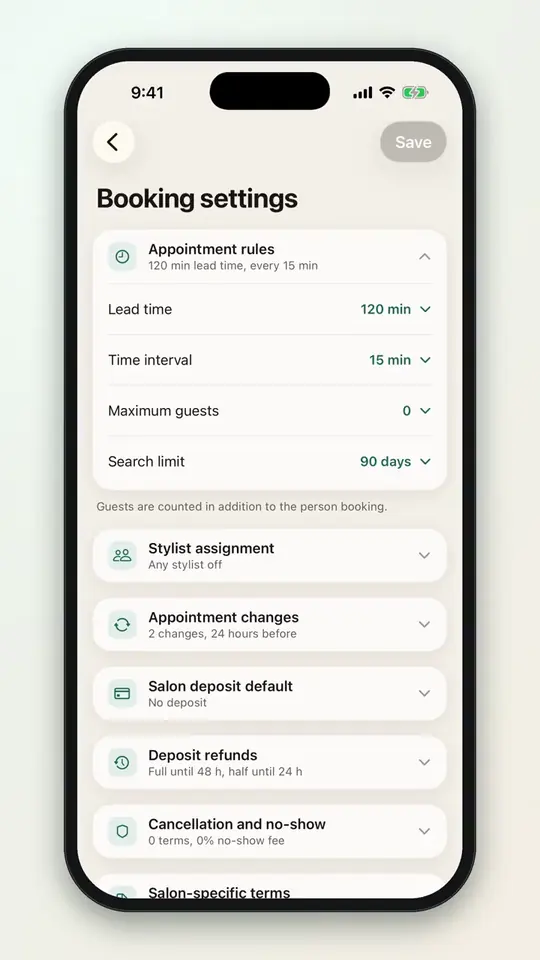 0:254-7Set your cancellation and no-show policy
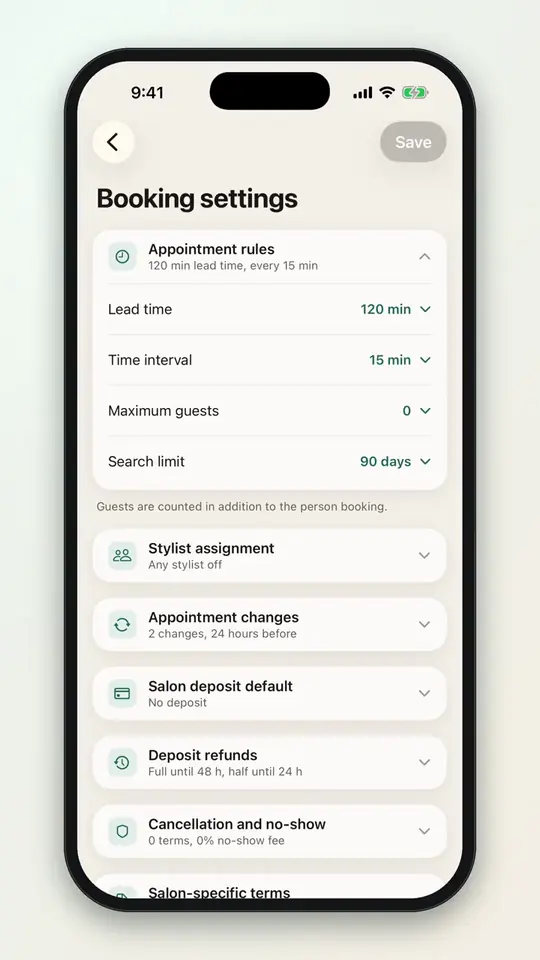 0:224-8Add your own policy terms
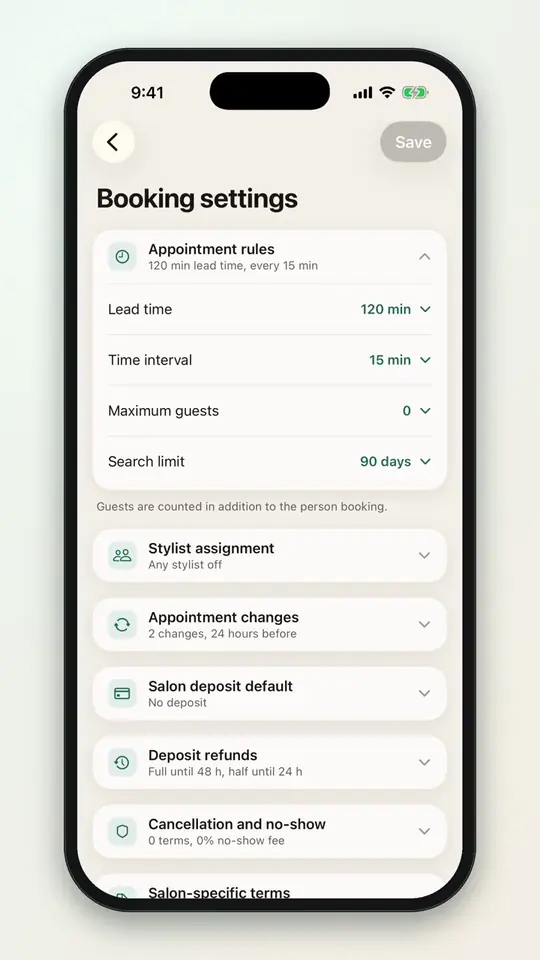 0:224-9Hide your salon from blacklisted customers
No videos here match your search.
Services
Categories with colors, add-ons, prices per stylist, and a question that sets the appointment length. Import your menu from a spreadsheet or a photo.
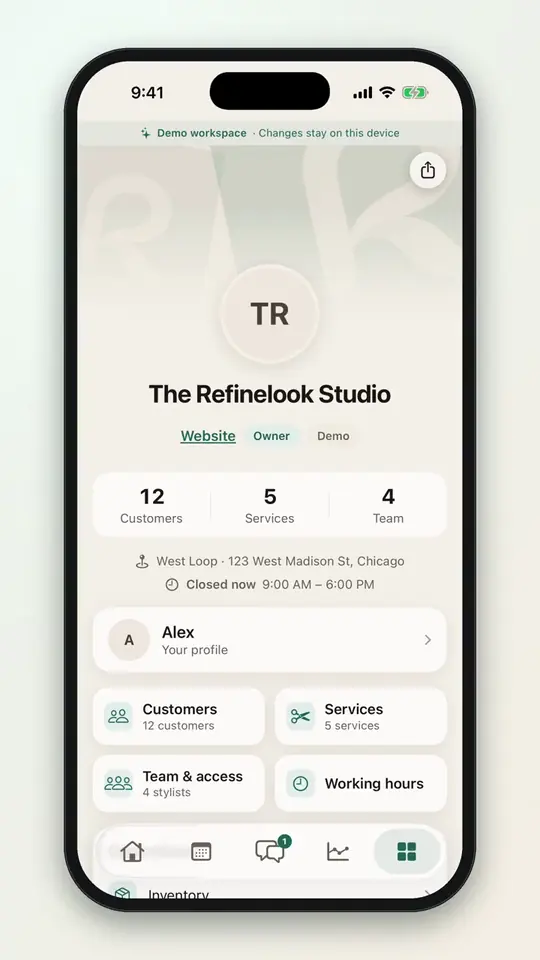 0:165-1Browse your service menu
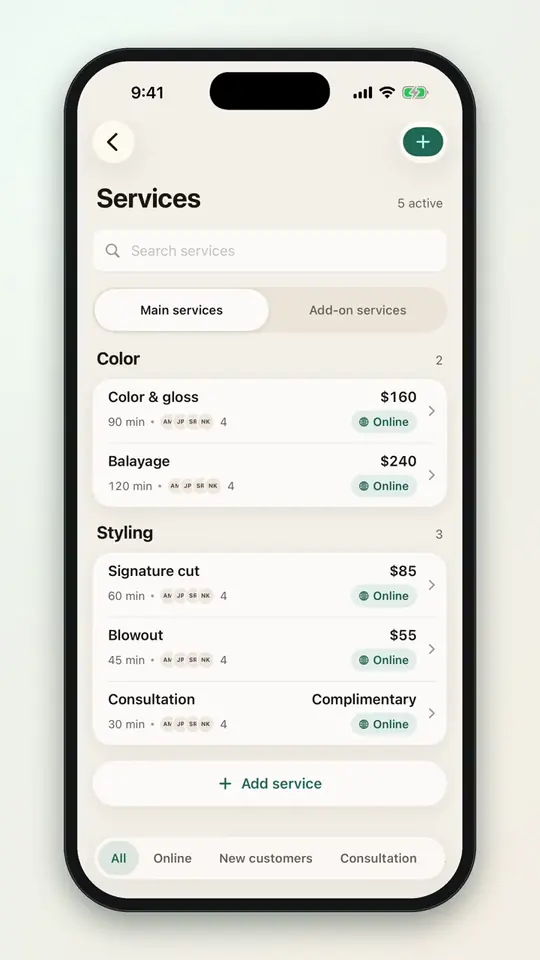 0:375-2Add a service
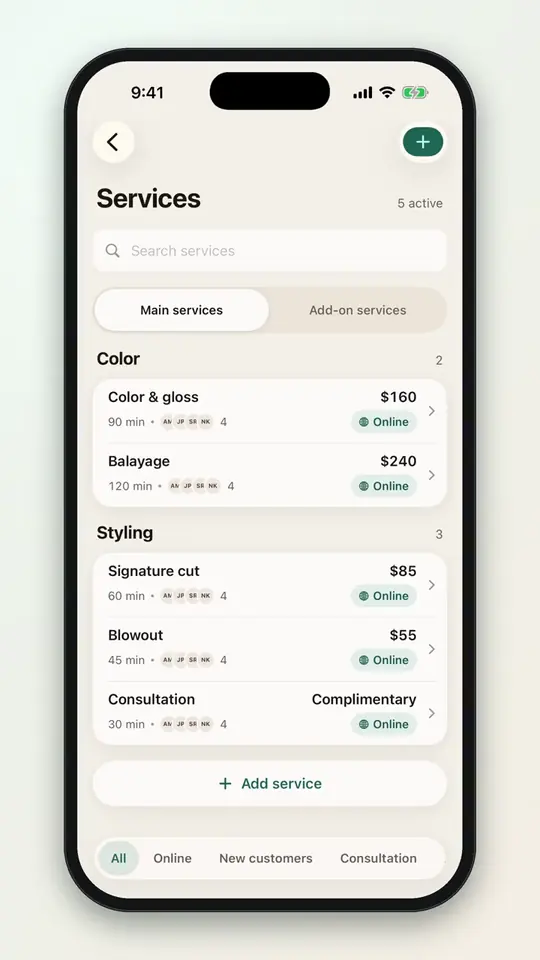 0:195-3Add a service category
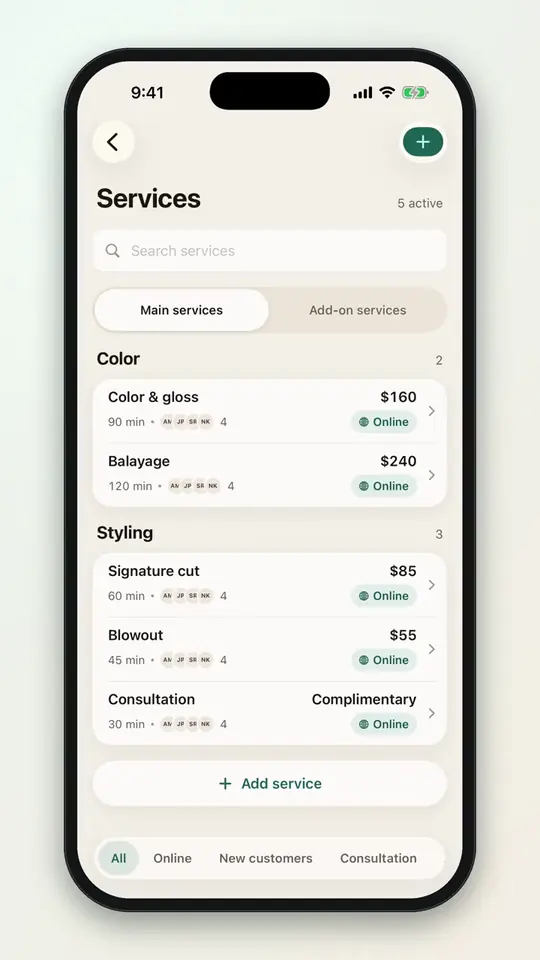 0:335-4Create an add-on service
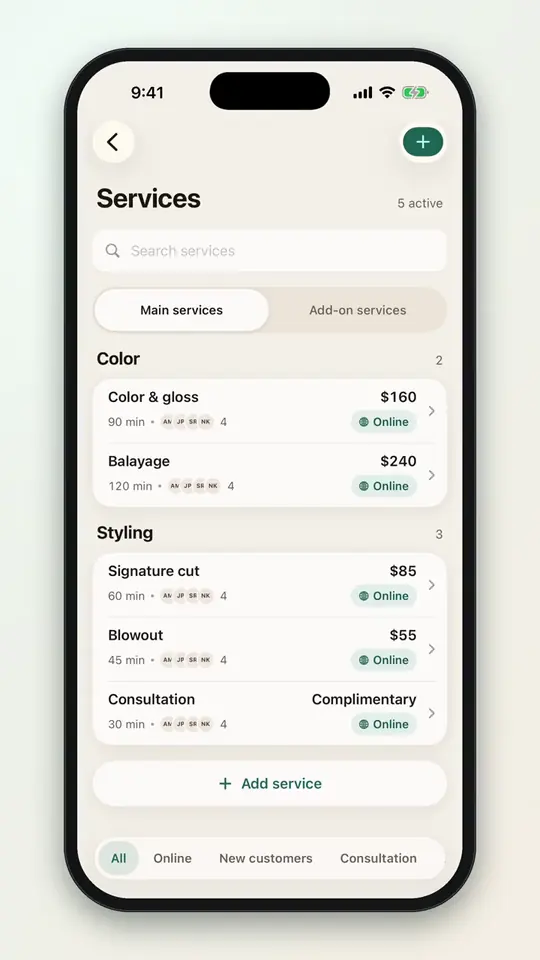 0:135-5Offer add-ons with a service
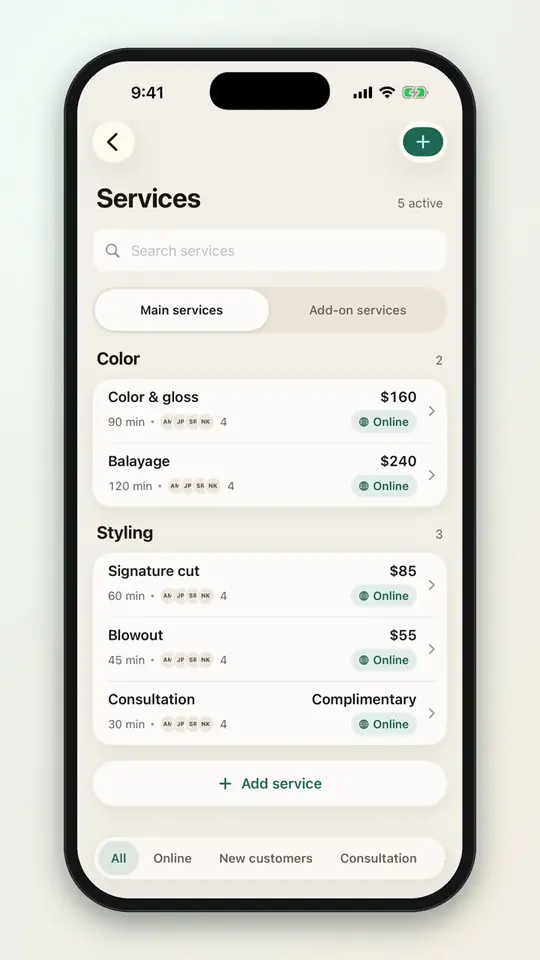 0:265-6Set prices for each stylist
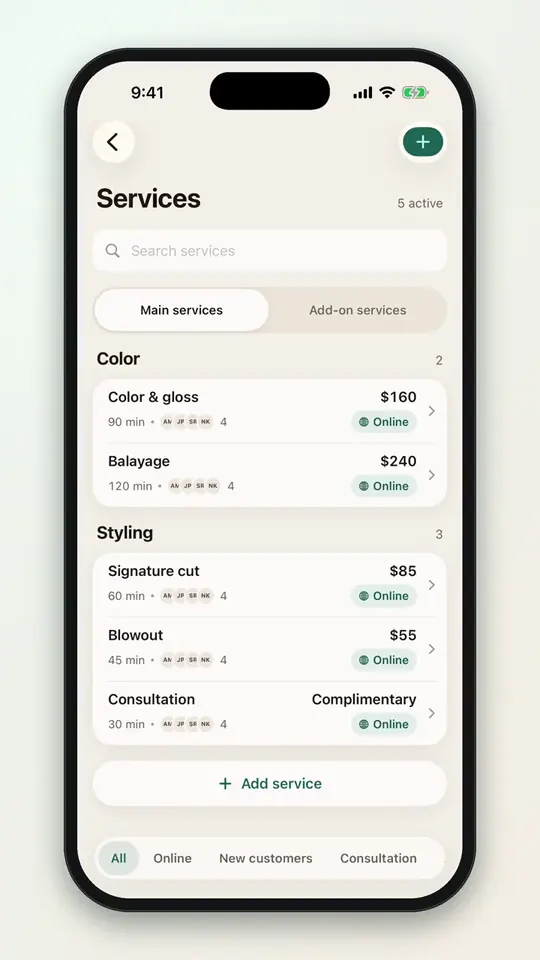 0:175-7Show a price range
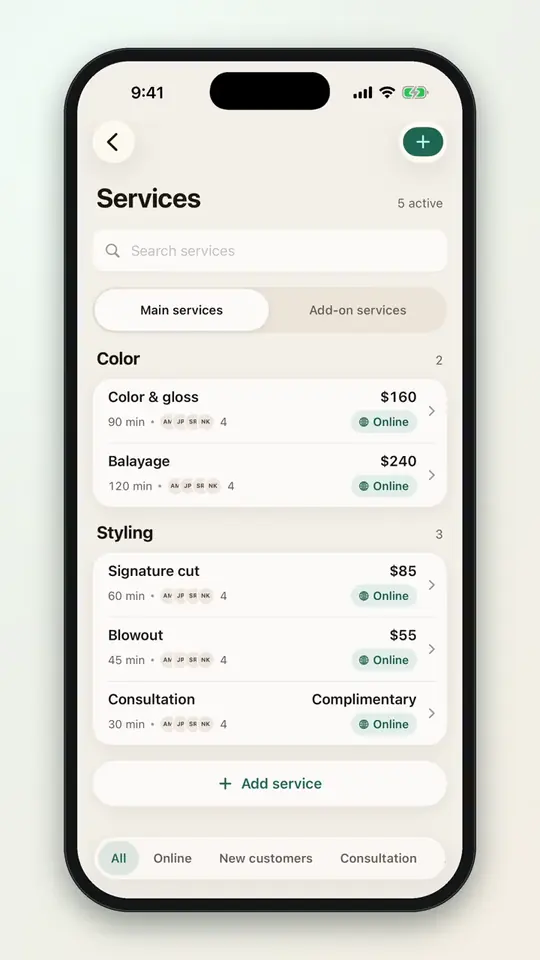 0:245-8Choose who offers a service
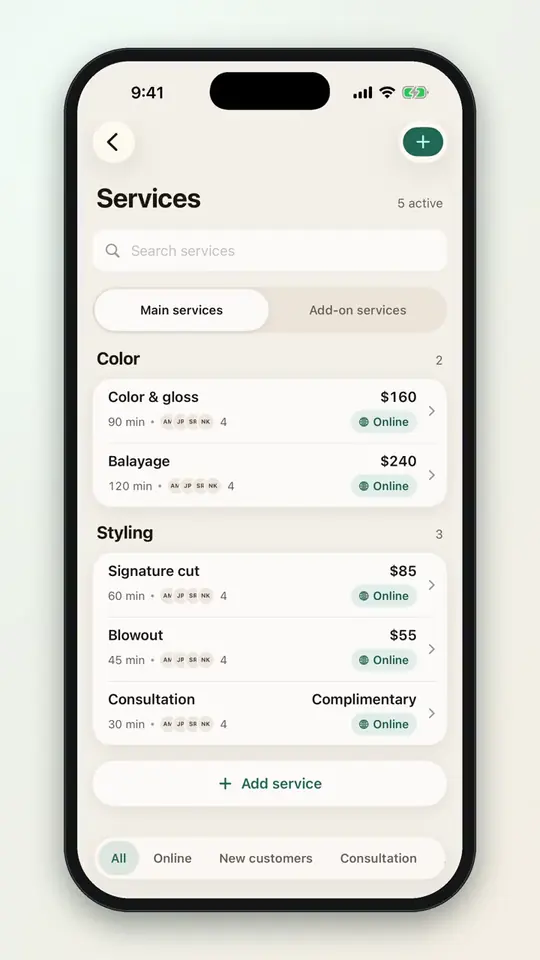 0:235-9Take a service off online booking
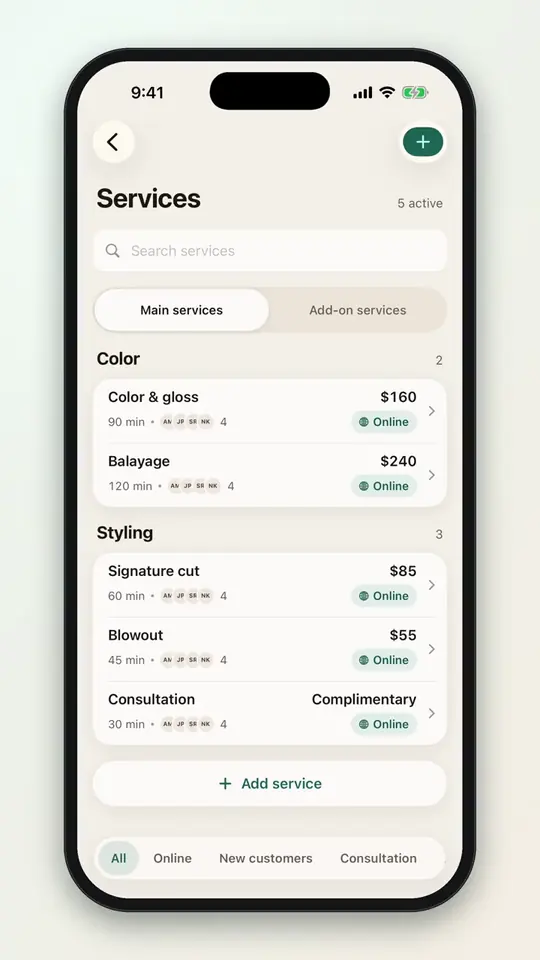 0:185-10Add buffer time before and after
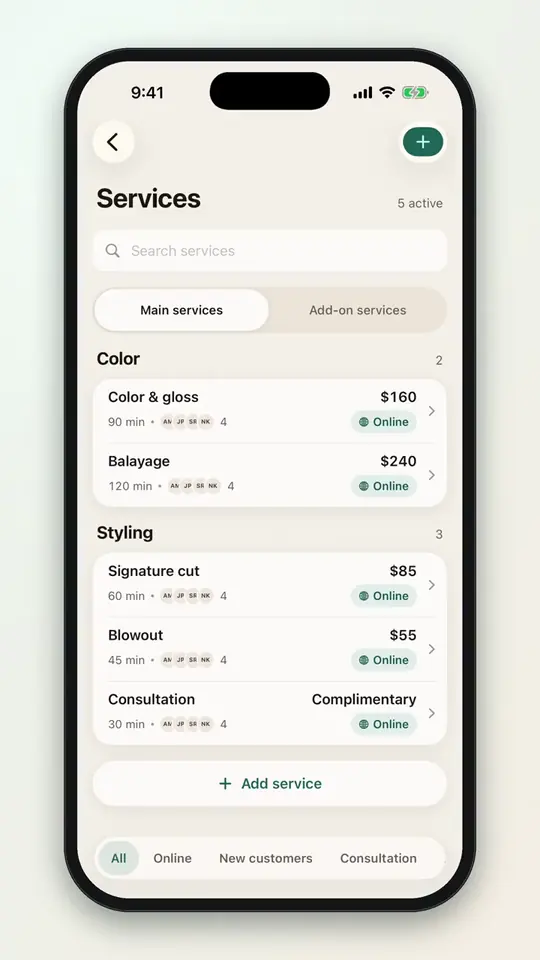 0:405-11Ask a duration question
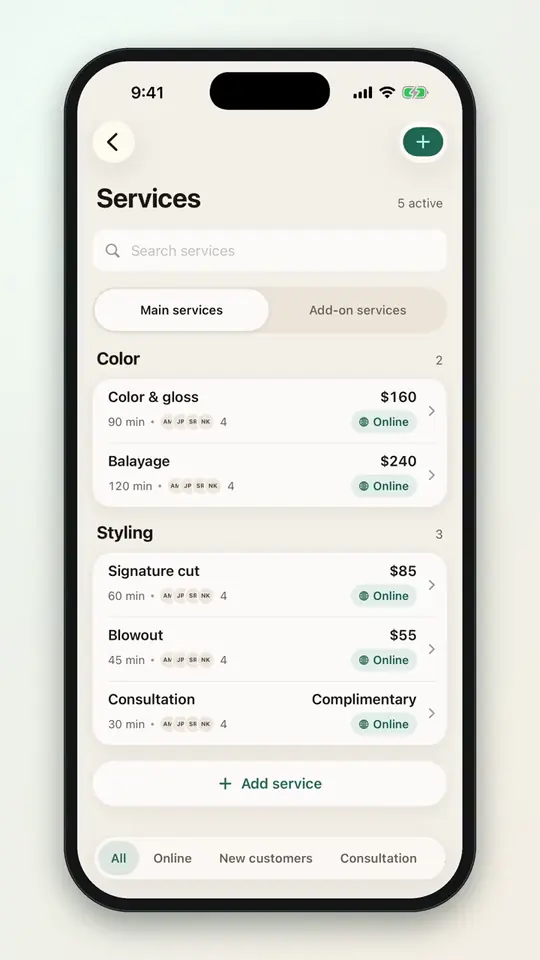 0:315-12Import your menu from a spreadsheet
No videos here match your search.
Team
Stylists join with your salon code. Roles decide what they see, booking permissions decide what they take, and pay reports do the math.
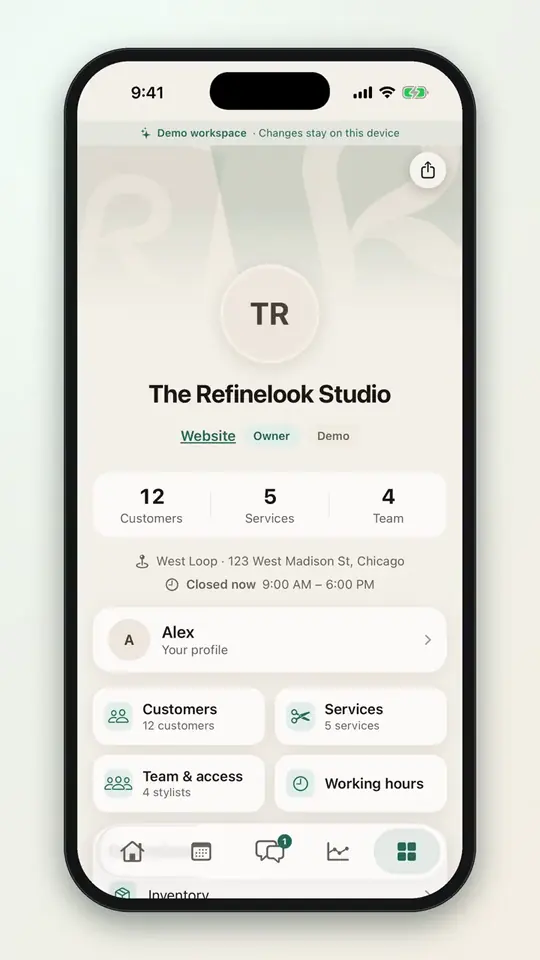 0:116-1Approve a stylist who asks to join
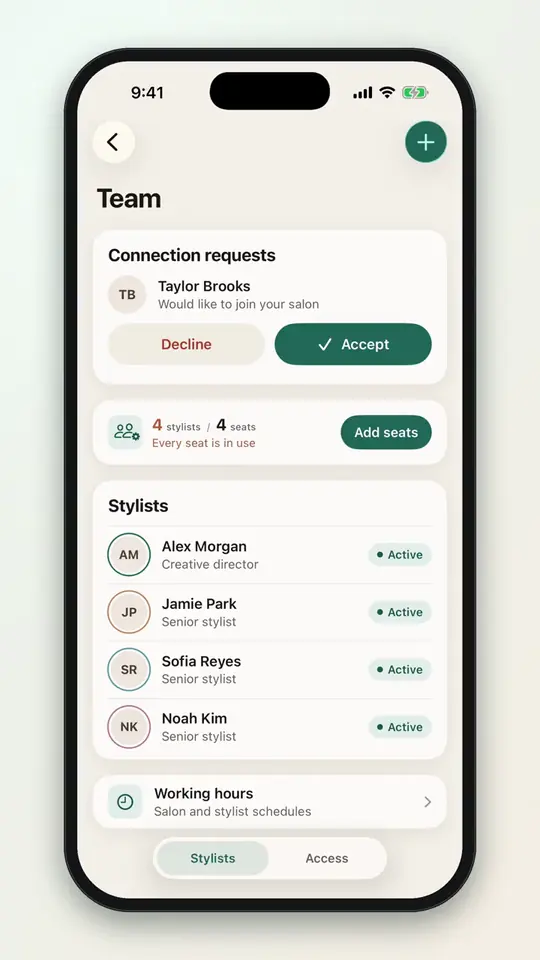 0:226-2Add a stylist profile
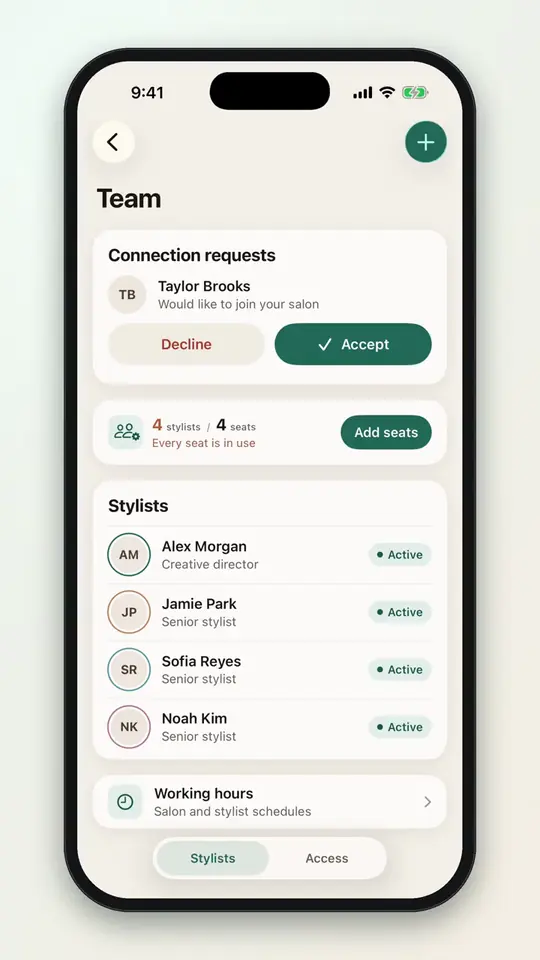 0:196-3Choose what each role can see
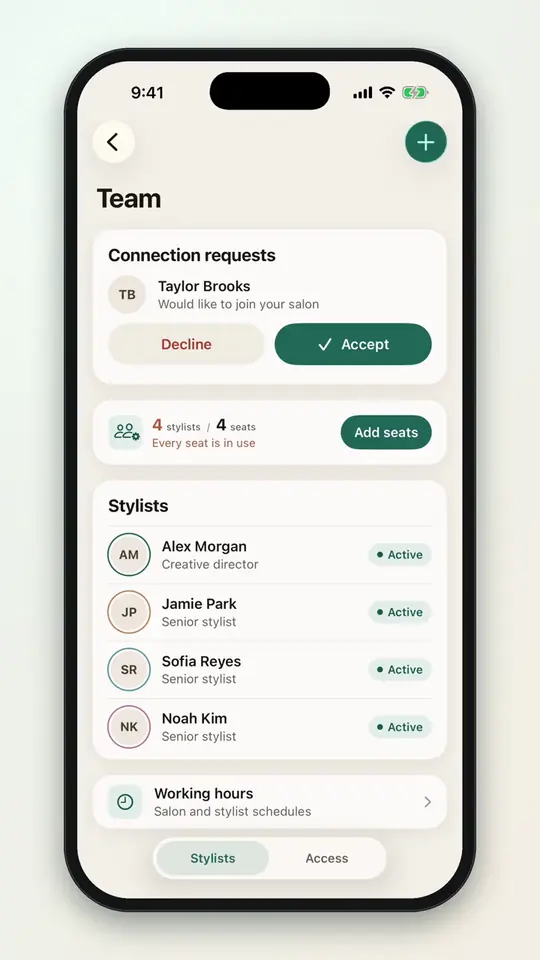 0:186-4Set a stylist's booking permissions
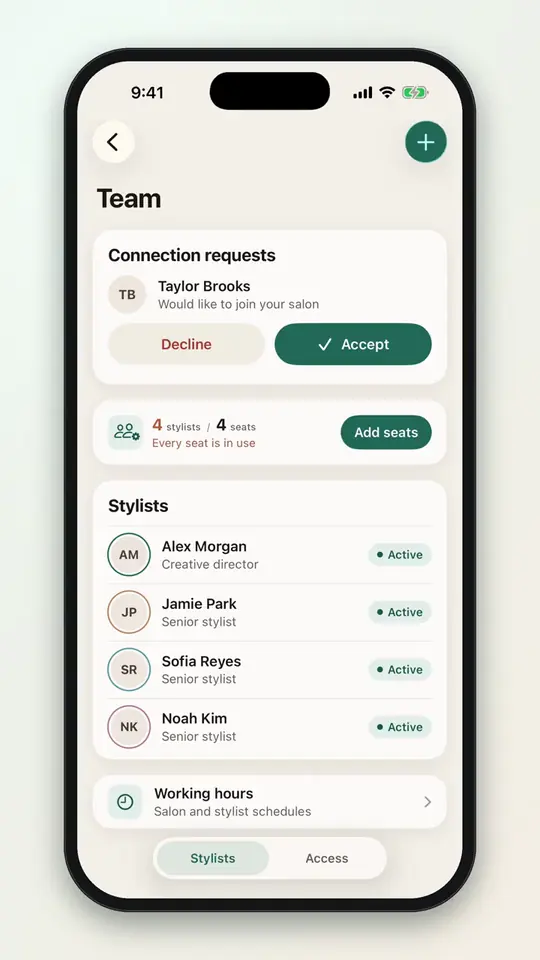 0:136-5Make a stylist inactive
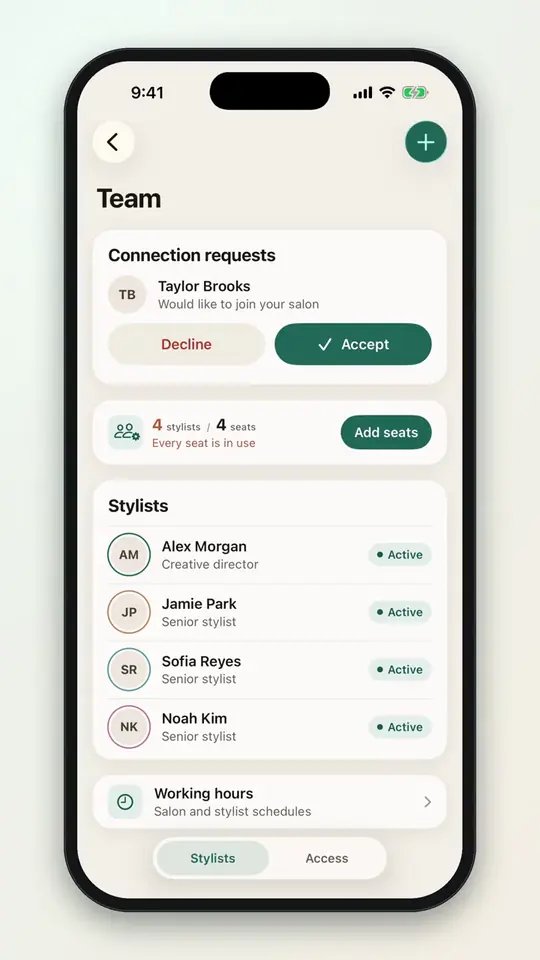 0:086-6Add stylist seats
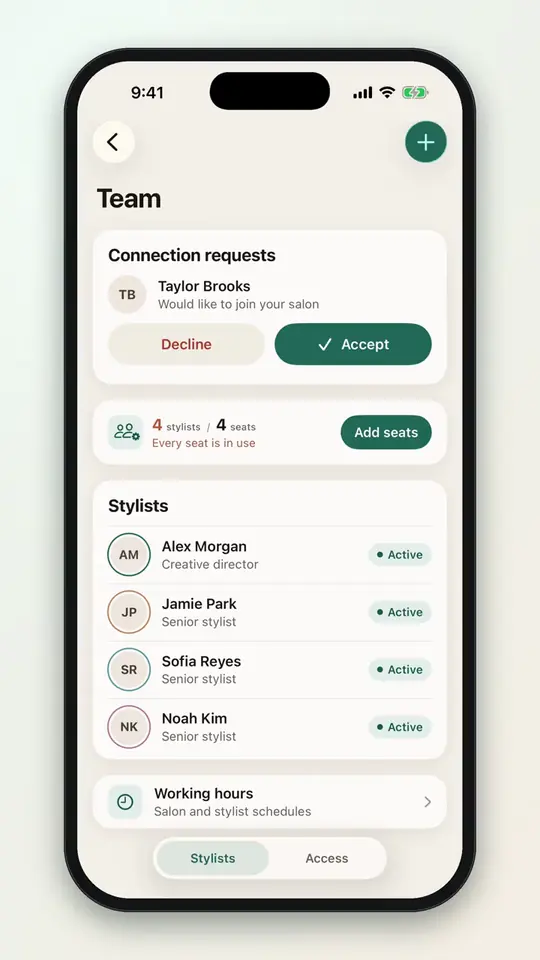 0:196-7Edit a stylist's public profile
No videos here match your search.
Clients
Private notes and formulas for each stylist, allergies shared with everyone, groups with colors, and an import that catches duplicates.
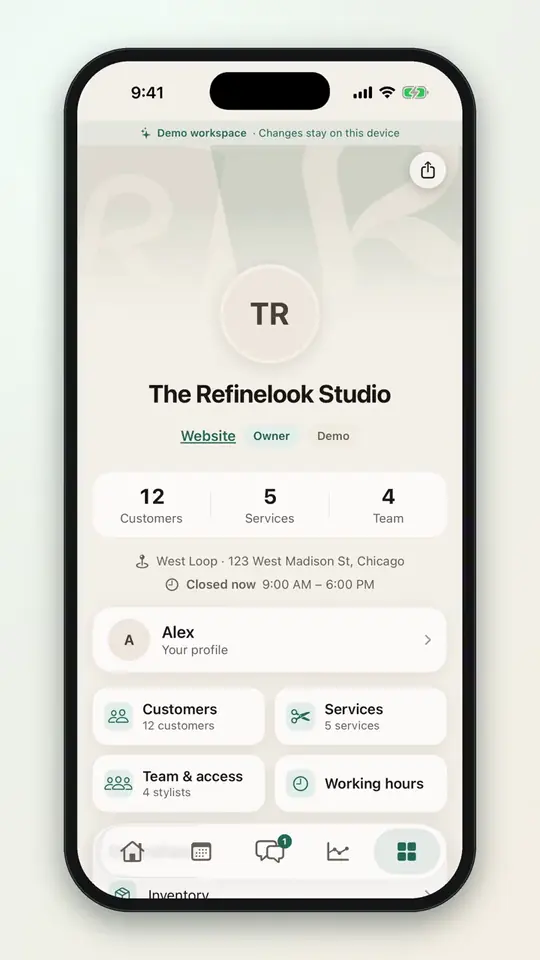 0:157-1Search your clients
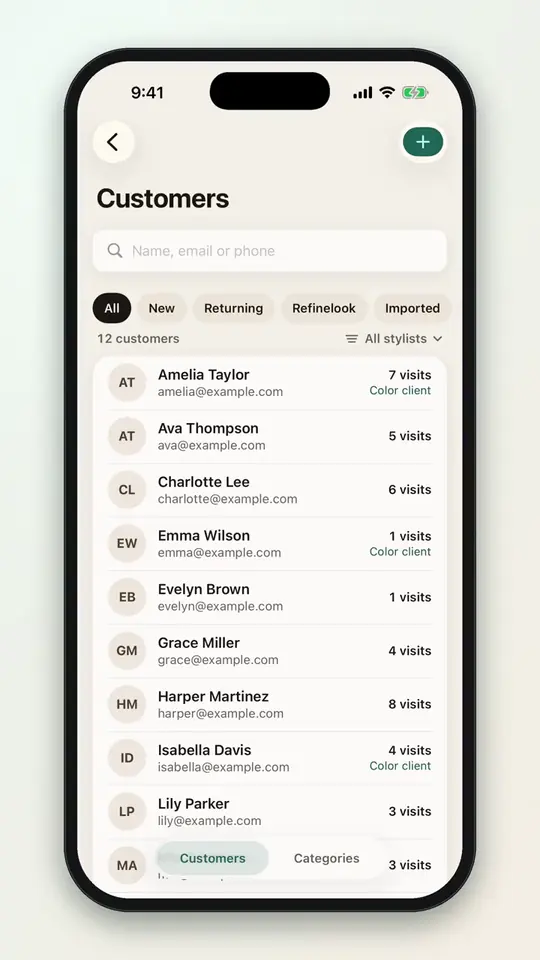 0:107-2Filter clients by stylist
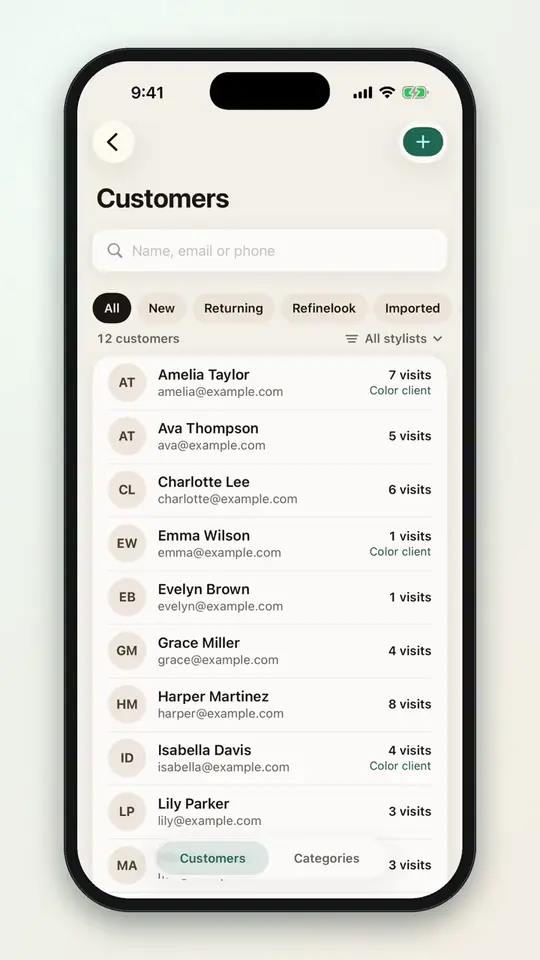 0:207-3Add a new client
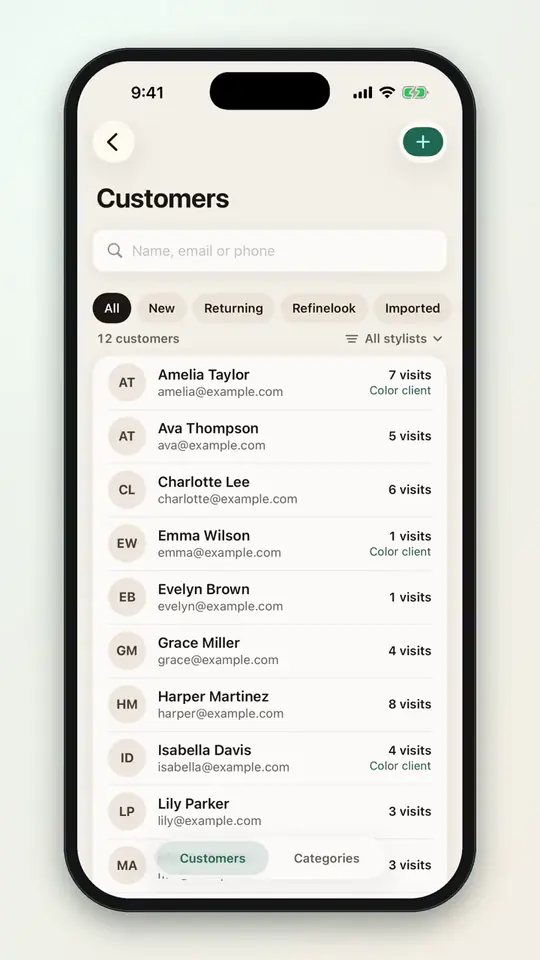 0:357-4Keep notes and allergies
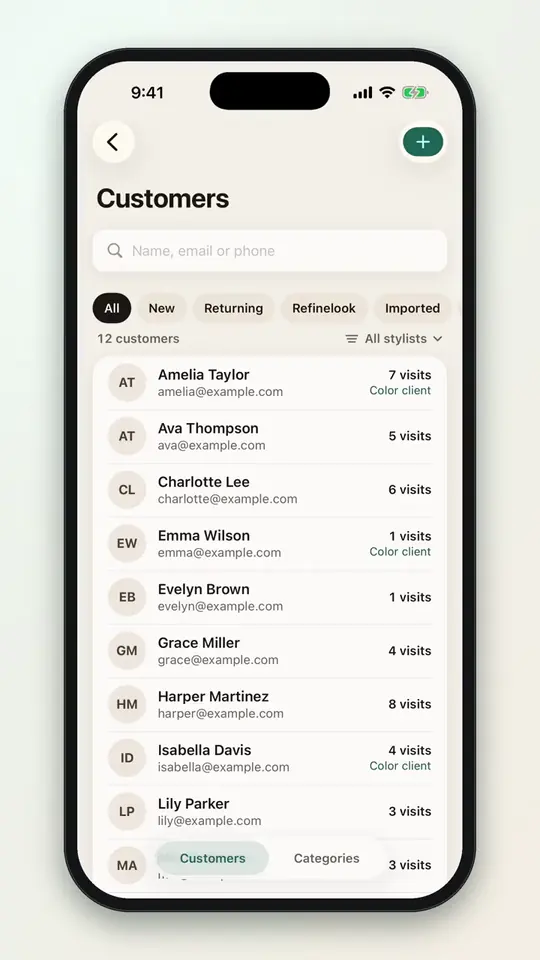 0:187-5See a client's visit history
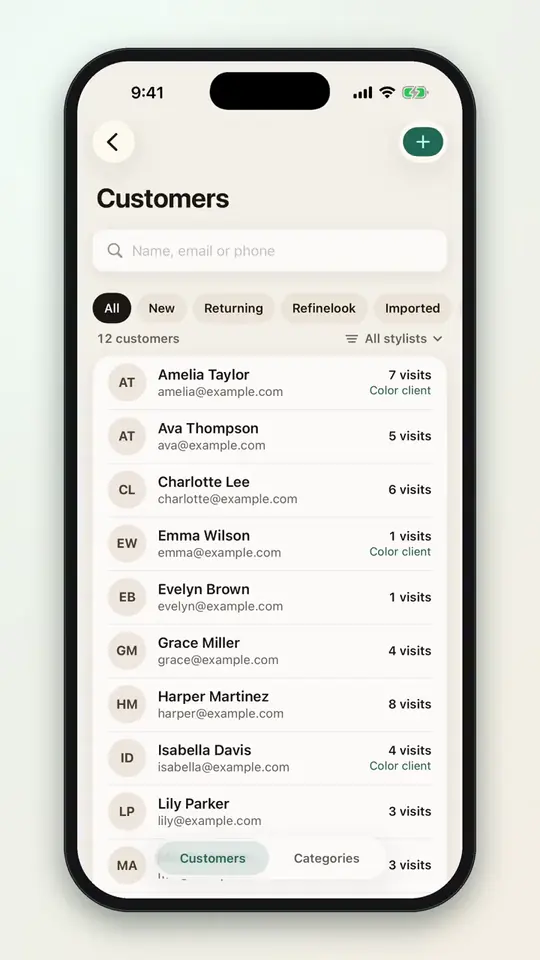 0:147-6Create a client group
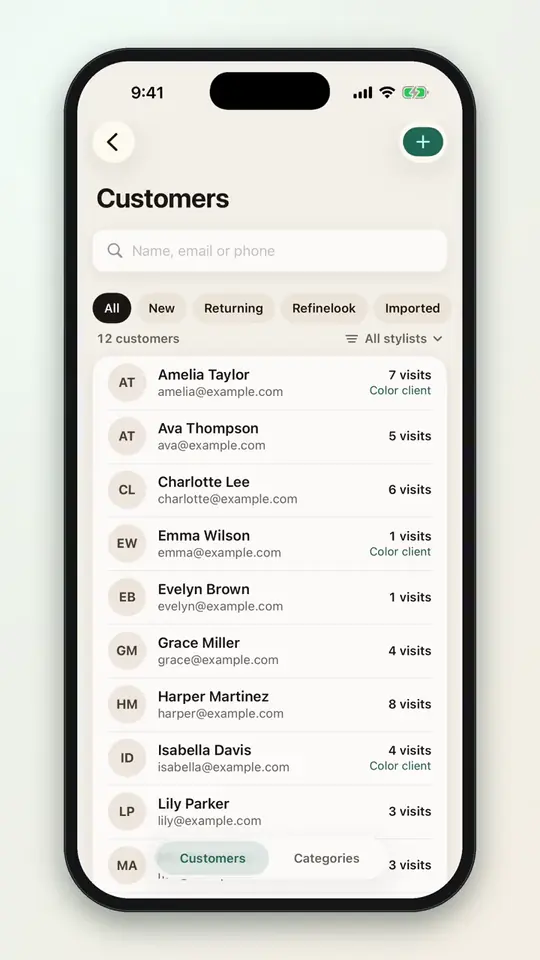 0:277-7Add clients to a group
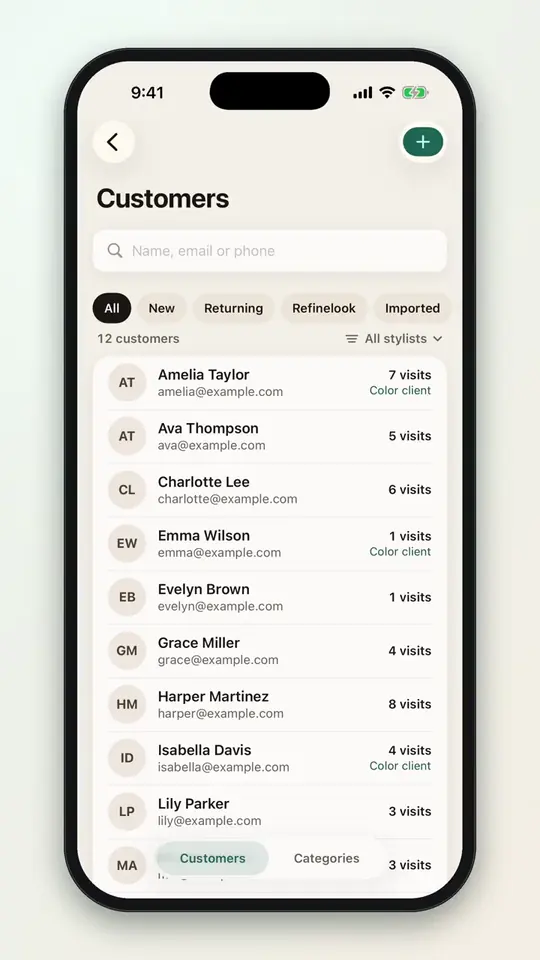 0:227-8Update many clients at once
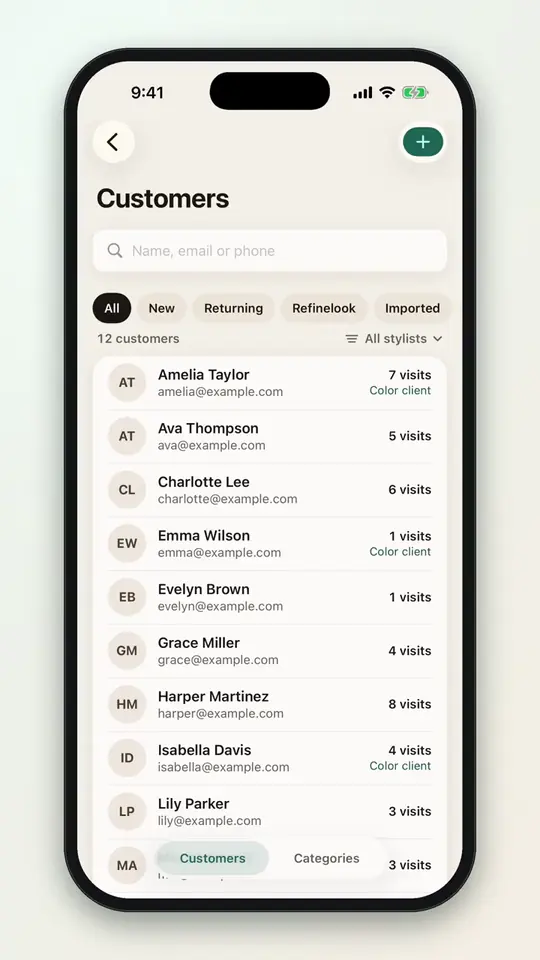 0:397-9Mark clients as returning
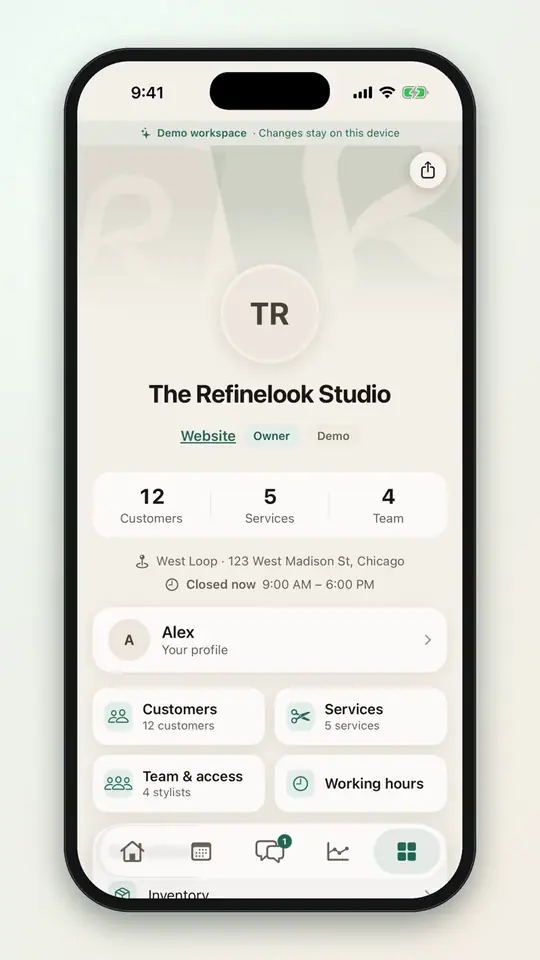 0:167-10Read your reviews
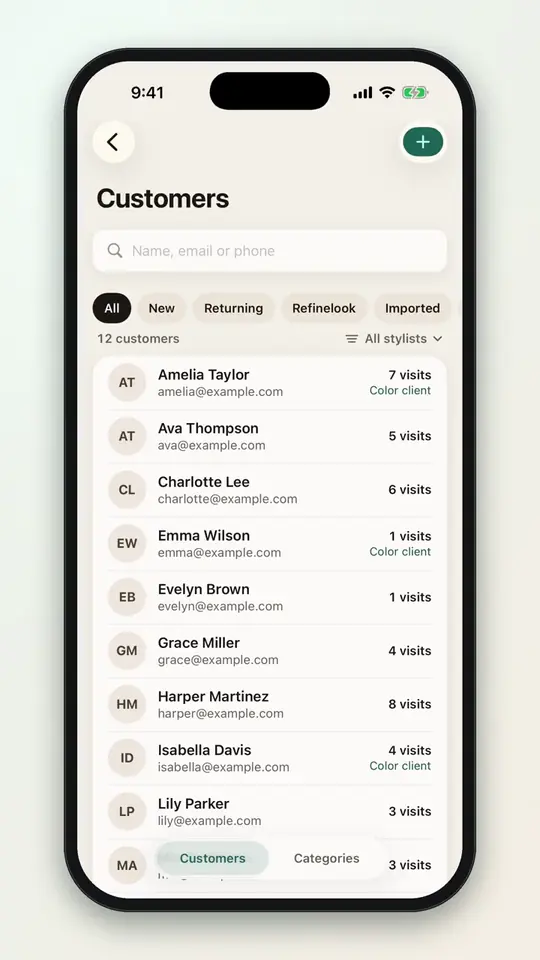 0:227-11Import your client list
No videos here match your search.
Messages
Chat and texts from your salon number side by side. Calls arrive with an AI summary and transcript. Pop-ups tell you when something needs you.
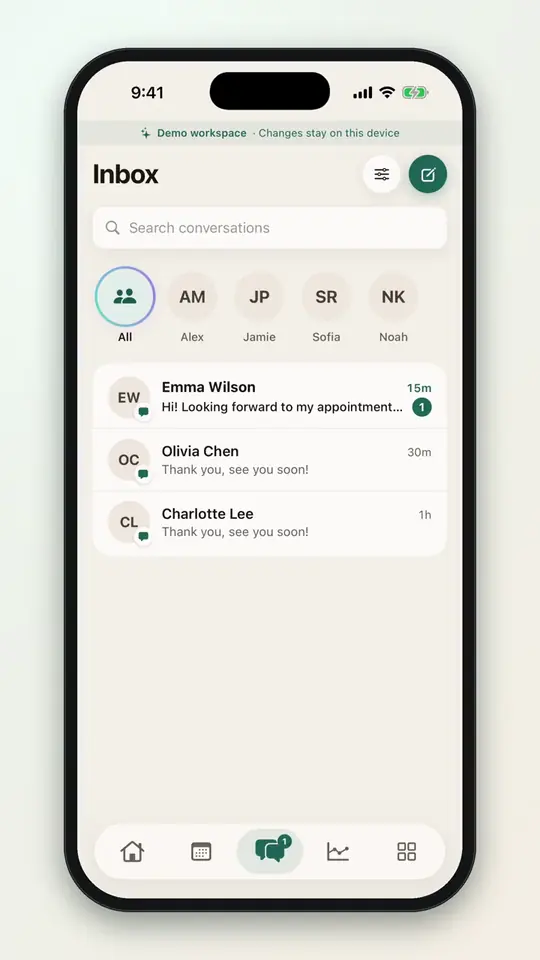 0:148-1Reply to a client
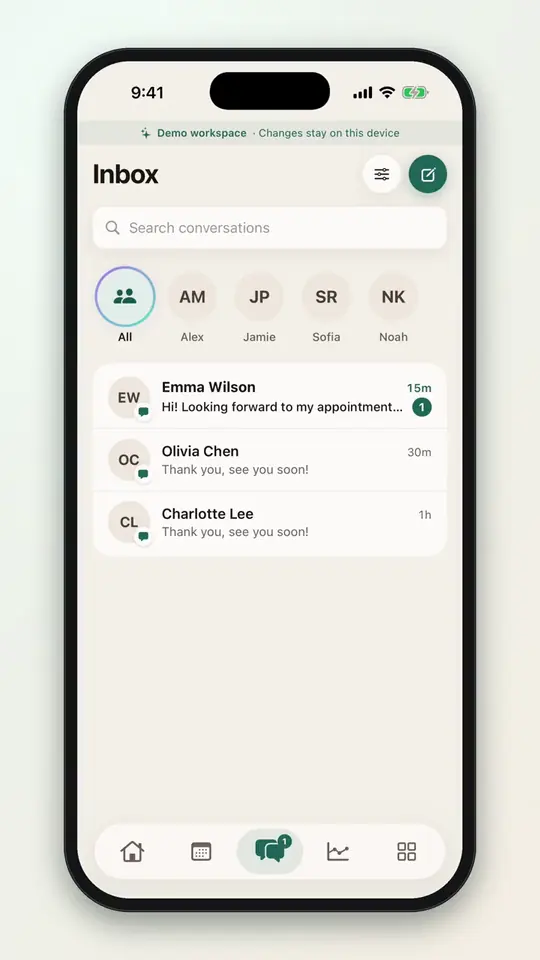 0:078-2Search conversations
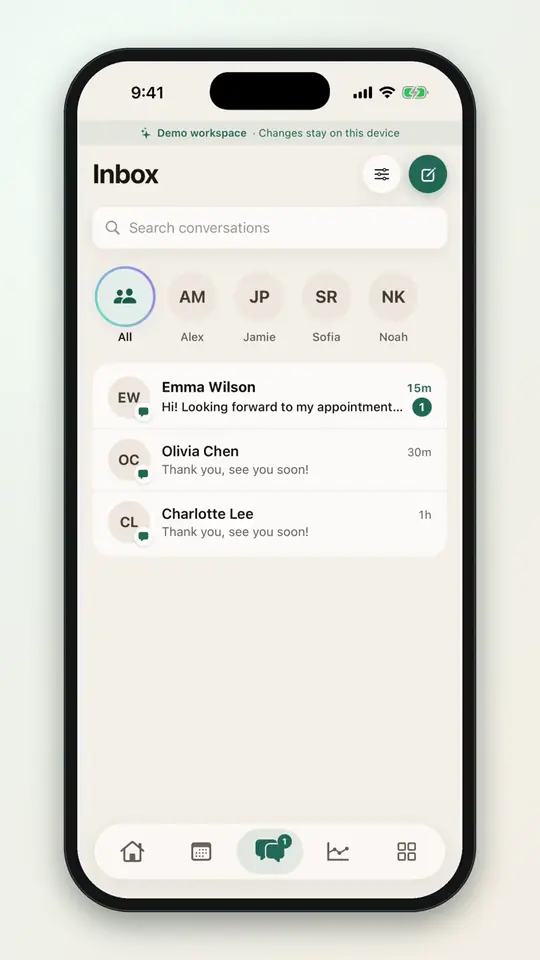 0:098-3Filter the inbox by stylist
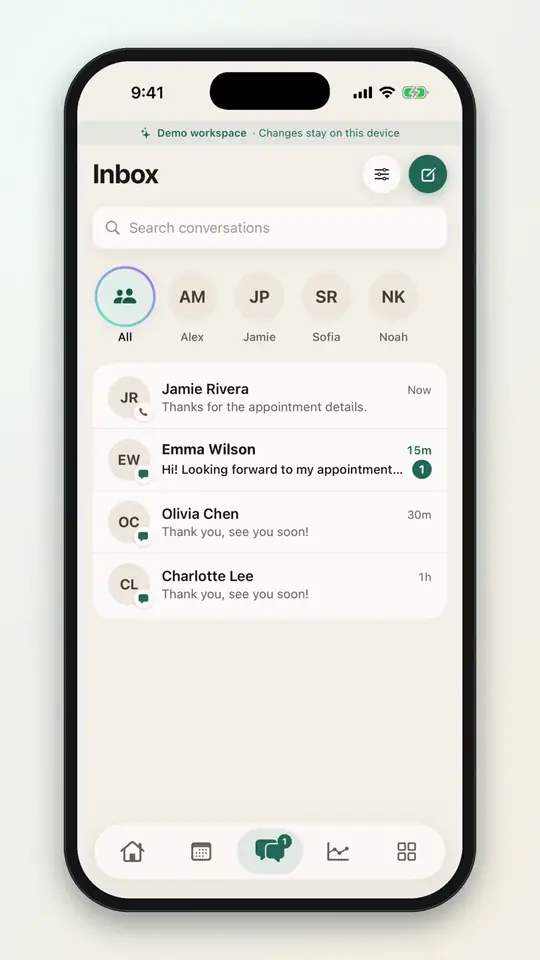 0:138-4See appointments in the chat
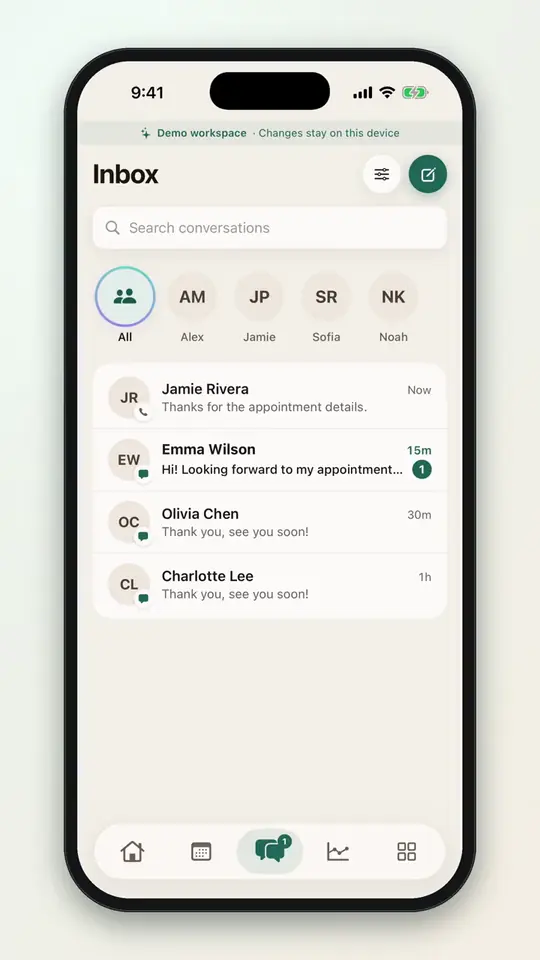 0:158-5Text from your salon number
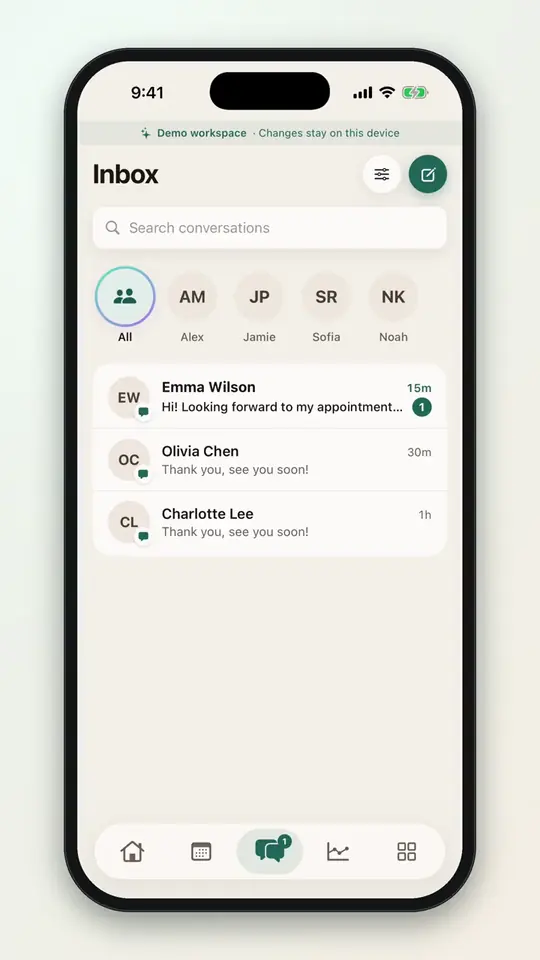 0:108-6Turn chat and texting on
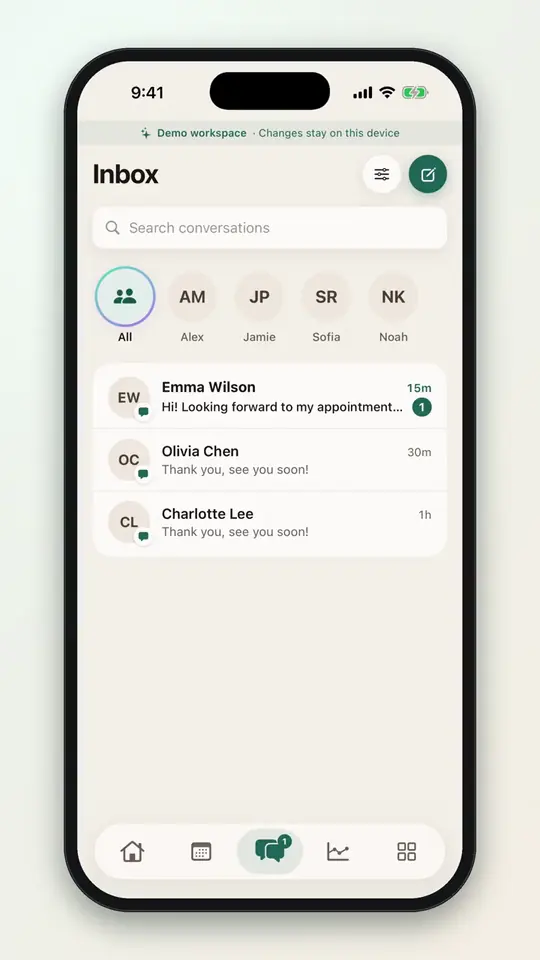 0:208-7Set how long messages are kept
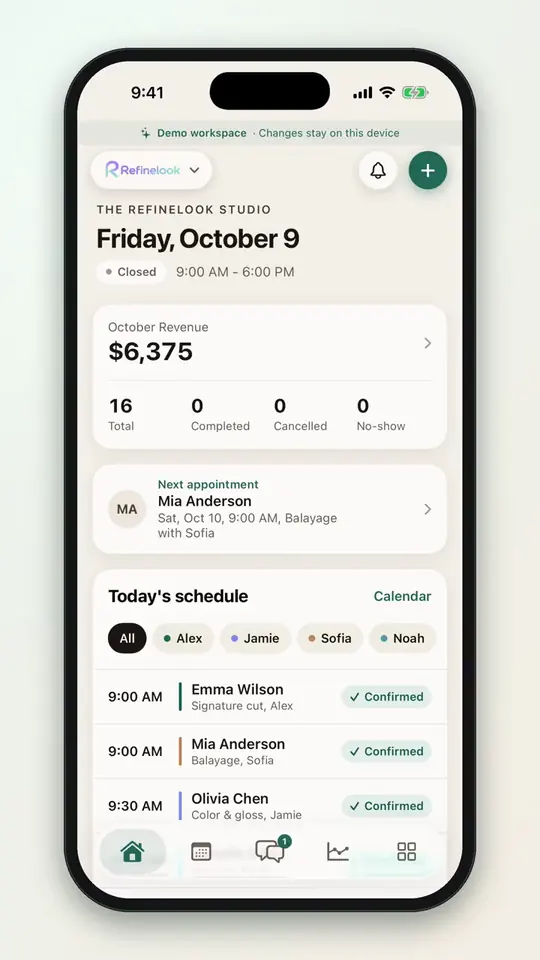 0:078-8Check your notifications
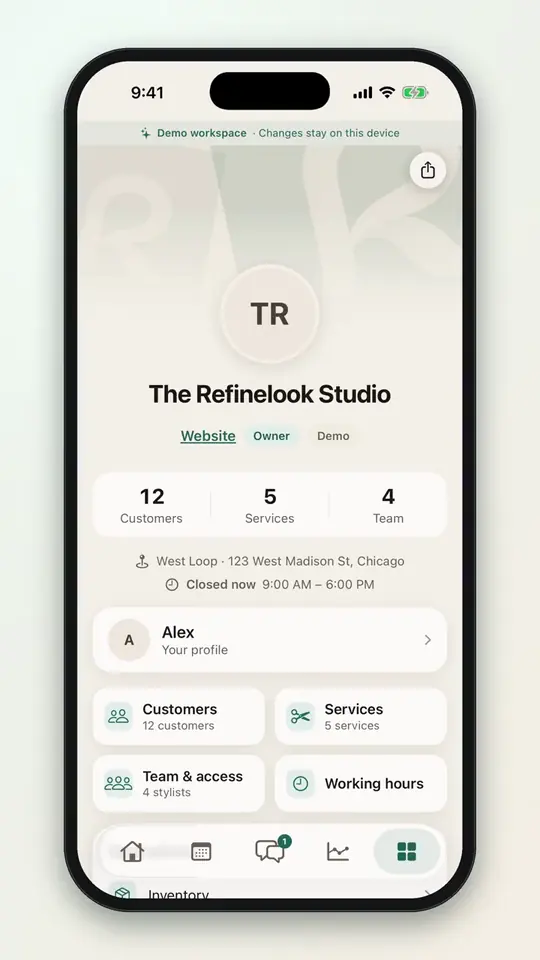 0:258-9Choose your push notifications
No videos here match your search.
AI
Ask about your salon in plain words, let AI draft a booking from a phone call, turn a menu photo into services, and let clients try a hairstyle on their own photo.
No videos here match your search.
Insights & operations
Today at a glance, five dashboards, payments and payouts, inventory with purchase orders, and your data exported whenever you want it.
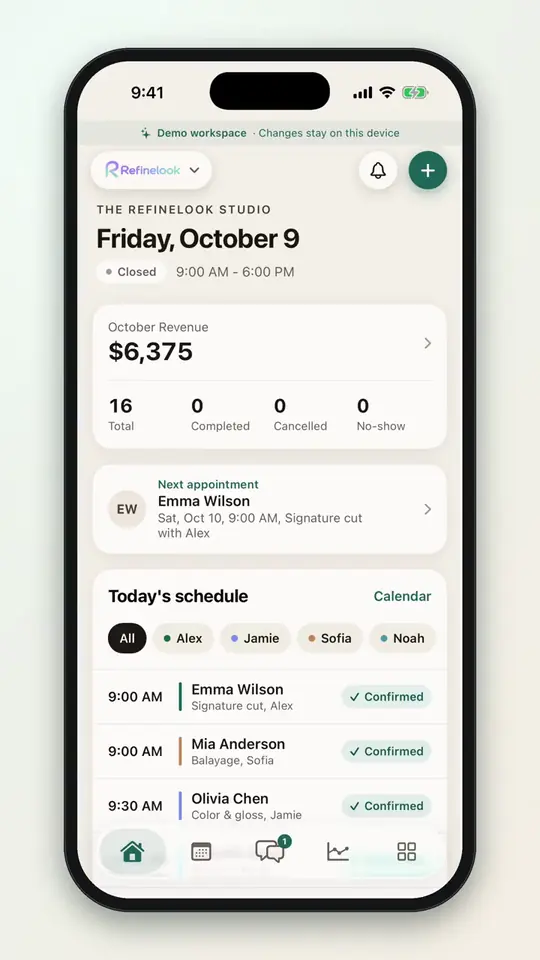 0:0910-1See today at a glance
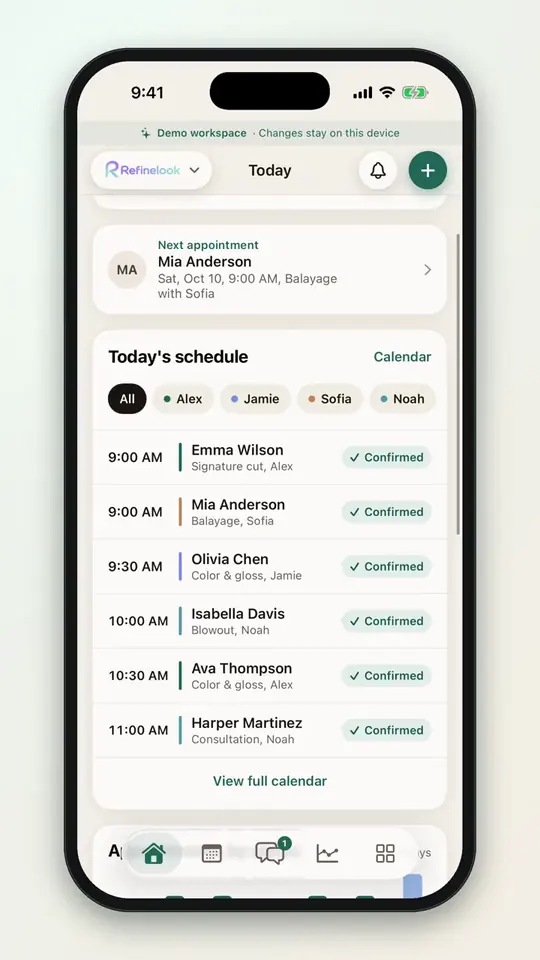 0:0910-2Follow each stylist's day
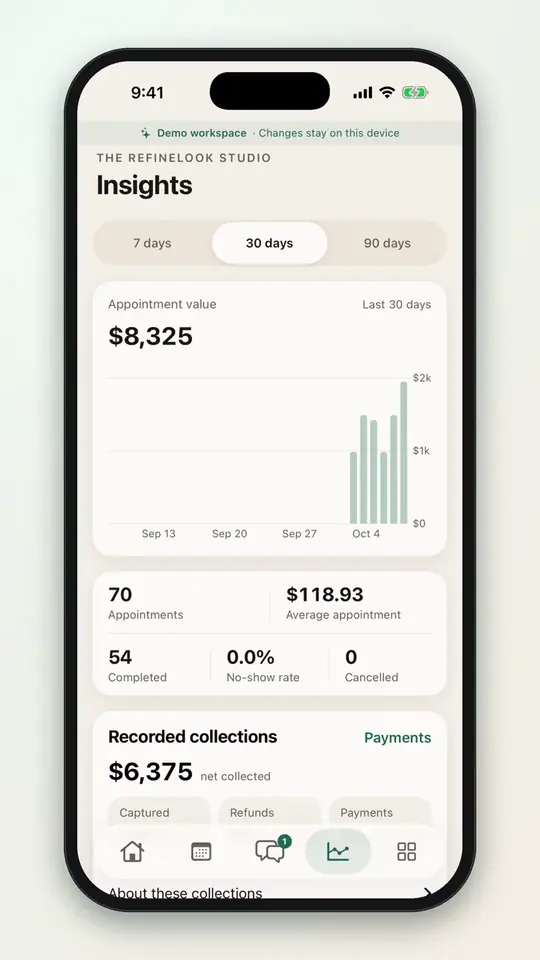 0:0710-3Compare recent periods
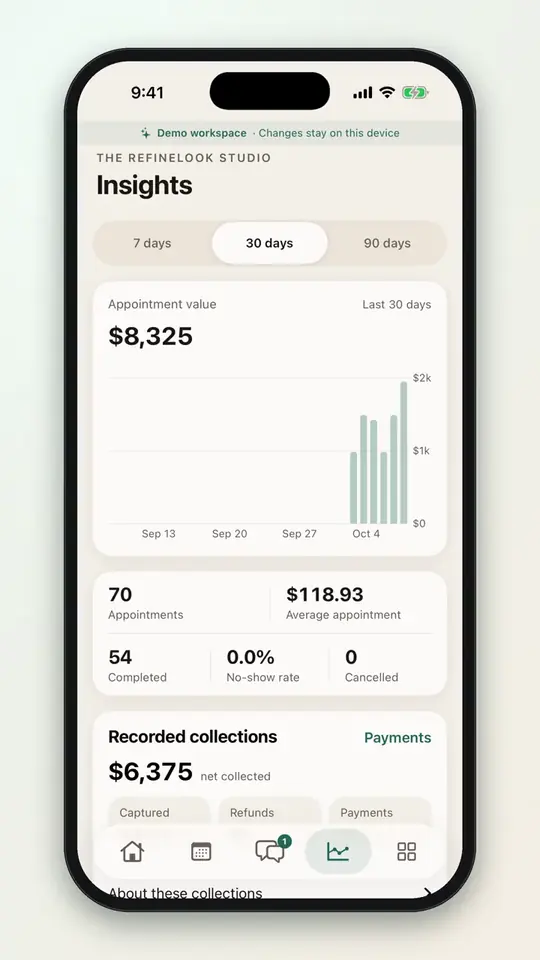 0:0710-4Check any day on the chart
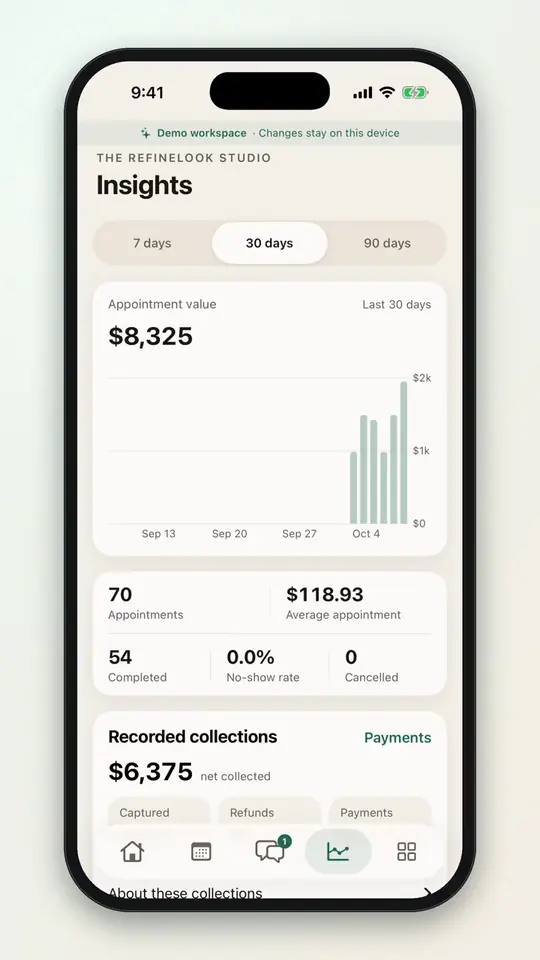 0:1310-5See team results and top services
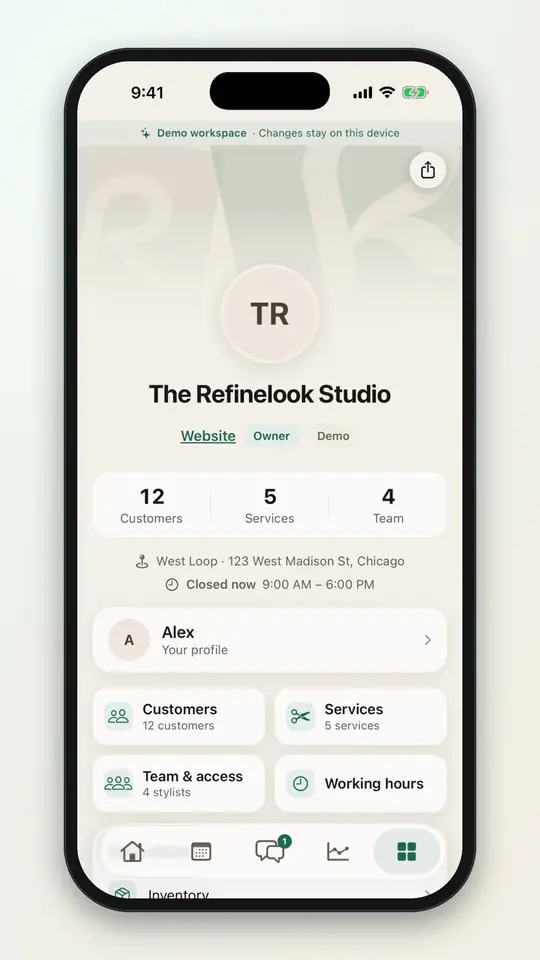 0:1410-6Review your payments
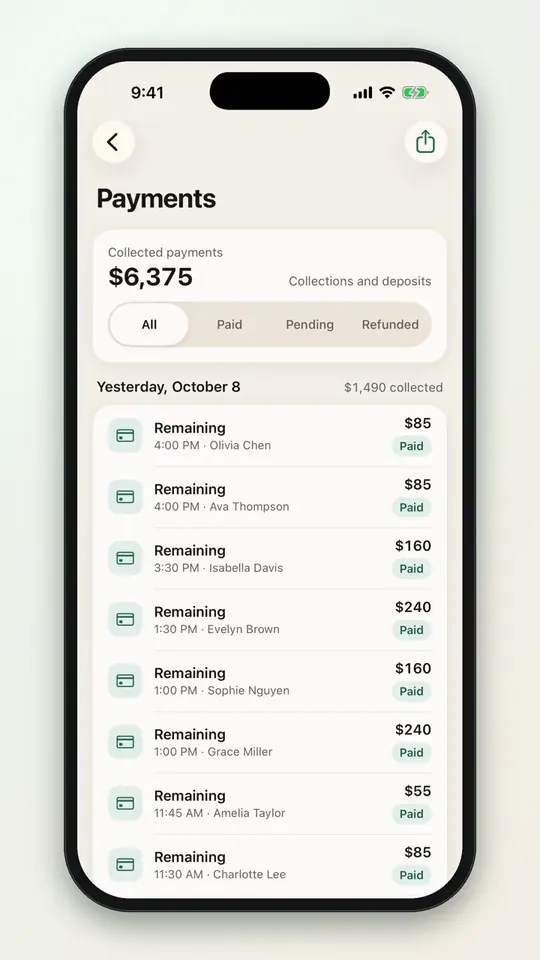 0:0610-7Export your payments
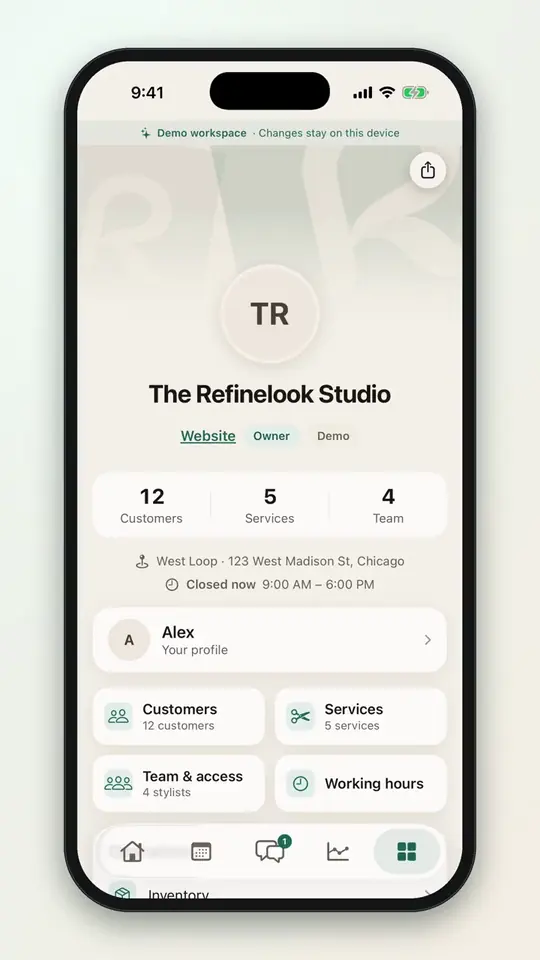 0:2510-8Add a product to inventory
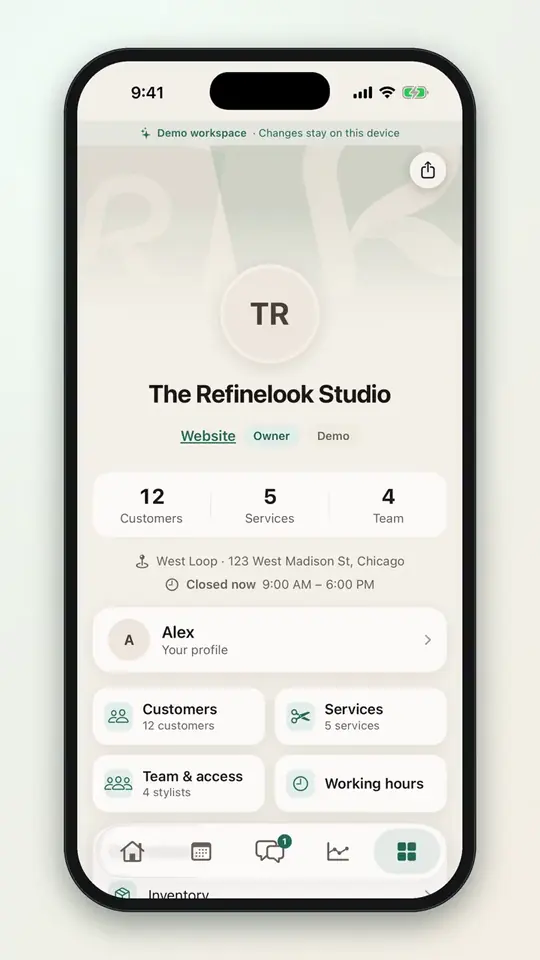 0:2110-9Adjust stock and spot low stock
 0:2510-10Switch the app language
No videos here match your search.
The written manual.
Booking statuses, deposits and refunds, subscriptions, SMS, AI credits and your account, in words. Open a chapter to read it.
Understand your appointment status.
Check the appointment details for the current status, payment deadline and any action addressed to you. Booking and deposit statuses are separate. A saved request or temporary hold is not salon confirmation.
| Status | Who acts next | What it means for the time |
|---|---|---|
| Temporary hold | You: finish the booking before the displayed timer expires. | The selected time is held temporarily. An expired or released hold must be selected again; it is not a confirmed appointment. |
| Requested / Booked | The salon: review the booking and any required deposit. You: follow outstanding instructions. | The appointment is recorded and may occupy availability, but the customer label Booked also covers requests awaiting salon confirmation. Wait for Confirmed. |
| Time proposed / Changes requested | The recipient of the proposal: accept or decline the proposed details. | A proposed time is not an accepted change. Read the existing appointment and proposal together; do not assume both times are reserved. |
| Confirmed | You and the salon: attend at the accepted time; complete any outstanding deposit requirement. | The salon has confirmed the appointment and its scheduled time. |
| Checked in | The salon: prepare to begin the appointment. | Arrival has been recorded; the appointment remains on the schedule. |
| In progress | The salon: deliver and complete the service. | The visit is underway. |
| Done / Completed | You: leave a review if eligible; contact the salon about corrections. | The visit is past. Completion does not itself prove payment or a refund. |
| Declined | You: choose another appointment if needed. | The salon has not accepted the request; there is no confirmed visit at that time. |
| Cancelled | You and the salon: separately resolve any refund due. | The appointment has ended and no longer reserves the visit. A cancellation is not a refund receipt. |
| No Show | You: contact the salon if the attendance record is wrong. | The salon recorded nonattendance; any charge follows the disclosed salon policy. |
Deposits, cancellations & refunds.
- Before submitting: read the salon’s service price, deposit amount, deadline, cancellation policy and payment method. Keep your booking reference and the policy shown with the appointment.
- Pay by the displayed deadline: online checkout and payment directly to the salon are different flows. An outside-payment deadline uses the salon timezone and can be immediate. The salon may cancel an unpaid appointment; do not assume an automatic grace period.
- Verify the result: after online checkout, check the recorded payment status. If payment fails or remains pending, contact the salon before paying again. For outside payments, provide the salon with the payment reference through its approved contact method; the salon must verify it.
- Cancel a visit: open My Hair → appointment details → the available cancellation action. Review the salon policy and confirm. Reopen the appointment and check that it says Cancelled. A chat asking to cancel, a failed request, or deleting your account does not complete cancellation.
- If an action is unavailable: use Chats or the salon’s public contact details. Ask the salon to confirm the result and any fee or refund. For a proposed time, accept or decline in the appointment flow; check the final status and date.
- Request a service refund: contact the salon that provided or charged for the appointment, giving the booking and payment references. A refund is complete only when the payment provider or salon confirms it; account deletion and cancellation do not issue refunds.
Refinelook subscription billing is separate from salon-service payments. The subscription controls below manage your software plan, not appointment deposits.
Manage your salon subscription.
| Plan | Monthly | Annual upfront | Bookable stylists | AI credits / month |
|---|---|---|---|---|
| Premium | $25 | $240 ($20/month equivalent) | 1 included · $10/month each added | 0 |
| Elite | $55 | $600 ($50/month equivalent) | 2 included · $10/month each added | 1,500 |
| Business | Custom | Custom | Agreed with you | Custom |
Annual prices represent a full year upfront and cost less than twelve monthly payments. Premium and Elite support one active location; Business supports multiple locations under its agreed plan. Premium includes one bookable stylist and Elite two. Each additional seat is $10 per month on monthly and yearly plans alike, and a seat added mid-month is prorated by day for its first month. Only active stylists use a seat, including an owner who provides services: you can add stylists at any time and make them active as seats allow. Check Team or Manage → Usage for the active stylists counted.
- Open settings: in the professional workspace, choose Manage under the current plan. Plans, Billing and Usage are in the same settings window.
- Review billing: Billing shows the current period end, payment history and billing information. Use View all when available for older entries. Test-mode entries are simulated; there is currently no real invoice download or automatic card charge.
- Change plan: choose Plans, select monthly or yearly, choose the plan, and review checkout before confirming. For a lower-capacity plan, select the location and stylists to keep active. Excess resources are paused after confirmation; their records and existing appointments stay saved.
- Cancel: open Billing → Cancel plan → Confirm cancellation. Check the displayed end date. Access continues until that date; an active plan is needed to reopen the workspace afterward. Keep plan can undo a scheduled cancellation before it ends.
- Export first: use the salon export in Business settings while access is available. Cancelling a plan does not delete the salon, erase customer accounts or cancel existing appointments. Arrange existing visits with your clients separately.
For billing conditions and future paid-checkout disclosures, read Terms of Service — salon subscriptions.
Understand SMS usage.
The published SMS & Dedicated Number add-on is a one-time $20 fee to create the phone number, then $35 per month per location for SMS linked to the salon's website, including 1,000 SMS segments per month. Additional usage is $0.02 per segment. A long text or some characters can use multiple segments. This is separate from the base subscription.
Open Manage → Usage to see recorded SMS segments, enabled locations and the displayed UTC monthly usage window. A count of texts in a connected Quo inbox is not a Refinelook billable segment total. Usage can update after delivery events are processed.
The current interface does not provide a configurable SMS spending cap, an overage alert guarantee or a self-service number-porting control. Before activating paid messaging, check the offered schedule for inbound/outbound counting, failed or undelivered messages, MMS, reset dates, carrier fees and number cancellation or transfer. Do not assume unlisted traffic is included or billable.
Send only messages the recipient agreed to receive from that salon for that purpose. Importing a number is not messaging consent. Honor STOP and other valid opt-out requests, and keep service messages separate from salon or platform marketing.
Use AI with a person in control.
- AI Agent: salon owners with an eligible active plan can ask questions about the selected salon. It reads a limited salon context and cannot change bookings or other records. Review answers for accuracy.
- Call assistance: for a connected Quo account, opening a completed call transcript can request an AI booking suggestion. Review the customer, service, stylist, location and time, then confirm through the normal booking, change or cancellation flow. A suggestion alone changes nothing. This is not an autonomous service that answers incoming calls.
- AI Style Preview: coming soon; hairstyle generation is not available in the current web app. Uploaded reference photos remain available for consultations.
- Imports: where enabled, AI can extract customer lists or service menus and suggest spreadsheet mappings. Review and correct the preview before saving.
Elite includes 1,500 AI credits per UTC calendar month, shared across the owner account; Premium includes none. Each AI Agent question uses 5 credits and phone calls use 30 credits per minute. Failed requests release their reserved credits; reopening saved call results does not use more. Import costs depend on the enabled operation and its displayed allowance. Additional credits are priced at $10 per 1,000.
Manage → Usage shows recorded use and available credits, including pending requests. Included credits reset monthly and do not accumulate. When no credits remain, wait for the next reset or review an eligible plan change. Review AI outputs before relying on them; they may be incomplete or wrong and do not guarantee a salon result.
Make your account work for you.
- In My Hair → Settings, review your contact and hair-profile details and preferred language. Browser location permissions are managed separately in your browser.
- Choose Download my data to generate an account export in JSON format. Store that file somewhere private: it can contain personal and appointment information.
- Choose Request account deletion to submit a request. Keep the request date and acknowledgment for follow-up. Your account remains available while the request is processed; this is not immediate deletion and does not cancel a subscription or appointment.
- Salon owners can download salon data from Business settings. Delete salon is a separate, permanent salon action with explicit confirmations; it does not delete customer or team accounts.
Read the Privacy policy for information categories, service providers, visibility, and account controls.
A little help, right when you need it.
The map is not showing my area.
Check your browser’s location permission for Refinelook, then use the location control again. If your device cannot provide a location, explore the United States overview or search another area. A blocked map service or an unavailable network can prevent map tiles from loading.
There are no appointment times.
Try another date, stylist, or service combination. Slots depend on service duration, assigned stylists, working hours, buffers, and other appointments. Contact the salon using the details on its profile if you need help finding a time.
My appointment still says Requested.
The salon may need to review your request or verify a deposit. Read the appointment details and messages. A request, payment made outside Refinelook, or proposed change should not be treated as confirmed until the status says Confirmed.
My salon is missing from customer search.
Owners should check Search visibility and eligibility guidance in Business settings, then review profile completeness, services, staff assignments, and availability.
I cannot find a professional tool.
Check that you are signed in to the right professional account and salon workspace, and that the salon has accepted your connection. The owner can review your role and permissions.
I did not receive a verification message.
Check the email address or phone number you entered and your spam folder. Use the resend option when available and follow any displayed cooldown. Never share your verification code.
Find the right help.
Refinelook is operated by Refinelook, inc. Company and direct-contact fields below are reserved for verified details.
- Legal operator
- Refinelook, inc
- Business address
- Phone
- Platform support & billing
- Privacy requests
- Content reports & appeals
- Salon services, appointments, deposits or refunds: contact the salon using its public salon page or your appointment conversation. Its public contact details can be used without signing in.
- Platform access, billing, privacy or content: use the corresponding direct contact above once provided. Include a booking or account reference, the issue and a reply address. Never send passwords, verification codes or full card details.
- Follow up on deletion: keep the request date and any acknowledgment. For account requests, quote those details to the privacy contact; for a salon-held record, contact that salon even if you do not have a Refinelook account. An imported client does not need to create an account to ask the salon about their data.
- Before deletion: separately cancel any subscription, resolve existing appointments and export records you need. A deletion request is not a subscription cancellation or an appointment cancellation.